

Before you start
Contact support before starting so they can purchase and prepare a WhatsApp-compatible phone number for your organization. Tenzo currently uses Twilio numbers for WhatsApp. You need a supported number available in the phone number selector before you can connect your WhatsApp Business Account; an existing number used for regular calls or SMS is not necessarily eligible. Have access to your company’s Meta Business account. Sign in with the account that should own your company’s WhatsApp Business Account. If the phone number selector is empty, contact support to arrange a number.Connect WhatsApp
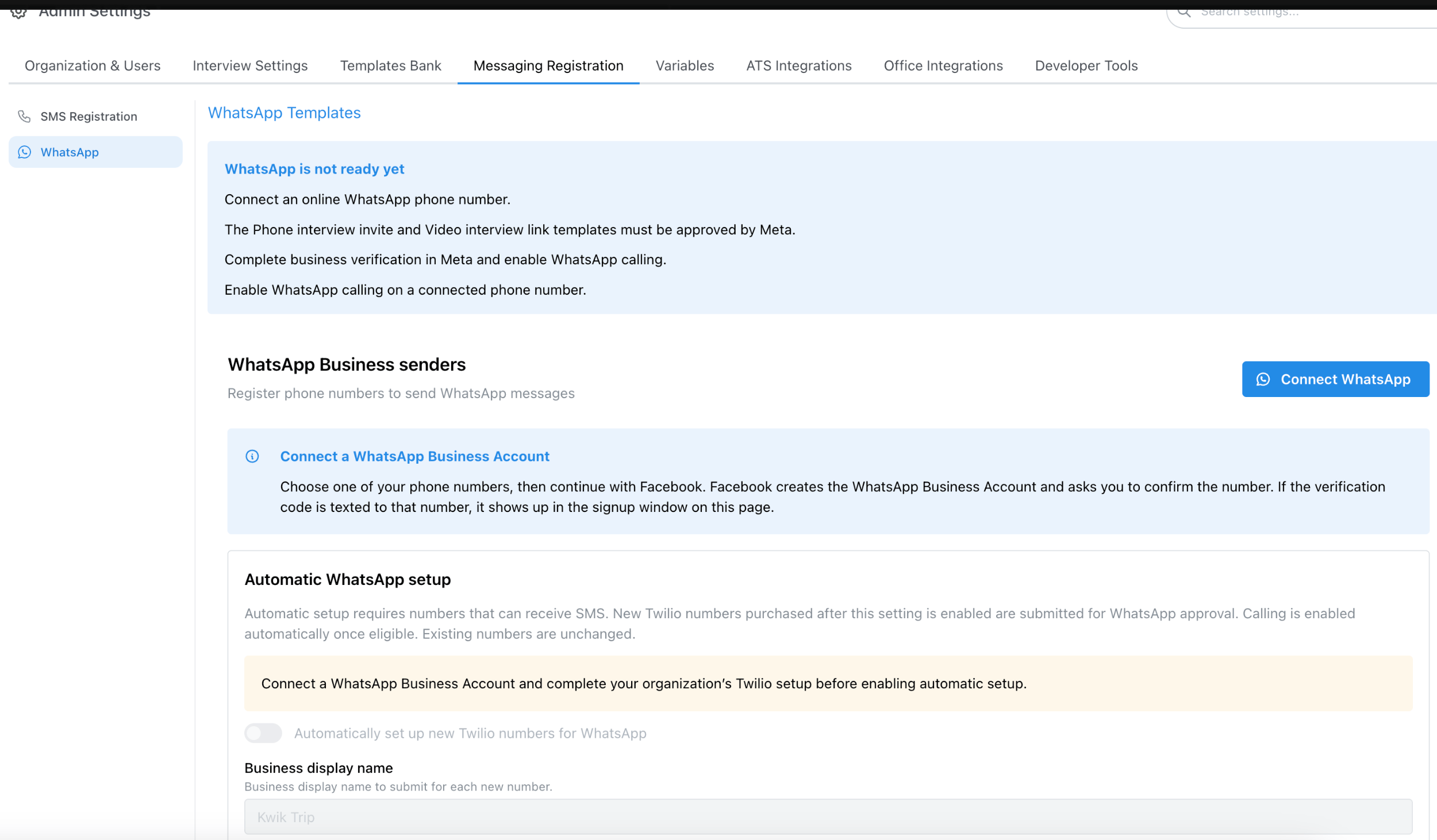
Start with Connect WhatsApp under WhatsApp Business senders. The readiness wording may differ from this example.
- Choose Connect WhatsApp.
- Select your phone number, enter your Business display name, and optionally add an About description.
- Wait for Log in with Facebook, then select it.
- In the Facebook window, select your existing business portfolio and WhatsApp Business Account to link them to Tenzo, or create a new portfolio and WhatsApp Business Account during signup. You do not need to create them in advance. Confirm your phone number when prompted.
- Choose text message verification. Copy the code shown in Tenzo’s Verification code box into the Facebook window.
- Finish the Facebook steps and return to Tenzo to check your sender’s status.
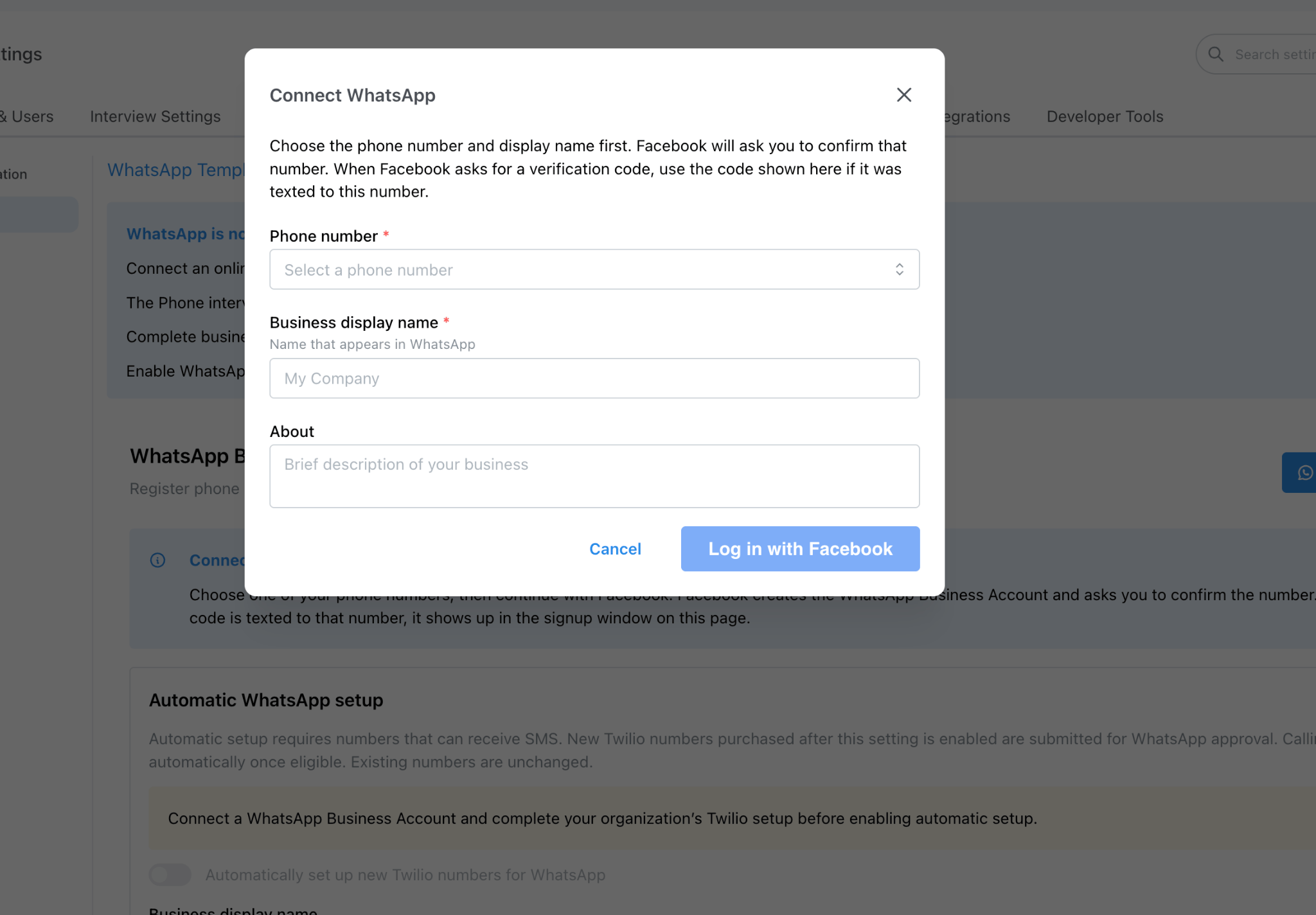
Choose the number prepared by support and enter your business display name before logging in with Facebook.
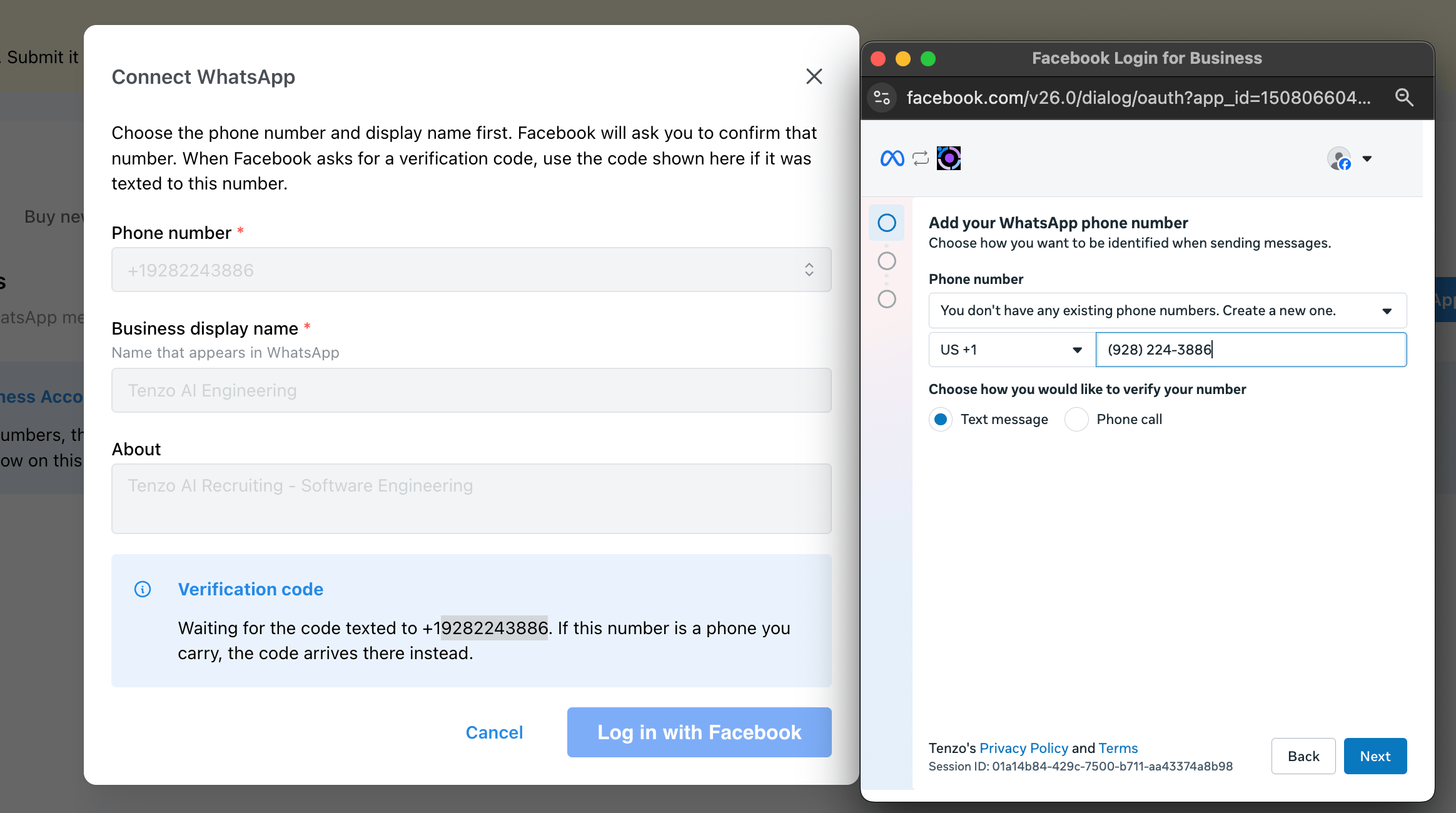
Enter the same phone number you selected in Tenzo and choose Text message verification.
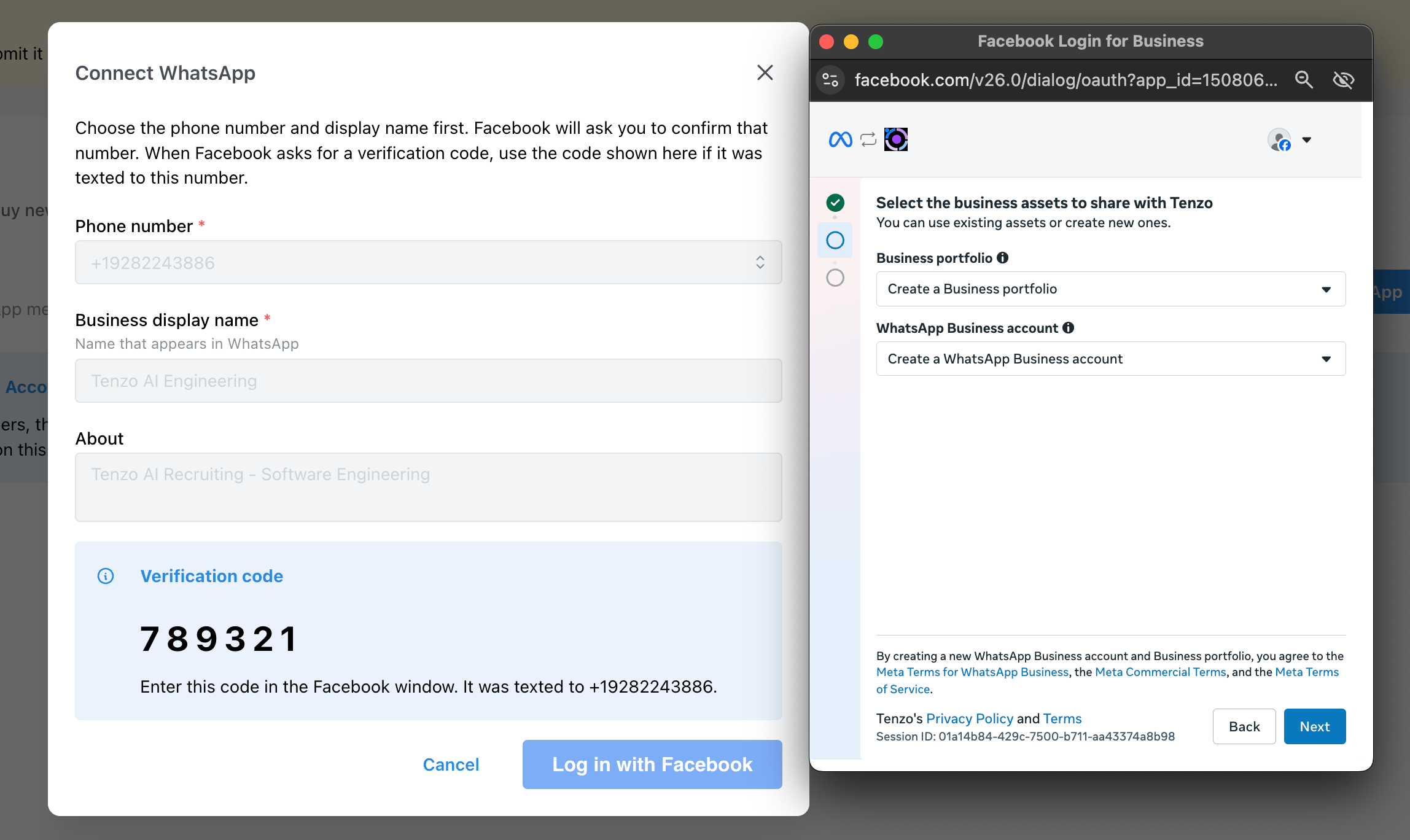
Choose your business portfolio and WhatsApp Business Account, or create them if needed. Tenzo displays the verification code when the text arrives.
Check that you are ready
Connecting your account is the first step. Before you can enable WhatsApp outreach, you need:- An online WhatsApp phone number.
- Approved initial call invitation and interview-link templates.
- WhatsApp calling enabled on a connected number, confirming its calling eligibility.
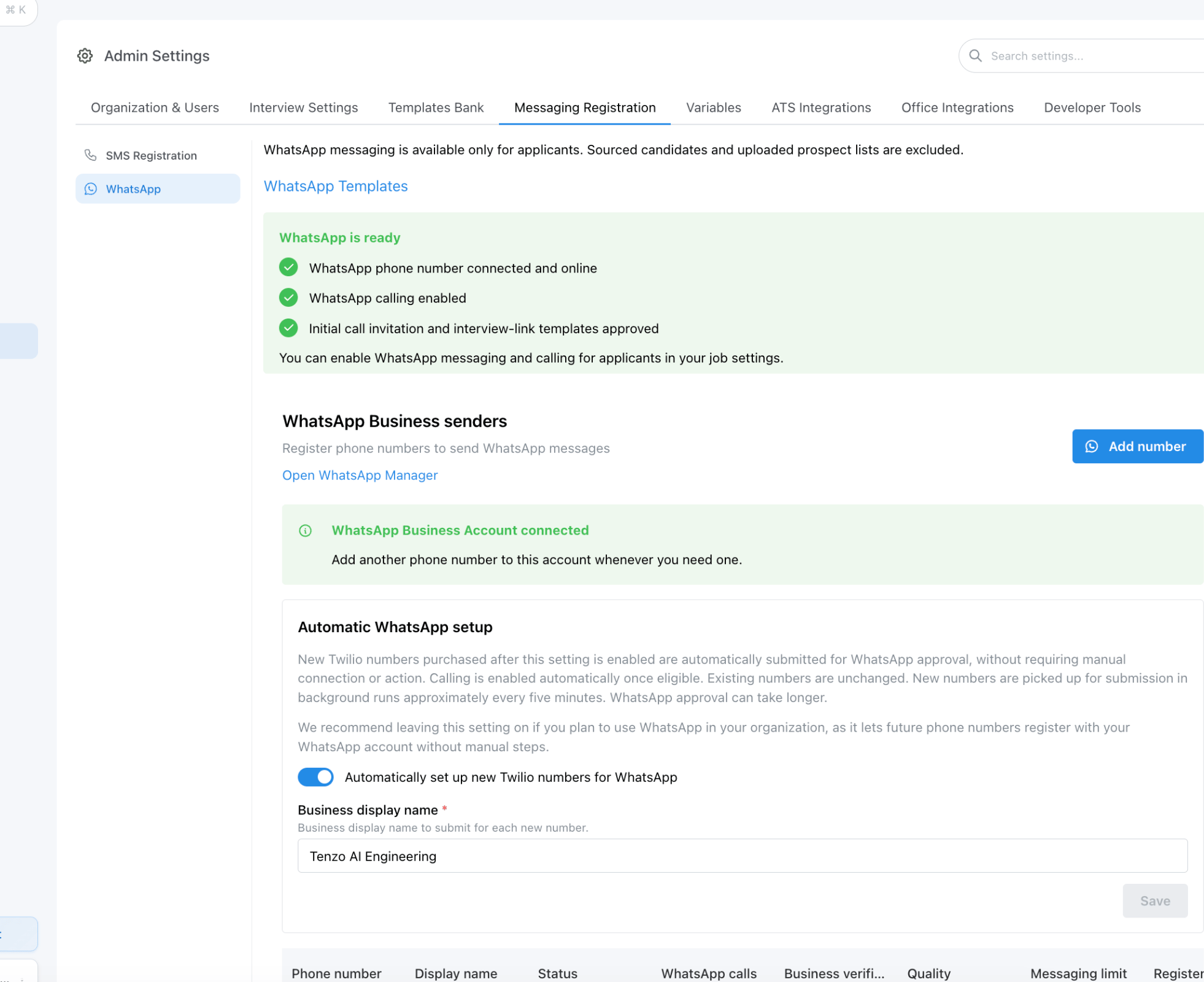
The ready notice confirms setup. The automatic setup option below it controls registration of future numbers.
Check your messaging limit
Open WhatsApp Manager → Account tools → Messaging limits and select your business account. The tier marked Current must be 2,000 or higher before you can enable WhatsApp calling. This is your allowance for business-initiated conversations in a rolling 24-hour period, not the number of messages you need to send. Calling remains unavailable below this threshold, even if your phone number is connected. Follow the requirements shown in Messaging limits to increase your limit, then return to Tenzo and select Check again. Reaching 2,000 meets this prerequisite; still confirm that calling is enabled on your number as described below. See Twilio’s WhatsApp calling requirements.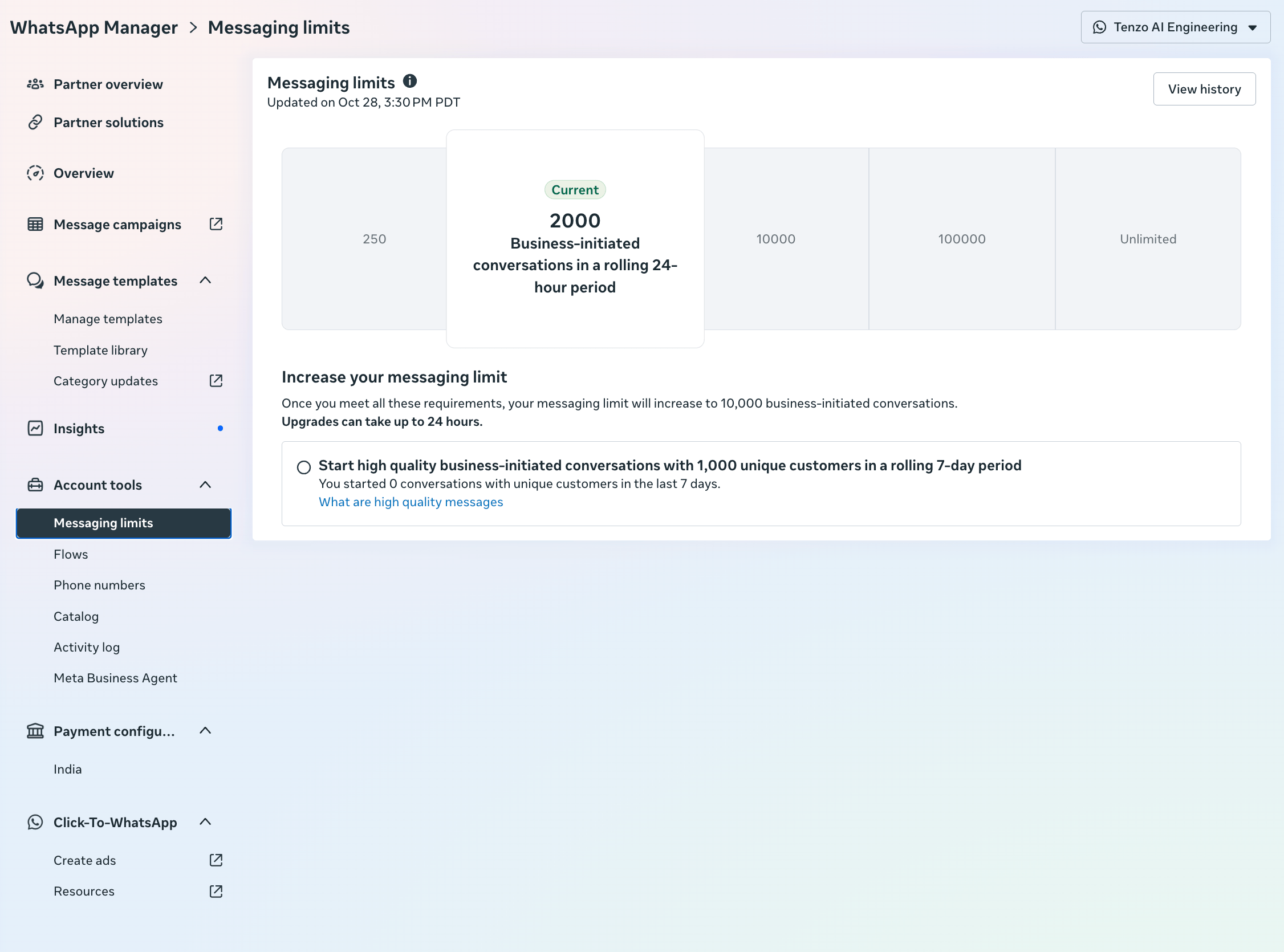
WhatsApp Manager → Messaging limits: the Current tier must be at least 2,000 to enable calling.
Confirm calling for a specific number
In Admin → Messaging Registration → WhatsApp, find the number in the WhatsApp Business senders list. On that number’s row, check both:- Status is ONLINE.
- WhatsApp calls is ENABLED.
- Select Open WhatsApp Manager in Tenzo.
- Open the matching phone number in WhatsApp Manager.
- Select Call settings.
- Confirm Allow voice calls is On.
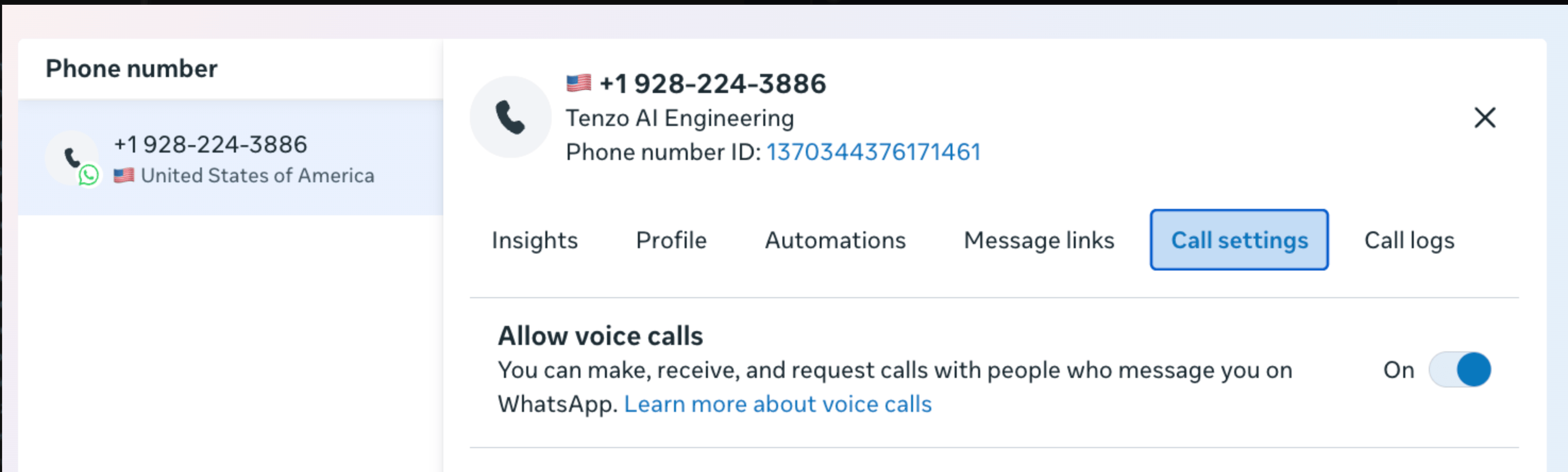
In WhatsApp Manager, open the number’s Call settings and confirm Allow voice calls is On.
Automatically set up additional numbers
After connecting your account, you can enable Automatically set up new Twilio numbers for WhatsApp and save your Business display name. This setting is available on the WhatsApp setup page and, for eligible organizations, in Manage existing phone numbers. See Automatic WhatsApp setup for submission timing, supported numbers, and approval.Review your messages
Tenzo submits the initial message templates for approval as part of setup. Use the templates link in the WhatsApp section to review or customize them. You can also open Admin → Templates Bank → WhatsApp Templates. See WhatsApp Templates for editing, variables, approval statuses, and rejected submissions. Before submitting custom wording, review the Marketing category guidance so your message clearly describes follow-up on an existing application.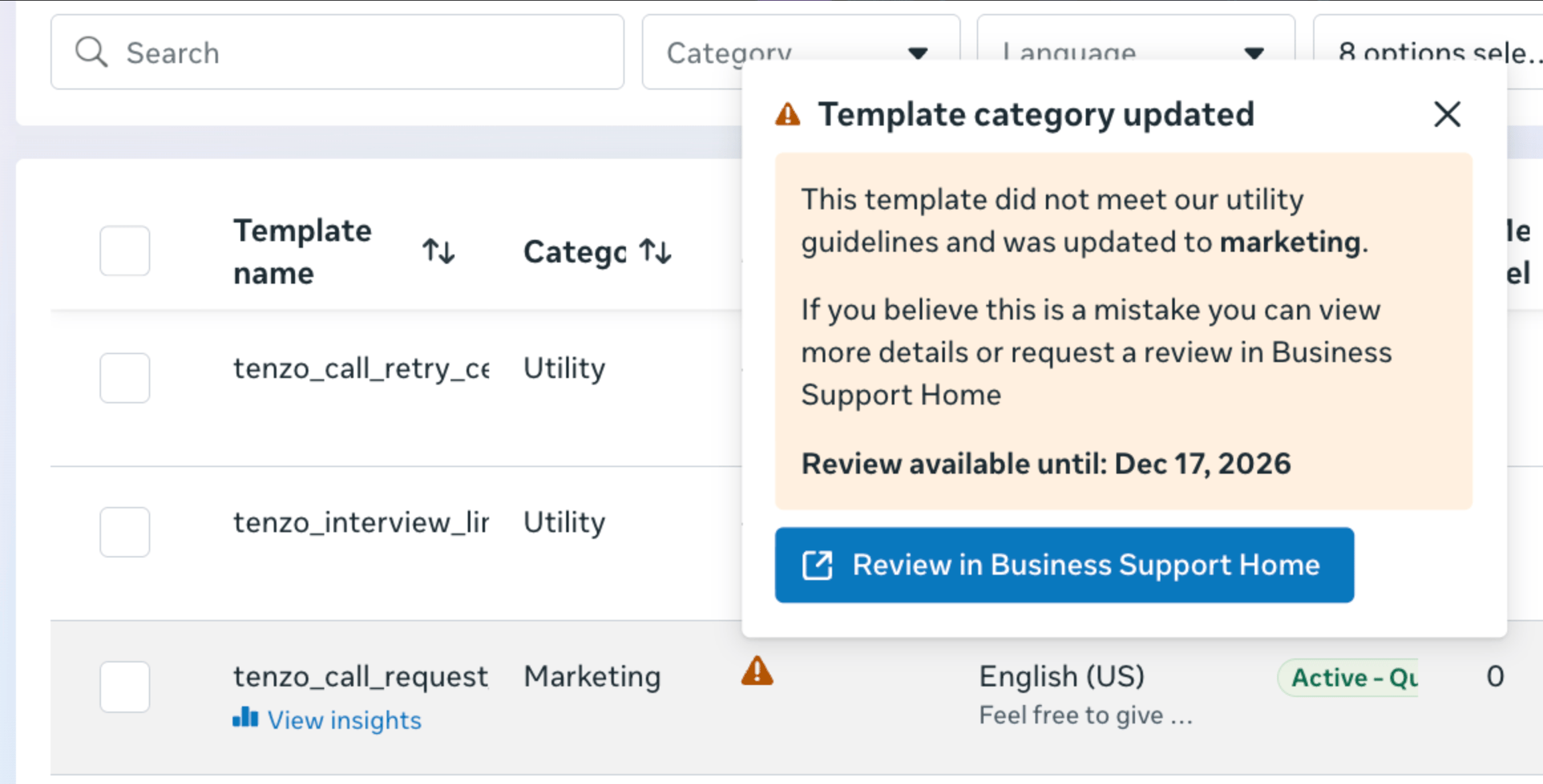
Meta can reclassify a template as Marketing. Check the category-change notice and review the linked guidance before submitting custom wording.
Enable outreach on your jobs
Once your organization is ready, the WhatsApp tab appears in the job’s screening configuration sidebar. Connecting your account makes WhatsApp available; you still choose an outreach mode under Phone and WhatsApp outreach.- For one job: Open the job’s Configure tab, select WhatsApp in the screening sidebar, and choose Phone + WhatsApp or WhatsApp only. If the job is using the organization default, choose Override Org Default Settings first, when permitted. This tab also previews your approved outreach templates.
- For your organization: Open Admin → Interview Settings → Outreach → WhatsApp, choose Phone + WhatsApp or WhatsApp only, and select Save Settings. Jobs without their own override follow this default. Use the organization’s Optional or Required setting to control whether individual jobs can override it; see Organization Defaults.