

Overview
User Settings allow individual users to customize their notification preferences and, when enabled by your organization, their personal calendar connection. These settings can override organization and job-level defaults for your specific user account. Access User Settings from the user menu in the top right corner of the platform, or navigate directly to/user-settings.
Calendar (individual mode)
When your organization uses Individual (per user) calendar integration, the Calendar and Calendar Availability tabs appear in User Settings. Each recruiter connects their own Google or Microsoft work calendar so Tenzo can check availability and schedule follow-up interviews.1
Open the Calendar tab
Go to User Settings and select the Calendar tab (or open
/user-settings?tab=calendar).2
Connect your calendar
Choose Connect Google Calendar or Connect Outlook Calendar and sign in with your work account.
3
Configure availability
After connecting, use the Calendar Availability tab to set when you are available for follow-up interviews.
Notification Settings
Control which notifications you receive and set thresholds for when you should be notified.Using Custom Settings
By default, notification settings are determined by organization and job settings. You can enable custom settings to override these defaults for your user.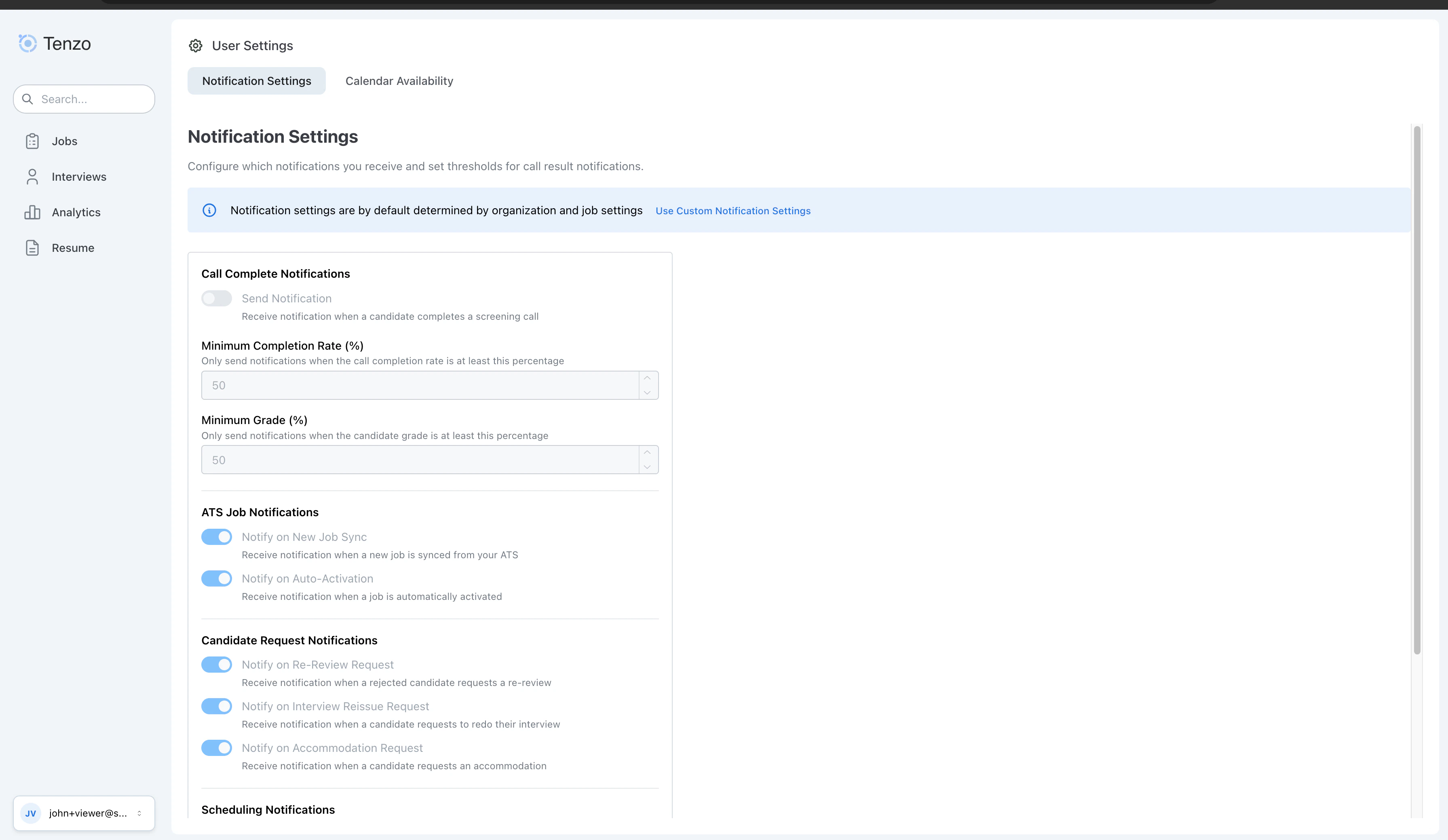
Notification Settings Toggle
Available Notification Toggles
Call Complete Notifications
Receive notifications when a candidate completes a screening call.- Notification Channel: Choose between Email or Microsoft Teams (if connected)
- Minimum Grade: Only receive notifications when the candidate grade meets or exceeds this threshold. Failed-knockout interviews always score 0, so a Minimum Grade above 0 excludes them (same as a completed call graded 0%).
- Minimum Completion Rate: A legacy notification threshold. Because call-complete notifications only fire once the call has finished (including failed-knockout outcomes), this value is not currently applied — only Minimum Grade filters which finished interviews notify you. It does not control ATS writeback or call retries.
Microsoft Teams Bot
The Tenzo Recruiting bot sends call-complete notifications in a personal Microsoft Teams chat when you choose Microsoft Teams as your notification channel under Call Complete Notifications. Each notification includes a link to review the resulting call details in Tenzo. Before Teams notifications can be used, an organization admin must connect Microsoft Teams from Admin Settings > Office Integrations > Teams Notifications. After the organization is connected, each user can choose Microsoft Teams as their notification channel in User Settings. The Teams bot chat is for delivering these notifications and basic help. If you ask the bot what it does, it describes call-complete notifications only. It does not manage jobs, candidates, interview settings, or account configuration from Teams. Type Help in the bot chat to see supported commands and setup guidance. New Tenzo users can contact Tenzo Support to get started.ATS Job Notifications
- Notify on New Job Sync: Receive notification when a new job is synced from your ATS
- Notify on Auto-Activation: Receive notification when a job is automatically activated
Candidate Request Notifications
- Notify on Re-Review Request: Receive notification when a rejected candidate requests a re-review
- Notify on Interview Reissue Request: Receive notification when a candidate requests to redo their interview
- Notify on Accommodation Request: Receive notification when a candidate requests an interview accommodation
Scheduling Notifications
- Notify on Follow-Up Booking: Receive notification when a candidate books, reschedules, or cancels a follow-up interview during a call or via SMS
Candidate Opt-Out Notifications
- Notify on Candidate Opt-Out: Receive notification when a candidate opts out of the AI interview
Disabling Notifications from Email
All notification emails include a footer with links to disable notifications:- User Settings: Takes you to your personal notification settings
- Admin Settings: Takes you to organization-level notification settings (admin access required)