

Overview
When a candidate doesn’t pass resume screening, Tenzo can send a resume feedback email that gives the candidate transparency into what didn’t match and the opportunity to provide additional context or information that may have been missed. Resume feedback emails are controlled by the Resume Feedback Emails setting group and the selected Resume Feedback Email Template. For template details (variables, defaults, and job-specific selection), see Resume Feedback Email Templates.Resume feedback emails are sent only to candidates who applied for the role and didn’t pass resume screening. Sourced candidates are automatically excluded — since they did not apply, sending resume feedback would not be appropriate.
For emails sent after a thumbs-down or an ATS disposition, see Rejection Emails.
Where to configure
You can configure resume feedback email behavior at two levels:- Organization defaults: Admin > Interview Settings (applies as the default for all jobs)
- Job overrides: Job > Configure > Settings (optional, depending on org requirements)
Settings explained
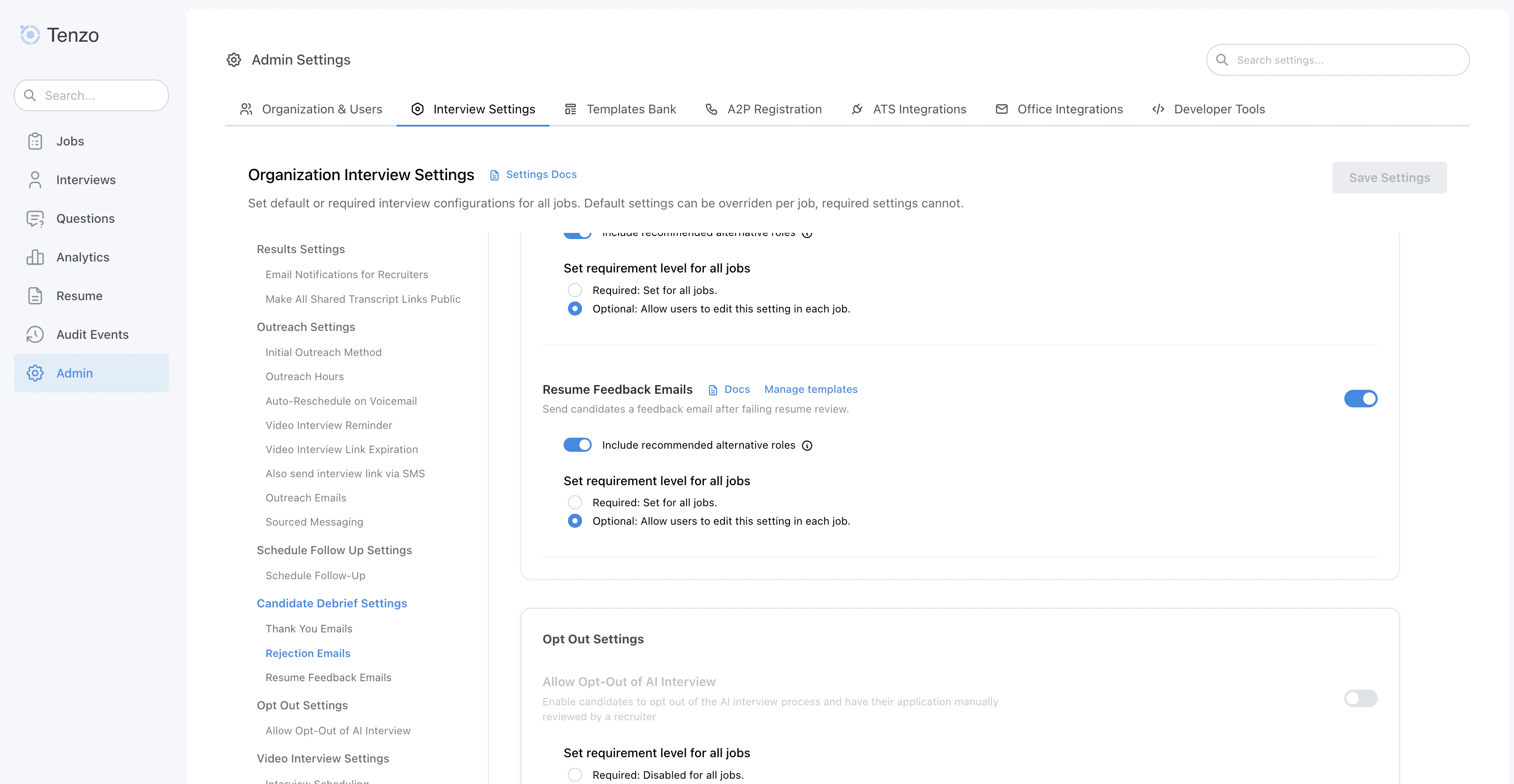
Resume Feedback Emails settings
Enable Resume Feedback Emails
- What it does: Turns resume feedback emails on or off.
- When emails are sent: Emails are scheduled during business hours after a candidate doesn’t pass resume screening. They use the same Rejection email delay (default 48 hours). If the candidate is no longer Resume Rejected when the delay elapses (for example after Progress to Interview), the email is skipped.
- Email content: The actual subject and body come from your Resume Feedback Email Template (see Resume Feedback Email Templates).
If a rejection email is also scheduled for the same candidate (for example, if the candidate was also thumbs-downed), the rejection email takes precedence and the resume feedback email will not be sent.
Include recommended alternative roles
- What it does: When enabled, the resume feedback email includes a section with other open positions the candidate may be qualified for.
- How recommendations work: Tenzo analyzes the candidate’s resume to find other jobs within your organization that match their skills.
- What candidates see: The email includes up to 3 recommended jobs with:
- Job title and location
- A “View Details” link to see the full job description
- An “Express Interest” button to apply
- What happens when a candidate expresses interest: The candidate is automatically added to the new job and will receive outreach according to that job’s settings.
Candidate re-review requests
Resume feedback emails always include a link to a candidate-facing details page where the candidate can see which resume requirements were not met. This page always includes a “Request Review” form — there is no toggle to disable it.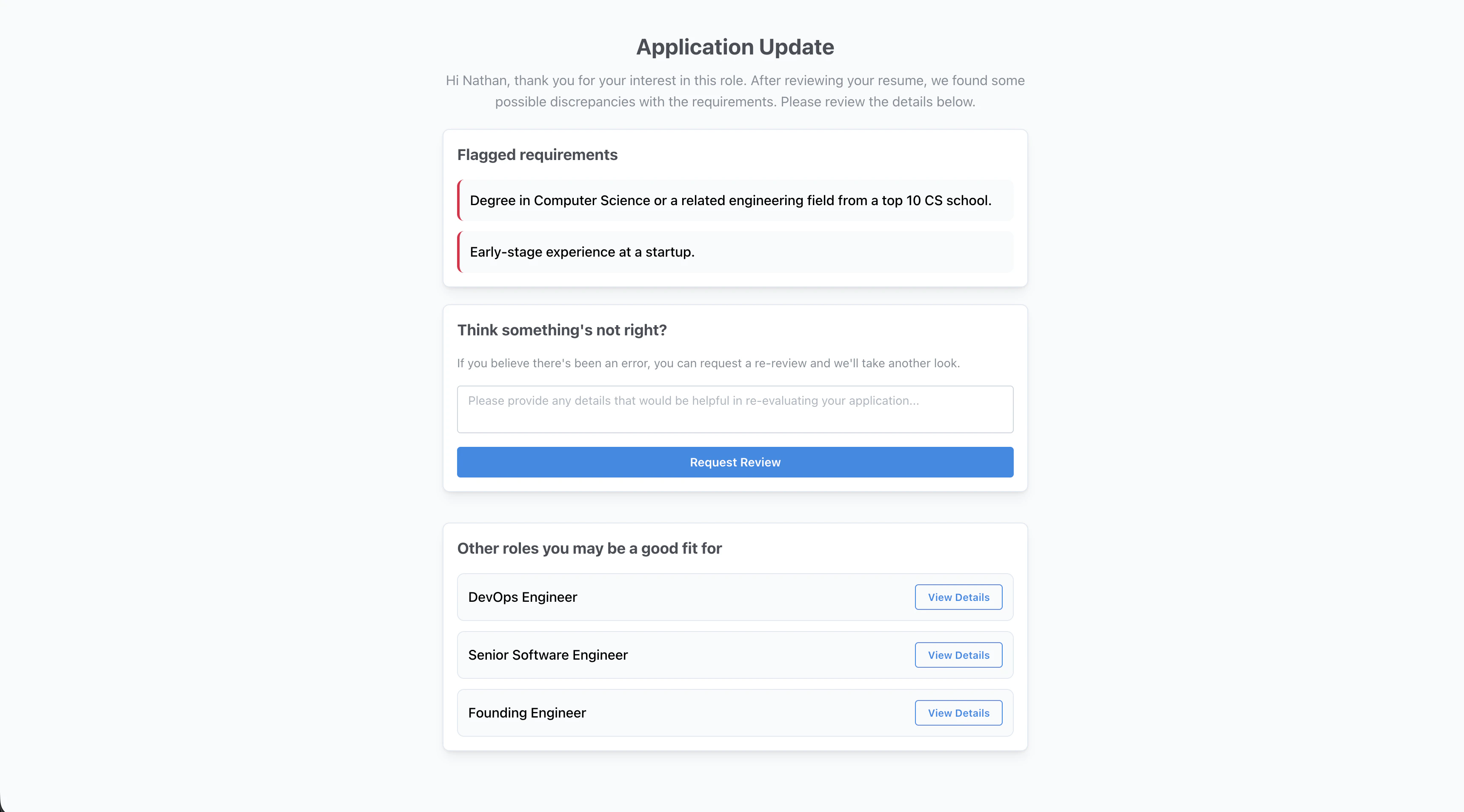
Candidate-facing details page with flagged requirements, re-review form, and alternative roles
How the re-review flow works
- The candidate receives the resume feedback email and clicks the link to view their details page.
- On the details page, the candidate can see which requirements were not met.
- The candidate submits an explanation through the “Request Review” form, providing additional context or information that may have been missed.
- The recruiter receives a notification about the re-review request.
- The recruiter reviews the candidate’s explanation and either approves or declines the request.
Resume feedback vs. rejection emails
Related
- Resume Review Configuration — what triggers a candidate to receive a resume feedback email in the first place
- Resume Feedback Email Templates — customize the template used for resume feedback emails
- Rejection Emails — settings for emails sent after a thumbs-down or an ATS disposition