

Meeting Copilot Dashboard
The Meeting Copilot dashboard is your central hub for managing templates and notes. Access it from the sidebar by clicking Meeting Copilot. The dashboard has three views:Templates
A table of all note templates created for your organization. Columns include:- Template name
- Meeting type (Interview, Intake, or Other)
- Creator
- Visibility (Public / Private)
- Sections count
- Questions count (summed across all sections)
Notes
A table listing all notes created in your organization, with columns for:- Note name
- Meeting type
- Candidate
- Job
- Meeting link
- Date last updated
Autopilot
Use Autopilot to place a meeting autopilot call now, or email a scheduling link. Track sent invites and dial-in calls in the Call status table, and provision your organization’s Autopilot call-in number. Scheduling emails (the invite, confirmation, cancellation and missed-call follow-up) for an Interview template go to the candidate in the Job’s interview language, or in the candidate’s preferred language when they have set one. When the invite isn’t linked to a Job, they are sent in English. Scheduling emails for other meeting types use the recipient’s display language. Autopilot follows the questions configured in your selected template. For intake calls, include company or role-title questions in the template if you want to ask them. Autopilot begins with the template questions without adding either question automatically. The Call status table shows callee email/phone, template, meeting type, source, status, created time, and actions. Use the Columns button next to search to hide or show any of those columns (Actions always stays visible).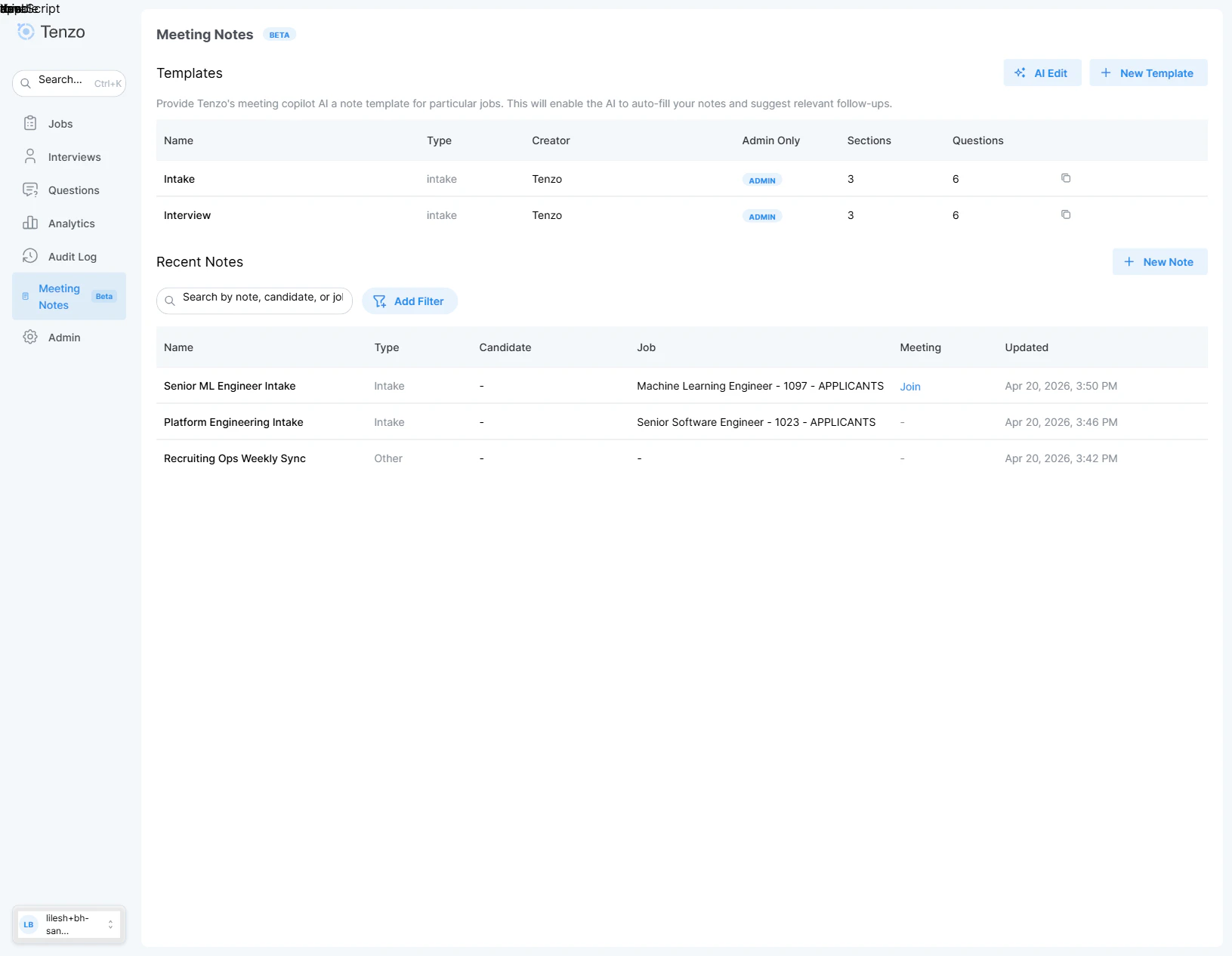
Meeting Copilot dashboard with the Templates and Notes sections
FAQ
What meeting platforms are supported?
What meeting platforms are supported?
The transcript bot supports Microsoft Teams, Zoom, Google Meet, and other major video conferencing platforms. Phone conversations are supported via bridge calls where Tenzo dials out to both parties, and in-person or direct conversations can be recorded directly in the browser via Live Conversation (Microphone) recording without any meeting platform or bridge.
Can I edit notes after the meeting?
Can I edit notes after the meeting?
Yes. Open any note and toggle edit mode on the Notes tab to make manual changes.
Is there a limit on the number of notes?
Is there a limit on the number of notes?
You can create notes until your organization reaches 1,000 notes. After that, new note creation is unavailable.
Can multiple people view a note at the same time?
Can multiple people view a note at the same time?
Yes. Notes update in real time, so multiple users can view the same note simultaneously during or after a meeting.
What happens if I change the template after notes have been generated?
What happens if I change the template after notes have been generated?
Changing the template will overwrite the existing note structure. A confirmation dialog will warn you before applying the change.
Can I create a note from a transcript I recorded elsewhere?
Can I create a note from a transcript I recorded elsewhere?
Yes. Use the
POST /api/v1/meeting-copilot-note Public API endpoint — see Creating Notes via the Public API, and the Meeting Copilot tag in the Tenzo Public API reference for the full contract.