

Manual Job Sync Overview
The Manual Job Sync tool allows admins to manually trigger the sync of individual jobs from your ATS (such as Crelate) to create or update jobs in Tenzo. This is useful for testing rules, syncing urgent jobs immediately, or troubleshooting sync issues.- Navigate to Admin > ATS Integrations > Manual Job Sync.
When to Use Manual Job Sync
Manual Job Sync is helpful in several situations:1. Testing New Rules
After creating or modifying integration rules, you can use Manual Job Sync to:- Test if a job matches your new rules
- See which rules would be triggered
- Verify what templates and settings would be applied
- Confirm the sync works as expected before waiting for automatic sync
2. Syncing Urgent Jobs Immediately
If you need a job to be available in Tenzo right away:- Manually sync the job instead of waiting for the next automatic sync cycle
- The job will be created or updated immediately
3. Troubleshooting Sync Issues
If a job didn’t sync automatically as expected:- Check if the job matches any active rules
- See detailed feedback on why a job may not be eligible for sync
- Identify which conditions or settings may need adjustment
4. Syncing Jobs That Were Previously Excluded
If you’ve updated your rules to include jobs that were previously excluded:- Use Manual Job Sync to bring those jobs into Tenzo
- No need to wait for the next full sync
How to Use Manual Job Sync
Browsing and Searching for Jobs
- Confirm Your Default ATS Integration: Manual Job Sync automatically selects your organization’s default ATS integration, and the dropdown shows only that integration.
-
Browse Cached Jobs
The page displays all jobs that have been cached from your ATS. You’ll see:- Job Name - The title of the job from your ATS
- ATS Job ID - The unique identifier from your ATS
- Sync Status - Whether this job has been synced to Tenzo
- Last Synced - When the job was last synced (if applicable)
-
Search for Specific Jobs
Use the search box to filter cached jobs by name, ATS Job ID, remote ID, or job code / requisition ID. This is helpful when working with large job lists.
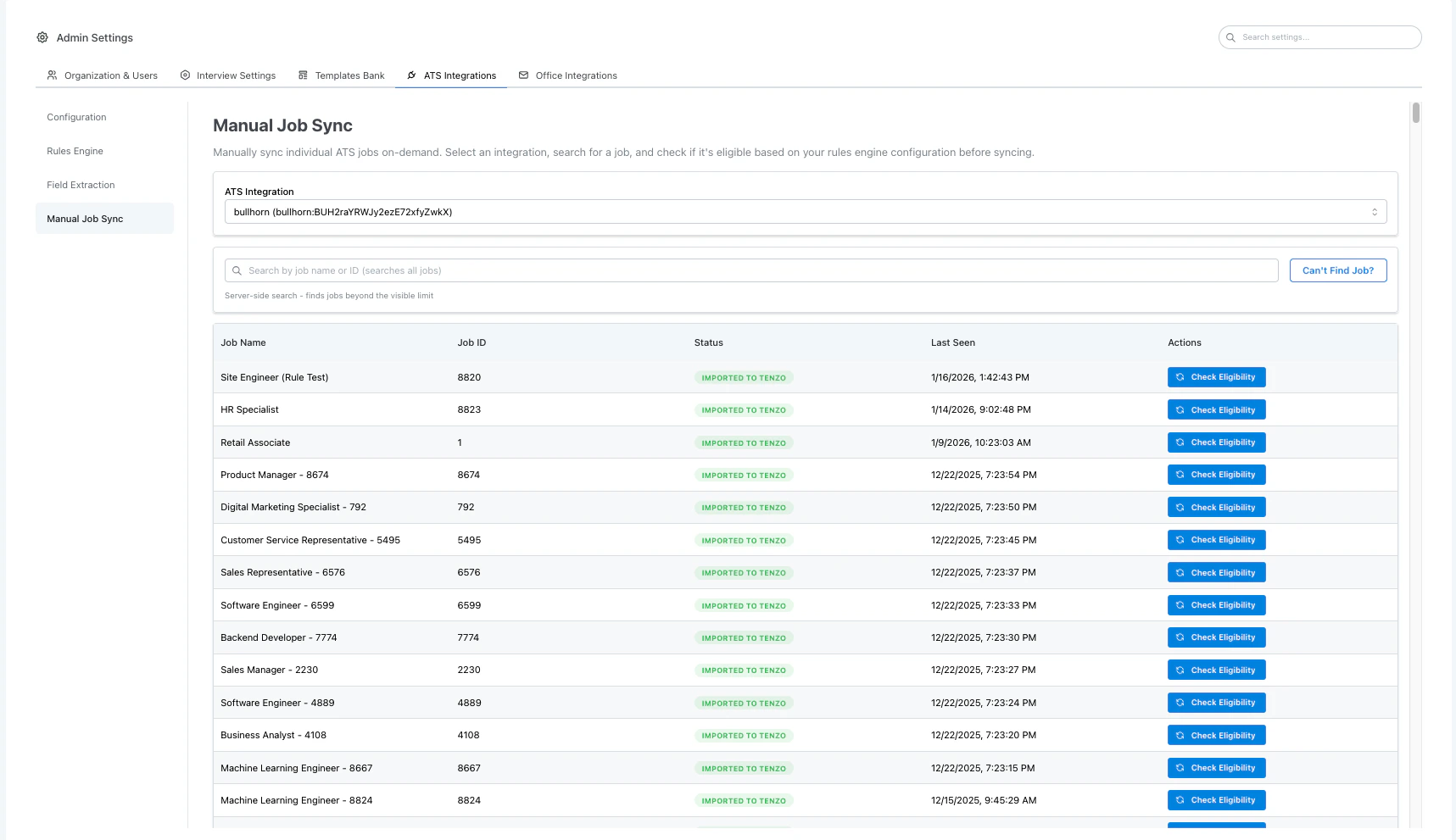
Admin > ATS Integrations > Manual Job Sync
Checking Job Eligibility
Before syncing a job, you can check if it’s eligible and see which rules would match:- Click “Check Eligibility” on the job you want to evaluate.
-
Review the Eligibility Results
The system will show:- ATS Job Status - Whether the job is open, closed, draft, or another ATS status
- Eligibility Status - Whether the job can be synced (must be open and match rules)
- Why these rules matched - Expand a matched rule to see each condition as Rule requires vs This job has
- Why these rules didn’t match - Expand an unmatched rule to see the same condition cards for the values that failed
- Template Type - Whether a script template or AI generation template would be used
- Actions - What actions would be executed (e.g., folder assignment, interview settings)
- Job Details - Job name and location from your ATS
-
Understand the Results
If Eligible:
- The job is open in the ATS and matches at least one rule
- You’ll see which rules matched, why they matched, and what actions will be taken
- You can proceed with syncing the job
- Other active rules that did not match appear under Why these rules didn’t match. Expand a rule to compare Rule requires with This job has.
- The job cannot be synced yet. Common reasons include:
- Job is not open in the ATS (closed, draft, archived, filled, etc.)
- No active rules configured for this integration
- Job doesn’t match any rule conditions
- Matched rules are missing a template configuration (see Rules Engine)
- Job may be missing required fields
- Expand Why these rules didn’t match to see why each unmatched rule did not apply. Each expanded rule lists the failed conditions as Rule requires vs This job has (for example, requires
5and this job has4fordepartment_id).
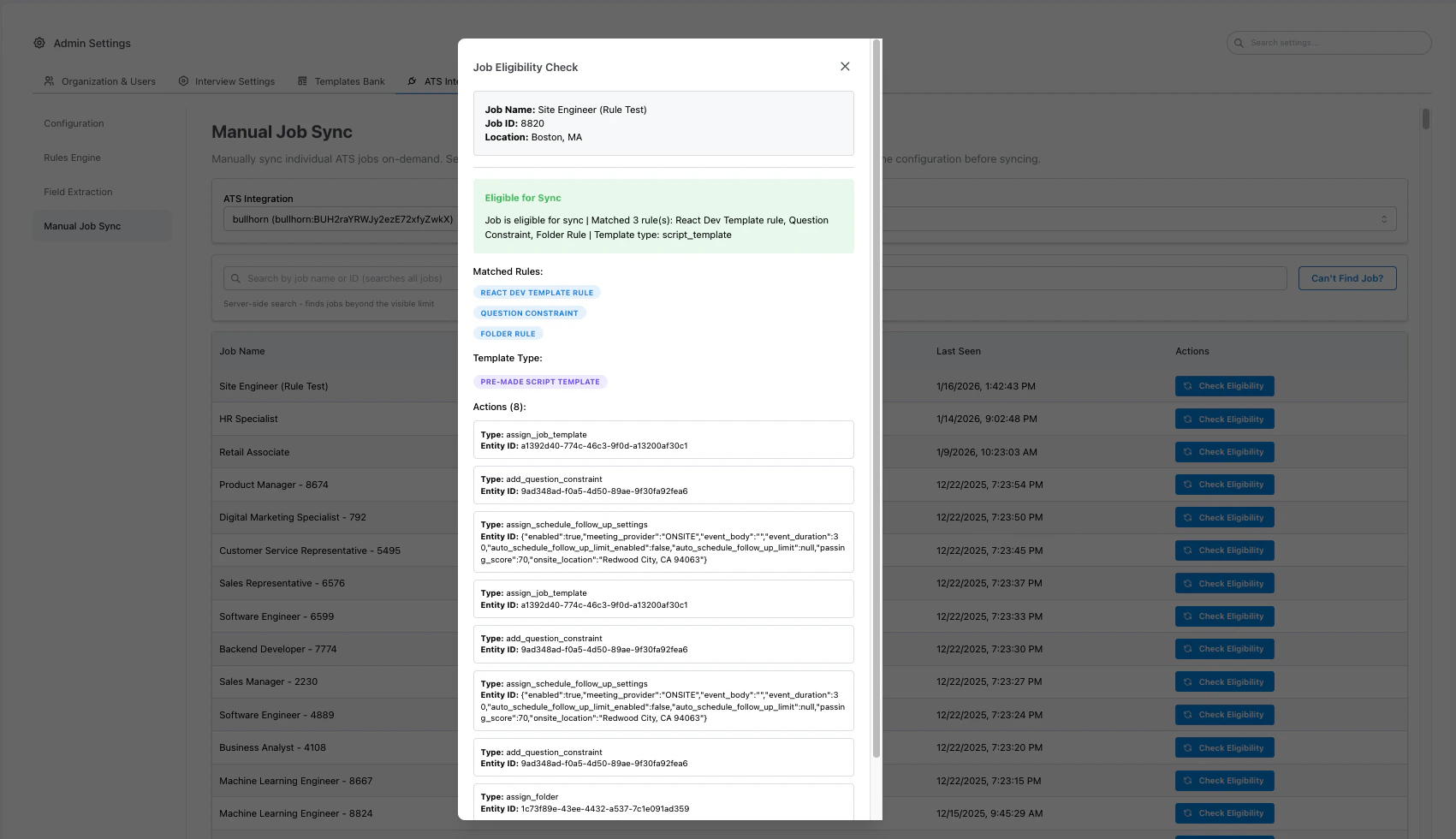
Eligibility check showing matched rules and actions
Syncing a Job
Once you’ve confirmed a job is eligible (or if you’re confident it should sync):- Click “Sync Job” on the job you want to sync.
-
Confirm the Sync
A confirmation dialog will appear. Review the job details and click Confirm Sync. -
Monitor the Sync
The system will:- Fetch the latest job data from your ATS
- Evaluate the job against your active rules
- Create or update the job in Tenzo based on matched rules
- Apply the appropriate templates, settings, and actions
-
View the Results
Upon successful sync, you’ll see:- Success notification
- Confirmation that the job was created or updated
- Which rule was matched (if applicable)
Can’t Find Job
If a job is missing from the cached list, click Can’t Find Job? to search your ATS live. The fields you can search by depend on the ATS:-
Choose a search field
Tenzo only shows identifiers that ATS supports. Typical options:- ATS Job ID — the native job identifier in your ATS
- Job code / requisition ID — the human-facing req ID (Workday
R-00433, Greenhouse requisition ID). Use this when your team looks jobs up by req number rather than an internal ID - Job title — a contains search on the job name (may return several matches)
-
Enter the value and search
Exact fields (ATS Job ID, job code) need the full identifier. Title search matches a substring. -
Review the results
Each match shows the job name, ATS Job ID, job code, and status. Select a job, then Check Eligibility and sync as usual.
Important Notes
Rule Evaluation
- Jobs are evaluated against your active integration rules only
- The same rule logic applies for both automatic and manual sync
- If no rules match, the job will not be synced
ATS Job Status (Open vs Closed)
- Only jobs with an open ATS status can be synced as new jobs in Tenzo
- Check Eligibility surfaces the ATS status so you can see why a job that matches rules still cannot sync
- Closed, draft, archived, filled, and similar statuses are not eligible for creating a new job
- If the job is already imported into Tenzo, you can still Proceed with Sync when it matches rules — sync will pause or update the existing job even if the ATS status is no longer open
Job Updates
- If the job already exists in Tenzo, manual sync will update it with the latest data
- Existing interview data and candidate progress will be preserved
Sync Frequency
- Manual sync does not affect the automatic sync schedule
- You can manually sync the same job multiple times if needed
- The “Last Synced” timestamp will update after each manual sync
Permissions
- Only organization admins can access the Manual Job Sync tool
- Users must have access to the specific ATS integration to sync jobs from it
Best Practices
-
Test Rules Before Auto-Sync
When creating new rules, test them with Manual Job Sync on a few sample jobs before relying on automatic sync. -
Check Eligibility First
Use the “Check Eligibility” feature to understand why a job may not be syncing before attempting to sync it. -
Keep Rules Updated
Regularly review your integration rules to ensure they match your current needs. Use Manual Job Sync to validate changes. -
Monitor Sync Results
Pay attention to success and error messages. They provide valuable information for troubleshooting and optimizing your rules.
Troubleshooting
”Job not found in ATS”
- Try the identifier your team actually uses (requisition ID / job code vs ATS Job ID)
- Check if the job still exists in your ATS
- Ensure your ATS integration is properly configured and connected
- If the job is brand new, it may not be available through the integration yet
”No active rules configured”
- Go to Admin > ATS Integrations > Rules Engine to create rules
- Ensure at least one rule is marked as active
”Job does not match any active rules”
- Expand Why these rules didn’t match in the eligibility dialog to see each unmatched rule and compare Rule requires vs This job has for the conditions that failed
- Review your rule conditions against those diffs
- Check if the job has the required ATS fields populated (a missing field is shown as
(missing)) - Consider creating a fallback rule to catch jobs that don’t match specific criteria
”Job ATS status is …, not OPEN”
- Re-open the job in your ATS (or wait until it is open) before syncing
- Rules may still match a closed job — eligibility requires both open status and matching rules
- If the job already exists in Tenzo and later closes, automatic sync pauses it; manual sync will not create a new job from a non-open posting
”Failed to sync job”
- Check your ATS integration connection status
- Verify the job has all required fields in your ATS
- Review the error message for specific details
- Contact support if the issue persists
Related Documentation
- ATS Integrations Overview - Learn about ATS integrations
- Rules Engine - Configure automatic sync rules
- ATS Settings - Manage ATS integration settings