

Live Note View
When you open a note, you’ll see a full-featured note-taking interface with multiple tabs. If the note shows a load error after losing the connection, reopen it to try again.Note Header
The note name appears at the top. Click it to rename the note. Below it:- Live while the bot or a call is recording, and Ended once the call is over.
- The candidate, Job, and template the note is set up with.
Tabs
The note arranges its tabs to fit the space it has, so the same note works in a meeting side panel, in a browser window beside your meeting, and in a maximized window:- Narrow, such as a meeting side panel or a small window: Notes, Transcript, AI Chat, and Sourcing sit in the tab bar, and the other tabs open from the ⋯ menu next to the note name.
- Medium, such as a browser window beside your meeting: the same four tabs, plus More for the rest.
- Wide: every tab in a list beside the note, grouped into Setup, During the call, After the call, and Checks.
To change AI Interview Script Context, AI Interview Background Information, Sourcing Context, or Resume Review Rubric, click the pencil at the top of the tab, edit the text, then click Save (or Cancel to discard). Nothing is saved until you click Save. Regenerating asks you to confirm first, because it replaces the current text, including your edits.
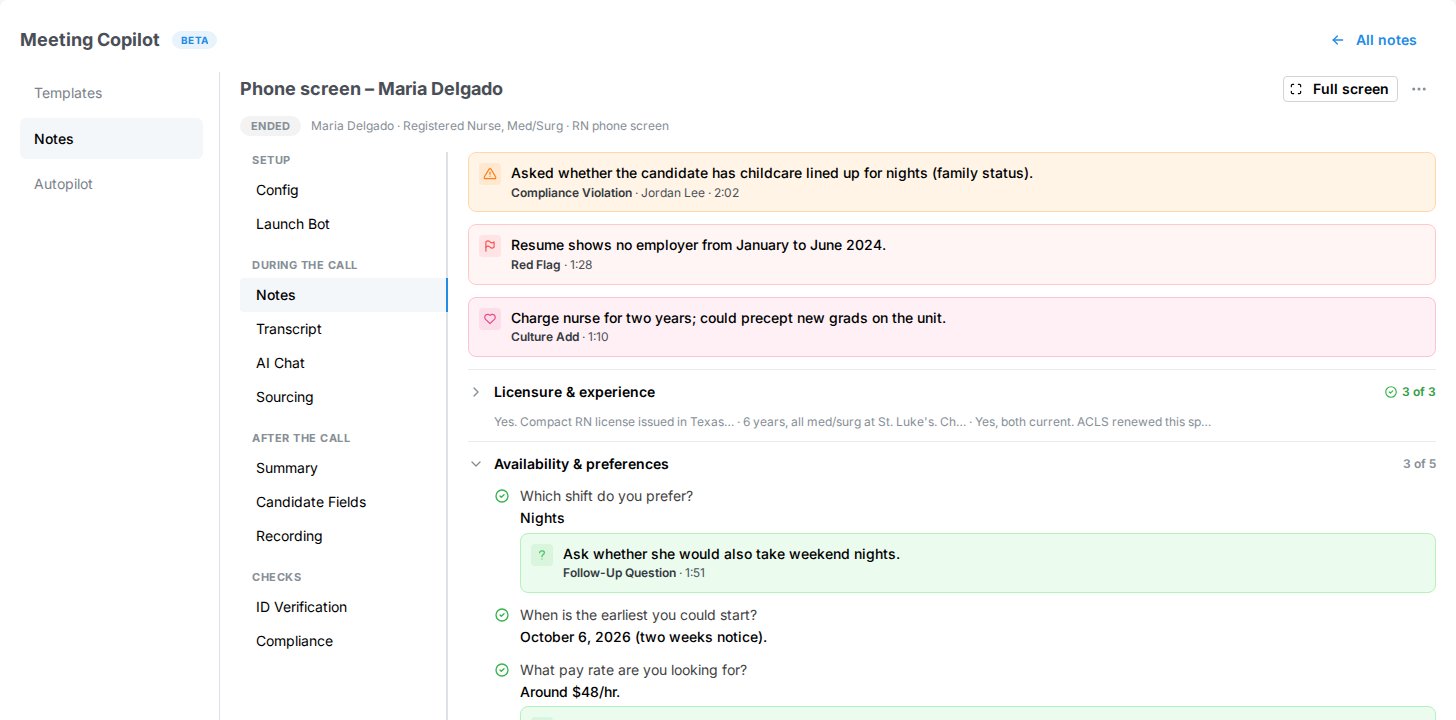
Live Note view at full width — every tab in a grouped list beside the note
Full Screen
On a note open in your browser, click Full screen at the top right (an icon in a narrow window) to give the note the whole browser window. Tenzo’s navigation, the Meeting Copilot header, and the Templates, Notes, and Autopilot list are hidden. The note switches to the view a meeting side panel shows: the tabs you need during the call, arranged to fit the window (see Tabs). A narrow window beside your meeting then looks just like the side panel. Click Exit full screen, in the same place, to go back to every tab.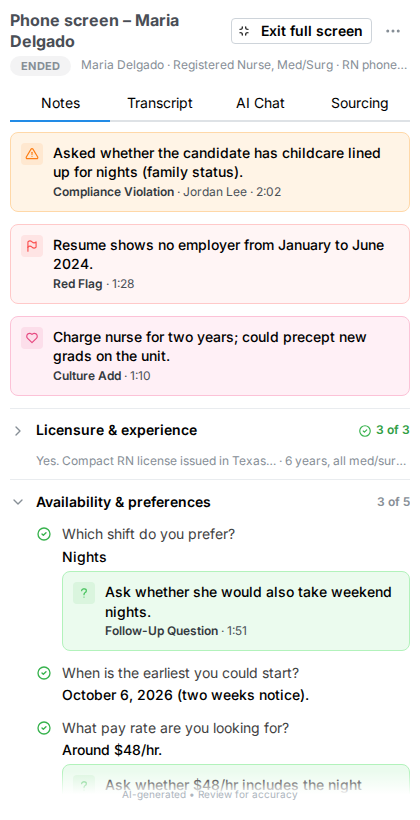
Full screen in a narrow browser window, laid out like a meeting side panel
Notes Tab — Real-Time Note-Taking
Completed Autopilot notes also include the coaching annotations configured in their template. These appear after the call has been processed. While the bot is active, the Notes tab updates in real time:- AI-generated responses appear under each question as the conversation progresses. Questions still open read Not yet.
- A brain icon indicates the AI is processing the transcript.
- A pencil icon indicates the AI is actively writing to the notes.
- Annotations appear as the AI raises them (see Annotations).
- Click a question’s status icon to mark it answered or open.
- Toggle edit mode (pencil button at the bottom right of the notes) to change any question or response, or to add sections and questions. In a narrow layout, such as a meeting side panel, choose Edit notes from the ⋯ menu next to the note name instead.
- During a call, Ask next sits at the top. It shows the next open question from the template and the next question the AI suggests. Click the check mark once you’ve asked it to mark it answered.
- Annotations about the note as a whole come next, above the sections.
- Each section shows how many of its questions are answered. A section folds to one line of its answers once every question in it is answered, and opens again if one is marked open. Click a section to open or close it yourself; it then stays that way.
- Email the summary: sends the summary to the meeting organizer once it’s ready. It’s the same setting as Email summary when generated on the Config tab, which is also where you change the address.
- Write candidate fields to the ATS (interview notes): the same setting as on the Config tab.
- Add new sections and questions that emerge during the conversation.
- Edit section titles and question text for clarity.
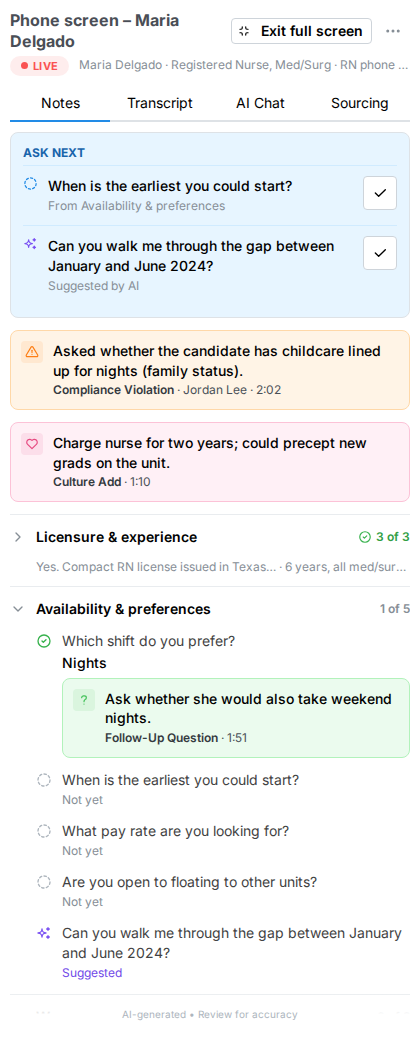
Notes tab during a call: annotations, Ask next, and each section's progress
Annotations
Annotations are short AI-generated callouts that highlight things worth surfacing above the raw note responses. They can attach to the note as a whole or to a specific question: annotations about the whole note sit near the top of the Notes tab, below Ask next, and the rest sit under their question. The set of annotation types that can appear, along with their colors and instructions, is configured per template in the Coaching section of the template editor (see Coaching). Built-in types vary by meeting type; you can customize them or add your own up to the limit described in Coaching. Every annotation shows as the same card, whatever its type:- The tint and icon come from the color set for its type on the template.
- Under the text are the type’s title from the template, the speaker it’s attributed to (for types that attribute one), and, on notes recorded by the meeting bot, the time in the call it was heard.
- Annotations are ordered by type, in the order the types are listed on the template.
Transcript Tab
A scrollable view of the full meeting transcript, including:- Speaker name and role
- Timestamps for each utterance
- Inline annotations from the AI, on the line where they were heard
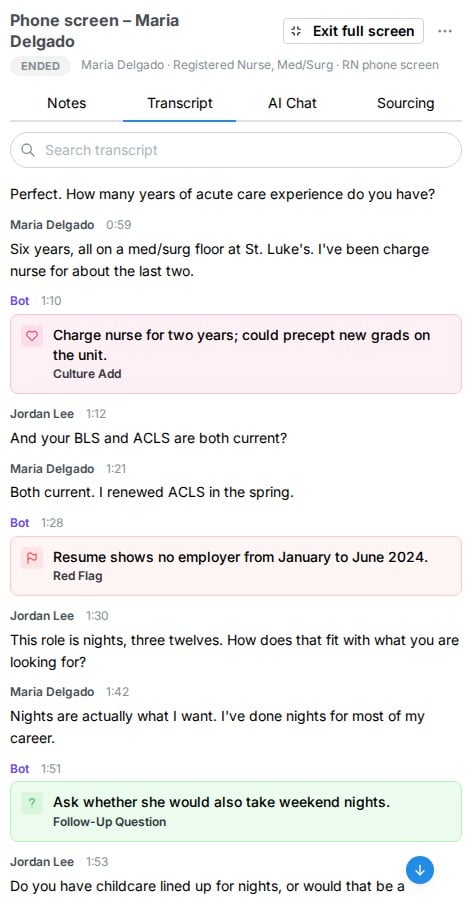
Transcript tab: time-coded turns, with each annotation where it was heard
Note Configuration
The Config tab lets you associate metadata with a note to improve AI accuracy. Intake settings reflect your account: accounts with an ATS see ATS sync controls and targets, while accounts without an ATS see Create Tenzo screen and use Job Sync for job changes. A linked ATS job is treated as an existing job even if it has not yet been added to Tenzo.
If a Job or Candidate list fails to load, choose Retry to try again. You can also type a new search; successful results clear the error message.
Beneath the metadata fields is a JD Generation (intake) / Summary Generation (interview/other) section with additional per-note controls:
- Override ATS Field Sync (intake only) — Opens a modal with the same ATS field checkbox list as the template editor. The modal is pre-populated with the currently-selected template’s default field set. Any changes you make here narrow the sync on a per-note basis without editing the underlying template — useful when a particular intake should only write a subset of fields. Switching the template always resets the override back to the new template’s defaults.
- Email summary when generated — Toggle whether the generated summary or JD is emailed when it’s ready. This is on by default and pre-filled with the email of whoever created the note; edit the recipient or turn it off as needed.
Paste a JD draft
When the note has no linked Job, a Paste JD draft text area appears on the Config tab (and on the intake Send invite / Call now modals). Drop in whatever you have on the role — a few bullets, a rough paragraph, or a full job description copied from elsewhere. When an intake template’s question generation configuration includes job details as a context source, Tenzo reads this draft to generate clarifying questions (such as identifying gaps the draft leaves open). Once the note is later linked to a real job, the job’s description takes over and the draft is no longer used.Auto-suggested questions
When you save the configuration, Tenzo reads the configured context sources (such as the linked job description, candidate details, or prior-call follow-ups) and automatically generates clarifying questions according to the template’s AI question generation configurations. By default, Tenzo generates up to 5 questions per configuration (up to 5 configurations total, 25 maximum) based on meeting-type defaults (e.g. identifying open gaps in the JD for intake calls, or surfacing follow-up suggestions from prior calls for interviews). Suggested questions appear in the same list as your template questions but are marked as suggested (not bold) so you can quickly edit, reorder, or delete any you don’t want. Re-saving the Config regenerates the suggestions against the latest context.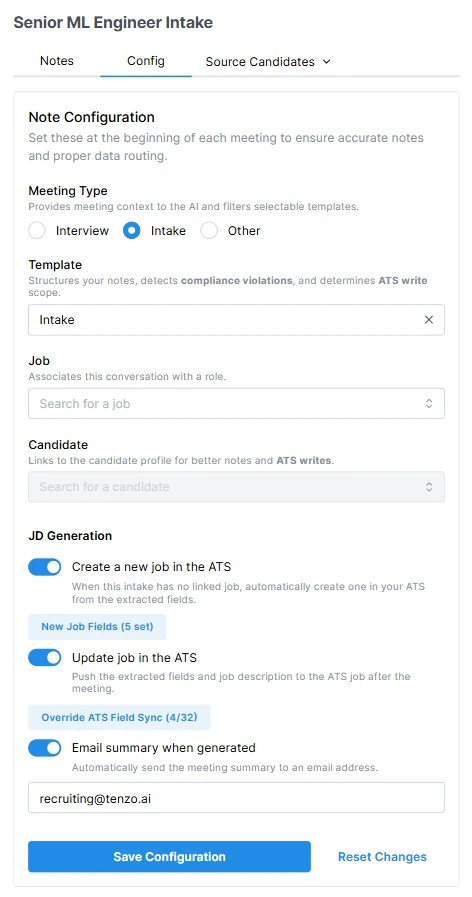
Config tab on an intake note — meeting type, template, linked job, and JD Generation controls
AI Chat
The AI Chat tab provides a conversational interface to interact with the meeting’s AI assistant.Features
- Ask questions about the meeting content (e.g., “What did the candidate say about their management experience?”).
- Request specific summaries or analyses.
- Multi-turn conversation — the AI remembers the full context of your chat.
- Responses stream in real time with markdown formatting support.
- An unread indicator (blue dot) appears on the Chat tab when a new AI response arrives while you’re on another tab.
- Before you’ve asked anything, suggested prompts such as What haven’t I asked? and Any red flags so far? are one click away.
- Click Stop to cut a reply short, and the copy button under a reply to copy it.
- Clear chat at the top of the tab starts over, after you confirm.
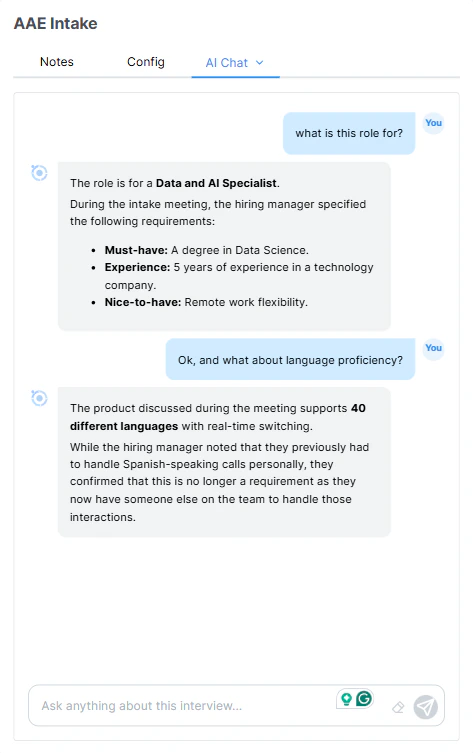
AI Chat tab — ask questions about the meeting
Source Jobs (Interview Notes)
On interview notes, the Sourcing tab surfaces the jobs in your org that best fit the candidate based on their resume and anything learned during the interview. Each recommended job is shown as a row with:- Job title and a link into the job detail page.
- Star rating — an overall fit score.
- Reasoning — a short AI-generated explanation of why this job was surfaced.
- Requirement badges — one badge per requirement on the job, grouped into Required, Preferred, and Nice-to-have. Each badge’s color reflects whether the candidate is a Match (green), Partial match (yellow), or No match (gray), and hovering or tapping it shows the specific evidence the AI used.
Source Candidates (Intake Notes)
On intake notes that are linked to a job, the Sourcing tab runs Tenzo’s agentic sourcing engine against the requirements extracted from the intake conversation. The tab streams candidates in real time as they’re found. Each candidate row shows:- Name, current role, and a link to their profile.
- Overall fit rating.
- Per-requirement match badges identical to Source Jobs (Required / Preferred / Nice-to-have, Match / Partial / No match).
- Requirements — add, remove, or edit the list of skills/criteria to search on.
- Years of experience — min/max bounds.
- Location — restrict to specific geographies or allow remote.
- Management level — keep only candidates whose current role title is at the chosen levels (see Filters).
- Exclude contacted — skip candidates your team has already reached out to.
- Exclude candidates in an active process — skip candidates who are already in outreach or early review for another job.
- Last note date — only surface candidates whose most recent note is older than a given window.
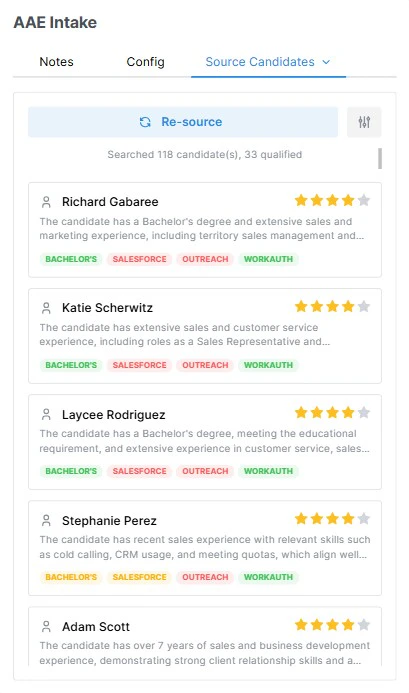
Source Candidates — config drawer with Requirements, Location, and other tuning filters
ID Verification (Interview Notes)
For interviews where the transcription bot captures participant video, Tenzo runs a face-match check to flag identity concerns (e.g., a different person showing up than the one on record). The ID Verification tab shows:- The reference photo on file for the candidate (from Persona or uploaded manually).
- Frames captured from the meeting — one per participant the bot identified.
- A match / no-match badge per participant indicating whether their face matches the reference image.
- Timestamps (MM:SS into the meeting) for each sampled frame so you can scrub back to the original moment in the transcript.