

Note Templates
Templates define the structure and behavior of your meeting notes. They ensure consistency across meetings and allow the AI to auto-fill responses based on your specific questions. See Create and manage meeting templates to create a template or edit one with AI.Template Settings
Meeting Types
- Interview — A conversation with a candidate. After the meeting, Tenzo generates a meeting summary and (optionally) syncs it to the candidate or application in your ATS.
- Intake — A kickoff conversation with a hiring manager or client to define a role. After the meeting, Tenzo generates a job description from the template and (optionally) writes a selected set of fields back to the ATS job record. Because intakes are about the job (not a specific applicant), the candidate picker is hidden on intake notes.
- Staffing Sales — A staffing agency recruiter pitching a candidate to a client hiring manager. Enabled for staffing organizations — contact Tenzo if you don’t see it in the picker.
- Other — A freeform meeting. Tenzo fills the note sections and generates a post-meeting summary from the transcript.
Note Format — Sections & Questions
The core of a template is its note format, which defines sections and the questions within each section.- Sections — Logical groupings (e.g., “Technical Skills”, “Culture Fit”, “Compensation”).
- Questions — Specific items the AI will listen for and fill in during the meeting (e.g., “What is the candidate’s experience with Python?”).
AI-Generated Questions
At the bottom of the Note Format section, you can configure AI-driven question generation to dynamically suggest clarifying questions for your meeting notes. This supports up to 5 independent question generation configurations, each generating up to 5 questions (capped at 25 questions total across configurations). Each configuration includes:- Prompt — Natural language instructions guiding the AI on what questions to generate (e.g., checking the job description for gaps, or generating follow-up questions from prior calls).
- Question limit — Number of questions to generate for this configuration (0 to 5).
- Context fields — Which context sources the AI should consider: Candidate / attendee resume, Job description, Prior call summary, Prior call Q&A, Prior call candidate questions, or Prior call suggested follow-ups.
Redaction templates
Use Redaction templates to choose topics whose concrete values should be removed from saved notes, annotations, and transcript after the meeting ends. Select an existing template or add custom redaction rules, such as “Do not include salary information.” For topics you want to highlight rather than remove, configure a coaching annotation. During the meeting, notes, annotations, and transcript appear without redaction. After the meeting ends, the selected rules are applied to the saved notes, annotations, and transcript before post-meeting artifacts (summary, JD, ATS field extraction) are generated. The meeting view updates to show the redacted content. These rules also instruct post-meeting generation to exclude the values from other context sources, such as resumes and job descriptions. Redaction does not edit the original audio or video recording.What gets redacted (and what doesn’t)
Redaction in Meeting Copilot is driven entirely by the redaction rules on the note template:- Only the concrete data values for the redaction topics you select are redacted. For example, a “no salary information” rule removes the compensation figures that were discussed.
- Names are redacted only if a rule covers them. There is no separate name-redaction setting and no automatic name removal. But because redaction removes the concrete values belonging to whatever topics you list, a rule such as “candidate identity” puts names in scope. If you are seeing names removed, that rule is where it is coming from.
- If no redaction rules are configured on the template, nothing is redacted at all. The transcript is kept as-is.
- The organization-level Enable Transcript Redaction setting does not apply here. That setting covers phone and web interviews only and has no effect on Meeting Copilot meetings.
Coaching
The Coaching section configures annotations shown in the Notes and Transcript tabs during live meetings and after completed Autopilot calls. Each template carries its own annotation list, so different meeting types (e.g. an intake vs. a phone screen) can call attention to different things. Up to 6 annotation types can be configured per template. Each entry has:Built-in defaults
Built-in annotation types vary by meeting type. You can change their colors and instructions or remove them:
Select Redaction rules in an annotation’s Context fields when it needs the template’s restricted-topic list, such as a compliance annotation. Annotations receive that list only when selected. Live annotations appear without redaction; selecting their context does not control the post-meeting redaction of saved notes, annotations, and transcript.
For adding annotations or restoring defaults, see Customize coaching annotations.
Context
The Additional Context section allows you to provide Background context — optional free-text instructions or background information passed to the AI when generating notes from this template (e.g., “This is a senior role requiring 8+ years of experience”). This applies to both Meeting Copilot and Autopilot / notetaker flows.Post-Meeting Actions
The Post-Meeting Actions section groups everything that happens once the meeting ends. It contains collapsible sub-sections:- Summary Format — generated for every meeting type.
- Job Description Format — shown for intake templates only.
- ATS Job Sync — shown for intake templates only; whether and which job fields are written to your ATS.
- Note Sync — where the generated note is posted in your ATS. It appears last so it follows the content it syncs.
Summary Format
Configures how the post-meeting summary is generated:- Use note sections — Include the template’s sections in the summary output.
- Custom sections — Add additional summary sections beyond the note format.
Note Sync
Choose where the note is posted in your ATS once the meeting ends. Leave empty to disable syncing. Available targets depend on the meeting type — for interviews:Candidate— Post to the candidate’s profile.Application— Post to the specific application.Both— Post to both candidate and application.
Job Description Format (Intake templates)
For intake templates, configure how the post-meeting job description is generated. Which ATS fields get written lives in the ATS Job Sync sub-section below.- Job description template(s) — An HTML template for the generated job description. Use placeholder labels (e.g.
[Job Title],[Requirements]) to indicate where content should be filled in. The default template displays its HTML sections on separate lines for editing. The AI preserves the HTML structure of the template and replaces each placeholder with details pulled from the intake conversation. What you see here depends on your ATS:- ATS exposes description fields — You get one template per description field (e.g. Bullhorn’s internal Description vs. Public Description), each independently editable. A single intake meeting renders a distinct body for each field, so you can produce, say, a detailed internal description and a shorter public posting in one pass.
- No ATS description fields (no ATS, or an ATS that exposes none) — You get a single generic job description template that drives the one generated job description. Clearing this template turns job description generation off entirely.
- The canonical job description — the one emailed and previewed — comes from your primary (first) ATS description field, or from the single generic template when there are no description fields.
ATS Job Sync (Intake templates)
For intake templates, control whether — and with which fields — the job is created or updated in your ATS after the meeting. This sub-section sits between Job Description Format and Note Sync.- Sync intake to your ATS — The leading toggle. When off, notes created from this template default to not writing the job to your ATS (each note can still flip its own switch in the note’s Config tab).
- ATS Job Sync — A per-field checkbox list of every writable job field exposed by your ATS integration. Each box picks a field that will be written back to the ATS job record after the meeting:
- Description fields (e.g. Job Description, Public Job Description) are populated from the job description template(s) in the Job Description Format sub-section — each description field renders from its own template. They’re opted-in by default on new templates.
- Non-description fields (e.g. Salary, Start Date, Location, Employment Type) are extracted from the meeting transcript. Only the fields you tick run through extraction.
- With no fields selected, ATS sync is disabled entirely — the JD is still generated and emailed, but nothing is pushed to your ATS.
- Use the Select all / Clear all buttons to toggle everything at once.
- Field instructions — For selected non-description job fields, enter extraction instructions beside the field name. Keep job-description layout instructions in the description field’s template.
- Default values — Optional per-field defaults for the selected text-like fields. A default seeds the field when the meeting doesn’t clearly cover it, and guides the AI toward that value when it’s uncertain.
- Default Job Owner — Optionally pick a fallback owner (an ATS user) for jobs created from this template. It’s used only when the person who created the note can’t be matched to an ATS user, and it can still be overridden per note in the ATS Sync tab. Leave it blank to fall back to your ATS’s own default owner logic. See Job Owner for the full resolution order. Available for Bullhorn only.
Automatic post-meeting job sync is currently supported for Bullhorn and JobDiva. For other ATS providers the sync toggle is unavailable and no fields are written automatically — you can still push fields from the note’s ATS Sync tab.
Create Tenzo screen (Intake templates without an ATS)
If your organization has no ATS, turn on Create Tenzo screen to create a Tenzo Job and generate its interview script after an intake. This setting is off by default. New Copilot and Autopilot intake notes inherit it from their template; you can change it for an individual note in Config. Creation requires a job title and description and only runs when the note is not already linked to another Job. When a Job is linked, the note’s Create Tenzo screen switch is unavailable; use Job Sync to review and apply updates instead. The generated Job remains paused for review. With the setting off, Tenzo still generates the intake artifacts, and you can create the Job manually from Job Sync (see Intake notes without an ATS). See Pinning templates to control which templates appear first and are considered for automatic suggestions.Job Associations
Link a template to one or more jobs. When a note is configured for a particular job, only templates associated with that job (and matching meeting type) will be shown.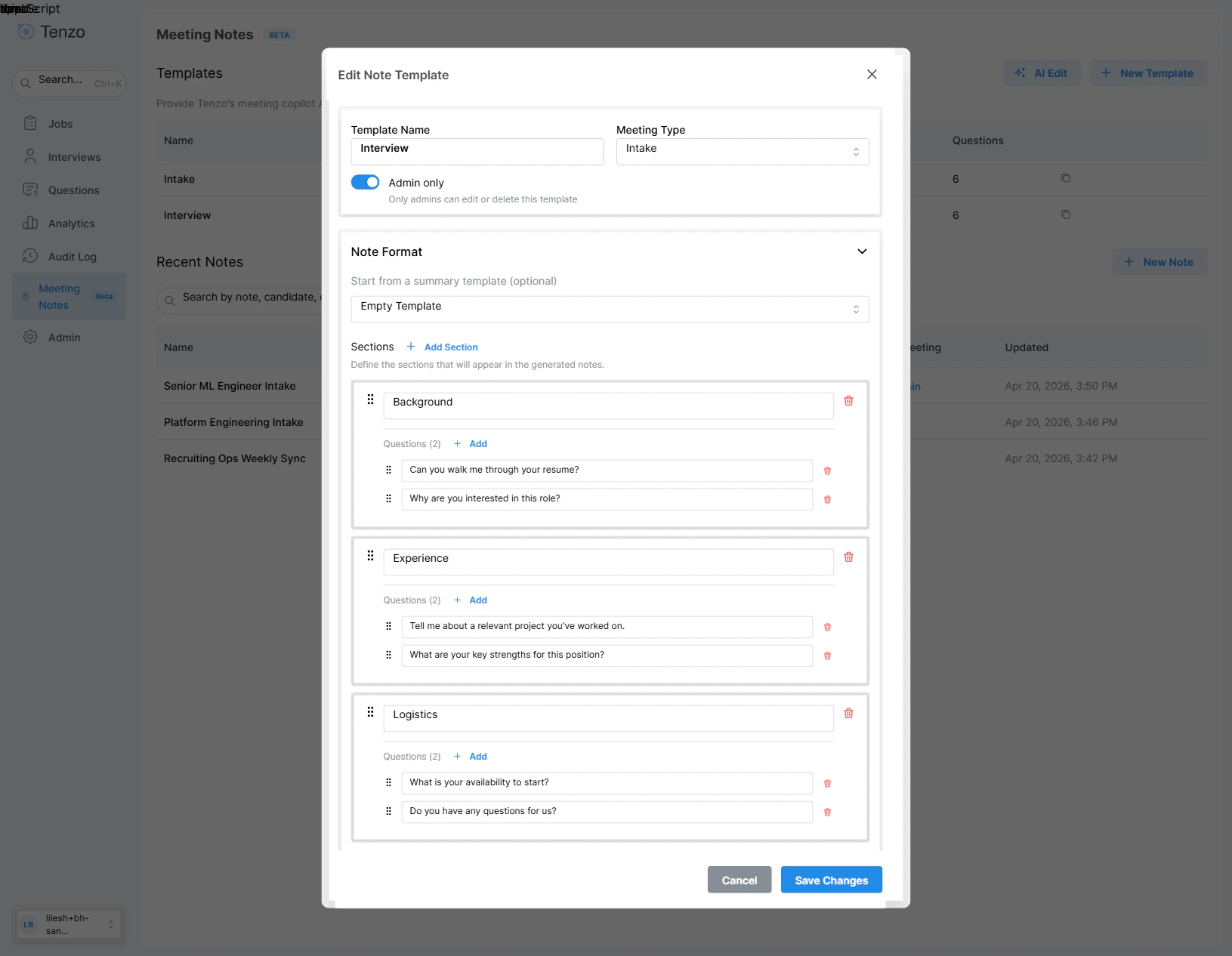
Template editor — note name, meeting type, and the sections / questions that structure the generated notes
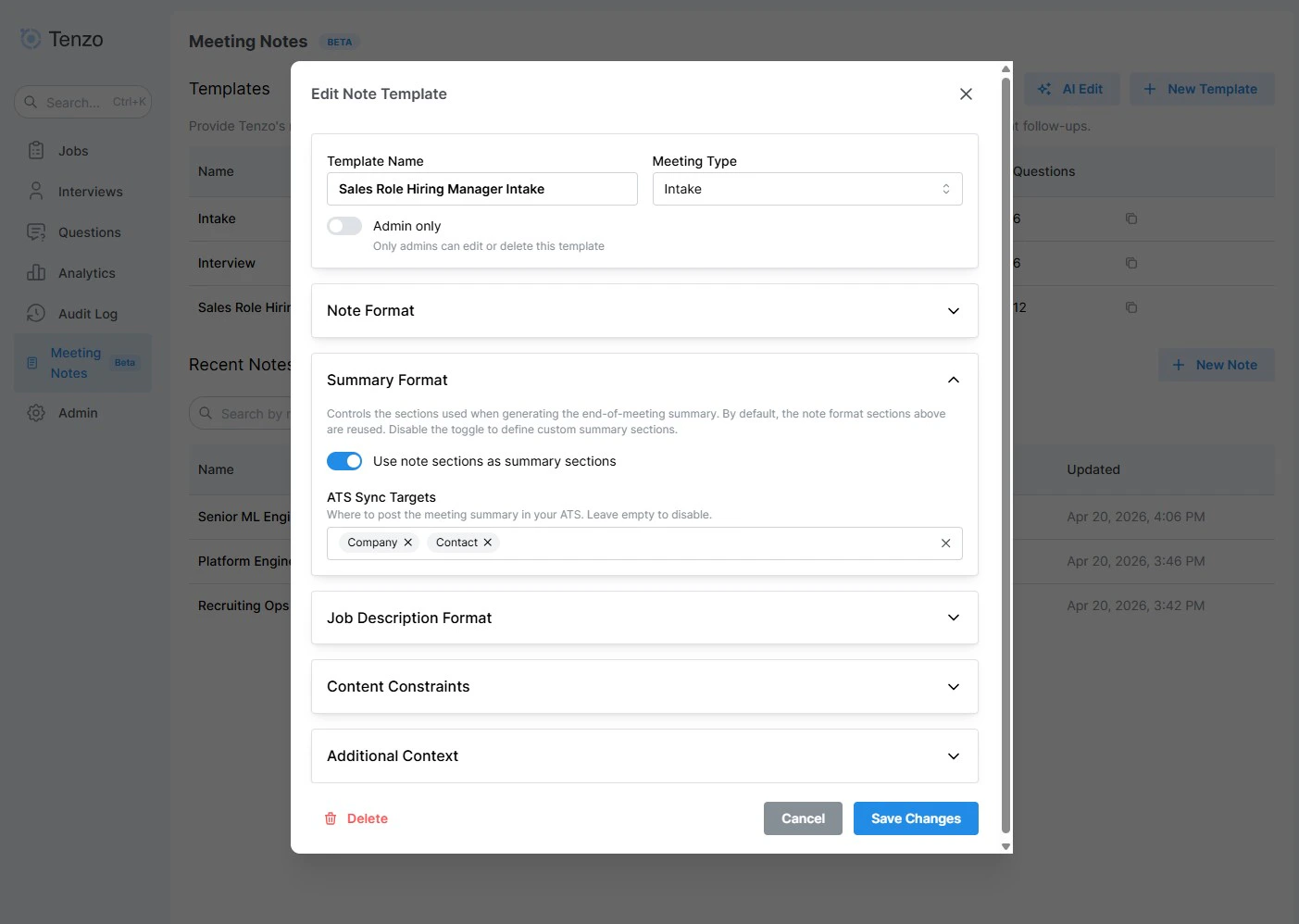
Post-Meeting Actions — the Summary Format sub-accordion (note sections and custom sections) with the Note Sync target below it
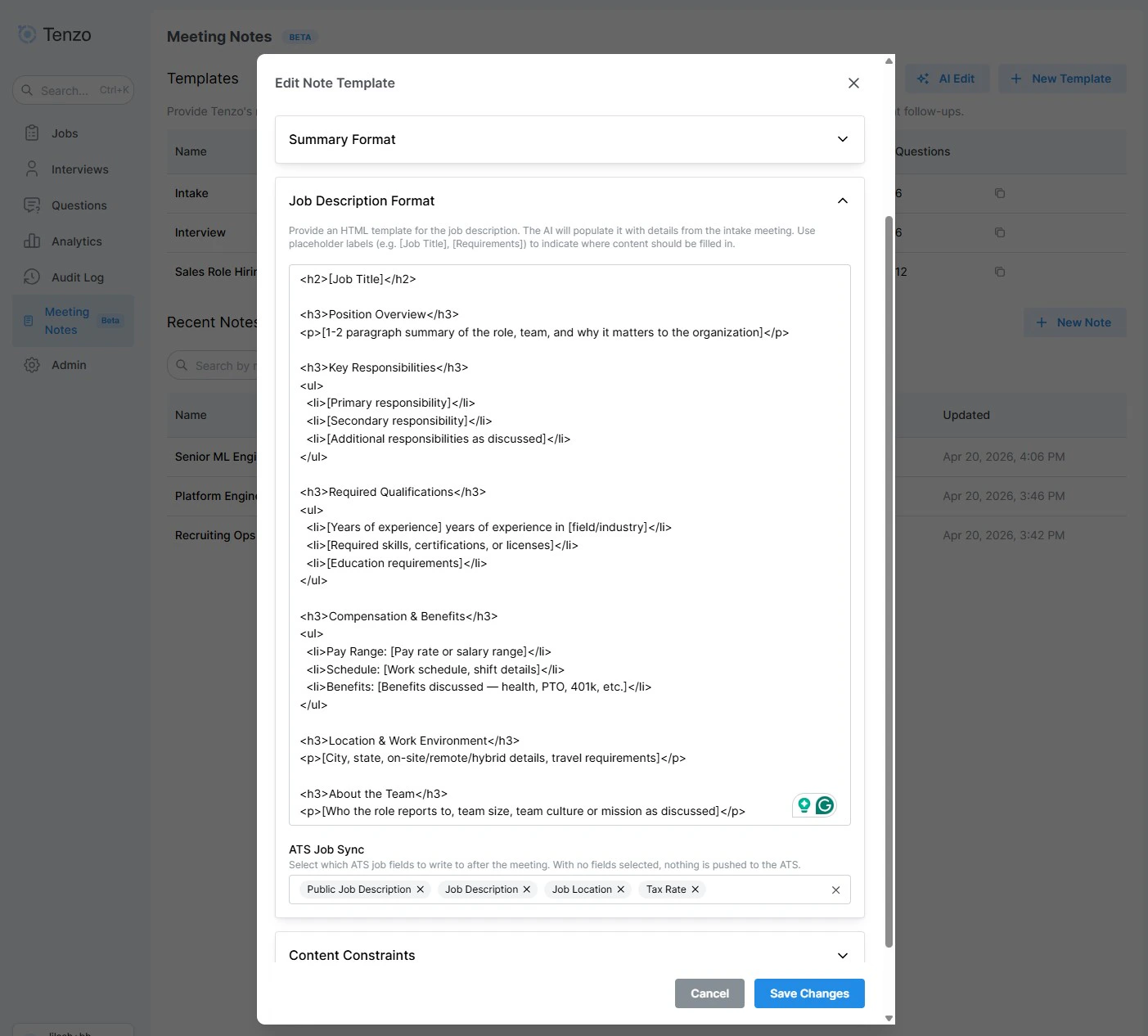
Post-Meeting Actions — the Job Description Format sub-accordion (intake templates) with the HTML JD template; the ATS Job Sync checkbox list now lives in its own ATS Job Sync sub-section