

Overview
Rejection Email Templates define the subject and body sent to candidates when a recruiter thumbs down a candidate — or the candidate is dispositioned in the ATS — and Rejection Emails are enabled. These templates are managed from Admin > Templates Bank > Rejection Email Templates. For the settings that control when emails are sent, see Rejection Emails (Settings).These templates are for rejection emails sent after a thumbs-down or an ATS disposition. For templates used when a candidate doesn’t pass resume screening (Resume Rejected), see Resume Feedback Email Templates.
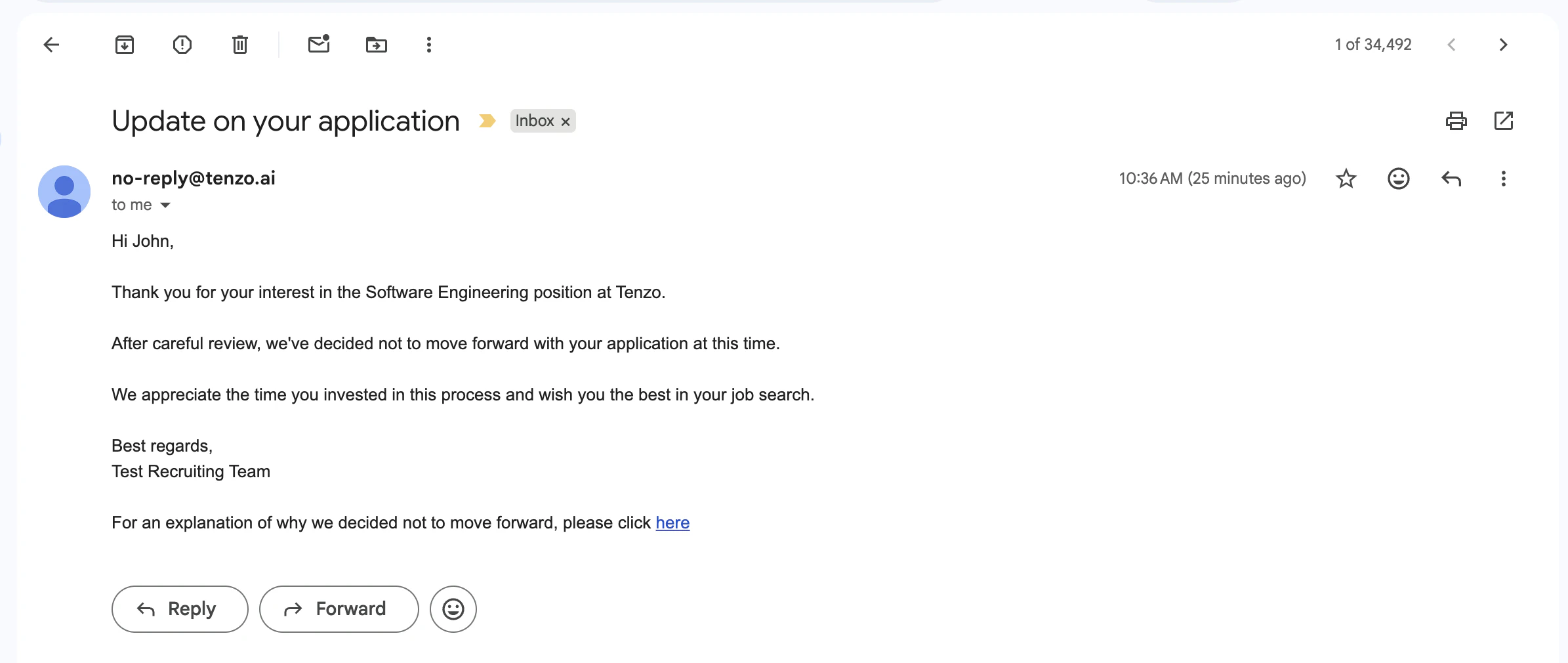
Example rejection email
How template selection works
Tenzo selects a template in this order:- Job-specific template (if configured on the job)
- Org default template (your default in the templates manager)
Supported variables
When a rejection email is sent, Tenzo replaces{{variable}} placeholders in the subject and body with values from the candidate record, job configuration, and linked ATS job—the same substitution logic used for other candidate-facing templates.
Candidate
{{candidate_name}}— the candidate’s name{{candidate_phone_number}}— the candidate’s phone number, when available
{{job_name}}— the candidate-facing job title{{company_name}}— the job’s brand name (or the default brand / organization name). See Organization Branding.{{ai_name}}— the AI caller name configured on the job{{recruiter_phone_number}}— the outbound call number used for this outreach (or configured on the job)
{{estimated_duration_minutes}}— expected interview length based on screening questions{{expiration_days}}— how long web interview links stay valid
{{location.city}} or {{custom_field_values.customText1}}). The exact keys depend on your ATS integration and the job’s cached attributes.
If a placeholder has no matching value at send time, an unrecognized name (a typo) is left
unchanged in the email so you can spot it, but a recognized variable with no value —
including the built-in {{candidate.email}}-style namespaces — renders blank. Give any
variable that might be empty an or "…" fallback if the sentence needs to read correctly without
it.
Lookup-table variables
If your organization uses lookup tables (Admin → Variables → Lookup Variables), you
can also use {{label.column}} variables that resolve from an uploaded table based on the
job. These take a fallback value (for example, {{state_lookup.base_pay_rate or "$18.00/hr"}}).
A fallback is recommended, not required: without one the editor marks the variable with a
may-be-blank warning and saving shows the same advisory, but the save is never blocked. See
Lookup-Table Variables.
For more examples of how variables are used across interviews and outreach, see Variables.
How settings affect the final email
Your chosen template is the base email content. The Rejection Emails settings can modify what is appended:- Include recommended alternative roles:
- When enabled, Tenzo appends a section showing other open positions the candidate may be qualified for, with links to view details and express interest.
Managing templates
In the templates manager you can:- Create additional templates
- Edit template subject and body
- Set a template as the default for new jobs
- Delete templates you no longer need