

Requesting Access
Meeting Copilot is currently in beta. To enable the feature for your organization:- Contact the Tenzo team directly to request beta access.
- Once enabled, the Meeting Copilot tab will appear in your sidebar navigation.
- No additional per-user setup is required — all members of your organization will have access once the feature is turned on.
Microsoft Teams App Installation & Setup
Meeting Copilot integrates with Microsoft Teams so you can launch the note-taking experience directly from within a meeting’s side panel.Prerequisites
Your organization must have a Microsoft Calendar integration connected in Tenzo. The Teams app uses your existing Microsoft tenant link to authenticate — no separate login is required.Installing the App
- Have your Teams admin navigate to the Teams admin center.
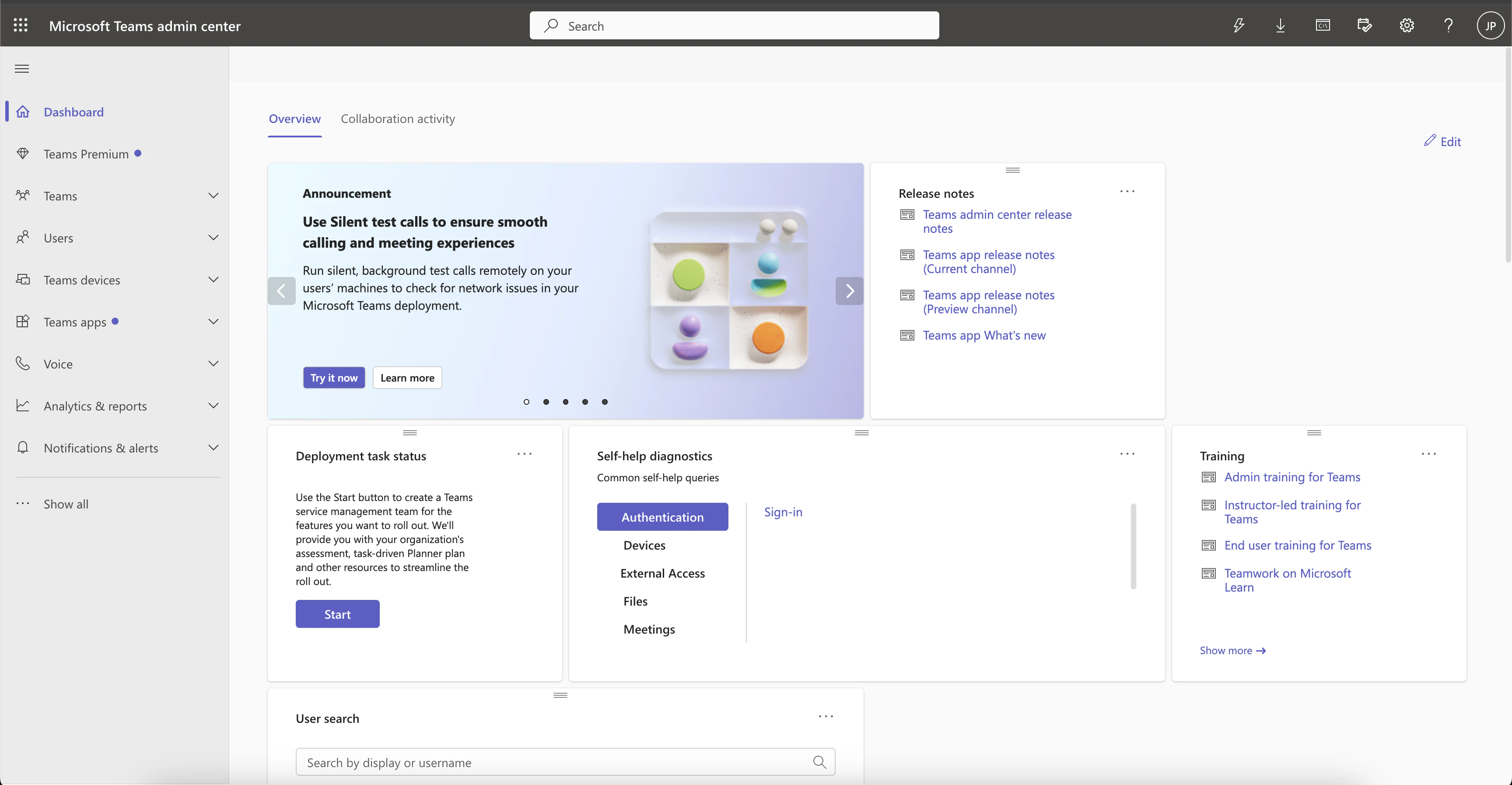
Teams admin center dashboard
- Go to Teams apps > Setup policies.
- Click on the Global (Org-wide default) policy and enable the Upload custom apps permission, then save.
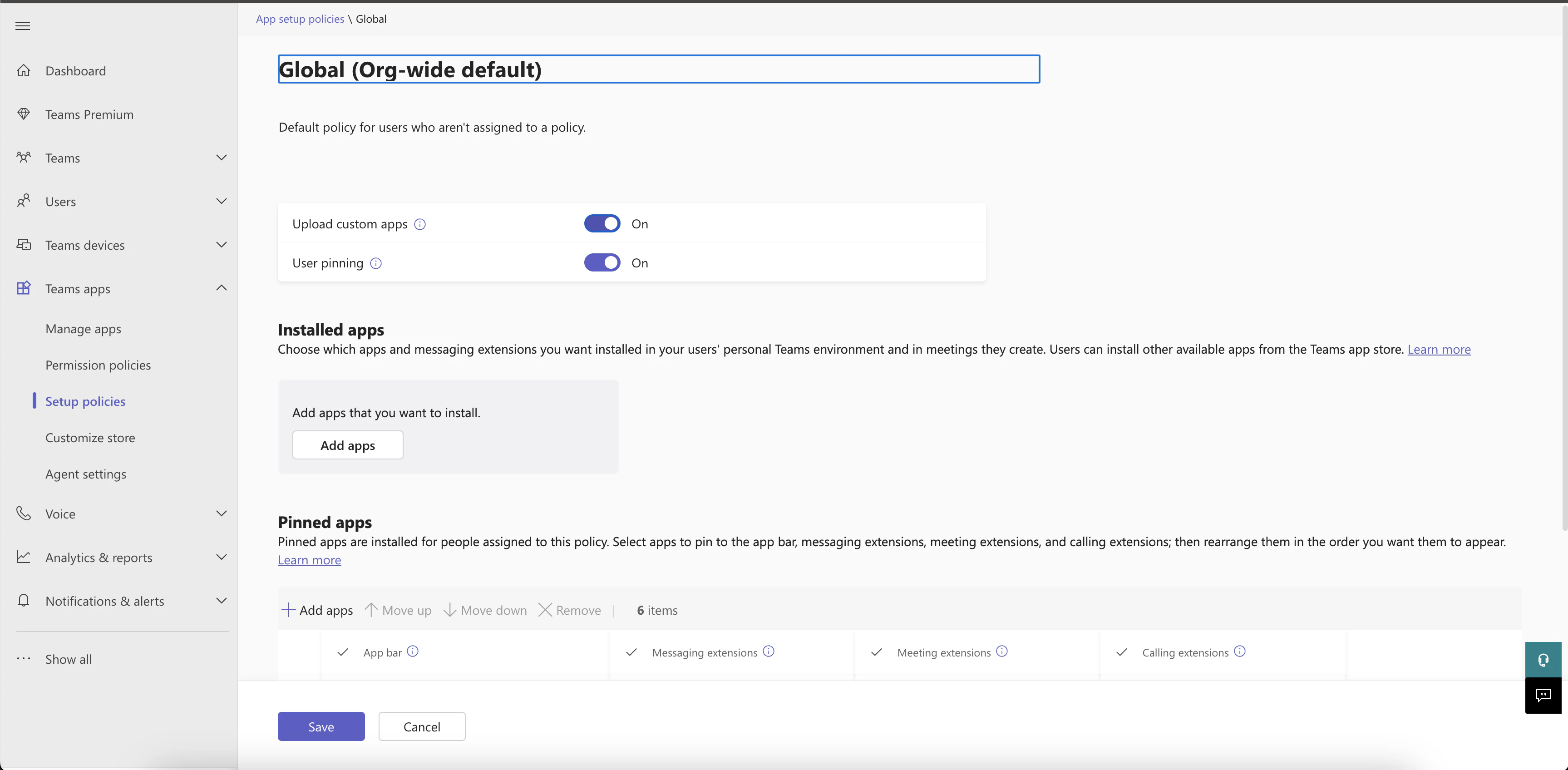
Enable the Upload custom apps permission
- Download the Tenzo Meeting Copilot app package from here.
- Navigate to Teams apps > Manage apps, click Actions in the top right of the page, then select Upload new app and upload the downloaded Tenzo app package.
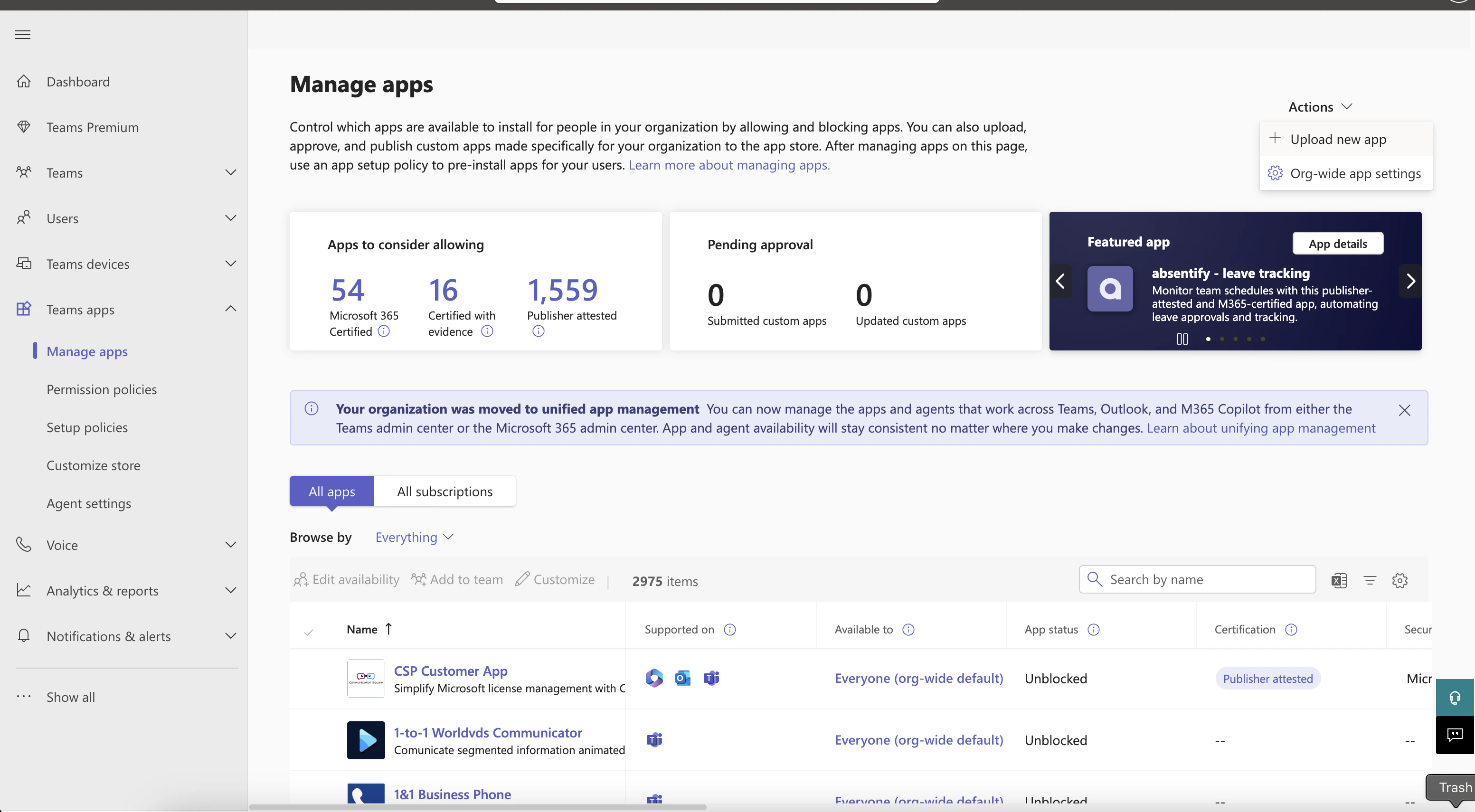
Manage apps in Teams admin center
- Once uploaded, search for Tenzo Meeting Copilot in the All apps table and click on the app title.
- Under Users and groups, configure who this app should be available to.
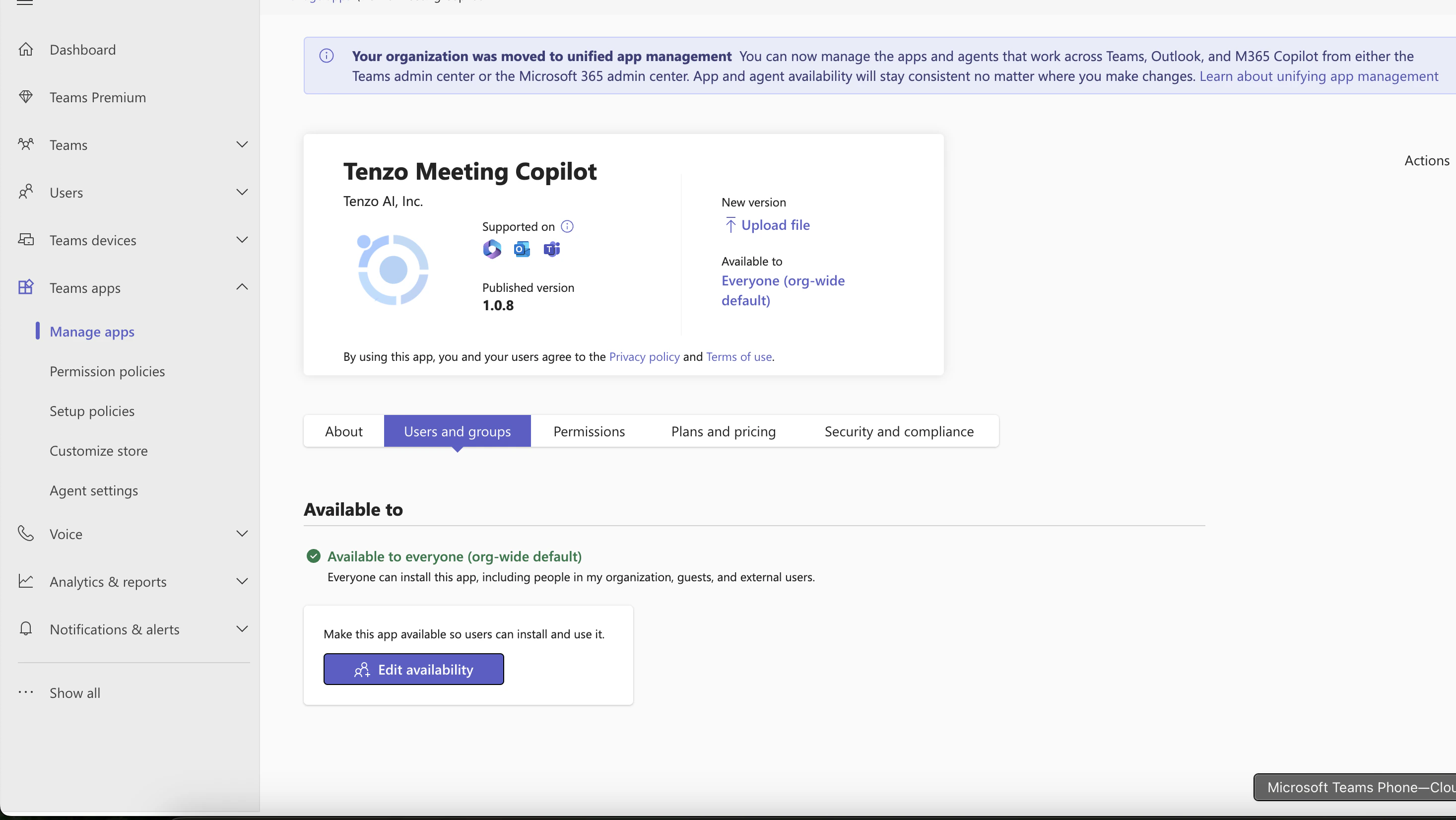
Configure app availability for users and groups
- The app will request the following permissions:
- Read basic meeting info
- Read meeting participant info
- Users included in the configured app availability can open the app in Teams.
Pinning the App to Meetings
To make the Tenzo Meeting Copilot easily accessible during meetings, pin it in your organization’s app setup policy:- Navigate back to Teams apps > Setup policies and click on the Global (Org-wide default) policy.
- Scroll down to Pinned apps and click + Add apps.
- Search for Tenzo Meeting Copilot and add it.
- Once added, Tenzo Meeting Copilot should appear in the Pinned Apps table under the Meeting extensions column.
- Click Save.
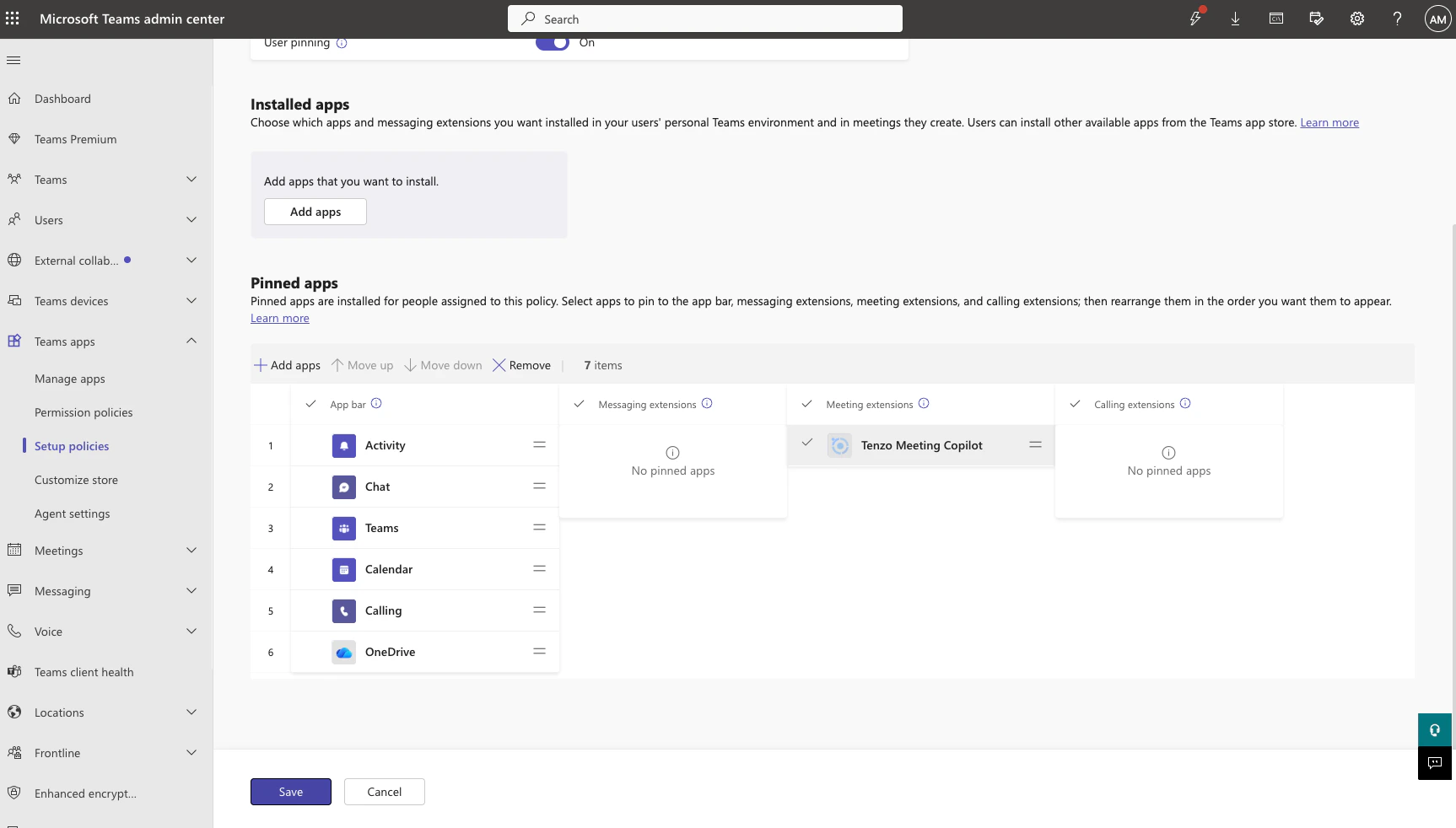
Tenzo Meeting Copilot pinned under Meeting extensions in the Global setup policy
Adding the Tab to a Meeting
Once the app is pinned org-wide (previous section), it will appear directly in the meeting toolbar — no manual tab add is required.
Tenzo Meeting Copilot pinned in the Teams meeting toolbar
- Open a Teams meeting and click the + icon to add a tab.
- Search for Tenzo Meeting Copilot and select it.
- Links to an existing note if one was already created for this meeting, and resumes editing it.
- Reuses a scheduled interview when one is detected (via the calendar integration), creating a note linked to the candidate automatically.
- Creates a standalone note otherwise.
Using Notes in a Meeting
Once the tab loads, the note opens in the Teams meeting side panel. The side panel keeps to what you need during the call: Notes, Transcript, AI Chat, and (when the note supports it) Sourcing sit in the tab bar, and Config, ID Verification, and Compliance open from the ⋯ menu next to the note name. Click Full note to open the same note in your browser with every tab, including the summary, job description, recording, and ATS sync. If you aren’t signed in to Tenzo in that browser, you sign in first and then land on the note. You can keep that browser window beside your meeting; the note rearranges its tabs to fit the space (see Tabs).Using the Zoom app
Install the Zoom Marketplace app and launch it from Apps → My Apps in the Zoom client. Your organization must have connected the same Zoom account in Tenzo. The app opens the note for your meeting in the Zoom side panel, reusing an existing note for that meeting or creating one. When Zoom supplies a join URL, the note-taking bot launches automatically. If several Tenzo organizations use the same Zoom account and Tenzo cannot identify yours, choose an organization when prompted. Tenzo uses your Zoom profile email to identify your account. If it does not match a Tenzo account and only one organization is connected, the app opens in that organization; notes you create are not attributed to a specific user.Disconnecting Zoom
The Zoom Meeting Copilot tab in workspace settings is available only when Meeting Copilot is enabled for your organization. If it is disabled, disconnect an existing connection through Zoom App Marketplace. You can remove the Zoom connection from either side:- From Tenzo — disconnect Zoom in your workspace settings. Tenzo asks Zoom to revoke the stored grant, then deletes the credentials it holds. If Zoom cannot be reached, the local credentials are still deleted and the grant lapses when the token expires.
- From Zoom — uninstall the app under Zoom App Marketplace → Manage → Added Apps. Zoom revokes the grant on its side and notifies Tenzo, which deletes the stored Zoom credentials for that Zoom account automatically.