

Interview Results Table
The Candidates tab on a job is where you review candidate progress and results. Use it to see who has been contacted, compare interview scores and resume fit, leave comments, and take action on one or many candidates.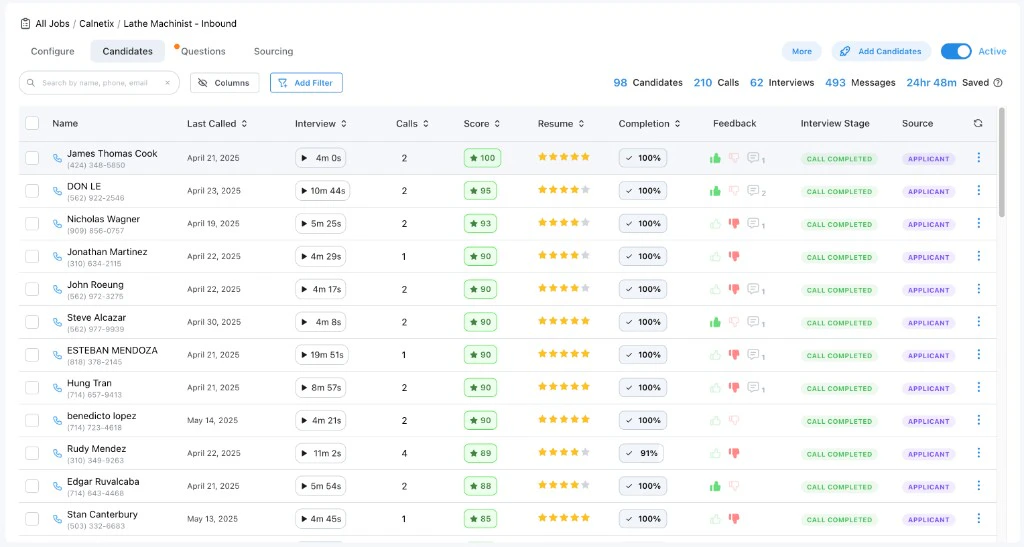
Filter by Date Added
On a job’s Candidates tab and the organization-wide Interviews page, use Add filter and choose Date Added to narrow the list to people added to the job before, after, or between specific dates. The filter uses the same date as the Date Added column: when the candidate was added to that job. When you first add the filter it defaults to After the last 7 days, so you can immediately see recent applicants. Switch the mode to Before or Between and pick dates as needed. The selection is stored in the page URL, so a filtered view can be bookmarked or shared.Organization-Wide Interviews Page vs. Job Candidates Tab
Tenzo provides the candidate results table in two places:- The Interviews page (
/interviews): Your organization-wide candidate directory and inbox. It displays candidates across all accessible jobs in the organization. Use this page when you need to search or filter candidates across all jobs. - The Candidates tab on a job (
/scripts/script-editor/:campaign_id?tab=candidates): The candidate table filtered strictly to candidates on that specific job.
Finding candidates across the organization on the Interviews page
Because the Interviews page indexes candidates across all accessible jobs in the organization, you can use the filters above the table to locate specific candidate cohorts:- Everyone who revoked consent: Select the filter Interview Stage = Consent Revoked (or use the URL
?tenzoStage=CONSENT_REVOKED) to view all candidates across your accessible jobs who asked not to be contacted (for example texted STOP). Candidates who opted out of the AI interview so a recruiter can review them as-is are Opted Out, not Consent Revoked. - Candidates by pipeline stage: Filter by Interview Stage to find candidates in Outreach, Call Completed, Resume Rejected, Opted Out (requested manual human review), Interview Accommodation Requested, and more.
- Unread activity: Filter by Unread and choose Unread Interviews, Unread SMS, or Unread Emails.
- Call outcomes and scores: Filter by Interview Status (Call Status), minimum scores, completion rates, candidate tags, or sourcers.
Save and reset default filters on the Interviews page
The Interviews page can remember a default filter view so you do not have to rebuild it every visit. When the filters on the page differ from your saved defaults, Save Filters appears next to the filter bar.- Your account: Saving stores this view as your personal Interviews default. The next time you open Interviews from the side nav (with no filter query in the URL), Tenzo applies your personal defaults.
- Entire organization (admins only): Admins can choose to save the current view as the organization default. Anyone who has not saved personal defaults inherits the org default.
- If you have never saved personal defaults and the organization has none either, Interviews uses the built-in view: Unread = Unread interviews and Completion > 0.
/interviews with no filter query so the page can apply your latest defaults.
Search text, column visibility, and sort are not part of saved defaults.
Filter Interviews by Fraud Risk or Proctoring Score
On the organization-wide Interviews page, use Add filter to narrow the table by Application Fraud Risk or Proctoring Score. Application Fraud Risk is offered only once fraud risk findings are turned on for your organization. The Application Fraud Risk filter has independent checkboxes for No Score, Low, Medium, High, and Extreme. All five are checked when you first add the filter. Uncheck the classifications you do not want to see; you can keep any combination, including classifications that are not next to each other. No Score means Tenzo has not produced an application fraud risk classification. If you uncheck every classification, the table returns no results. The Proctoring Score filter accepts a 0–100 range using Less than, Between, or Greater than. It uses the highest proctoring score across the candidate’s completed calls on that job, matching the value shown in the Proctoring column. Applications without a completed-call proctoring score do not match an active Proctoring Score filter.Choose Which Columns Are Visible
Click Columns above the table to toggle the optional columns. Your selection is saved per browser, so you can keep the table focused on the information your team uses most.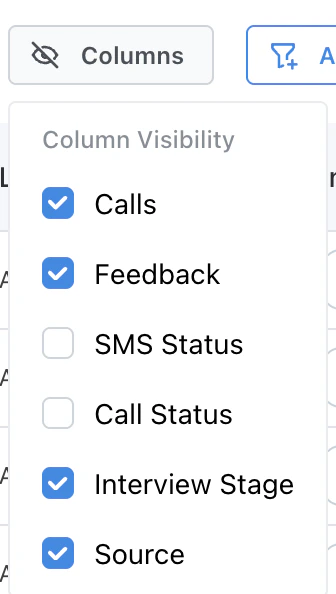
- Calls (on by default for phone jobs, hidden for video jobs)
- Fraud Risk (on by default)
- Feedback (on by default)
- SMS Status (off by default, hidden for video jobs)
- Call Status (off by default)
- Interview Stage (on by default)
- Source (on by default)
- Date Added (off by default)
- Name, Interview, Score, Completion, and the row actions menu are always shown.
- Last Called is always shown for phone jobs. It is labeled Last Contact for video jobs.
- Resume appears when resume filtering is enabled for the job.
- Proctoring appears for video jobs (see Proctoring Score).
- ATS Stage appears when the job is linked to an ATS.
- Tags is always shown. See Candidate Tags.
What Each Column Means
- Name: Candidate name. The line below shows the candidate’s email for video interviews or phone number for phone interviews. Each row also shows a phone or video icon for the candidate’s most recent call type, and a review indicator for unread activity. See Review Indicator Dots for what the colored dots next to the name mean.
- Last Called / Last Contact: When the most recent call started. Shows the local time if the call started today, otherwise the date.
- Date Added: When the candidate was added to this job. Hidden until you turn the column on. Click the header to sort, or use the Date Added filter to show only people added before, after, or between specific dates.
- Interview: The longest call’s duration (mm:ss) with a play icon. The icon is a visual marker for “this candidate has a recorded interview”; click anywhere on the row to open the interview details and listen to the recording.
- Calls: The total number of calls placed for this candidate on this job (including pending attempts), not just completed calls.
- Score: The candidate’s overall interview grade, rounded to a whole number from 0 to 100. It is computed from how the candidate’s answers were graded against the configured screening questions.
- Fraud Risk: The application’s overall Low, Medium, High, or Extreme fraud risk. A dash means a classification is not available to display. Open the candidate to see the same risk badge beside their name and review any available fraud findings.
- Completion: Percentage of counted screening questions the candidate answered. Questions excluded from this calculation (grade-only, skipped, or certain unasked resume-based questions) are not included in the numerator or denominator. 100% means every counted question was answered. See Call Status for how this relates to when a call is marked Completed vs Hung Up.
- Resume: How well the candidate’s resume matches the job’s resume requirements — usually a 1–5 star rating, or a red Missing Requirement badge when they failed one or more Required items. See Resume Stars for gold vs. gray stars and the badge.
- Proctoring: A 0–100 score summarizing how clean the candidate’s video interview was from a proctoring perspective (video jobs only). See Proctoring Score for how it is calculated.
- SMS Status / Call Status: Badges that show the most recent SMS and call states for the candidate, with a tooltip explaining the state. See Call Status for when a call is marked Completed vs Hung Up.
- Interview Stage: A high-level state badge for the candidate on this job, such as Outreach, Awaiting Review, Call Completed, Resume Rejected, Max Attempts - No Interview, Max Attempts - Interview Not Completed, AI Interview Scheduled, and others. Hover for more detail.
- Source: Applicant when the candidate applied to the job, Sourced when they were added by sourcing. Hover the badge for the intake path when it is more specific — ATS, Indeed, Job link, User upload, Tearsheet, Alternative role, or Candidate rediscovery.
Call Status
The optional Call Status column shows the outcome of the candidate’s most recent call attempt. Common values include Completed, Hung Up, Voicemail, No Answer, Processing, and others. Hover the badge for a short explanation.When a call is marked Completed
After a call ends, Tenzo grades the transcript and sets a final call status. A screened call is marked Completed when grading confirms the conversation covered enough of that interview’s counted screening questions: all except at most one were answered. That is enough even if the candidate hung up before the closing wrap-up — for example when answers were carried over from a recent interview. A script with no candidate-facing questions still needs the wrap-up to count as finished. If the grade sheet is below that threshold, the call shows Hung Up and the normal follow-up and retry rules apply so the candidate can return and finish the interview. An early or spurious wrap-up signal that grading cannot verify also does not skip follow-up outreach. A required knockout is different: it intentionally finishes the screen at that question, regardless of the raw completion percentage. On phone interviews, Tenzo may reschedule outreach when the candidate asked to reschedule during an incomplete call. Some questions are excluded from the graded completion count entirely. For example, grade-only questions that were never asked, questions the AI intentionally skipped, and certain resume-based questions that were never raised in the conversation. Adding a question to a job and regrading past interviews is also excluded on those older calls. The candidate was never given the chance to answer it, so the new question counts on neither side of their completion percentage and cannot fail them on a required question or lower their score. Interviews recorded after the change are graded on it as normal.Completion column vs call status
The Completion column shows the exact share of counted questions the candidate answered. A candidate can show less than 100% in Completion while their call status is still Completed, for example when grading found one counted question that was never answered. For video interviews, candidates who reach the end of the scripted interview are also treated as fully complete for rejoin and link-expiration purposes whenscreen_complete is set during the
call, even before post-processing finishes. Post-processing then stores an authoritative verdict
from the final call outcome and the interview’s question count; later rejoin, reminder, and
results-list paths read that verdict rather than reconstructing it from a fixed percentage.
Above / below threshold vs call status
Whether a candidate is above threshold for your configured interview score and completion rate (for ATS stage moves and similar automation) uses a separate AI Interview Completion Rate Threshold in your ATS Integration Settings. The default is 80%, and it applies alongside your AI Interview Above Threshold Score. A call can be Completed while the candidate is still below threshold on score or completion rate.Review Indicator Dots
The small colored dots next to the candidate’s name show what activity has happened since you last reviewed the candidate. When more than one type of activity is unread, multiple dots are stacked.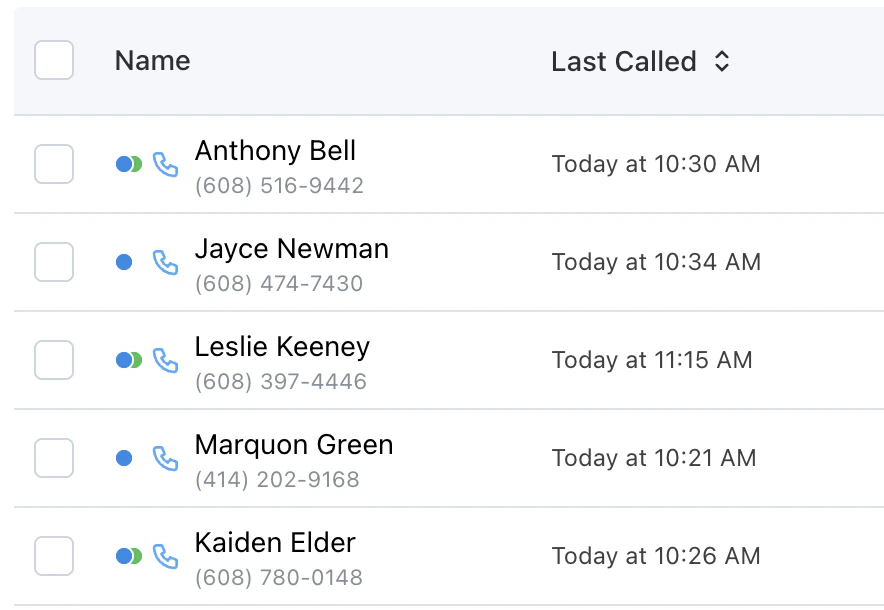
- Blue: A new call to review.
- Green: New SMS activity to review.
- Purple: New email activity to review.
- Orange: The candidate asked questions Tenzo couldn’t answer. Open the candidate and add the missing details to the job’s Background Info so future candidates get a real answer.
Resume Stars
When resume filtering is enabled, the Resume column shows the candidate’s resume fit as a star rating from 1 to 5 stars. The AI reviews the resume against the job and assigns the rating directly — 5 means highly qualified, 1 means a weak fit. A rating of 0 means the AI found a disqualifying mismatch, shown as the Missing Requirement badge instead of stars.Gold vs. Gray Filled Stars
The number of filled stars always reflects the AI’s star rating. The color of the filled stars tells you whether the candidate cleared the job’s minimum star threshold.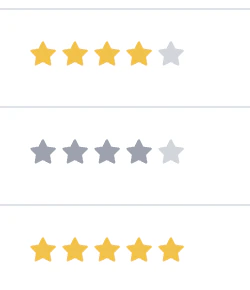
Proctoring Score (Video Jobs)
For video interview jobs, the Proctoring column shows a score from 0 to 100 that summarizes how clean the candidate’s video interview was from a proctoring perspective. Higher is better.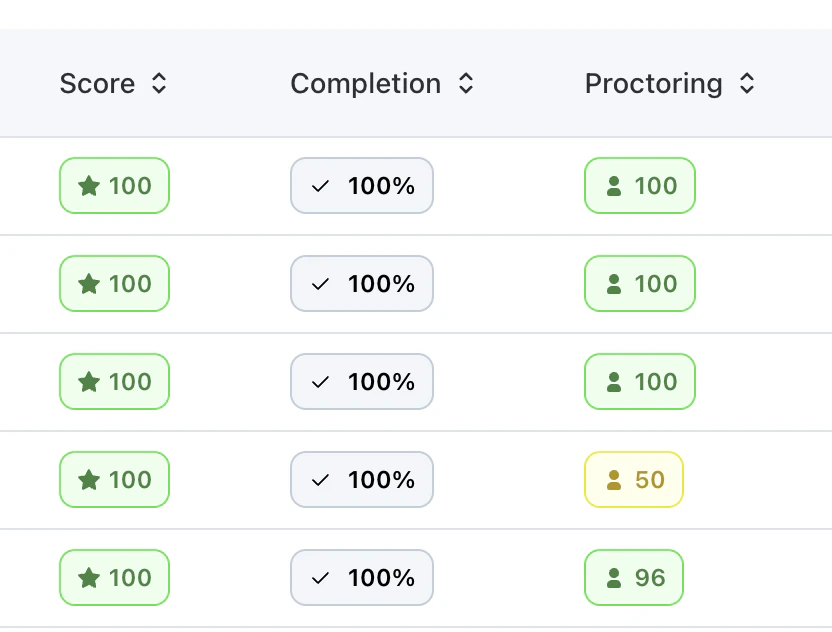
- Green for scores 80 and above.
- Yellow for scores between 1 and 79.
- Red for a score of 0.
How the Score Is Calculated
A candidate starts at 100 points. Points are deducted when proctoring signals are detected during the interview. The deduction per “other” event scales with interview length so longer interviews are not unfairly penalized for occasional events.
A few important behaviors:
- The score never goes below 0.
- Events that Tenzo’s vision analysis classifies as not suspicious are excluded from scoring before deductions are applied. This applies to tab switch events as well as the face/visual events (not in frame, multiple people, looking away, partially out of frame).
- VPN/proxy and location-not-allowed signals come from IP geolocation at interview time.
Proctoring Threshold
Jobs have a configurable proctoring score threshold (default 60) that controls downstream behavior such as whether a follow-up should be scheduled and how the candidate is routed in your ATS. The threshold is independent of the score itself; the column always shows the raw score.Feedback and Comments
When the Feedback column is on, each row shows a thumbs up button, a thumbs down button, and a comment button. Hover any of them to see what they will do for the current candidate and ATS configuration.Thumbs Up and Thumbs Down
The thumbs buttons set candidate feedback for this job. What they do beyond saving the feedback depends on whether the job is linked to an ATS:- No ATS: Thumbs up marks the candidate as qualified for the role. Thumbs down marks them as unqualified.
- ATS with a configured thumbs-up stage: Thumbs up also moves the candidate to that stage in the ATS.
- ATS with a configured thumbs-down stage: Thumbs down also moves the candidate to that stage.
- ATS that supports dispositions: Thumbs down rejects the candidate in the ATS. If a fixed rejection reason is configured, that reason is used. Otherwise, a popover asks you to pick a rejection reason.
Comments
Click the comment icon to open the comment thread for that candidate in a popover.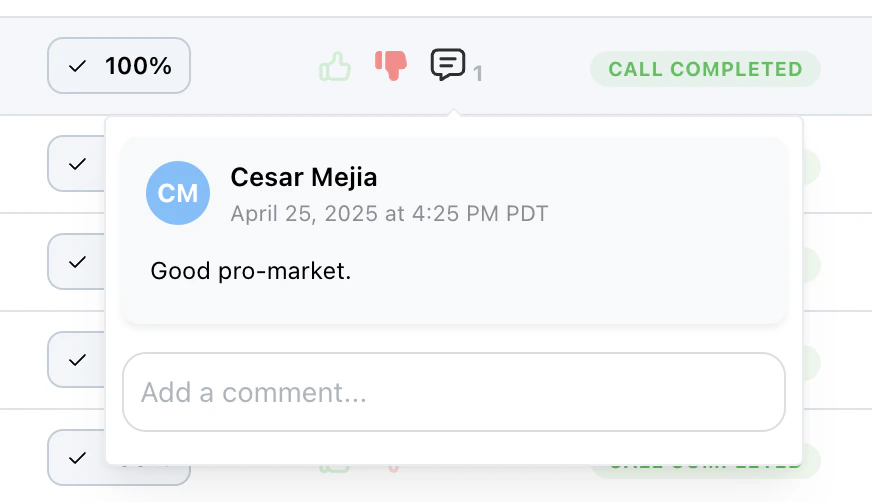
Consent on the Candidate Record
Open any candidate and the header under their phone and email shows three chips: Call, Text, and Email. A green chip means Tenzo may reach the candidate on that channel; a red chip means it may not. The chips are read-only. Consent changes when the candidate acts (for example texting STOP, replying, or answering on a call), when your ATS syncs a preference, or through the API. See Outreach for how consent affects outreach. Every change to the candidate’s own consent (call, text, email) made since they joined this job also appears in the candidate’s History tab as a Consent entry showing which channels were granted or revoked, the reason, and the time. Choose the Consent filter to see only those entries; they are included in Key activity as well.Selecting Candidates and Bulk Actions
Use the checkbox on each row to select individual candidates, or the header checkbox to select every candidate matching the current filters, not just the rows currently loaded into the table. After selecting all, you can uncheck individual rows to exclude them. (On the organization-wide Interviews page, the header checkbox selects the currently loaded rows for bulk actions, with Export supporting up to 100,000 matching rows across filters.) Once any candidates are selected, the bulk actions toolbar appears above the table.Actions Available on Both the Interviews Page and Job Candidates Tab
- Chat Assistant: Opens a chat scoped to the selected candidates so you can ask questions about them.
- Export: Opens a dialog so you can choose how many matching rows to include and which columns to put in the CSV. The count follows the table’s current search, filters, and sort — allowing you to export beyond the rows loaded on screen. Type how many matching rows to include (up to 100,000), or choose All matching. Every export column is selected by default; uncheck any you do not want. Recruiter comments appear in a single Comments column, separated by line breaks.
- Mark as Read: Marks unread activity (new calls, replies, etc.) on the selected candidates as reviewed.
- Pause Calls / Resume Calls: Pauses outreach for the selection if any are currently active, or resumes outreach if all selected candidates are paused. The button label switches based on the current state.
- Cancel Calls: Cancels pending and in-progress calls for the selection. Calls are marked as cancelled by the user.
- Remove: Removes the selected candidates from their jobs. Their calls are no longer counted against the job. Available to Global Admins only; non-admins see this action disabled with a tooltip to contact an admin.
Actions Available on the Per-Job Candidates Tab
On a job’s Candidates tab, Chat Assistant and Export are available to anyone who can view the job, including Viewers. The other bulk actions on that tab require Manage Candidates. The Interviews page always shows the full bulk-actions bar. The following additional bulk actions appear when managing candidates within an individual job’s Candidates tab:- Progress to Interview: Moves selected candidates who are blocked from interviewing (resume rejected, other interview, or disqualified) into outreach so Tenzo can contact them anyway. Candidates who are not in an eligible state are skipped with an error reported for that row.
- Restart Workflow: Restarts each selected candidate from the beginning of the workflow. Resume review runs again when configured, outreach attempts reset, and previous interview data is removed from the active workflow. Available to Global Admins only. Non-admin candidate managers see the action disabled and can select it to learn why it requires an admin.
- Tags: Applies or removes one of your organization’s candidate tags across the whole selection. Tags belong to the candidate, so a tag applied here is visible on every job that candidate appears on. See Candidate Tags.
- Thumbs up / Thumbs down: Applies the same ATS-aware feedback behavior as the per-row buttons to every selected candidate. With dispositions enabled, thumbs down opens a popover to pick a rejection reason that is applied to the whole selection. This is how you bulk reject candidates: select the candidates you want to reject, click thumbs down, and (if prompted) choose the rejection reason.
The Row Actions Menu
Each row has a three-dot menu for actions on a single candidate. The menu contains:- Pause / Resume / Resume Outreach: Pauses outreach for an active candidate, resumes a paused candidate, or resumes outreach for a candidate currently flagged as needing review. The label changes based on the candidate’s current state. The item is shown disabled with a Calls Complete tooltip when there is no active outreach to control (for example, after the candidate has finished their calls).
- Progress to Interview: Appears only when the candidate is in a state that would normally block them from interviewing: disqualified, marked as having taken another interview, or rejected at the resume stage. Clicking it forces them through to the AI interview anyway.
- Restart Workflow: Removes the candidate’s current progress and starts the workflow again from the beginning. Resume review runs again when configured, outreach attempts reset, and previous interview data is removed from the active workflow. Before restarting, a confirmation explains these effects and points recruiters to Progress to Interview when they only need to bypass a blocking review or stage. Available to Global Admins only; non-admin candidate managers see a disabled-looking action that opens an explanation.
- Remove: Removes the candidate from the job. Available to Global Admins only; non-admins see this item disabled with a tooltip to contact an admin.