

Reviewing an Interview
Clicking a candidate row in the Interview Results Table opens that candidate’s full interview review. The left side is the recording and transcript, the right side is the analysis: scores, summary, question grades, candidate questions, recommended jobs, flagged events, and the AI chat.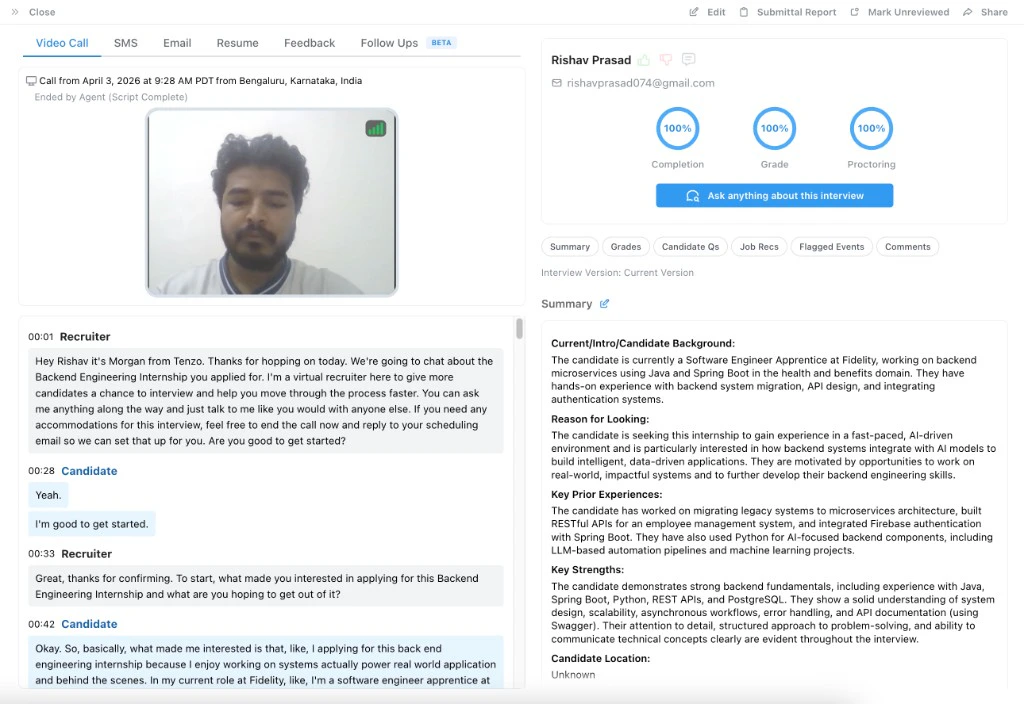
Tabs Across the Top
Above the candidate name you’ll see a row of tabs. Which ones appear depends on the interview type and your job’s configuration:- Video Call / Phone Call: The interview itself, with the recording (or audio) and transcript. Shown once there’s a call to review; until then the drawer opens on the History tab instead.
- History: The candidate’s activity timeline (oldest at the top, most recent at the bottom; opens scrolled to the latest activity): call attempts (with status, time, and duration), Tenzo stage transitions, when the candidate was added, consent changes made since the candidate joined the job, and SMS/email conversations bundled into segments between calls. Defaults to Key activity (calls, stage changes, candidate added, consent changes, and email threads). For phone jobs, only email threads that received a candidate reply appear; for video jobs, all email threads appear (invites and reminders included). Also filter by All activity, Calls, SMS and/or Emails (shown when that channel has history), Stages, or Consent (shown when the candidate has consent changes on this job). Hover a call card to preview that call’s transcript, or hover an SMS/email card to preview the thread. Click an SMS/email card to expand it inline, or use Open in SMS / Open in Email to jump to the History SMS/Emails filter with threads expanded. On All activity, SMS, or Emails, use Expand messages to open every visible bundle at once. Hidden for test calls.
- SMS: Text history with the candidate.
- Email: Email history with the candidate.
- Resume: The candidate’s resume (only when one is on file).
- Timeline: Scheduled follow-up events for the candidate.
- Scheduled Follow Up: Active follow-up scheduling state.
- Feedback: Candidate-submitted feedback about their interview experience (only when feedback was actually provided).
- ID Verification: Persona ID verification details (video jobs with ID verification on).
- Follow Ups (Beta): Notes for the candidate.
- Prior Interviews: Other applications this candidate has in your organization. The tab name includes the count, such as Prior Interviews (2). See Prior Interviews.
Playing the Video and Following the Transcript
The video plays in the panel on the left side of the Video Call tab, with standard play / pause, volume, full-screen, and (for video interviews recorded on a desktop with screen share) a toggle to switch between the candidate’s webcam and their screen. Network bars show the candidate’s connection quality across the call. When both webcam and screen recordings are available, Tenzo keeps them in sync as one playback. Playback may pause briefly while the screen recording buffers or catches up. If a screen segment cannot be recovered, Tenzo shows a notice and continues with the candidate video so the rest of the interview remains watchable.Recording quality depends on the candidate’s device. The webcam records at
a fixed resolution of 540p (960×540) on computers and 360p (640×360) on
phones, at up to 20 frames per second (and may drop further under device CPU
pressure). Phones use the lower resolution to keep the interview smooth and
prevent the browser from crashing mid-interview, so recordings made on a phone
will look softer than those from a computer. It does not affect transcription,
grading, or proctoring accuracy.
- Lines in the transcript itself
- Question grades on the right side
- Candidate questions
- Flagged events (and individual frames within them)
Who ended the call
The end reason is attributed to the candidate, to your AI (shown using the job’s AI caller name, for example “Ended by Alex”), to the system, or—rarely—to Unknown when Tenzo could not determine it. The distinction that matters most is the AI versus the system:- Ended by <your AI’s name> means the AI deliberately ended the call: the script finished, the candidate declined to continue, a knockout answer ended the screen, or voicemail was detected.
- Ended by system means the platform, telephony, or network ended it—a dropped connection, a failed dial, or a timeout. It is not a decision by the AI and implies nothing about the candidate’s answers.
A timeout can appear under either attribution depending on which timer fired. A candidate
silence timeout is the AI choosing to end the call; connection and verification timeouts are
platform-level and show as ended by the system.The per-leg Call ended lines cover attempts the candidate actually engaged with. Attempts
that never connected—no answer, busy, or a failed dial—have an end reason but no transcript, so
they produce no per-leg line. To see every dial attempt, open the candidate’s History tab
and filter to calls.
Scores at the Top: Completion, Grade, Proctoring
The header on the right side shows three rings at the top, plus an “Ask anything about this interview” button.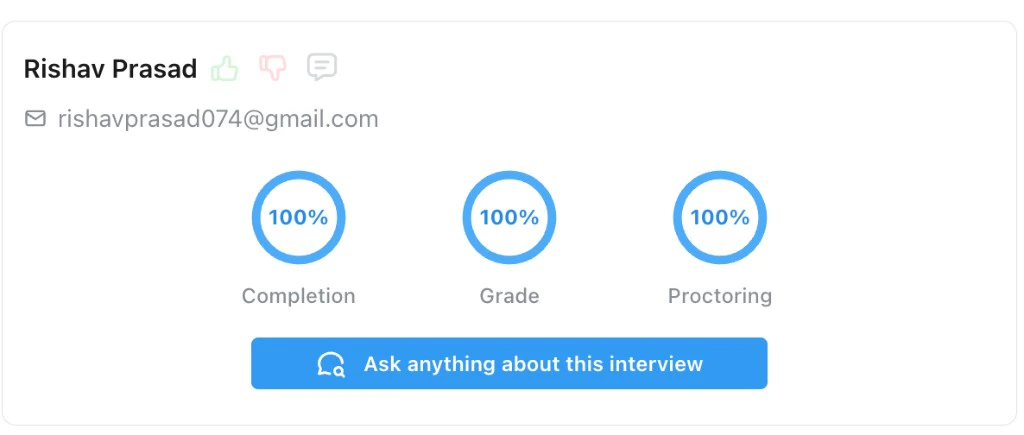
- Completion: The percentage of counted screening questions the candidate answered. See Call Status for how this relates to when a call is marked Completed vs Hung Up.
- Grade: The candidate’s overall interview score, 0–100, computed from how the candidate’s answers were graded against the configured screening questions.
- Proctoring: Video interviews only. A 0–100 score that summarizes how clean the interview was based on the frequency of flagged suspicious events. See Proctoring Score for the full scoring rules.
Summary
The Summary is a generated overview of the interview. The exact sections (such as background, reason for looking, key prior experiences, key strengths, and candidate location) come from the job’s summary template.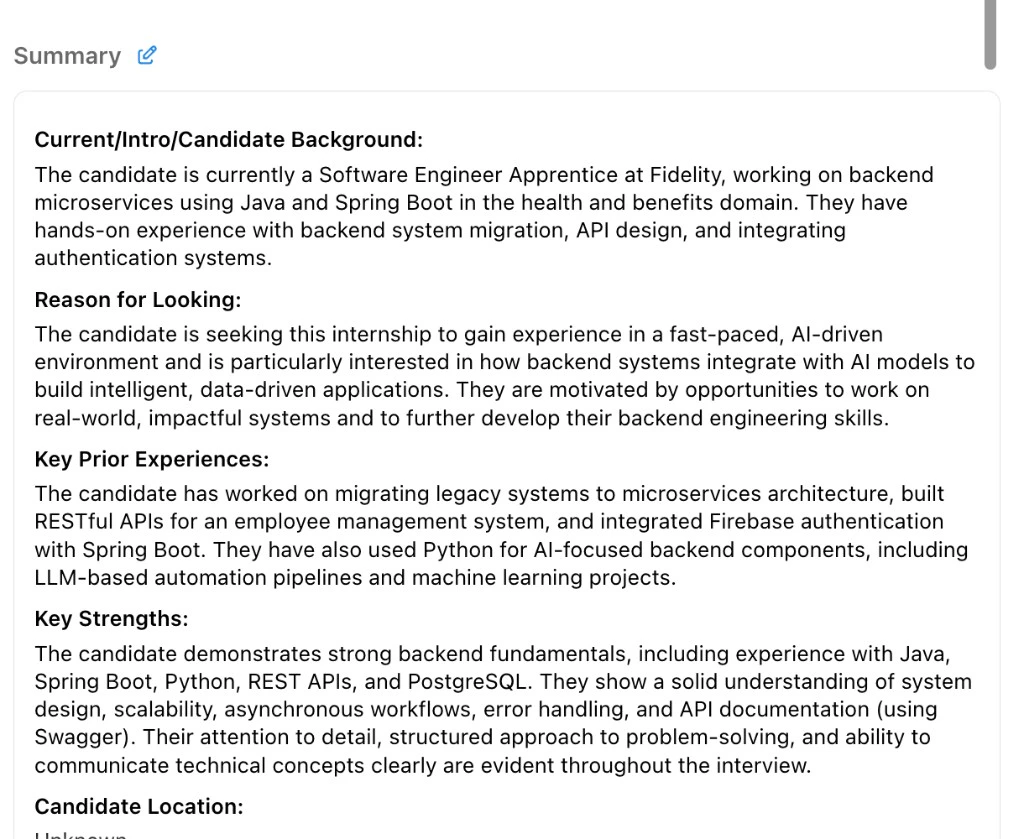
A summary is generated only when the candidate engaged with the interview,
meaning they answered at least one screening question (completion rate above
0%). This is independent of whether the call was marked
Completed
(reaching the end of the scripted interview) and of the separate above/below
threshold
check
used for ATS stage moves (for example the default 80% completion rate): a
candidate who answers a few questions and hangs up early still receives a
summary. A candidate who never engaged has no summary to display.
Question Grades
The Question Grades section is the per-question breakdown of how Tenzo graded the candidate’s answers.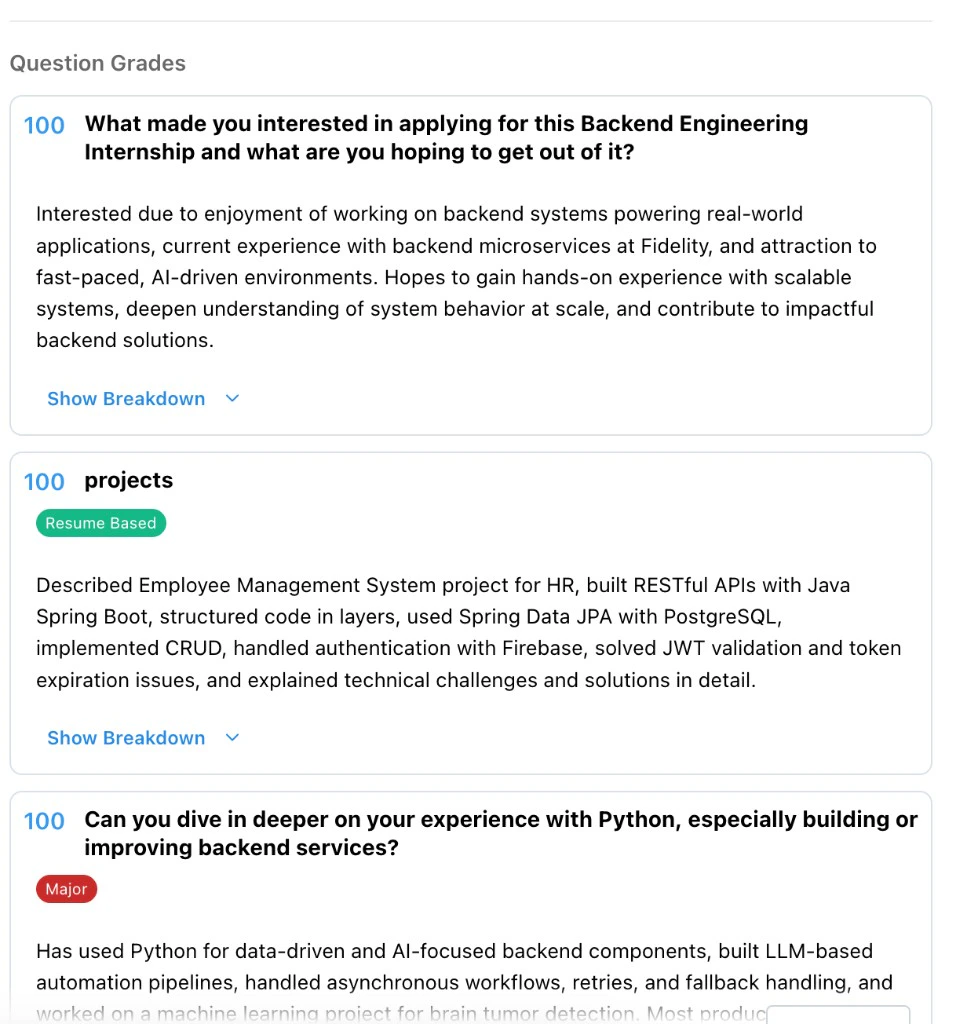
- Score (left): The grade Tenzo assigned this question, rounded to a whole number out of 100.
A
?means the question was not asked, a yellow score/badge indicates provisional full credit pending work accommodation review, and a red score means a required question was failed (grade 0). For a required Yes/No question, the score is replaced with a green check (correct answer) or a red X (incorrect answer, which fails the requirement) instead of a number. - Question title: What the candidate was asked.
- Badges: Question type and importance pills, such as Resume Based, Major, Info, or knockout markers, when they apply to this question.
- Answer: A condensed version of the candidate’s answer.
- Show Breakdown: Appears for questions graded against a rubric (bucket grading).
Grading Instructions Tooltip
Hovering the score on the left of a question reveals the Grading Instructions Tenzo used for that question. For auto-generated and resume-based questions, the tooltip also shows the Generation Instructions that produced the question.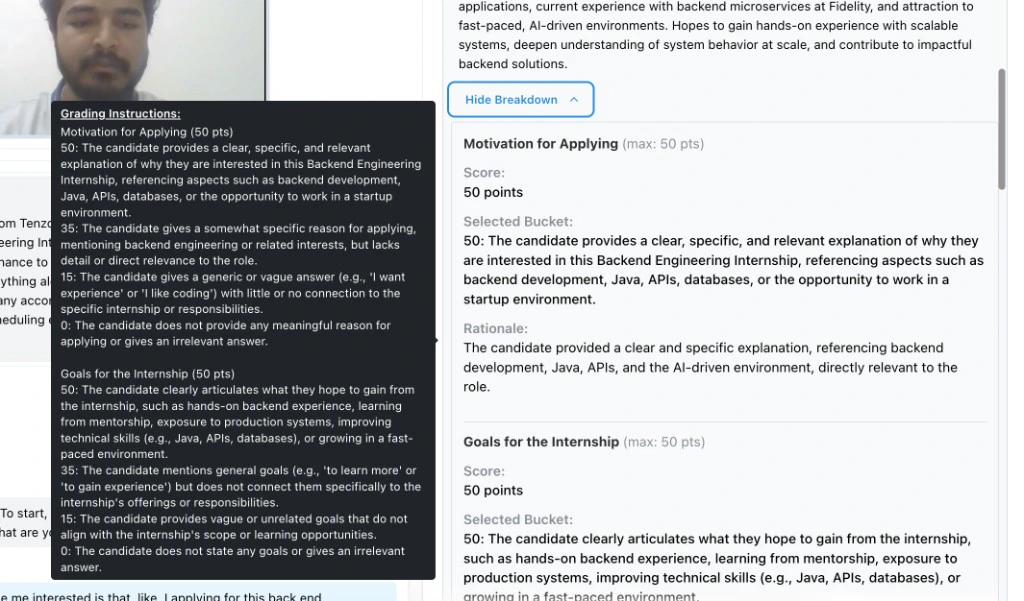
Show Breakdown
Clicking Show Breakdown expands the rubric scoring for that question. For each category in the rubric, the breakdown shows:- Category name and max points (such as
Motivation for Applying (max: 50 pts)) - Score: Points awarded.
- Selected Bucket: The rubric bucket Tenzo chose for this category.
- Rationale: Why Tenzo chose that bucket.
- Total Score at the bottom when there are multiple categories.
Work Accommodation Review
Sometimes a candidate gives an answer that shouldn’t be scored automatically, because the reason behind it is one a person needs to weigh. The clearest example is a work accommodation: a candidate who says they can’t make a particular shift because of a standing doctor’s appointment is describing a protected circumstance, not failing the availability question. Counting that answer against them automatically would be both unfair and a compliance risk. By default, Tenzo flags answers tied to the three protected accommodation regimes recognized under U.S. employment law: disability or medical (ADA), religion (Title VII), and pregnancy or childbirth (PWFA). Organizations can manage reusable criteria in Admin > Templates Bank > Work Accommodation Review Rule Sets, where custom inclusion rules and explicit exclusions can be defined. In the job’s Work Accommodation Review settings, teams can select which rule sets apply to the job, with a live preview of the combined effective criteria. Each flag is labeled with the category it falls under. When the Work Accommodation Review setting is enabled for a job, Tenzo watches for these answers during post-interview processing and flags them for a human to decide, so a candidate is never penalized for disclosing an accommodation. The check reads the unredacted transcript — the candidate’s own words before any redaction is applied — because redaction removes exactly the details this check looks for. It reads both sides of the conversation, the interviewer’s questions as well as the candidate’s answers, so each flag lands on the question the candidate was actually answering. That matters when an answer is short: “Pregnancy,” said in reply to “why did you leave your last job?”, is attached to the work-history question rather than to some other question that happens to touch on health or scheduling.What you’ll see
A flagged question is given full credit until a person reviews it. In the Question Grades list its grade badge displays in yellow to signal provisional full credit pending review, and the question card carries a yellow Needs work accommodation review callout. The question is counted as full credit toward the overall Grade calculation. This guarantees a disclosed accommodation can only help or hold the candidate’s score steady — never lower it — until you act on the flag. When editing the grade, the modal displays what score the candidate’s answer would have received as-is. If a candidate would have met or exceeded the passing score threshold on their raw merits anyway (for example, scoring 100% or above the pass cutoff), Tenzo does not hold them for Work Accommodation Review — they move straight to their usual outcome without a review delay. The disclosure is still recorded: the question keeps its note explaining what was disclosed, marked no review needed, and the answer keeps exactly the score it earned (no provisional credit is applied, because none is needed). The bar used here is the stricter of the job’s passing score and your ATS interview pass threshold, so a candidate who clears the job’s score but not the ATS one still gets the provisional credit and the human review. Informational questions (questions that collect information without scoring weight) can be flagged for reviewer awareness and dismissal, but they do not receive provisional score inflation and do not hold the Work Accommodation Requested stage. Each flagged item is also collected into a Work Accommodation Review summary — showing the candidate’s exact words, the question they were answering when they said it, and why it was flagged. This summary is visible in the app as soon as the interview is processed, so you can act on it right away. The interview itself is not held. As soon as it is processed, Tenzo does its normal result processing: it grades the interview, syncs the result to your ATS, sends the candidate’s results email and the ATS note, and runs the usual follow-ups. What the review holds is the outcome stage: instead of moving on to its final outcome, the candidate waits in the Work Accommodation Requested stage until every flagged item is resolved, so no stage decision is finalized before a person has weighed the disclosure. (Optionally, orgs may configure a Work Accommodation Requested stage in ATS Settings; when set, the applicant is also moved to that stage in your ATS while the review is open, and the final outcome stage move on resolution supersedes it — unless a recruiter has already moved them off it, in which case their choice stands.) The stage hold applies only to interviews where the outcome could still change. If the candidate fails on the merits regardless of the disclosure — they miss a knockout question, or they fail the interview’s pass thresholds (for example, a score below the passing threshold) even with every flagged question counted at full credit — the candidate goes straight to the failing outcome stage rather than waiting in review, because review could not change an outcome already reached under the most favorable, full-credit assumption.Resolving a flag
From the flagged question you can either:- Assign grade — score the question yourself. Your grade replaces the assumed full credit and counts toward the overall Grade like any other answer. This opens a dedicated dialog that asks for two things: the score, and your reasoning for it. The question and the candidate’s answer are shown for context but cannot be edited here — resolving a review is a decision about the score, not a chance to reword what was asked or said. Your reasoning is required and is recorded on the audit trail alongside the score.
- Dismiss — keep the assumed full credit for the question and clear the flag, leaving the full-pass score in the Grade.
This check runs against the unredacted transcript, so the reviewer can see
the candidate’s underlying statement even when redaction is on. As a result,
the quote in the Work Accommodation Review summary may include wording that is
redacted elsewhere in the results.
Candidate Questions
If the candidate asked any questions of their own during the interview, they are listed in the Candidate Questions section.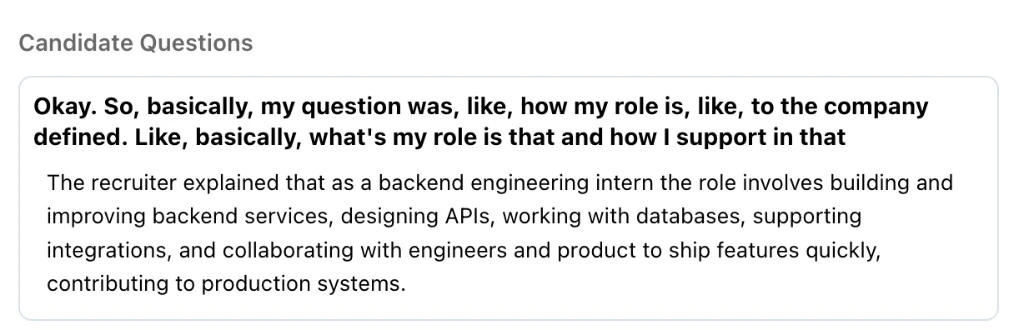
Recommended Jobs
When reverse sourcing is enabled, Tenzo can also recommend other open jobs in your workspace that this candidate might fit. Recommendations appear in two groups when applicable:- Recommended Jobs (Within 40 miles) — jobs near the candidate’s location.
- Recommended Jobs (Anywhere) — jobs anywhere in the workspace.
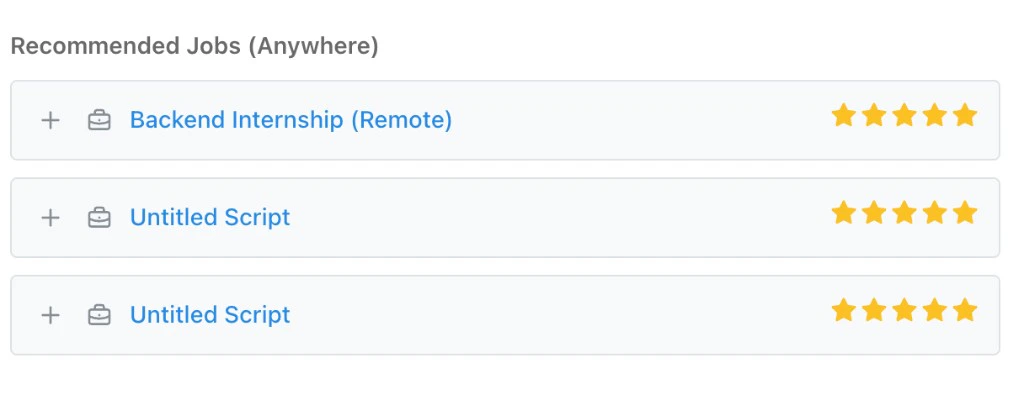
- Plus icon (+): Add this candidate to that job as a sourced candidate.
- Job name: Click to open the job’s script editor in a new tab.
- Star rating: A 1–5 star match score. Hover the stars to see Tenzo’s reasoning for the match.
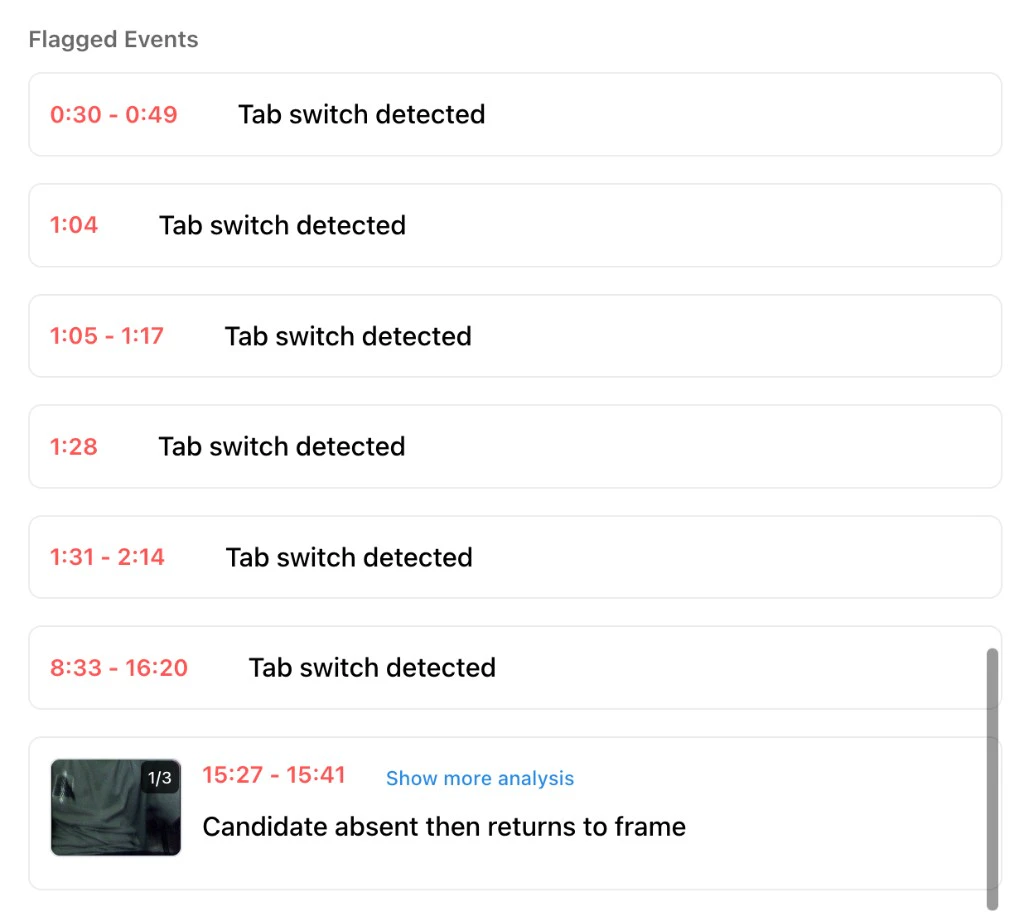
Flagged Events (Video Interviews)
For video interviews, the Flagged Events section lists proctoring events that were detected during the interview. These are the same events that drive the Proctoring score. If nothing was flagged, you’ll see this:
Event Types
Common events you may see:- Tab switch detected — the candidate moved focus to a different tab or window.
- Not in frame / Candidate absent then returns to frame — the candidate was missing from the camera view.
- Multiple people — more than one person was detected in the camera view.
- Looking away / Partially out of frame — the candidate’s face was off-screen or turned away.
- VPN or proxy detected — the candidate’s IP looks like a VPN or proxy.
- Location outside allowed countries — the candidate’s IP is in a country your job does not allow.
- Camera off / Camera disconnected / Mic off / Mic disconnected / Screen share disconnected — the corresponding device or stream stopped during the interview.
- Multiple displays — a second display was attached after the interview started.
- App switch — mobile candidate switched to another app.
- Copy-paste used — the candidate pasted text into an answer field.
- Rejoined — the candidate left and rejoined the interview.
Which Events Have Images
Face and visual events show a thumbnail of the camera frame at the moment of the event. These include Not in frame, Multiple people, Looking away, and Partially out of frame. For events with multiple captured frames, the thumbnail shows a 1/N counter and a Show more analysis link expands a gallery of every captured frame plus the AI’s detailed analysis. Most other events show only the timestamp and description. Tab switch events typically don’t include an image because the camera is no longer in focus during a tab switch — the screenshot above shows several tab switches without thumbnails.Ask Anything About This Interview
The Ask anything about this interview button opens an AI chat scoped to this candidate’s transcript.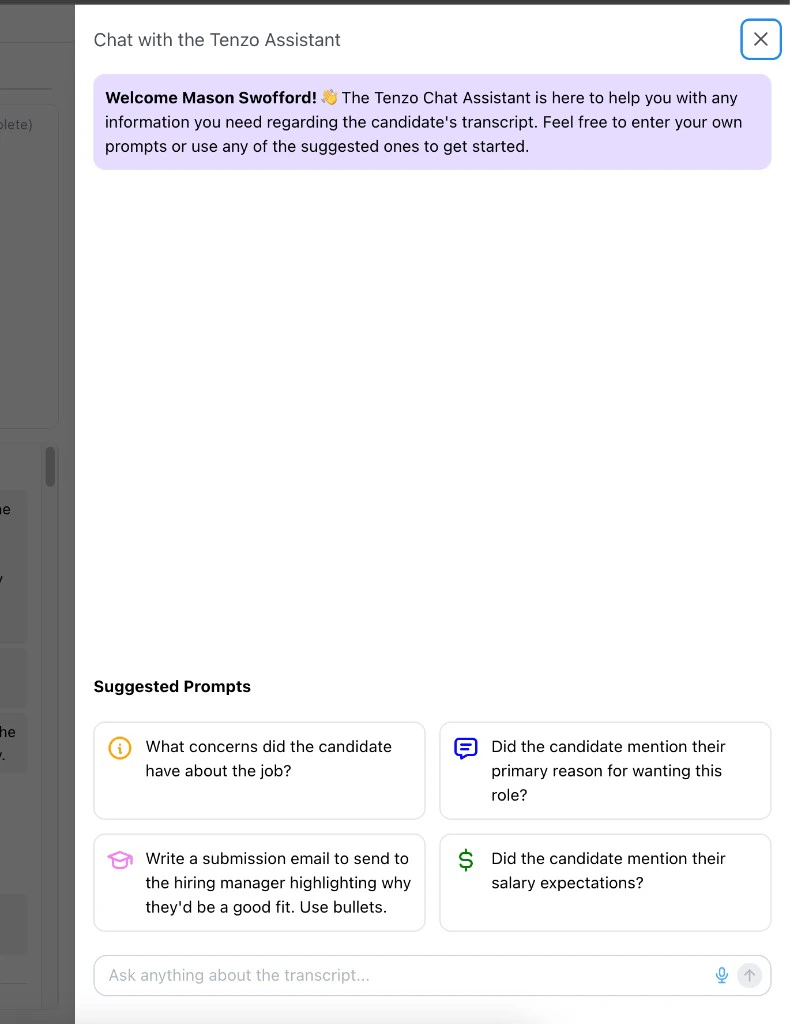
- What concerns did the candidate have about the job?
- Did the candidate mention their primary reason for wanting this role?
- Write a submission email to send to the hiring manager highlighting why they’d be a good fit. Use bullets.
- Did the candidate mention their salary expectations?
Resume Tab
When the candidate has a resume on file, a Resume tab appears in the top tab row.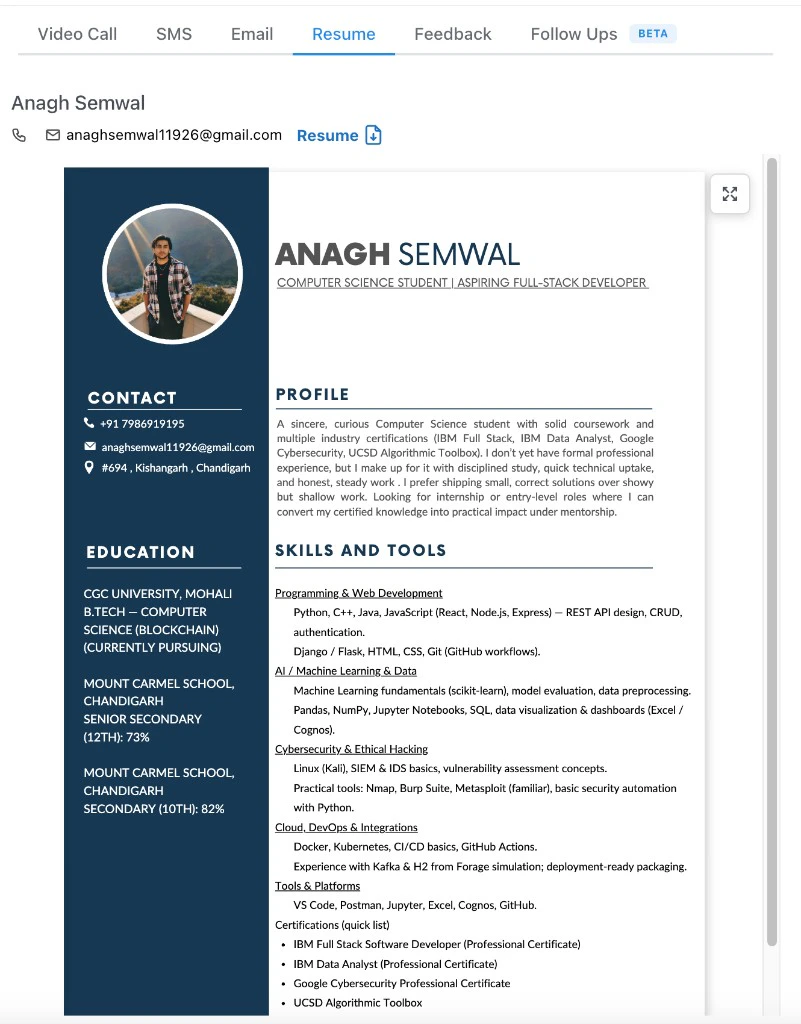
Feedback Tab
When the candidate submitted feedback after their interview, the Feedback tab is enabled. Phone feedback is sent when the candidate finished a phone screen as a trusted completed interview, including graded Failed Knockout outcomes — see Post-Interview Feedback.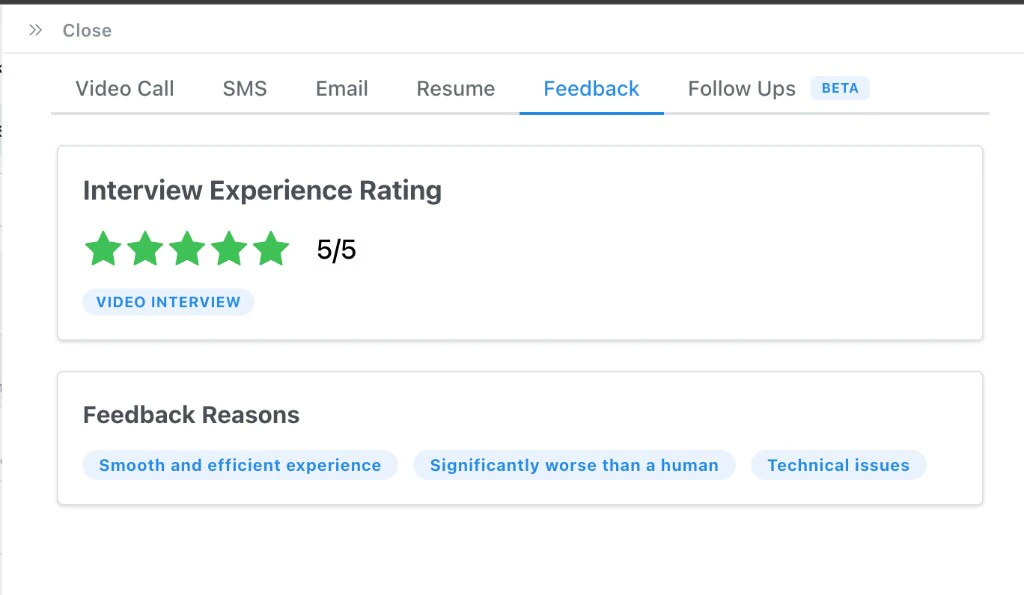
- Interview Experience Rating: The candidate’s 1–5 star rating of the interview, plus a badge for how the feedback was collected — Video Interview for in-app feedback after a video interview, or Phone Feedback for SMS-based feedback after a phone interview. Stars are colored green for 4–5, yellow for 3, and red for 1–2.
- Feedback Reasons: Tagged reasons the candidate selected, such as Smooth and efficient experience, Significantly worse than a human, or Technical issues (video interviews only).
- Additional Comments: Free-text comments from the candidate (when provided).