

Create and configure your note
Open Meeting Copilot, choose Notes, and click + New Note. Configure the meeting type, template, and any linked Job or candidate on the Config tab. If you use the Teams app, you can also add a note to your meeting. Choose one of three recording modes on the Launch Bot tab:- Meeting Bot (Zoom, Google Meet, Teams): Paste your meeting URL, click Launch bot, and admit the bot when it appears in the meeting lobby. The bot joins, transcribes, and generates notes in real time.
- Call Bridge (Phone Calls): Bridge an outbound phone call between host and candidate phone numbers.
- Live Conversation (Microphone): Record directly from your browser/microphone for in-person interviews or face-to-face discussions without requiring a bot or phone bridge. Spoken dialogue is transcribed in real time and automatically summarized into your meeting notes when finished.
Save your note configuration
On Config, select the meeting type and a matching template, then link a Job or candidate when applicable. If you have no linked Job, you can paste a JD draft to give the AI context. Review the summary email and sync controls, then click Save. Confirm any changes that would rewrite the note. See Note configuration for the available settings and how suggested questions are generated.Meeting Transcription Bot
The transcript bot joins your meeting, records the audio, transcribes it in real time, and powers the AI note-taking engine.Launching the Bot
From the Launch Bot tab in the note view:- Enter the meeting URL — Supports Teams, Zoom, Google Meet, and other common platforms.
- Choose when to join:
- Join now — The bot attempts to join immediately.
- Schedule for later — Pick a date and time for the bot to join automatically.
- Click Launch bot or Schedule bot.
Admitting the Bot
When the bot joins, it will appear in the meeting lobby. A notification reminds you to admit it after launching.Removing the Bot
If you need to stop recording early, click Remove bot on the Launch Bot tab (or Cancel scheduled bot for a bot that hasn’t joined yet) and confirm. Upon leaving, it will trigger summary / JD generation.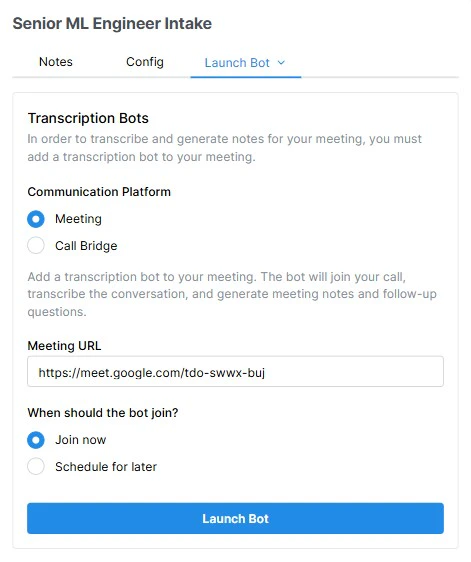
Launch Bot tab — Meeting mode, with a URL field and Join now / Schedule for later options
Call Transcription Bot
As an alternative to joining a video meeting, you can also initiate a bridge call — a phone-to-phone conversation connected through Tenzo that is transcribed and turned into notes just like a video meeting. From the Launch Bot tab, switch the mode to Phone bridge and:- Enter both phone numbers — your number and the other party’s number. If a candidate is linked to the note, their phone number is pre-filled.
- Choose when to connect:
- Call now — Both parties are dialed immediately and connected through the bridge.
- Schedule for later — Pick a date and time and the bridge will dial out automatically.
- Click Start call or Schedule call.
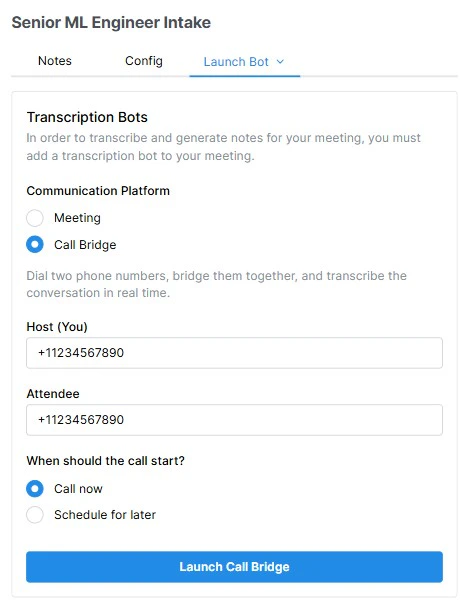
Launch Bot tab — Call Bridge mode, with Host and Attendee phone fields
Scheduled Follow-Up Flow
For interviews scheduled through Tenzo’s calendar integration, the note-taking bot can be automatically scheduled.Review Your Note Setup
When Tenzo creates a meeting note, it emails the recruiter when an email address is available. This includes notes from calendar invitations, scheduled interviews, the in-meeting app, intake links, Autopilot, call bridges, the New note action, and API uploads with post-meeting actions enabled. Every meeting type receives a notification, with a link to the note’s Config tab to review its meeting type and template. Interview emails also show the candidate and Job. Intake emails show the Job, without asking you to select a candidate. Other meeting types show any candidate or Job already linked, without treating missing links as errors. If Tenzo cannot identify an interview’s candidate or Job, it still creates the note. The email identifies the missing links; open Config, select the correct candidate and Job, and save. An intake for a new role can remain unlinked to a Job until you create one after the meeting. This notification is separate from the post-meeting summary email and does not wait for the interview to finish. A notification requires an available recruiter email address.How It Works
- When an interview is scheduled via the platform (Google Calendar or Outlook integration), a note is automatically created and linked to the meeting.
- The bot is pre-scheduled to join the meeting at the specified start time.
- Before the meeting begins, the system pre-loads context for the AI, including:
- The candidate’s resume and profile information
- The job description
- Prior call Q&A and interaction history
- When the meeting starts, the bot joins automatically — no manual action required (aside from admitting it to the lobby).
- After the meeting ends, the summary is auto-generated and optionally synced to your ATS.