Interview Customization
This guide explains the main sections you can customize after creating an interview. It is intended as a deeper companion to Create Your First Interview. The goal is to help you understand how the interview is assembled: what each step controls, how those steps affect the candidate experience, and where to make changes when a generated draft needs more direction. For settings-specific behavior, see Interview Settings. For a deeper explanation of screening questions, see Screening Questions.Choose the Interview Type
When you create a new job, Tenzo asks whether the interview should be a web interview or a phone interview. Both options use the interview script and grading instructions you configure, but the candidate experience is different.Web Interviews
Web interviews are completed by the candidate in a browser. Candidates typically receive an interview link and complete the interview on their own time. Use web interviews when:- Candidates may not be available for a live phone call
- You want candidates to complete the interview asynchronously
- You want a visual, browser-based experience with an interview link
- Email is the primary way you plan to invite candidates
Phone Interviews
Phone interviews are conducted over a phone call. Tenzo calls the candidate, asks the configured questions, and records the interview responses for analysis. Use phone interviews when:- A voice call is the preferred candidate experience
- Candidates are more likely to respond by phone than email
- You need to confirm availability, interest, or qualification details quickly
- You want the interaction to feel closer to a recruiter-led screen
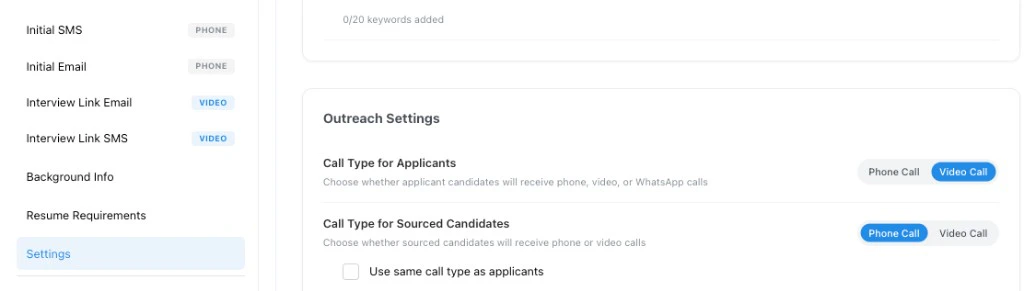
Applicant and Sourced Candidate Call Types
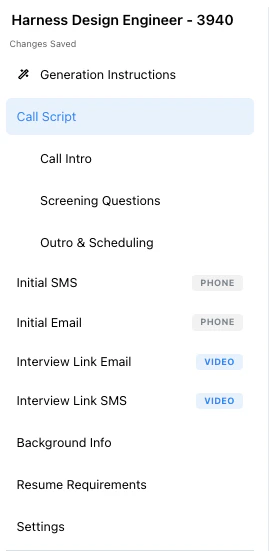
Applicants and sourced candidates can use different interview types for the same job. For example, applicants who applied directly can receive a web interview link, while sourced candidates can receive a phone call. When the job uses mixed call types, Tenzo labels Configure steps with Phone or Video badges. Those badges show which candidate path each outreach step applies to:- Initial SMS and Initial Email apply to the phone interview path.
- Interview Link Email and Interview Link SMS apply to the web interview path.
Generation Inputs
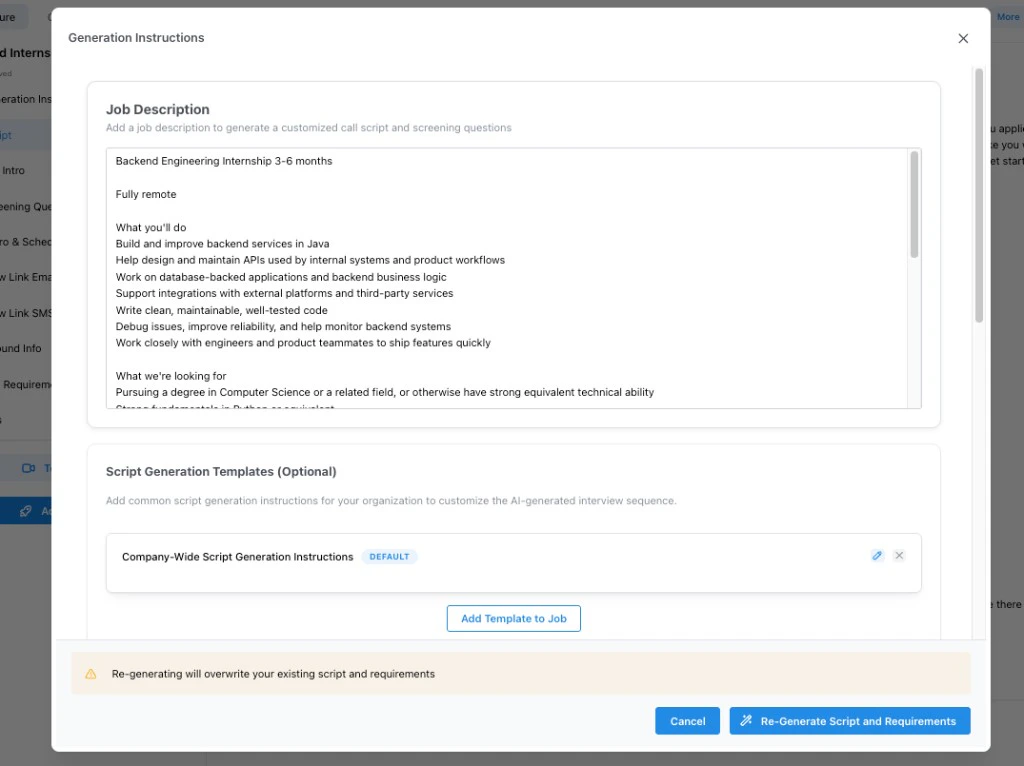
If you generate an interview from a job description, Tenzo asks for the source material and instructions it should use before creating the first draft. These inputs matter because they shape multiple later steps at once: the intro, screening questions, grading instructions, background info, resume requirements, and outreach messaging.Job Description
The job description is the primary source Tenzo uses to understand the role. Tenzo uses it to generate:- Candidate-facing context about the opportunity
- The call or web interview script
- Screening questions
- Follow-up prompts
- Grading instructions for each question
- Resume requirements
Generation Guidance and Templates
Generation guidance customizes the interview Tenzo creates from the job description. You can add one-off guidance for the current job, or apply reusable Script Generation Templates that contain the same kinds of guidance for many jobs. Guidance can be applied overall or targeted to specific generated sections:- Screening Questions
- Grading Instructions
- Resume Review Requirements
- Sourcing Requirements
- Call Intro
- Call Outro
- Initial SMS
- Initial Email
- Video Interview Link Email
- Video Interview Link SMS
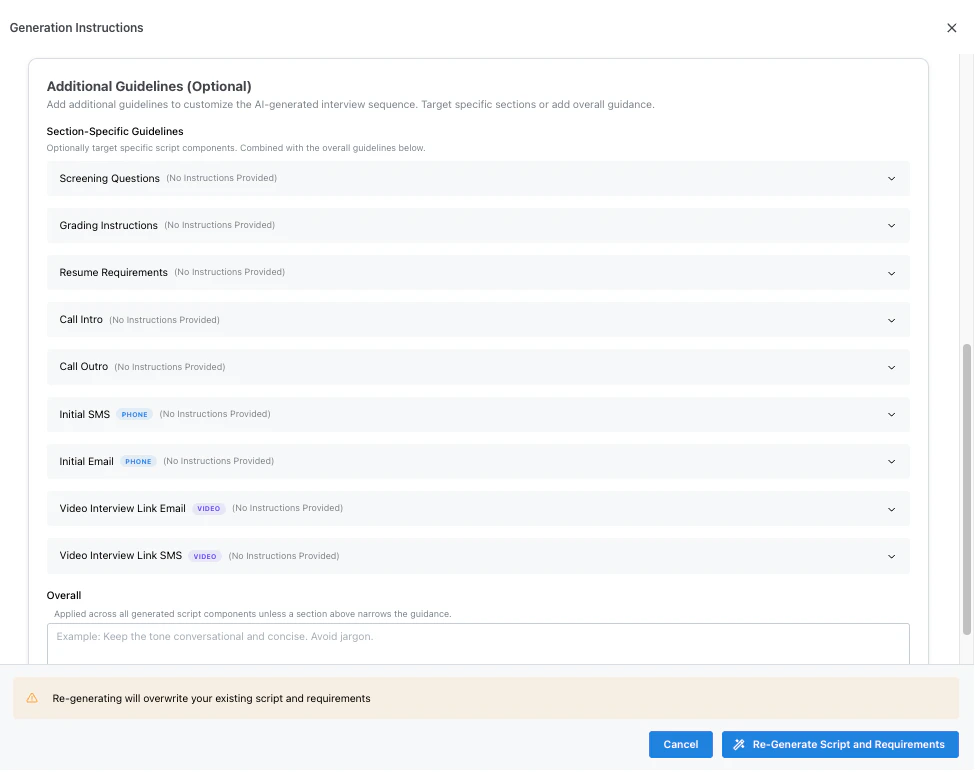
- Which qualifications are most important
- Which topics should become screening questions
- What kind of tone or candidate experience the interview should have
- Any company-specific requirements candidates must understand
- Any screening topics that should not be included
- Screening question guidance: Tell Tenzo which requirements should become questions and which topics should be excluded from the interview.
- Grading guidance: Tell Tenzo what a strong answer looks like and what should count as a weak or disqualifying answer.
- Resume requirements guidance: Tell Tenzo what resume criteria should be extracted and evaluated before or alongside the interview.
- Sourcing requirements guidance: Tell Tenzo which criteria should be used to search for candidates, which can differ from what a resume is graded on. See Sourcing vs Resume Requirements.
- Call intro guidance: Tell Tenzo what the candidate should understand before answering questions, such as role location, schedule, work environment, or hiring process.
- Call outro guidance: Tell Tenzo how to close the interview and explain next steps.
- Outreach guidance: Tell Tenzo how to write phone outreach messages and web interview link messages for candidates.
Variables
Variables are placeholders that Tenzo replaces with job, candidate, recruiter, or scheduling details when the script or outreach message is used. They let you keep templates reusable while still making each interview feel specific to the candidate and role. Variables come in a few kinds:- System variables — built-in job, candidate, recruiter, and scheduling details such as
{{candidate_name}},{{job_name}}, and{{company_name}}. - Job and ATS attributes — dotted references to a job’s fields and its ATS data, such as
{{ats.company}}or{{location.city}}. - Lookup-table variables —
{{label.column}}values pulled from a CSV you upload and matched to each job. See Lookup-Table Variables. - Custom variables — values an AI prompt derives from your other variables, referenced as
{{name}}. See Custom Variables.
or fallback so a candidate never sees a blank — for example
{{ats.company or "our team"}}. Fallbacks can be chained, and the first quoted literal is the
default: {{ats.company or clean_company or "our team"}}. A fallback is recommended for
lookup-table and custom variables in most fields — without one the editor shows a may-be-blank
warning, but that advisory never blocks the save. (An unrecognized variable name is a
different matter — that does block the save; see Variable coloring.)
See Fallbacks.
Common variables include:
{{candidate_name}}: Use in intros, emails, and SMS messages to address the candidate directly.{{candidate.date_available}}: The date this candidate is available to start their next assignment, spoken as a full date such as “September 1st, 2026”. Filled in per candidate when the message is sent. If no date is on file, the variable is blank — add a fallback when the sentence still needs to read correctly, for example{{candidate.date_available or "your next available date"}}.{{ai_name}}: Use when the AI introduces itself or signs an outreach message.{{interview_link}}: Required in web interview link email and SMS templates so candidates can open the interview.{{job_description}}: Use in the interview link email body to share the job description with candidates. This variable works in email bodies only, not subject lines. Unless specified otherwise, only include this by default in the email body to sourced candidates, not applicants, to provide sourced candidates additional context for the outreach reason.{{estimated_duration_minutes}}: Use in web interview invitations to set expectations about how long the interview will take.{{expiration_days}}: Use when interview links expire and you want candidates to know how long the link remains valid.{{job_name}}: Use in call intros, emails, SMS messages, and interview link email subject and body to refer to the role.{{company_name}}: Use in emails (including interview link email subject and body), SMS, and call scripts to refer to the hiring company. This is the job’s brand name when one is selected, otherwise the organization’s default brand, otherwise the organization name. See Organization Branding.{{recruiter_phone_number}}: Use in phone outreach emails or SMS messages when candidates should be able to call back.{{interviewer_name}}and{{candidate_phone_number}}: Use in follow-up calendar event details so interviewers have the right context.
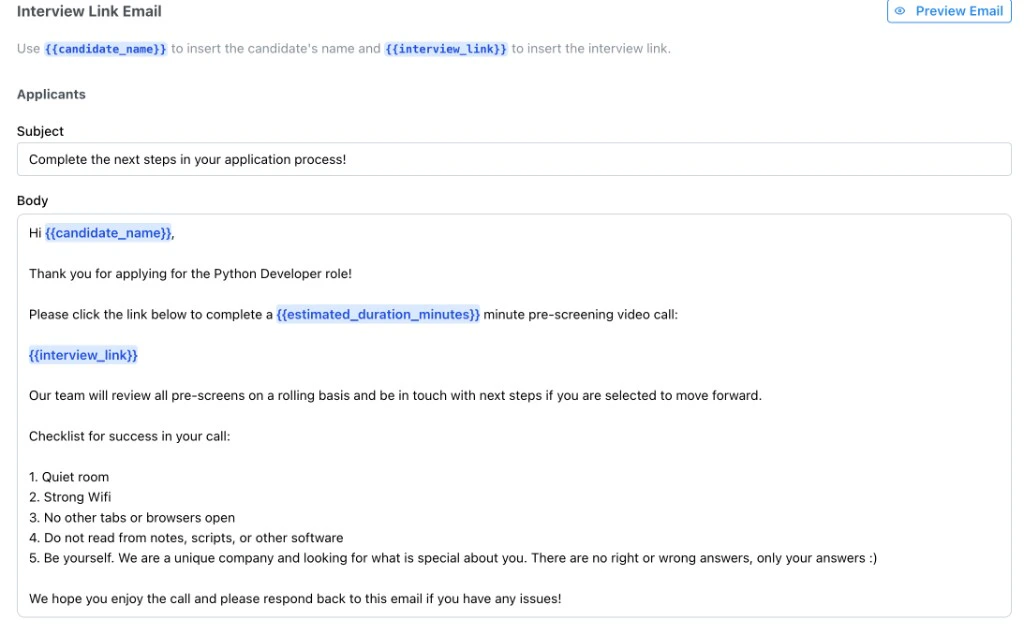
{{candidate_name}} and introduce {{ai_name}}, while a web interview email should
include {{interview_link}}, may include {{job_name}} and {{company_name}} in the subject and
body, and may include {{estimated_duration_minutes}}.

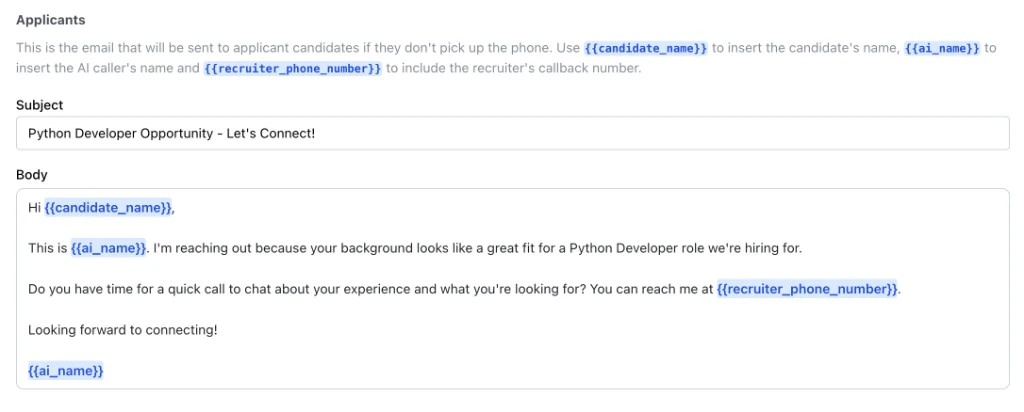
{{candidate_name}}, {{ai_name}}, and
{{recruiter_phone_number}} are often the most useful.
Variable autocomplete
Any field that accepts variables — the call intro and outro, SMS, email subject and body, screening questions, background info, and generation instructions — supports autocomplete. Type{{ and a list of the variables allowed for that field appears so you can pick one
instead of remembering the exact name.
Picking a suggestion inserts just the name, like {{job_name}}. Tenzo does not add an empty
or "" fallback for you. If the value might be missing, type the fallback yourself — for example
{{state_lookup.base_pay_rate or "$18.00/hr"}}. See fallbacks.
Autocomplete still works when closing braces are already after the cursor. If you type {{ and
the field already has }} (for example you pasted {{}} or the cursor is between existing
braces), pick a suggestion and Tenzo replaces that whole placeholder with a single {{name}}.
It will not open the list inside a placeholder that already has an or fallback, so a
fallback you wrote is not overwritten.
Different fields allow different variables. For example, the interview link email exposes
{{interview_link}} and {{job_description}}, while a phone outreach SMS does not, because
those variables only make sense in a web interview invitation. Autocomplete always shows the
set that is valid for the field you’re editing.
If your organization uses lookup variables, their {{label.column}} variables also appear in
autocomplete. See Lookup Variables.
On an individual job (not a template), fields with an Edit / Preview toggle show the
resolved value for job attributes and their job.* aliases. Hover a blue token in Edit mode to
see the same value. {{job.location.city}} shows the job’s city, just like {{location.city}}.
System names such as {{job_name}} are separate from job.* and do not fill in as a job
attribute.
Variable coloring
As you type, variables are color-coded so you can spot problems before you save:- Blue — a recognized variable. Tenzo knows how to fill it in.
- Red — an unknown or misspelled variable. Tenzo does not recognize the name, so it won’t be substituted. Check the spelling against autocomplete. Saving a job script with an unknown variable is rejected — the error names each bad token.
{{label.column}} variables use additional colors because their value depends
on matching the job to a row in a lookup table:
- Gray (in a job template) — the job match hasn’t happened yet. The variable will resolve per job once the template is applied to real jobs.
- Blue (in an individual job) — the job matched a lookup-table row, so a real value was found.
- Yellow (in an individual job) — the match failed. No row matched this job, so the variable’s fallback value will be used. This is not an error; it just means the job isn’t covered by the table yet.
-
Purple — the variable will resolve, but not yet. Its value isn’t known while you’re
editing because it depends on something that only exists later. Hover to see exactly when it
resolves; there are two cases:
- Resolves per candidate at send — for example
{{candidate_name}},{{candidate.email}},{{candidate.date_available}}, or{{application.stage}}, or a custom variable whose prompt references one. These are filled in on every send. Prefer a fallback when the value can be missing, such as{{candidate.date_available or "your next available date"}}. - Resolves once a call exists — renders blank before the call — the
{{call.*}}family (for example{{call.length_sec}}). These only have a value after a call, so on a pre-call message (an interview invite, a reminder text) they render blank. Give them a fallback —{{call.length_sec or "the call"}}— if the sentence needs to read correctly before the call.
- Resolves per candidate at send — for example
{{...}} placeholder — one with a dangling or ({{job_name or}}) or an
unclosed quote ({{job_name or "abc}}) — is highlighted inline and blocks the save until you
fix it.
For how lookup-table variables resolve and when the may-be-blank warning appears, see
Lookup-Table Variables.
Configure Steps
The Configure sidebar is where you review and refine each part of the interview. Think of it as the interview blueprint: each step controls a different part of what candidates see, hear, answer, or are evaluated on. Some steps only appear for certain interview types.Call Script
The call script is the overall preview of the interview flow. It shows how the intro, screening questions, follow-ups, and outro come together into the candidate experience. Use this step to check the shape of the interview before editing individual sections. It helps you spot awkward ordering, missing transitions, or an interview that feels too long. This step is especially useful after editing other sections. If you change the intro, questions, or outro, return to the script preview to make sure the full interview still feels coherent.Call Intro
The call intro is the first message candidates hear or see when the interview begins. It should confirm the candidate is in the right place, introduce the company and role, and explain what the candidate should expect. For phone interviews, the intro is spoken by the AI caller. For web interviews, the same content sets up the browser-based interview experience. If sourced candidates use different messaging, this step can also include a separate sourced candidate intro. Use this step to tune the first impression. Good intros are clear, concise, and specific enough that the candidate understands the opportunity before the screening questions begin.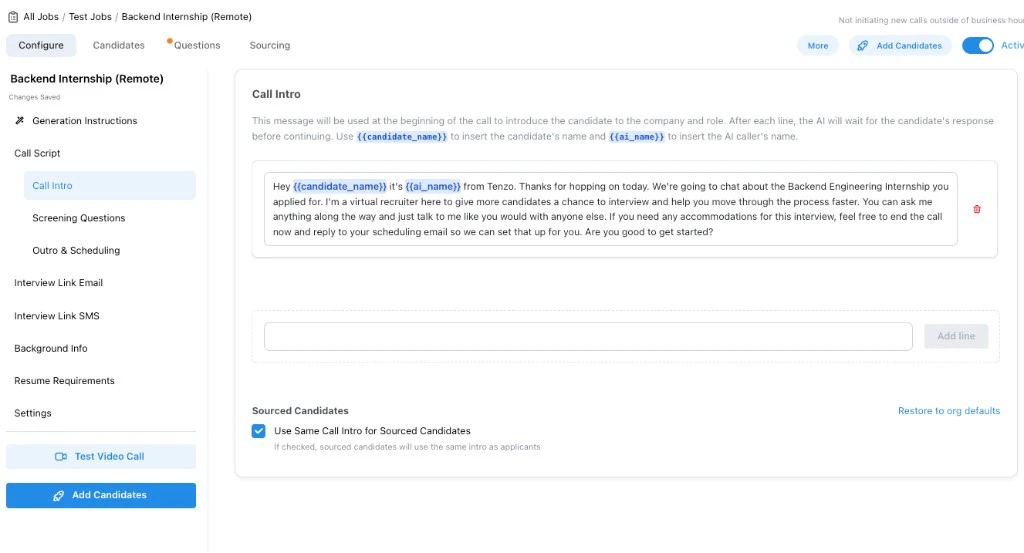
Screening Questions
Screening questions are the main evaluation questions in the interview. This step controls the questions candidates answer, the follow-up behavior, and the grading instructions Tenzo uses to score responses. Because this step has the most structure, it has its own guide: Screening Questions. Use the screening questions step when you need to change what the interview evaluates. Use the other steps when you need to change how the interview introduces, explains, or closes the conversation.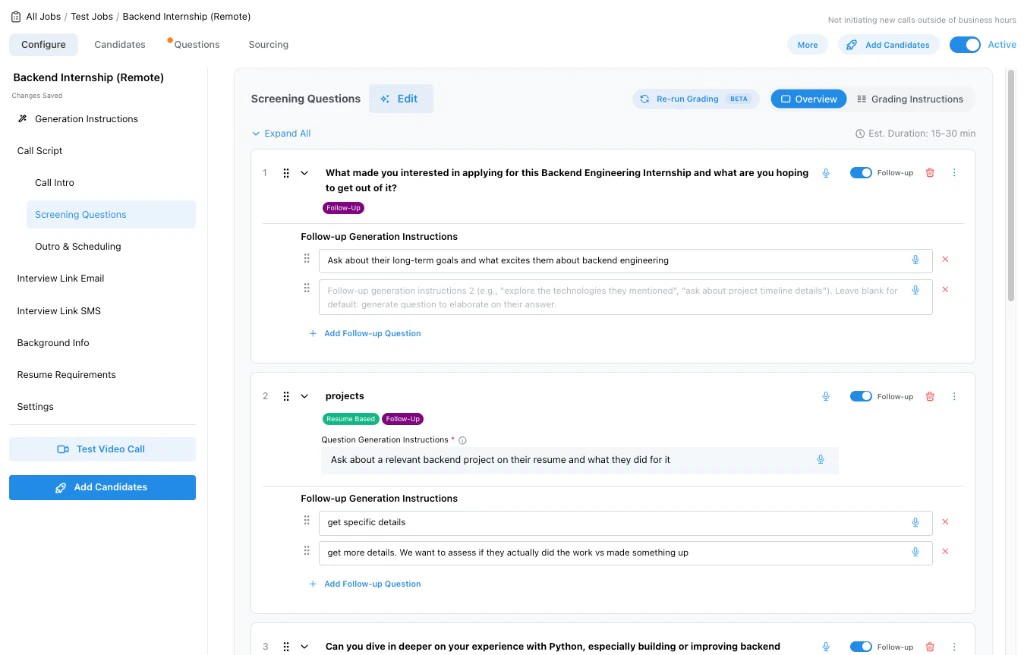
Outro & Scheduling
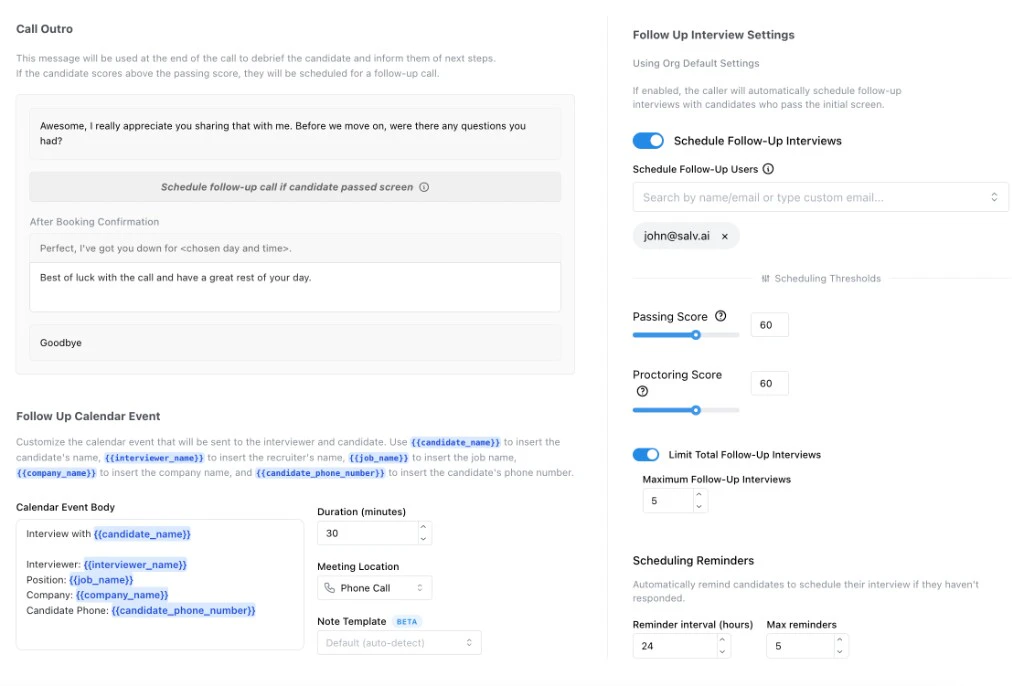
The outro is the closing section of the interview. It tells candidates what happens after they finish and, when scheduling is enabled, can guide qualified candidates toward booking a follow-up. Use this step to make sure the interview ends cleanly, sets accurate next-step expectations, and matches the configured scheduling workflow. This section should not introduce new screening requirements. It should close the loop, explain next steps, and avoid overpromising outcomes. If Schedule Follow-Up Interviews is enabled, Tenzo can automatically offer follow-up interview times to candidates who pass the initial screen. The scheduling settings control which users can receive those meetings, the passing thresholds, the maximum number of follow-up interviews for the job, reminders, and meeting details such as duration and location. When scheduling is enabled, the outro should prepare candidates for that booking flow. When a candidate does not meet the scheduling criteria, or the job has reached its follow-up limit, Tenzo uses the outro to end the interview and set expectations without offering a booking. For a deeper explanation, see Calendar Integration. For the full settings reference, see Schedule Follow-Up.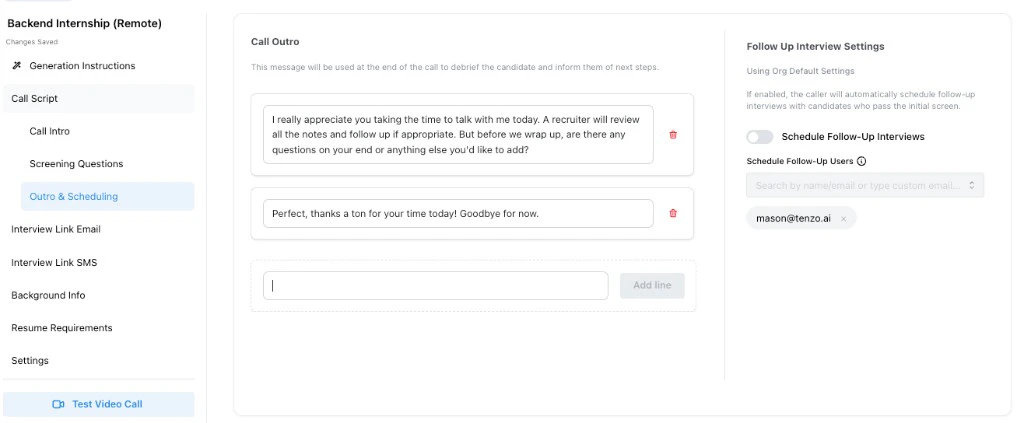
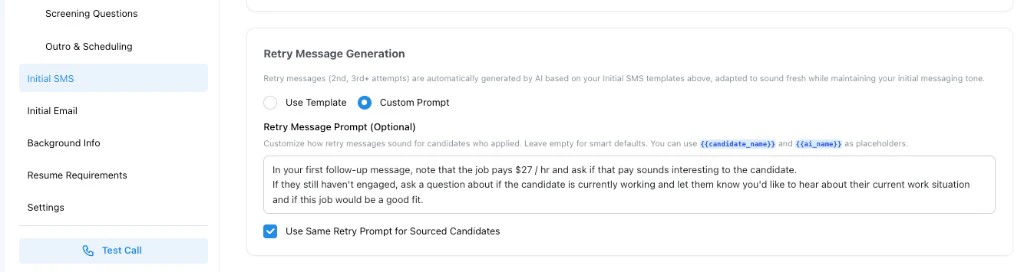
Initial SMS
This step appears when at least one candidate path uses phone interviews. The initial SMS is part of the phone outreach sequence and helps candidates understand why Tenzo is contacting them. Use this step to write concise messaging that identifies the opportunity, feels trustworthy, and encourages the candidate to complete the phone interview. This section can also include retry message generation for follow-up attempts after missed calls or voicemail. Initial SMS is used for phone interview outreach. It is sent when Tenzo is trying to start or follow up on a phone call. It is different from Interview Link SMS, which sends candidates a link to complete a web interview.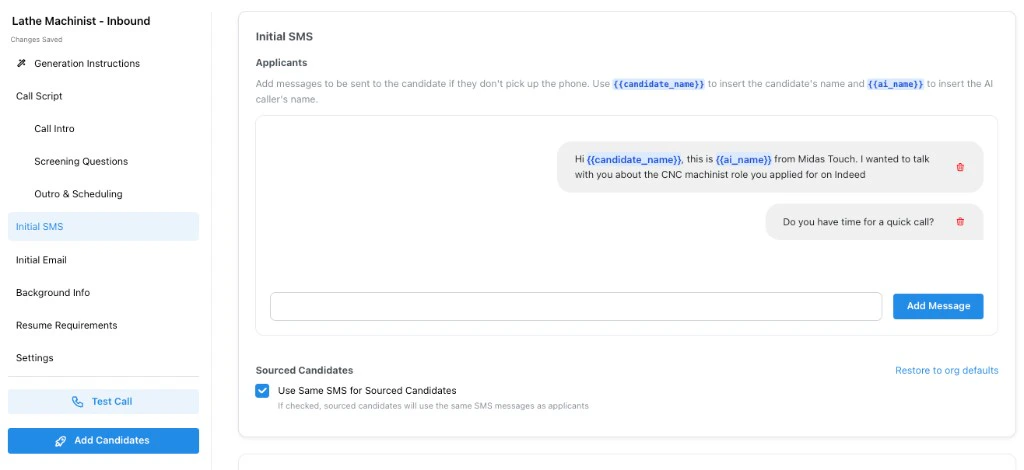
Retry Message Generation
Retry Message Generation controls the instructions Tenzo uses when creating follow-up SMS messages after an unsuccessful phone call attempt, such as a missed call, no answer, or voicemail. These are not the first outreach message. Mid-sequence retries encourage the candidate to reconnect and complete the interview. The final attempt instead sends a short closing message (Tenzo will not keep calling unless the candidate replies). Your instructions still shape the tone of that last text, but they do not turn it back into another “when can I call?” follow-up. Use this field to tell Tenzo how retry messages should sound and what they should include. Good instructions usually cover:- Whether to mention the missed call or keep the message more general
- How direct or casual the follow-up should be
- Whether to include the job title, company name, or recruiter callback number
- How much urgency to create without sounding spammy
- Whether sourced candidates should receive a different tone than applicants
Initial Email
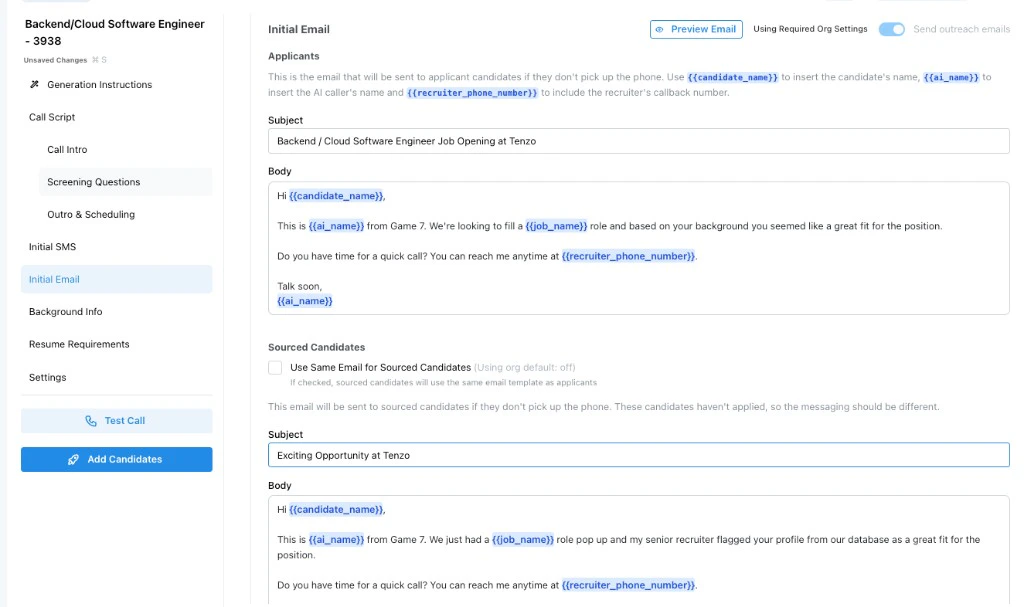
This step appears when at least one candidate path uses phone interviews and email outreach is available. It supports candidates who may not answer the initial phone call or who need more context before engaging. Use this step to provide a clear explanation of the opportunity and what the candidate should expect from the phone interview. Initial Email is also part of phone interview outreach. It can include variables such as{{candidate_name}}, {{ai_name}}, and {{recruiter_phone_number}}, and it usually gives
candidates a way to respond or call back. It is different from Interview Link Email, which is used
for web interviews and must include the interview link.
Interview Link Email
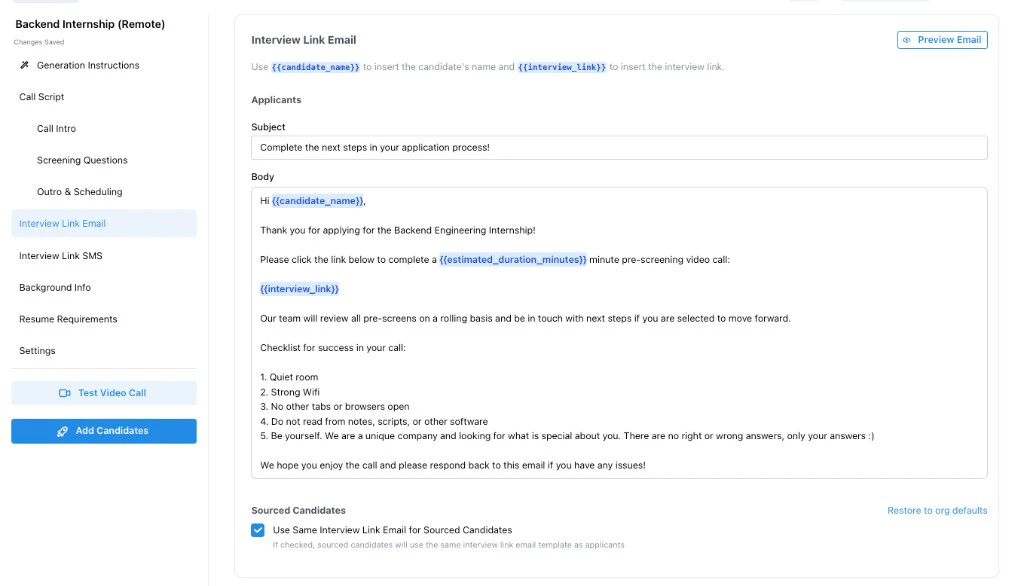
This step appears when at least one candidate path uses web interviews. The interview link email is the primary invitation for candidates to complete the browser-based interview. Use{{job_name}} and {{company_name}} in the subject and body to personalize the invitation for
the role and hiring organization. The email body must include {{interview_link}} so candidates can
access the interview. If interview link expiration is enabled, include {{expiration_days}} so
candidates understand how long the link is valid. You can also include {{job_description}} in the
body to share the job description—this is especially useful for sourced candidates who have not
seen the role details. {{job_description}} is replaced in the email body only, not in subject
lines.
Use this step to make the invitation clear and action-oriented. The email should explain why the
candidate is receiving the link, what the interview is for, and what they should do next.
Interview Link Email is used for web interview outreach. Its job is to deliver
{{interview_link}} and explain how to complete the browser-based interview. It should not be
written like a missed-call follow-up.
Interview Link SMS
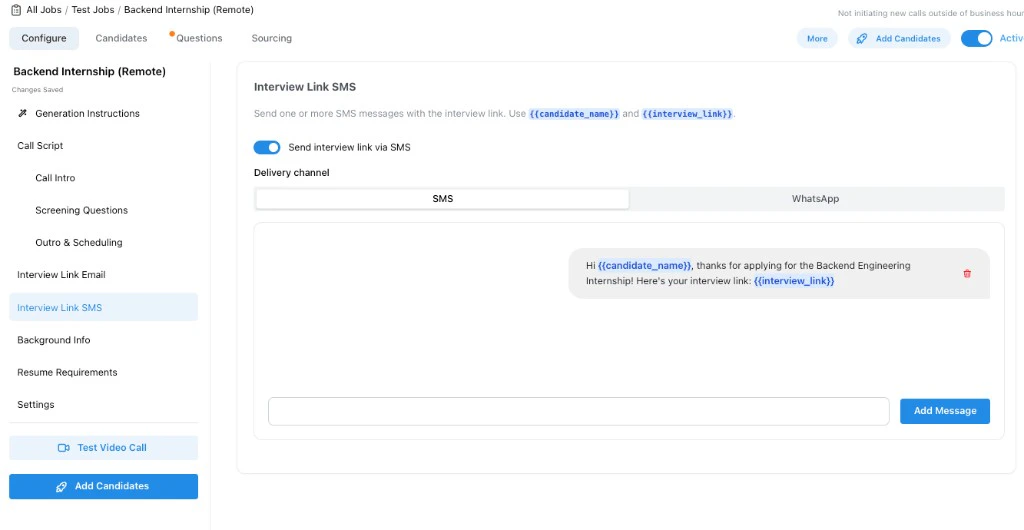
This step appears when at least one candidate path uses web interviews and SMS invitations are enabled. It sends candidates a shorter invitation that points them to the web interview link. Use this step when candidates are likely to engage from mobile or when SMS is part of your standard candidate outreach. The message should be brief and include{{interview_link}} when SMS links are
enabled.
Interview Link SMS is used for web interview outreach by text. It can be delivered over SMS or
WhatsApp, depending on the configured delivery channel. Its purpose is to send the interview link,
not to start a phone call.
When WhatsApp delivery is configured, follow-up texts for the job — scheduling reminders,
interview reminders, booking confirmations, and calendar change notifications — are also delivered
over WhatsApp so the whole conversation stays on one channel.
Background Info
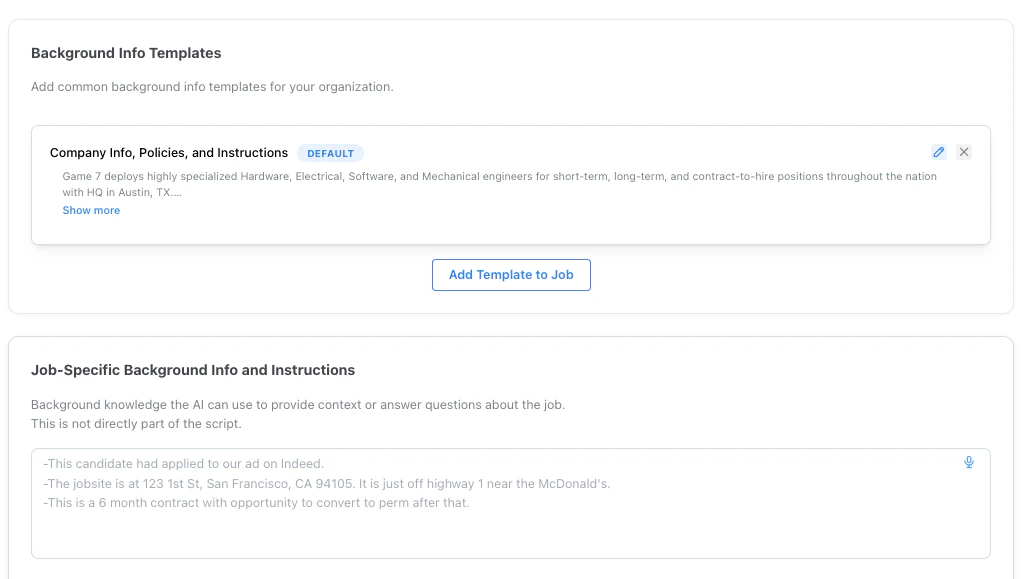
Background info is not directly part of the script. It is context Tenzo can use to answer candidate questions during the interview. Use this step to provide information about the role, company, pay, location, benefits, schedule, or other details candidates may ask about. You can also attach background info templates for reusable company or role-family context. Background info is useful when candidates need context, but you do not want that context to become a screening question. For example, you might include commute details, pay range explanation, benefits, company background, or workplace expectations. Background info templates let you reuse common context across jobs. Use them for information that rarely changes, such as company overview, policies, benefits, work environment, or standard hiring process notes. Use the job-specific background info field for details that only apply to this role, such as a specific site address, contract length, shift, team, or commute note. For jobs synced from an ATS, the Job Description field is read-only. Update the description in your ATS if it needs to change — Tenzo pulls in the latest description on every job sync. If the ATS description is blank, Tenzo keeps whatever description is already on the job. Pausing a job does not affect whether you can edit these fields — the lock comes from ATS sync alone, and a paused job is no more or less editable than an active one.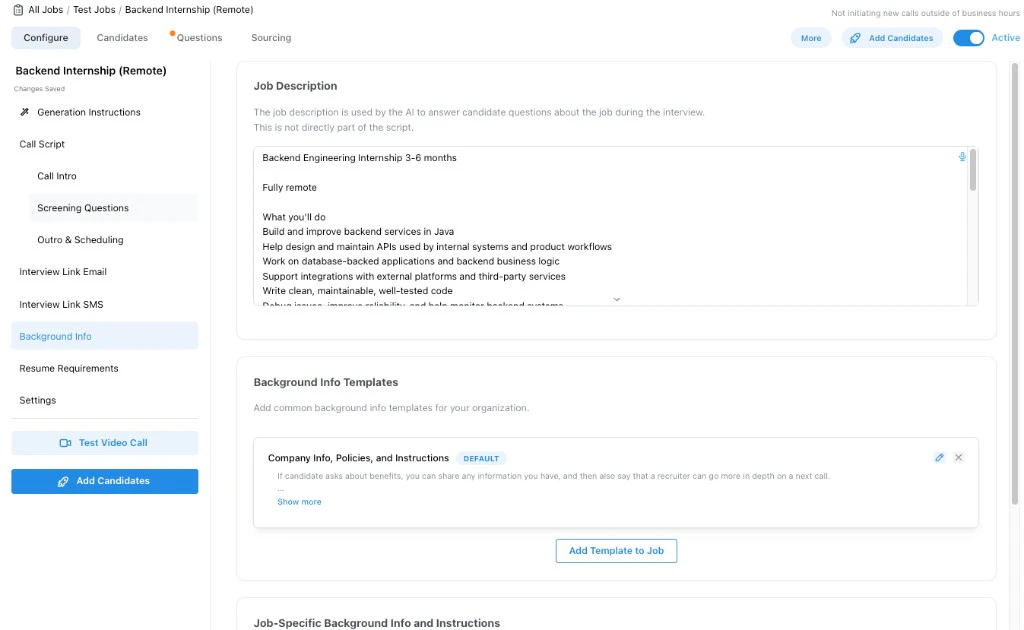
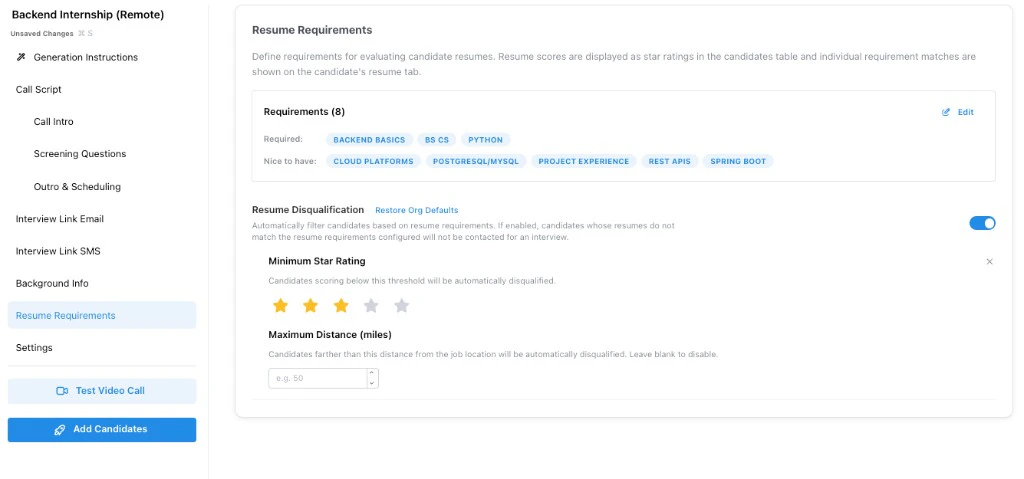
Resume Review Requirements
Resume requirements define how Tenzo evaluates candidate resumes. These requirements are separate from the interview questions: interview questions evaluate the candidate’s responses, while resume requirements evaluate the candidate’s resume. Use this step to add or edit resume criteria that should appear in resume scoring and candidate review.