

Requesting Access
Meeting Copilot is currently in beta. To enable the feature for your organization:- Contact the Tenzo team directly to request beta access.
- Once enabled, the Meeting Copilot tab will appear in your sidebar navigation.
- No additional per-user setup is required — all members of your organization will have access once the feature is turned on.
Microsoft Teams App Installation & Setup
Meeting Copilot integrates with Microsoft Teams so you can launch the note-taking experience directly from within a meeting’s side panel.Prerequisites
Your organization must have a Microsoft Calendar integration connected in Tenzo. The Teams app uses your existing Microsoft tenant link to authenticate — no separate login is required.Installing the App
- Have your Teams admin navigate to the Teams admin center.
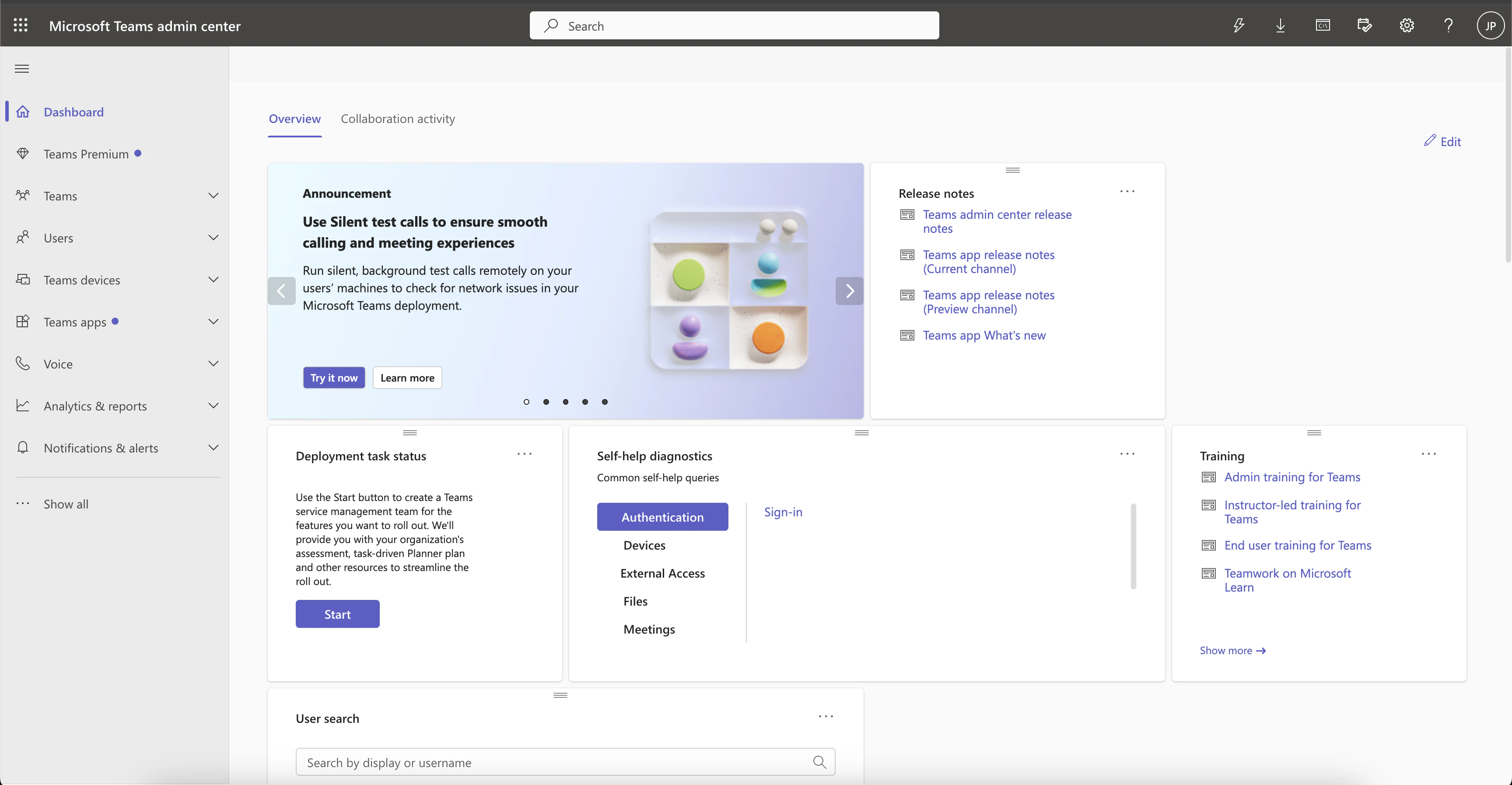
Teams admin center dashboard
- Go to Teams apps > Setup policies.
- Click on the Global (Org-wide default) policy and enable the Upload custom apps permission, then save.
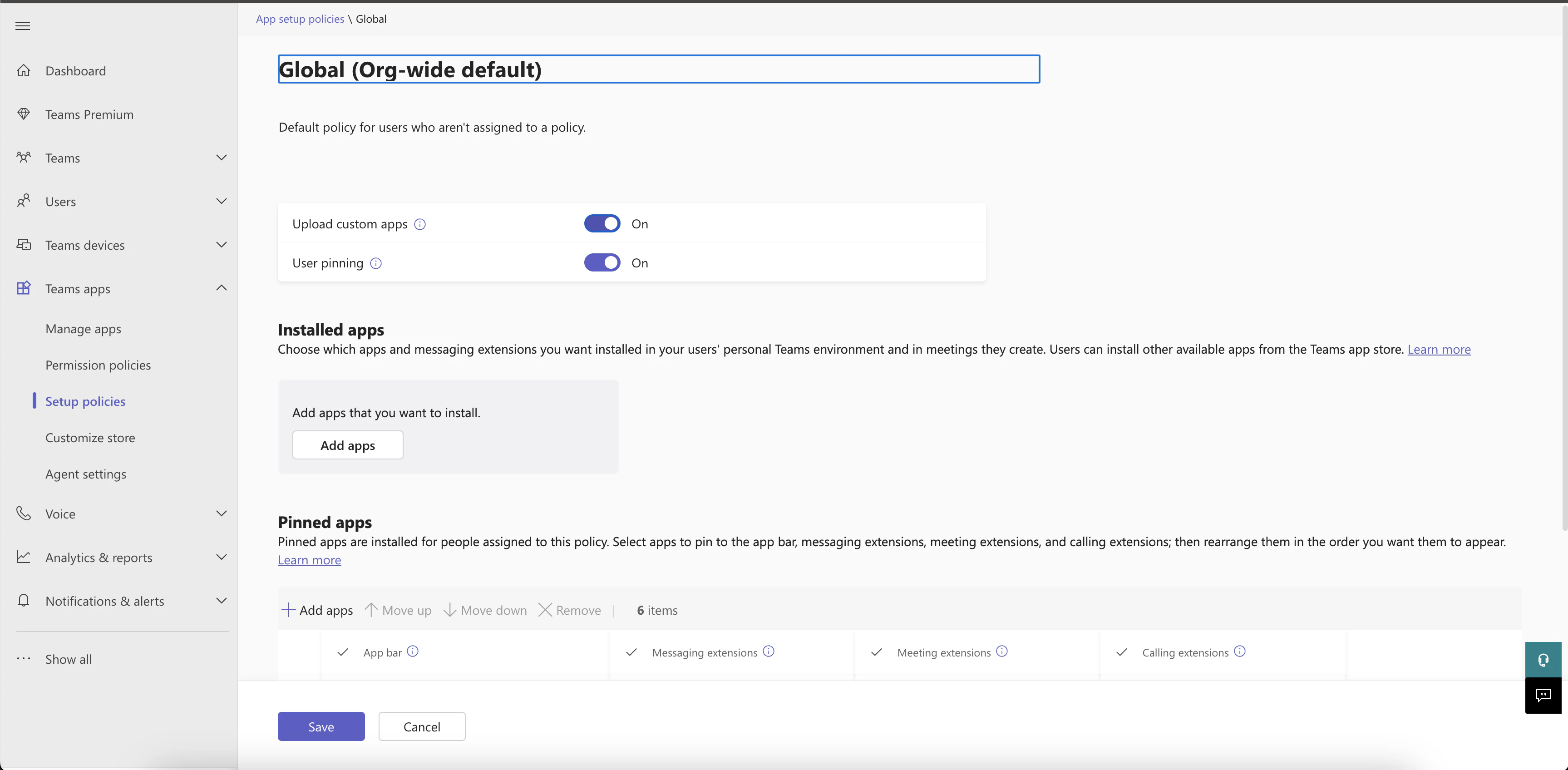
Enable the Upload custom apps permission
- Download the Tenzo Meeting Copilot app package from here.
- Navigate to Teams apps > Manage apps, click Actions in the top right of the page, then select Upload new app and upload the downloaded Tenzo app package.
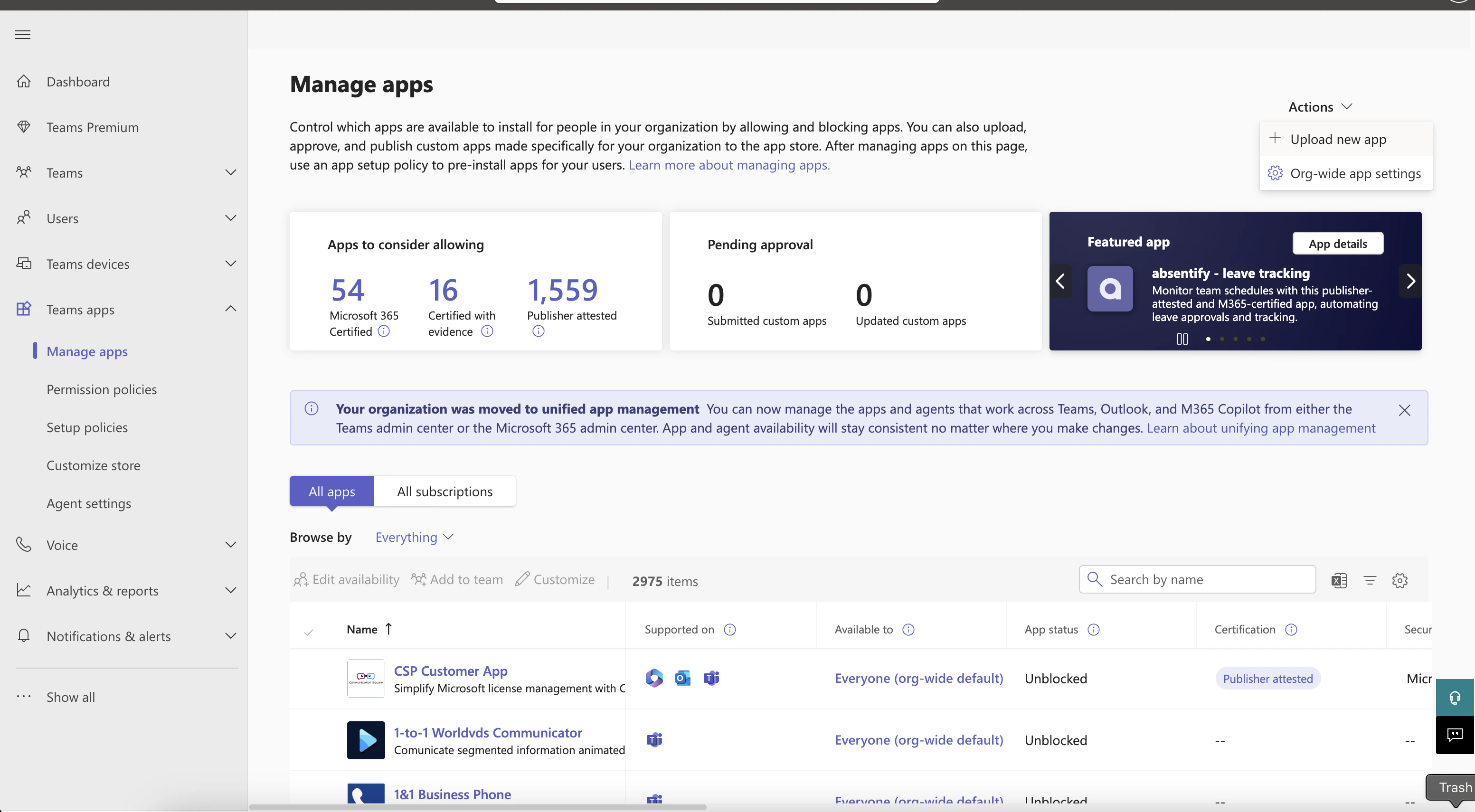
Manage apps in Teams admin center
- Once uploaded, search for Tenzo Meeting Copilot in the All apps table and click on the app title.
- Under Users and groups, configure who this app should be available to.
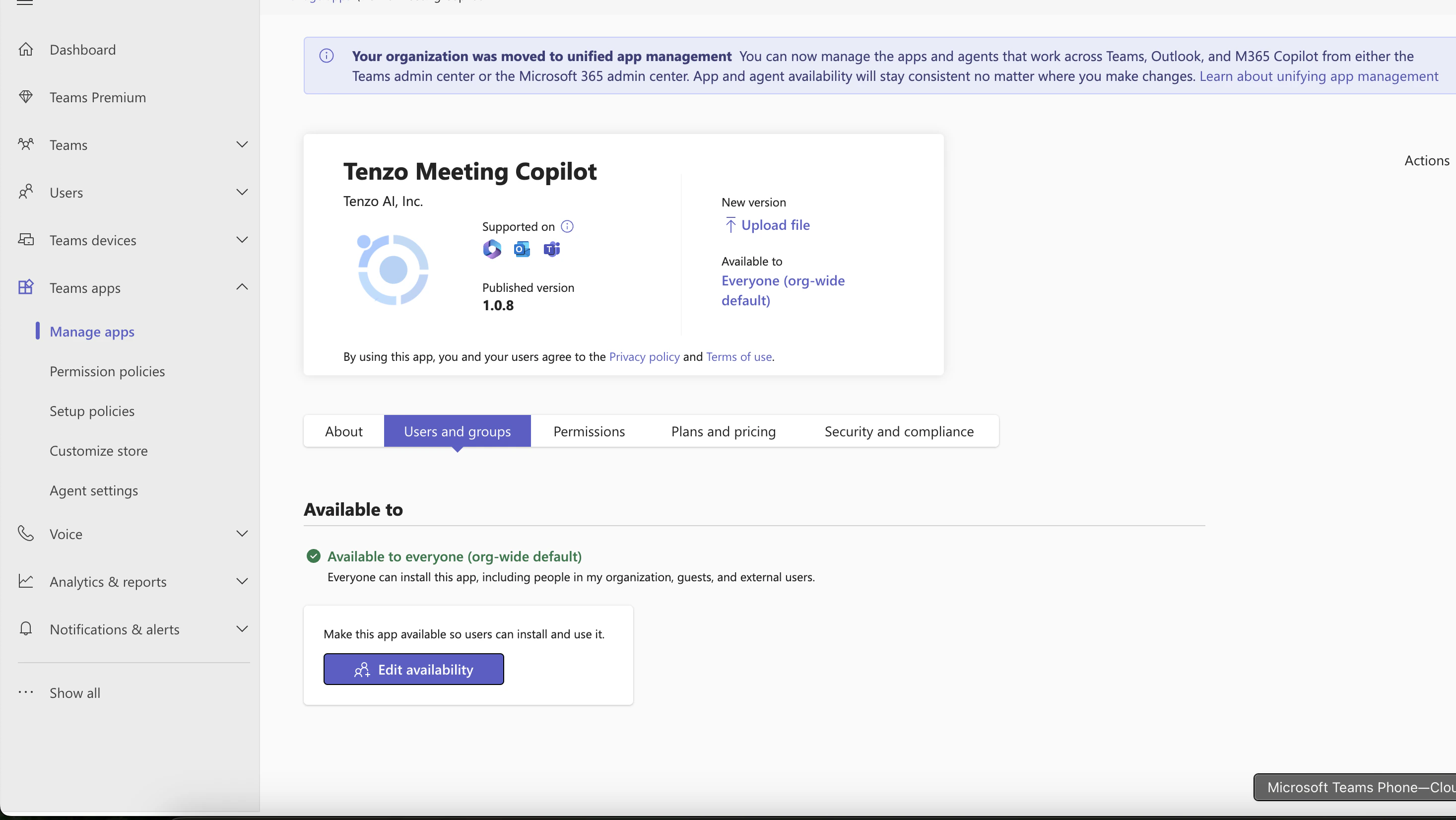
Configure app availability for users and groups
- The app will request the following permissions:
- Read basic meeting info
- Read meeting participant info
- Once installed, the app is available to all users in your Teams tenant.
Pinning the App to Meetings
To make the Tenzo Meeting Copilot easily accessible during meetings, pin it in your organization’s app setup policy:- Navigate back to Teams apps > Setup policies and click on the Global (Org-wide default) policy.
- Scroll down to Pinned apps and click + Add apps.
- Search for Tenzo Meeting Copilot and add it.
- Once added, Tenzo Meeting Copilot should appear in the Pinned Apps table under the Meeting extensions column.
- Click Save.
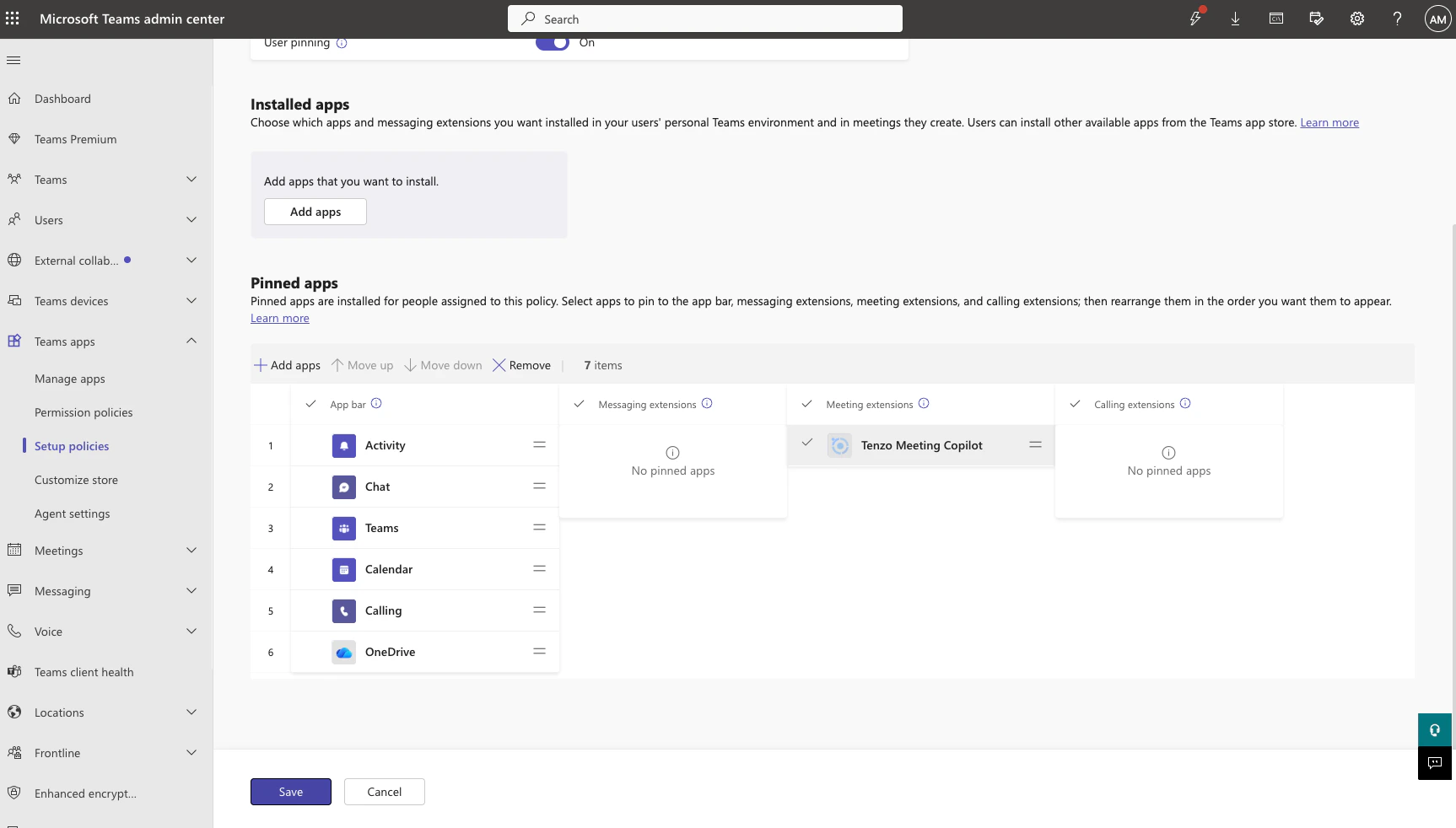
Tenzo Meeting Copilot pinned under Meeting extensions in the Global setup policy
Adding the Tab to a Meeting
Once the app is pinned org-wide (previous section), it will appear directly in the meeting toolbar — no manual tab add is required.
Tenzo Meeting Copilot pinned in the Teams meeting toolbar
- Open a Teams meeting and click the + icon to add a tab.
- Search for Tenzo Meeting Copilot and select it.
- Links to an existing note if one was already created for this meeting, and resumes editing it.
- Reuses a scheduled interview when one is detected (via the calendar integration), creating a note linked to the candidate automatically.
- Creates a standalone note otherwise.
Using Notes in a Meeting
Once the tab loads, the Meeting Copilot interface is shown directly in the Teams meeting side panel. You have access to all note features — live notes, transcript, AI chat, bot controls, and configuration — without leaving the meeting./users/me API and opens your Tenzo
organization, provided that organization has connected the same Zoom account.
If the email matches no Tenzo account and only one organization is connected,
the app still opens against that organization — notes you create are simply
not attributed to a specific user. If several organizations are linked to the
same Zoom account and we cannot tell which is yours, you’ll be prompted to
select one, the same way the Teams app asks. The app then opens the note for
that meeting directly in the Zoom side panel — reopening the existing note
for that meeting in your organization, or creating one — and launches the
note-taking bot automatically when Zoom supplies a join URL, just like the
Teams tab. Google Meet native extension work is tracked separately.Disconnecting Zoom
You can remove the Zoom connection from either side:- From Tenzo — disconnect Zoom in your workspace settings. Tenzo asks Zoom to revoke the stored grant, then deletes the credentials it holds. If Zoom cannot be reached, the local credentials are still deleted and the grant lapses when the token expires.
- From Zoom — uninstall the app under Zoom App Marketplace → Manage → Added Apps. Zoom revokes the grant on its side and notifies Tenzo, which deletes the stored Zoom credentials for that Zoom account automatically.
Using Notes Without the Teams App
If you’re on a meeting platform other than Teams — or prefer not to use the Teams tab — you can still use Meeting Copilot by creating a note manually and capturing audio via three modes on the Bot tab:- Meeting Bot (Zoom, Google Meet, Teams): Paste your meeting URL, click Launch Bot, and admit the bot when it appears in the meeting lobby. The bot joins, transcribes, and generates notes in real time.
- Call Bridge (Phone Calls): Bridge an outbound phone call between host and candidate phone numbers.
- Live Conversation (Microphone): Record directly from your browser/microphone for in-person interviews or face-to-face discussions without requiring a bot or phone bridge. Spoken dialogue is transcribed in real time and automatically summarized into your meeting notes when finished.
Meeting Copilot Dashboard
The Meeting Copilot dashboard is your central hub for managing templates and notes. Access it from the sidebar by clicking Meeting Copilot. The dashboard has three views:Templates
A table of all note templates created for your organization. Columns include:- Template name
- Meeting type (Interview, Intake, or Other)
- Creator
- Visibility (Public / Private)
- Sections count
- Questions count (summed across all sections)
- Create a new template — Click the ”+ New Template” button.
- Edit a template — Click any row to open the editor.
- Edit templates with AI — Open the AI editor to create or update templates from a natural-language request. The AI can search your organization’s Jobs by name and reuse a Job’s configured interview script questions when building note sections.
- Duplicate a template — Click the copy icon on a row to create a clone.
- Pin a template — Click the star icon on a row to pin it. Pinning is per-user: your pins are yours alone and don’t affect your teammates. Pinned templates float to the top of the list and are surfaced first when selecting a template for a meeting.
Notes
A table listing all notes created in your organization, with columns for:- Note name
- Meeting type
- Candidate
- Job
- Meeting link
- Date last updated
Autopilot
Use Autopilot to place a meeting autopilot call now, or email a scheduling link. Track sent invites and dial-in calls in the Call status table, and provision your organization’s Autopilot call-in number. The Call status table shows callee email/phone, template, meeting type, source, status, created time, and actions. Use the Columns button next to search to hide or show any of those columns (Actions always stays visible).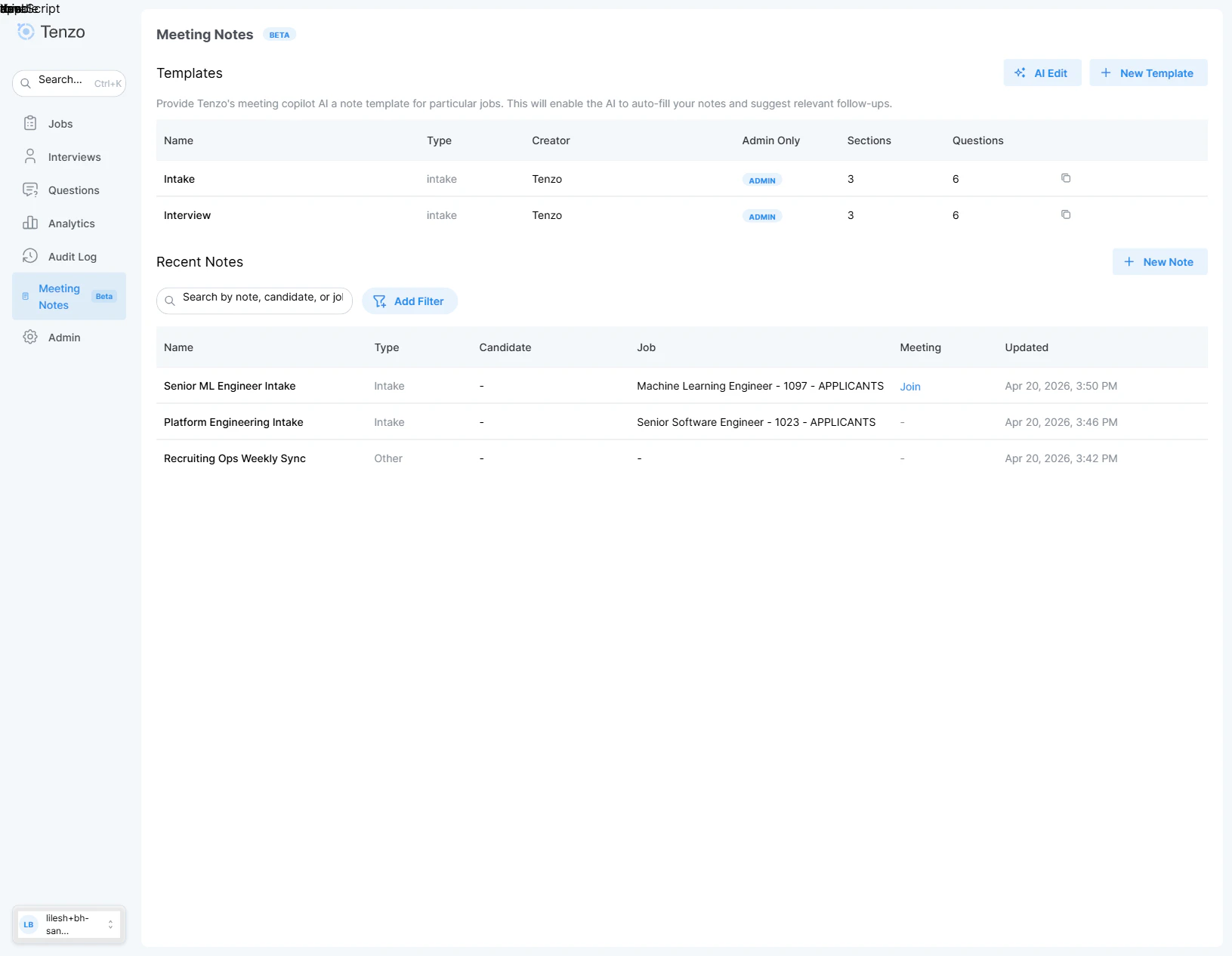
Meeting Copilot dashboard with the Templates and Notes sections
Note Templates
Templates define the structure and behavior of your meeting notes. They ensure consistency across meetings and allow the AI to auto-fill responses based on your specific questions.Creating a Template
Click ”+ New Template” from the dashboard to open the template editor modal.Edit templates with AI
From the Templates view, click Edit templates with AI to describe the template you want in plain language. The AI can:- Create, edit, or delete note templates based on your instructions.
- Find a Job by name in your organization and reuse that Job’s configured interview script questions when building sections.
Template Settings
Meeting Types
- Interview — A conversation with a candidate. After the meeting, Tenzo generates a meeting summary and (optionally) syncs it to the candidate or application in your ATS.
- Intake — A kickoff conversation with a hiring manager or client to define a role. After the meeting, Tenzo generates a job description from the template and (optionally) writes a selected set of fields back to the ATS job record. Because intakes are about the job (not a specific applicant), the candidate picker is disabled on intake notes.
- Staffing Sales — A staffing agency recruiter pitching a candidate to a client hiring manager. Enabled for staffing organizations — contact Tenzo if you don’t see it in the picker.
- Other — Freeform meeting type. No structured summary generation beyond the notes themselves.
Note Format — Sections & Questions
The core of a template is its note format, which defines sections and the questions within each section.- Sections — Logical groupings (e.g., “Technical Skills”, “Culture Fit”, “Compensation”).
- Questions — Specific items the AI will listen for and fill in during the meeting (e.g., “What is the candidate’s experience with Python?”).
- Add, remove, and reorder sections via drag-and-drop.
- Add, remove, and reorder questions within each section.
- Start from an existing summary template as a base, or build from scratch.
AI-Generated Questions (Copilot-Only)
At the bottom of the Note Format section, you can configure AI-driven question generation to dynamically suggest clarifying questions for your meeting notes. This supports up to 5 independent question generation configurations, each generating up to 5 questions (capped at 25 questions total across configurations). Each configuration includes:- Prompt — Natural language instructions guiding the AI on what questions to generate (e.g., checking the job description for gaps, or generating follow-up questions from prior calls).
- Question limit — Number of questions to generate for this configuration (0 to 5).
- Context fields — Which context sources the AI should consider: Candidate / attendee resume, Job description, Prior call summary, Prior call Q&A, Prior call candidate questions, or Prior call suggested follow-ups.
Constraints
Constraints are business rules or restricted topics that guide the AI’s behavior during note-taking. Examples:- “Do not include salary information in the summary.”
- “Flag any mention of visa sponsorship requirements.”
What gets redacted (and what doesn’t)
Redaction in Meeting Copilot is driven entirely by the constraints on the note template:- Only the concrete data values for the constraint topics you select are redacted. For example, a “no salary information” constraint removes the compensation figures that were discussed.
- Names are redacted only if a constraint covers them. There is no separate name-redaction setting and no automatic name removal. But because redaction removes the concrete values belonging to whatever topics you list, a constraint such as “candidate identity” puts names in scope. If you are seeing names removed, that constraint is where it is coming from.
- If no constraints are configured on the template, nothing is redacted at all. The transcript is kept as-is.
- The organization-level Enable Transcript Redaction setting does not apply here. That setting covers phone and web interviews only and has no effect on Meeting Copilot meetings.
Coaching
The Coaching section is marked Copilot-Only in the template editor — it affects the live Meeting Copilot experience and is not used by Autopilot / dial-in notetaker flows. It configures the live annotation badges that the AI surfaces in the Notes and Transcript tabs while a meeting is in progress. Each template carries its own annotation list, so different meeting types (e.g. an intake vs. a phone screen) can call attention to different things. Up to 6 annotations can be configured per template. Each entry has:Built-in defaults
Every new template is seeded with five built-in annotations, which you can rename, re-color, edit, or remove:Adding a custom annotation
Click Add Annotation to append a new entry, then fill in title, color, and instruction. Custom annotations always have a slot reserved alongside the defaults — the cap is 6 total, regardless of how many built-ins remain. Click Reset to built-in defaults at the bottom of the section to restore the shipped configuration. This overwrites any in-progress edits in the section.Context
The Additional Context section allows you to provide Background context — optional free-text instructions or background information passed to the AI when generating notes from this template (e.g., “This is a senior role requiring 8+ years of experience”). This applies to both Meeting Copilot and Autopilot / notetaker flows.Post-Meeting Actions
The Post-Meeting Actions section (formerly “Summary Format”) groups everything that happens once the meeting ends. It contains collapsible sub-sections:- Summary Format — generated for every meeting type.
- Job Description Format — shown for intake templates only.
- ATS Job Sync — shown for intake templates only; whether and which job fields are written to your ATS.
- Note Sync — where the generated note is posted in your ATS. It appears last so it follows the content it syncs.
Summary Format
Configures how the post-meeting summary is generated:- Use note sections — Include the template’s sections in the summary output.
- Custom sections — Add additional summary sections beyond the note format.
Note Sync
Choose where the note is posted in your ATS once the meeting ends. Leave empty to disable syncing. Available targets depend on the meeting type — for interviews:Candidate— Post to the candidate’s profile.Application— Post to the specific application.Both— Post to both candidate and application.
Job Description Format (Intake templates)
For intake templates, configure how the post-meeting job description is generated. Which ATS fields get written lives in the ATS Job Sync sub-section below.- Job description template(s) — An HTML template for the generated job description. Use placeholder labels (e.g.
[Job Title],[Requirements]) to indicate where content should be filled in. The AI preserves the HTML structure of the template and replaces each placeholder with details pulled from the intake conversation. What you see here depends on your ATS:- ATS exposes description fields — You get one template per description field (e.g. Bullhorn’s internal Description vs. Public Description), each independently editable. A single intake meeting renders a distinct body for each field, so you can produce, say, a detailed internal description and a shorter public posting in one pass.
- No ATS description fields (no ATS, or an ATS that exposes none) — You get a single generic job description template that drives the one generated job description. Clearing this template turns job description generation off entirely.
- The canonical job description — the one emailed and previewed — comes from your primary (first) ATS description field, or from the single generic template when there are no description fields.
ATS Job Sync (Intake templates)
For intake templates, control whether — and with which fields — the job is created or updated in your ATS after the meeting. This sub-section sits between Job Description Format and Note Sync.- Sync intake to your ATS — The leading toggle. When off, notes created from this template default to not writing the job to your ATS (each note can still flip its own switch in the note’s Config tab).
- ATS Job Sync — A per-field checkbox list of every writable job field exposed by your ATS integration. Each box picks a field that will be written back to the ATS job record after the meeting:
- Description fields (e.g. Job Description, Public Job Description) are populated from the job description template(s) in the Job Description Format sub-section — each description field renders from its own template. They’re opted-in by default on new templates.
- Non-description fields (e.g. Salary, Start Date, Location, Employment Type) are extracted directly from the meeting transcript by a second AI pass. Only the fields you tick run through extraction.
- With no fields selected, ATS sync is disabled entirely — the JD is still generated and emailed, but nothing is pushed to your ATS.
- Use the Select all / Clear all buttons to toggle everything at once.
- Default values — Optional per-field defaults for the selected text-like fields. A default seeds the field when the meeting doesn’t clearly cover it, and guides the AI toward that value when it’s uncertain.
- Default Job Owner — Optionally pick a fallback owner (an ATS user) for jobs created from this template. It’s used only when the person who created the note can’t be matched to an ATS user, and it can still be overridden per note in the ATS Sync tab. Leave it blank to fall back to your ATS’s own default owner logic. See Job Owner for the full resolution order. Available for Bullhorn only.
Pinning templates
Pin the templates you actually use so they’re easy to reach. Click the star icon on a template card in the dashboard to pin or unpin it. Pinning is per-user — your pins are yours alone and don’t change what your teammates see. Pinned templates have two effects:- Surfaced first — they float to the top of the dashboard list and appear first (marked with a star) in the Template dropdown when you configure a note.
- Scope the AI’s auto-suggestion — when Tenzo automatically suggests a template for a detected meeting and you have pinned templates, it only ever picks from your pinned set. If you haven’t pinned any, it falls back to choosing from all templates you can see, so auto-suggestion keeps working out of the box.
Job Associations
Link a template to one or more jobs. When a note is configured for a particular job, only templates associated with that job (and matching meeting type) will be shown.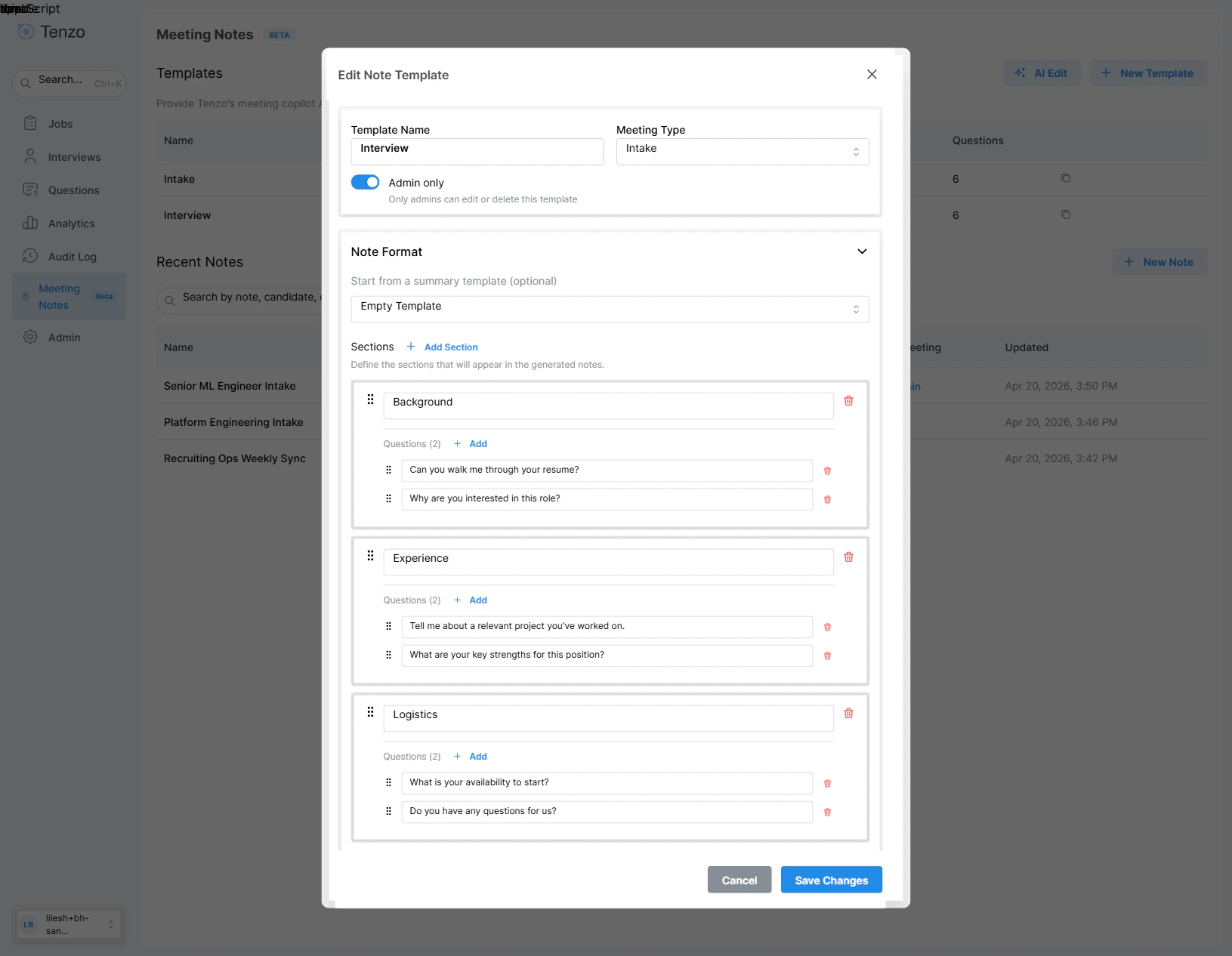
Template editor — note name, meeting type, and the sections / questions that structure the generated notes
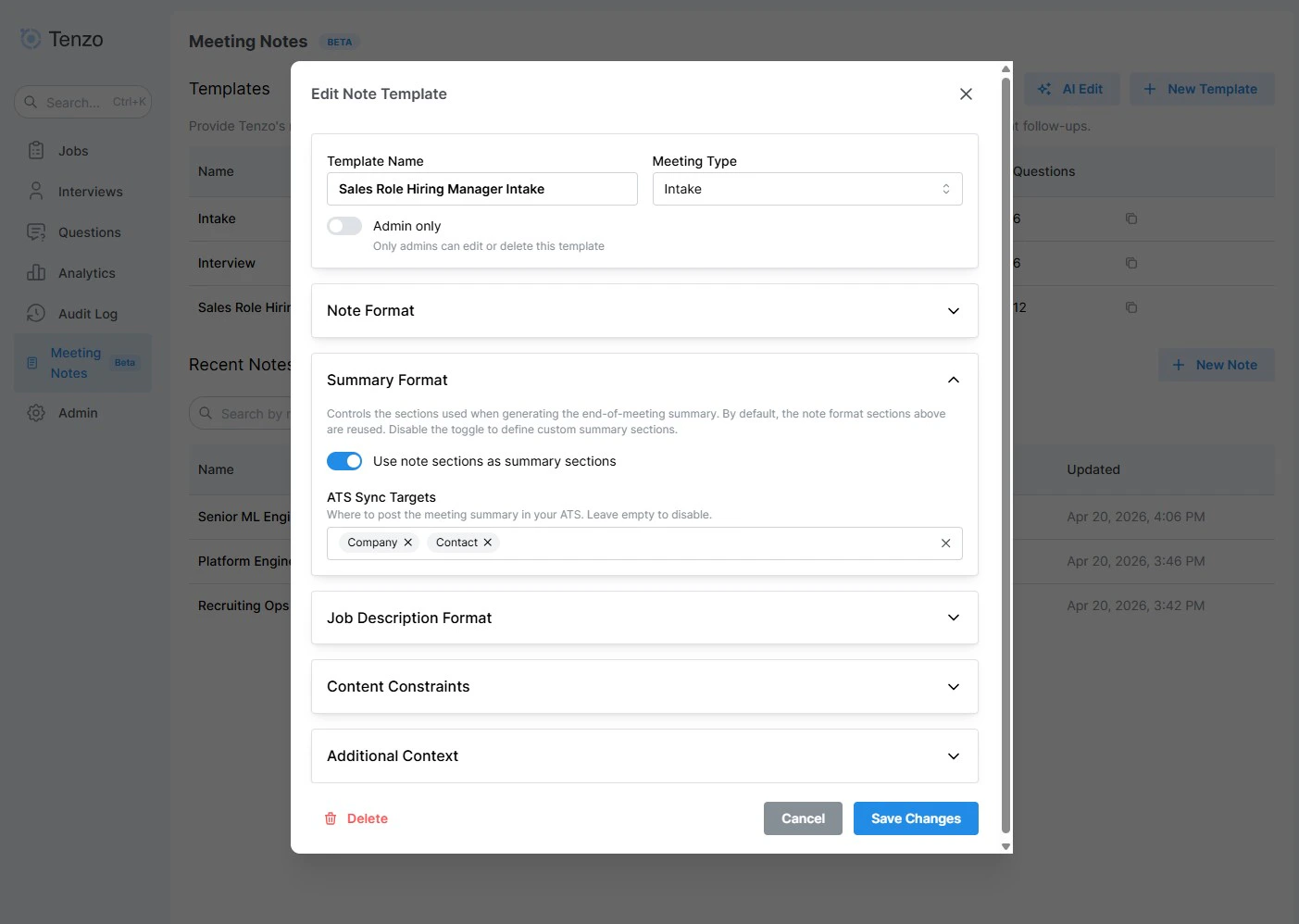
Post-Meeting Actions — the Summary Format sub-accordion (note sections and custom sections) with the Note Sync target below it
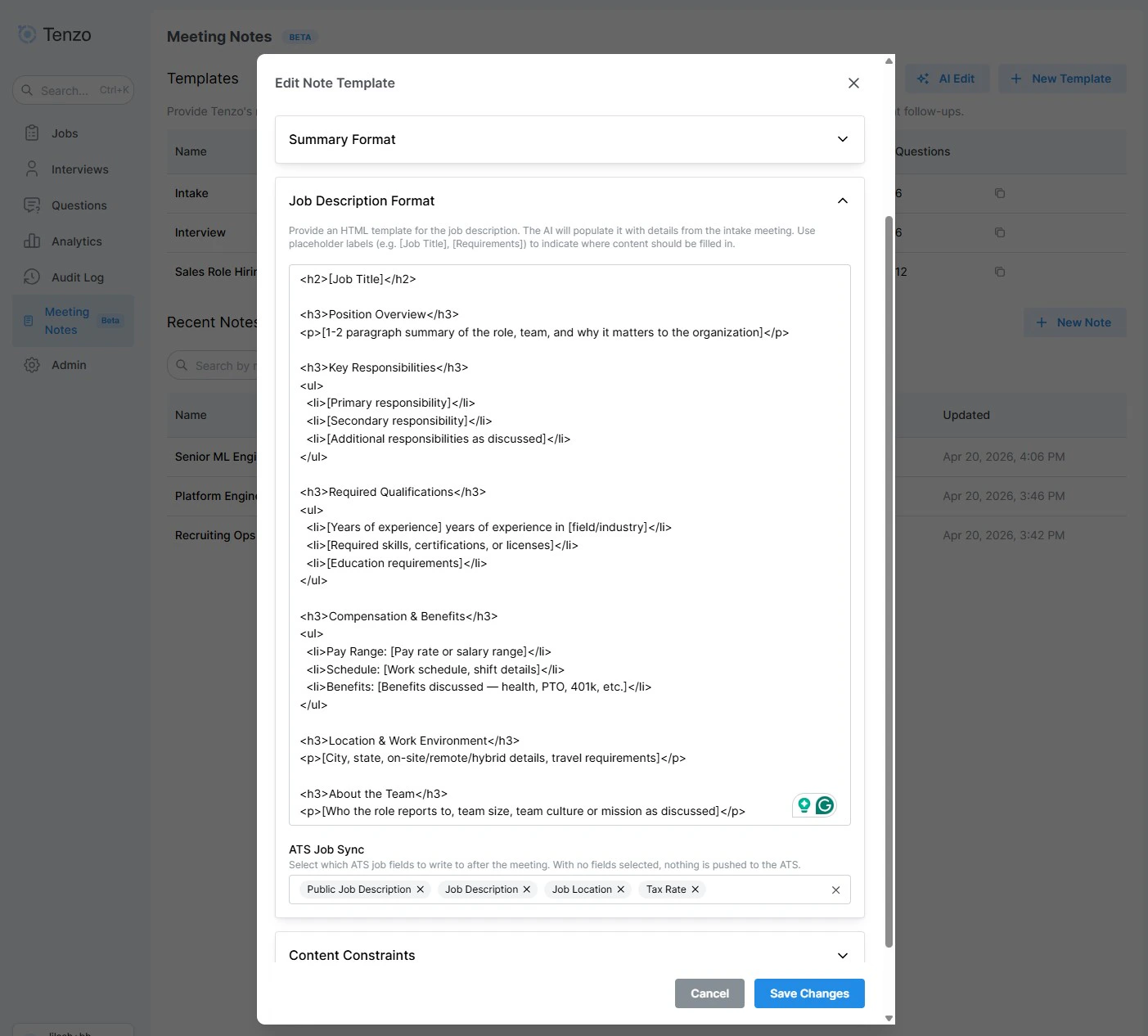
Post-Meeting Actions — the Job Description Format sub-accordion (intake templates) with the HTML JD template; the ATS Job Sync checkbox list now lives in its own ATS Job Sync sub-section
Live Note View
When you open a note, you’ll see a full-featured note-taking interface with multiple tabs.Note Name
The note name appears at the top and is editable — click it to rename.Tabs
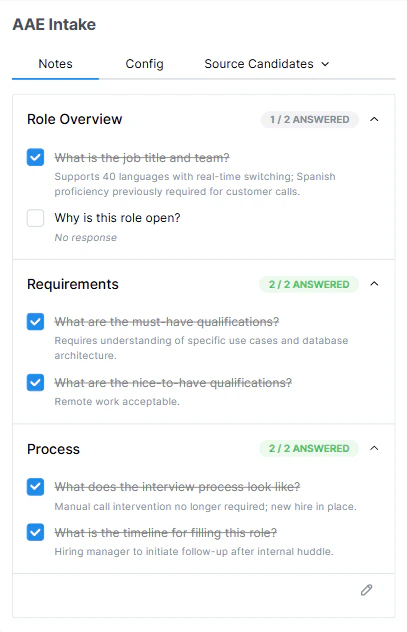
Live Note view — Notes, Config, and a More dropdown that surfaces the remaining tabs for the note's type
Notes Tab — Real-Time Note-Taking
While the bot is active, the Notes tab updates in real time:- AI-generated responses appear and update as the conversation progresses.
- A brain icon indicates the AI is processing the transcript.
- A pencil icon indicates the AI is actively writing to the notes.
- Each question has an “answered” checkbox to track completion.
- Annotations (info, warnings, follow-up questions) may appear at the top level or on individual questions.
- Toggle edit mode (pencil button at the bottom right) to manually modify any response.
- Add new sections and questions that emerge during the conversation.
- Edit section titles and question text for clarity.
Annotations
Annotations are short AI-generated callouts that highlight things worth surfacing above the raw note responses. They can attach to the note as a whole or to a specific question. The set of annotation types that can appear, along with their colors and instructions, is configured per template in the Coaching section of the template editor (see Coaching). Out of the box every template ships with five built-in types — Quick Fact, Follow-Up Question, Compliance Violation, Red Flag, and Objection Response — and admins can rename them, recolor them, edit their instructions, or add custom ones up to a cap of six per template. Each annotation includes a short reasoning blurb explaining why the AI raised it. The badge color and icon match the configuration on the template, so the same color is reused on the Transcript tab to link the annotation back to the moment in the conversation that triggered it.Transcript Tab
A scrollable view of the full meeting transcript, including:- Speaker name and role
- Timestamps for each utterance
- Inline annotations from the AI
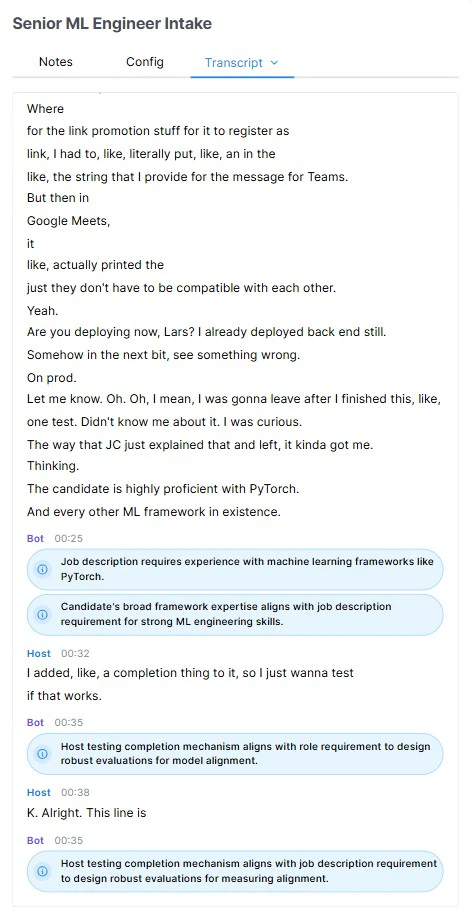
Transcript tab — time-coded turns from Bot / Host with inline AI annotations
Note Configuration
The Config tab lets you associate metadata with a note to improve AI accuracy.- Override ATS Field Sync (intake only) — Opens a modal with the same ATS field checkbox list as the template editor. The modal is pre-populated with the currently-selected template’s default field set. Any changes you make here narrow the sync on a per-note basis without editing the underlying template — useful when a particular intake should only write a subset of fields. Switching the template always resets the override back to the new template’s defaults.
- Email summary when generated — Toggle whether the generated summary or JD is emailed when it’s ready. This is on by default and pre-filled with the email of whoever created the note; edit the recipient or turn it off as needed.
Paste a JD draft
When the note has no linked Job, a Paste JD draft text area appears on the Config tab (and on the intake Send invite / Call now modals). Drop in whatever you have on the role — a few bullets, a rough paragraph, or a full job description copied from elsewhere. When an intake template’s question generation configuration includes job details as a context source, Tenzo reads this draft to generate clarifying questions (such as identifying gaps the draft leaves open). Once the note is later linked to a real job, the job’s description takes over and the draft is no longer used.Auto-suggested questions
When you click Save Configuration, Tenzo reads the configured context sources (such as the linked job description, candidate details, or prior-call follow-ups) and automatically generates clarifying questions according to the template’s AI question generation configurations. By default, Tenzo generates up to 5 questions per configuration (up to 5 configurations total, 25 maximum) based on meeting-type defaults (e.g. identifying open gaps in the JD for intake calls, or surfacing follow-up suggestions from prior calls for interviews). Suggested questions appear in the same list as your template questions but are marked as suggested (not bold) so you can quickly edit, reorder, or delete any you don’t want. Re-saving the Config regenerates the suggestions against the latest context.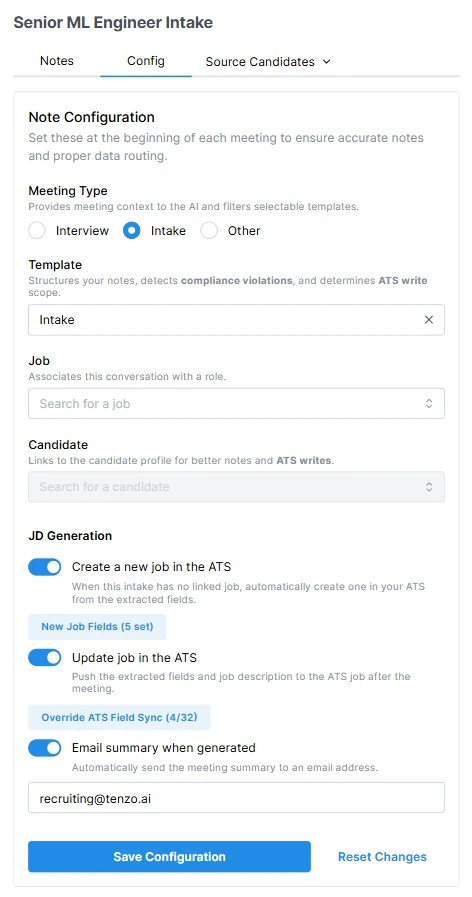
Config tab on an intake note — meeting type, template, linked job, and JD Generation controls
Meeting Transcription Bot
The transcript bot joins your meeting, records the audio, transcribes it in real time, and powers the AI note-taking engine.Launching the Bot
From the Bot tab in the note view:- Enter the meeting URL — Supports Teams, Zoom, Google Meet, and other common platforms.
- Choose when to join:
- Join now — The bot attempts to join immediately.
- Schedule for later — Pick a date and time for the bot to join automatically.
- Click Launch Bot or Schedule Bot.
Admitting the Bot
When the bot joins, it will appear in the meeting lobby. A notification reminds you to admit it after launching.Removing the Bot
If you need to stop recording early, kick the bot from the meeting. Upon leaving, it will trigger summary / JD generation.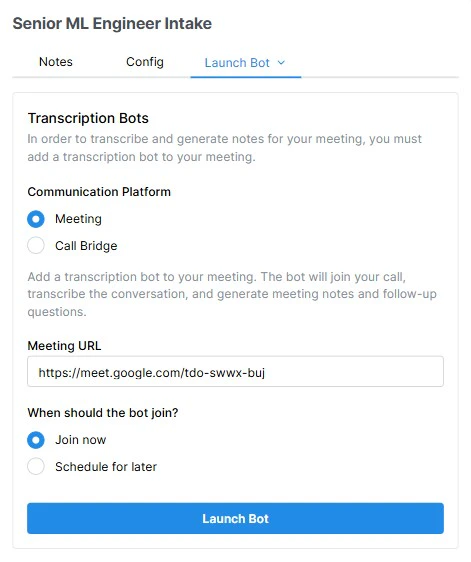
Bot tab — Meeting mode, with a URL field and Join now / Schedule for later options
Call Transcription Bot
As an alternative to joining a video meeting, you can also initiate a bridge call — a phone-to-phone conversation connected through Tenzo that is transcribed and turned into notes just like a video meeting. From the Bot tab, switch the mode to Bridge and:- Enter both phone numbers — your number and the other party’s number. If a candidate is linked to the note, their phone number is pre-filled.
- Choose when to connect:
- Call now — Both parties are dialed immediately and connected through the bridge.
- Schedule for later — Pick a date and time and the bridge will dial out automatically.
- Click Launch Bridge or Schedule Bridge.
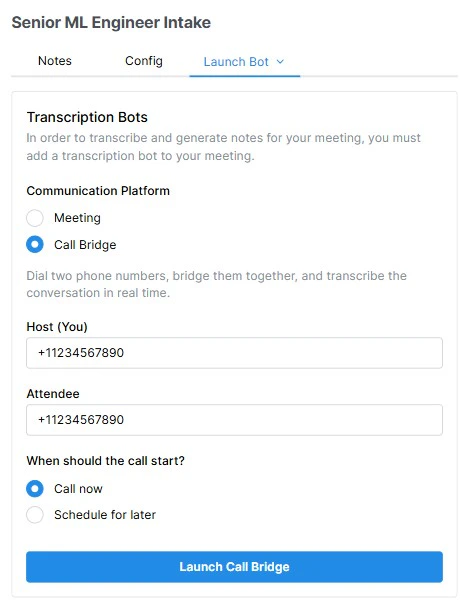
Bot tab — Call Bridge mode, with Host and Attendee phone fields
Scheduled Follow-Up Flow
For interviews scheduled through Tenzo’s calendar integration, the note-taking bot can be automatically scheduled.How It Works
- When an interview is scheduled via the platform (Google Calendar or Outlook integration), a note is automatically created and linked to the meeting.
- The bot is pre-scheduled to join the meeting at the specified start time.
- Before the meeting begins, the system pre-loads context for the AI, including:
- The candidate’s resume and profile information
- The job description
- Prior call Q&A and interaction history
- When the meeting starts, the bot joins automatically — no manual action required (aside from admitting it to the lobby).
- After the meeting ends, the summary is auto-generated and optionally synced to your ATS.
AI Chat
The AI Chat tab provides a conversational interface to interact with the meeting’s AI assistant.Features
- Ask questions about the meeting content (e.g., “What did the candidate say about their management experience?”).
- Request specific summaries or analyses.
- Multi-turn conversation — the AI remembers the full context of your chat.
- Responses stream in real time with markdown formatting support.
- An unread indicator (blue dot) appears on the Chat tab when a new AI response arrives while you’re on another tab.
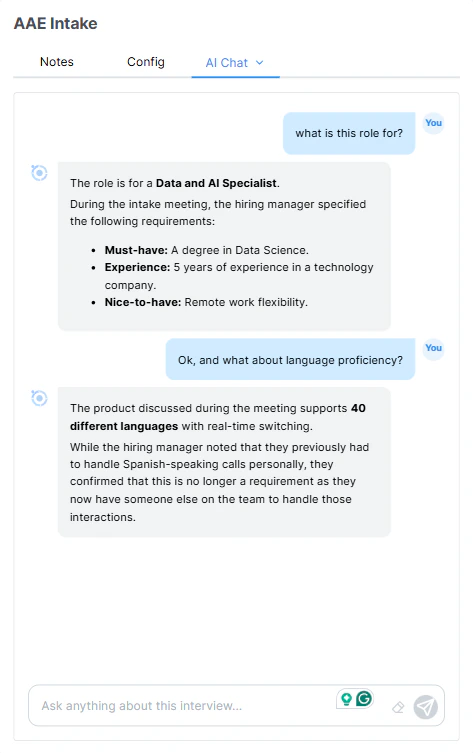
AI Chat tab — ask questions about the meeting
Source Jobs (Interview Notes)
On interview notes, the Source Jobs tab surfaces the jobs in your org that best fit the candidate based on their resume and anything learned during the interview. Each recommended job is shown as a card with:- Job title and a link into the job detail page.
- Star rating — an overall fit score.
- Reasoning — a short AI-generated explanation of why this job was surfaced.
- Requirement badges — one badge per requirement on the job, grouped into Required, Preferred, and Nice-to-have. Each badge’s color reflects whether the candidate is a Match (green), Partial match (yellow), or No match (gray), and hovering shows the specific evidence the AI used.
Source Candidates (Intake Notes)
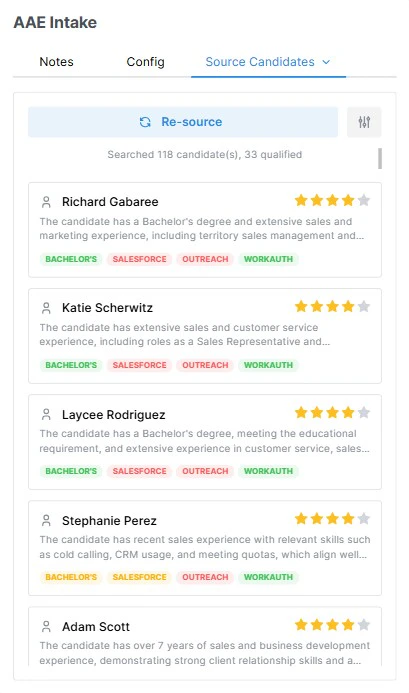
On intake notes that are linked to a job, the Source Candidates tab runs Tenzo’s agentic sourcing engine against the requirements extracted from the intake conversation. The tab streams candidates in real time as they’re found. Each candidate row shows:- Name, current role, and a link to their profile.
- Overall fit rating.
- Per-requirement match badges identical to Source Jobs (Required / Preferred / Nice-to-have, Match / Partial / No match).
- Requirements — add, remove, or edit the list of skills/criteria to search on.
- Years of experience — min/max bounds.
- Location — restrict to specific geographies or allow remote.
- Management level — keep only candidates whose current role title is at the chosen levels (see Filters). Available once enabled for your organization.
- Exclude contacted — skip candidates your team has already reached out to.
- Last note date — only surface candidates whose most recent note is older than a given window.
Source Candidates — config drawer with Requirements, Location, and other tuning filters
ID Verification (Interview Notes)
For interviews where the transcription bot captures participant video, Tenzo runs a face-match check to flag identity concerns (e.g., a different person showing up than the one on record). The ID Verification tab shows:- The reference photo on file for the candidate (from Persona or uploaded manually).
- Frames captured from the meeting — one per participant the bot identified.
- A match / no-match badge per participant indicating whether their face matches the reference image.
- Timestamps (MM:SS into the meeting) for each sampled frame so you can scrub back to the original moment in the transcript.
Post-Meeting: Summaries & ATS Sync
Summary Generation (Interview)
Once the meeting bot or a live recording session finishes recording an interview (either when the meeting ends, the bot is manually removed, or recording is stopped), a summary is automatically generated. The summary:- Is formatted in markdown.
- Incorporates the template’s summary format configuration (note sections + custom sections).
- Appears in the Summary tab of the note view.
- Can be copied to clipboard using the copy button.
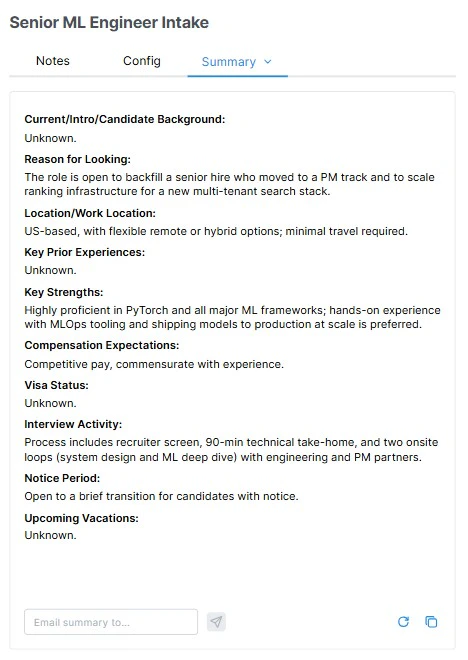
Summary tab — the generated meeting summary rendered from the template against the interview conversation
Job Description Generation (Intake)
For intake meetings, Tenzo instead runs a job description generation pipeline after the bot or live recording session finishes:- Each job description template on the preset is rendered with details extracted from the conversation (title, requirements, responsibilities, etc.). When your ATS exposes multiple description fields, every field’s template is rendered into its own job description; otherwise the single generic template produces one job description.
- A second AI pass extracts structured job-field values from the transcript. With an ATS, that uses the fields selected in the template’s ATS Job Sync list (e.g. salary, start date, employment type, location). Without an ATS, Tenzo extracts against its built-in Job Sync fields (title, description, location, and related job details).
- The generated job descriptions appear in the Job Description tab of the note view. The tab shows every generated description — one per ATS description field, each labeled by its field name (or a single description when there are no ATS fields). Each one can be regenerated individually, so you can re-run just the internal or just the public version without touching the others, and copied to clipboard with its copy button — the copy keeps the description’s formatting, so pasting into a rich-text editor (or your ATS) preserves it.
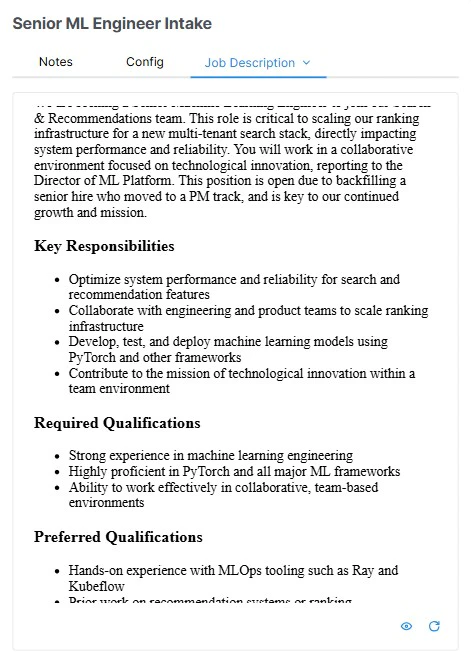
Job Description tab — generated job descriptions (one per ATS description field) rendered from the preset's templates against the intake conversation
Summary / JD Email
After generation, an email is sent to the configured recipient (or meeting organizer) containing the output.- Interview notes receive the HTML meeting summary plus a link back to the full note in Tenzo.
- Intake notes receive the rendered HTML job description plus a field-by-field preview of the ATS writes that will (or did) happen — each row shows the field name, the current ATS value, and the newly extracted value, so you can eyeball the diff before the write lands.
Intake Context for AI Interview Scripts
When Tenzo generates or regenerates an AI interview script for a Job, it looks up Meeting Copilot or Autopilot intake notes linked to that Job — either by the Tenzo Job itself or by the linked ATS job id — and injects the hiring-manager script generation context artifact (falling back to meeting summary for historical notes) as additional context alongside the job description. That lets screening questions, intros, and outreach copy reflect what was discussed in the Meeting Copilot / Autopilot intake (must-haves, compensation, nuances) instead of relying on the JD alone. If no linked intake note exists, generation falls back to the job description.ATS Sync / Job Sync
Interview notes — If configured in the template’s summary format, the summary is automatically posted to your ATS:- Candidate record — The summary appears as a note on the candidate’s profile.
- Application record — The summary appears as a note on the specific application.
- Both — Posted to both locations.
- Description fields are populated with their rendered HTML job description — each description field gets the body generated from its own template.
- Non-description fields are populated with the values extracted by the second AI pass.
- Per-note overrides on the Config tab narrow what’s written for that specific note.
- After the meeting, Tenzo extracts job title, description, and related fields from the transcript (plus the generated job description).
- Create is available once create-required fields are filled — currently Job Title and Job Description. You can finish any gaps in the Job Sync table, then click create. If the note’s sync toggle is on and extraction already filled those fields, Tenzo creates the Job automatically after the meeting — with the toggle off, or with either field still missing, you finish the create manually from Job Sync.
- Creating the Job also starts AI interview script generation and links the note so Source Candidates unlocks.
- Later updates from Job Sync write into the Tenzo Job and re-run script generation so the interview script stays aligned with the latest job details.
Note action by meeting type
When a summary is posted as a note, the note’s action reflects the meeting type, so each meeting type is easy to distinguish (and filter) in your ATS. For Bullhorn, the default action labels are:Note.action values must have all five labels above configured as valid actions before summaries will post under the intended categories.
Creating a company or contact from the picker
When you create a new job from a note, the Create new job panel asks you to pick the client company and hiring contact from your ATS. Tenzo searches your ATS by name as you type. If the record doesn’t exist yet — for example a brand-new client discussed in the intake — the picker offers a Create new company / Create new contact option labeled with the name you typed.- Selecting it shows a short confirmation (the entity type, the name, and — for a contact — the parent company) before anything is written.
- On confirmation, Tenzo creates the record directly in your ATS and selects it, so you can finish creating the job without leaving Tenzo.
- A contact is always created under the company you’ve already picked, so choose the company first. Tenzo splits the typed name into a first and last name on the final space.
Job Owner
The ATS Sync panel includes an optional Job Owner picker alongside the company and contact fields. Search your ATS users by name and select who should own the job. Unlike company and contact, leaving it blank never blocks the create — Tenzo falls back automatically. When the job is created, the owner is resolved in this order, stopping at the first that applies:- The owner you picked in the ATS Sync panel for this note.
- The note creator, matched to an ATS user by email.
- The template’s default owner (set in the preset’s ATS Job Sync sub-section), used when the creator can’t be matched.
- Your ATS’s own default owner logic, when none of the above resolve.
Viewing Notes After a Meeting
There are several ways to access completed meeting notes:Meeting Copilot Dashboard
Navigate to Meeting Copilot in the sidebar and open the Notes tab to see all notes. Click any note to view the full details, including the transcript, notes, summary, and chat history.Candidate Interview Tab
For notes linked to a specific candidate, the meeting summary and notes will also appear on the candidate’s Interview tab within their profile. This provides interviewers and hiring managers quick access to meeting outcomes directly from the candidate view.ATS
If ATS sync is enabled, summaries are available directly in your ATS on the candidate or application record (depending on configuration).Creating Notes via the Public API
If you record and transcribe meetings elsewhere, you can hand a finished transcript to Tenzo via thePOST /api/v1/meeting-copilot-note endpoint and have it build a Meeting Copilot note — optionally running the same post-meeting pipeline the in-app bot uses when a meeting ends. The full request/response contract lives under the Meeting Copilot tag in the Tenzo Public API reference.
Authenticate with a Bearer API key (it starts with tenzo_pk_) — see API & Webhook Configuration to generate one. The note template, job, and candidate you reference are all scoped to the organization the key belongs to.
To prevent duplicate notes when retrying requests (e.g. after network timeouts), include an Idempotency-Key: <unique-id> header (up to 256 characters). Successful responses are cached for 24 hours; subsequent requests with the same key return the cached note response immediately without creating duplicates.
403 Meeting notes not enabled for this organization, even with a valid API key — contact your Tenzo representative to have it turned on.Request Body
Relationship between run_post_meeting_actions and ats_writes
run_post_meeting_actionsgates the entire post-meeting pipeline (summary generation, structured note questions, emails, webhooks, and ATS writes). When set tofalse, none of the background processing executes.ats_writesis a fine-grained sub-toggle within that pipeline. Whenrun_post_meeting_actions: true,ats_writesdetermines whether the pipeline performs write-backs to your ATS (creating/updating a job or writing candidate fields). Ifrun_post_meeting_actions: false,ats_writeshas no effect because the pipeline is bypassed entirely.
note_template_id and job_id return 404 when they don’t exist in your org. candidate_email is best-effort: a non-matching email never fails the request, it just leaves the note unlinked.Transcript line
Each entry intranscript describes one spoken line:
422: at most 5000 lines, 20,000 characters per line, and 800,000 UTF-8 bytes of transcript text in total.
Response
The response returns immediately after the note is created; the summary and structured sections are produced by the background pipeline and read separately viaGET /api/v1/meeting-copilot-note.
Errors
Example
Create an interview note from a transcript, link it to a candidate and job, and schedule the full post-meeting pipeline:GET /api/v1/meeting-copilot-note?tenzo_id=note_5f8c21 once processing completes.
FAQ
What meeting platforms are supported?
What meeting platforms are supported?
Can I edit notes after the meeting?
Can I edit notes after the meeting?
Is there a limit on the number of notes?
Is there a limit on the number of notes?
Can multiple people view a note at the same time?
Can multiple people view a note at the same time?
What happens if I change the template after notes have been generated?
What happens if I change the template after notes have been generated?
Can I create a note from a transcript I recorded elsewhere?
Can I create a note from a transcript I recorded elsewhere?
POST /api/v1/meeting-copilot-note Public API endpoint — see Creating Notes via the Public API above, and the Meeting Copilot tag in the Tenzo Public API reference for the full contract.