> ## Documentation Index
> Fetch the complete documentation index at: https://f4c7a9e2d8b1-docs.tenzo.ai/llms.txt
> Use this file to discover all available pages before exploring further.
# Calendar Integration
> Connect calendars for automated follow-up interview scheduling
## Overview
Tenzo connects to Google or Microsoft calendars so Morgan can check recruiter availability and schedule follow-up interviews with candidates who pass the AI screen. Follow-up events can include Teams, Google Meet, or Zoom links and custom event bodies.
Before recruiters can be assigned as follow-up interviewers, your organization admin must choose how calendars are connected.
## Choose a connection type
An admin selects the connection type under **Admin > Office Integrations > Calendar Integration**.
| Connection type | Who connects | Access model |
| --------------------------------- | ------------------------------------------------------------------- | --------------------------------------------------------------------------------------------- |
| **Domain-wide (workspace admin)** | A Google or Microsoft **workspace admin** connects once for the org | Tenzo can read availability across the organization’s calendar directory (with admin consent) |
| **Individual (per user)** | Each recruiter connects **their own** Google or Outlook calendar | Tenzo only accesses calendars that users explicitly authorize |
Switching connection type **removes all existing calendar integrations** for
the organization. After switching, calendars must be connected again using the
new mode.
***
## Domain-wide calendar integration
Domain-wide integration is the default setup: one workspace administrator grants Tenzo access to the organization’s calendar directory. This allows global calendar access using a single connection managed in Admin Settings.
### Connect domain-wide calendars
In **Admin > Office Integrations > Calendar Integration**, set **Connection type** to **Domain-wide (workspace admin)**.
A user with **Google Workspace** or **Microsoft 365 admin** permissions connects the organization’s calendar directory using **Connect Google Calendar** or **Connect Outlook Calendar**.
Complete the provider’s admin consent flow so Tenzo can read calendars across your organization. For Google, follow the in-product validation steps to confirm domain-wide delegation.
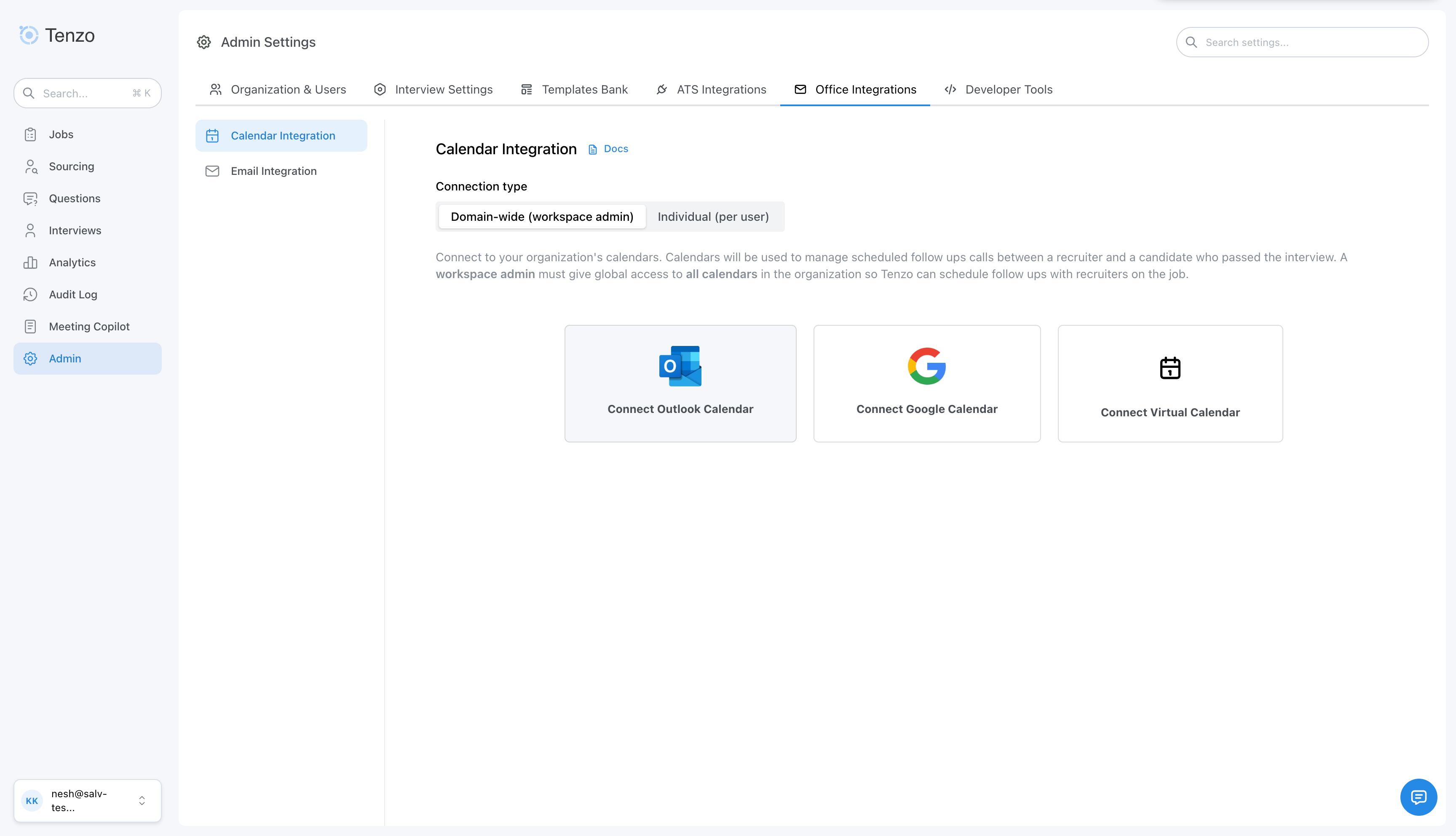 After domain-wide integration is complete, recruiters in your connected domains appear when assigning follow-up users to jobs, and Morgan can read their availability for scheduling.
***
## Individual calendar integration
Individual integration lets each recruiter connect only their own work calendar. No workspace-wide calendar admin consent is required for the whole directory. Each user signs in with OAuth, similar to [individual email inbox access](/workspace-integrations/email-integration).
### Set up individual mode (admin)
In **Admin > Office Integrations > Calendar Integration**, set **Connection type** to **Individual (per user)** and confirm the switch. Any existing domain-wide calendar connection will be removed.
The admin page shows a link to **User Settings → Calendar**. Share that path with recruiters who should receive follow-up interviews.
After domain-wide integration is complete, recruiters in your connected domains appear when assigning follow-up users to jobs, and Morgan can read their availability for scheduling.
***
## Individual calendar integration
Individual integration lets each recruiter connect only their own work calendar. No workspace-wide calendar admin consent is required for the whole directory. Each user signs in with OAuth, similar to [individual email inbox access](/workspace-integrations/email-integration).
### Set up individual mode (admin)
In **Admin > Office Integrations > Calendar Integration**, set **Connection type** to **Individual (per user)** and confirm the switch. Any existing domain-wide calendar connection will be removed.
The admin page shows a link to **User Settings → Calendar**. Share that path with recruiters who should receive follow-up interviews.
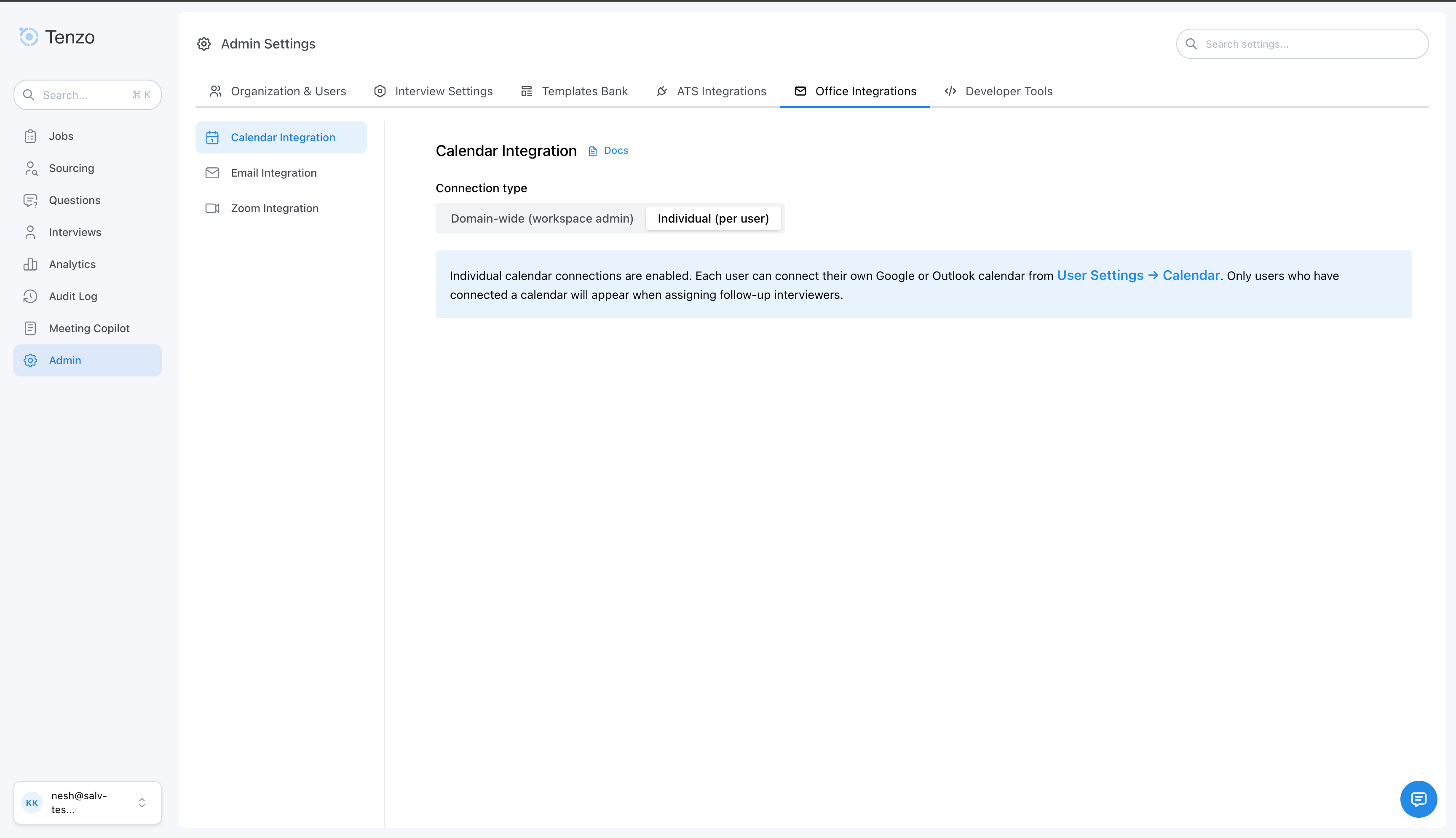 In individual mode, the admin Calendar Integration page does **not** connect a
calendar for the whole org. Only per-user connections in User Settings count.
### Connect a calendar (each recruiter)
Each recruiter who may be assigned follow-up interviews should connect their calendar:
Open the user menu (top right) and choose **User Settings**, or go to
`/user-settings?tab=calendar`.
On the **Calendar** tab, choose **Connect Google Calendar** or **Connect
Outlook Calendar** and complete the OAuth sign-in for your work account.
After connecting, open the **Calendar Availability** tab to configure when
you are available for follow-up interviews.
In individual mode, the admin Calendar Integration page does **not** connect a
calendar for the whole org. Only per-user connections in User Settings count.
### Connect a calendar (each recruiter)
Each recruiter who may be assigned follow-up interviews should connect their calendar:
Open the user menu (top right) and choose **User Settings**, or go to
`/user-settings?tab=calendar`.
On the **Calendar** tab, choose **Connect Google Calendar** or **Connect
Outlook Calendar** and complete the OAuth sign-in for your work account.
After connecting, open the **Calendar Availability** tab to configure when
you are available for follow-up interviews.
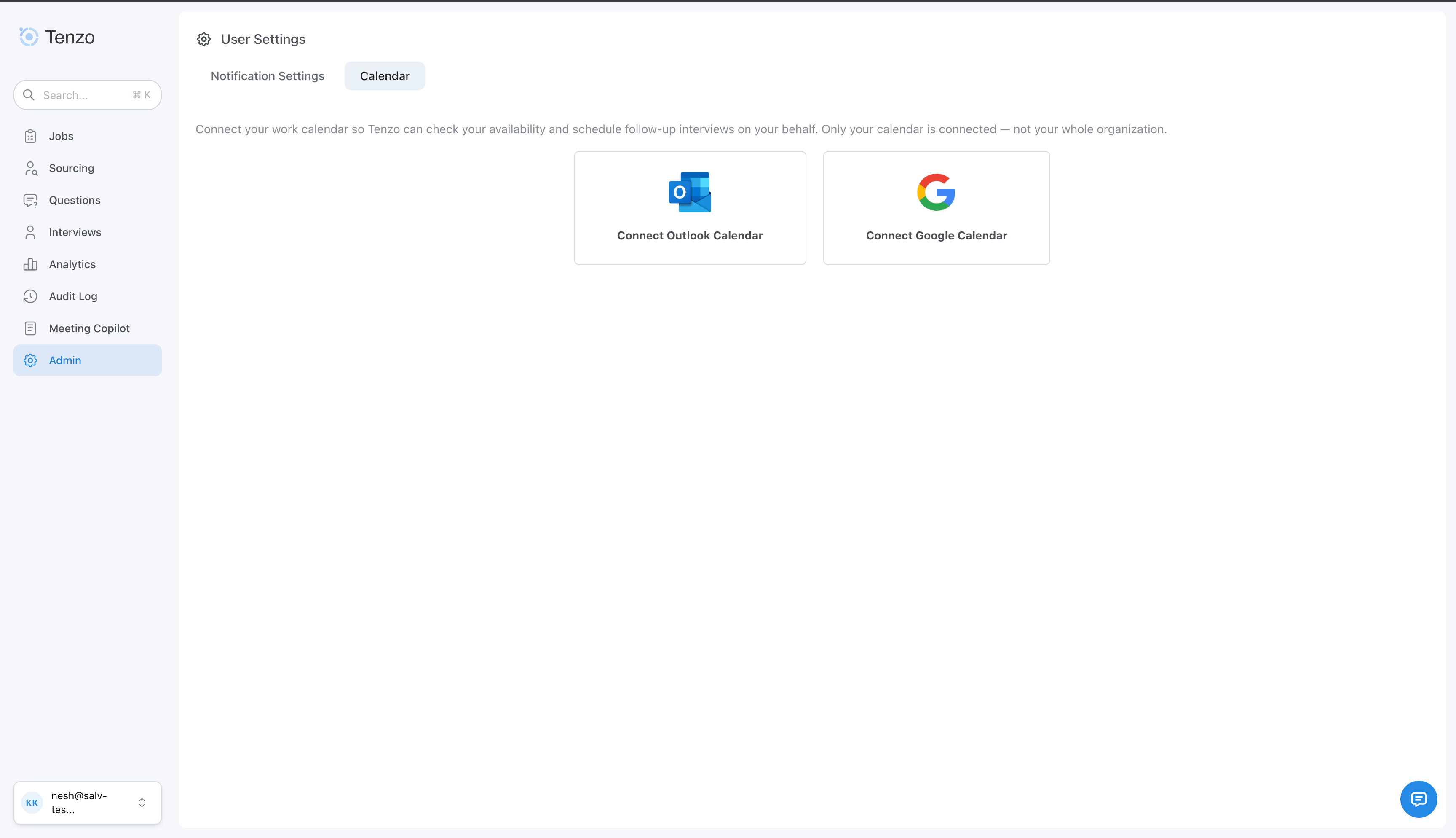 Only users who have connected a calendar appear when assigning follow-up
interviewers on a job or in the Rules Engine. Users without a connection are
skipped for availability and round-robin selection.
To disconnect, return to **User Settings → Calendar** and use **Disconnect** for the connected provider.
***
## Enabling automatic follow-up interviews
Turn on **Schedule Follow-Up Interviews** for any job in the **Outro and Scheduling** step of the job configure page.
Only users who have connected a calendar appear when assigning follow-up
interviewers on a job or in the Rules Engine. Users without a connection are
skipped for availability and round-robin selection.
To disconnect, return to **User Settings → Calendar** and use **Disconnect** for the connected provider.
***
## Enabling automatic follow-up interviews
Turn on **Schedule Follow-Up Interviews** for any job in the **Outro and Scheduling** step of the job configure page.
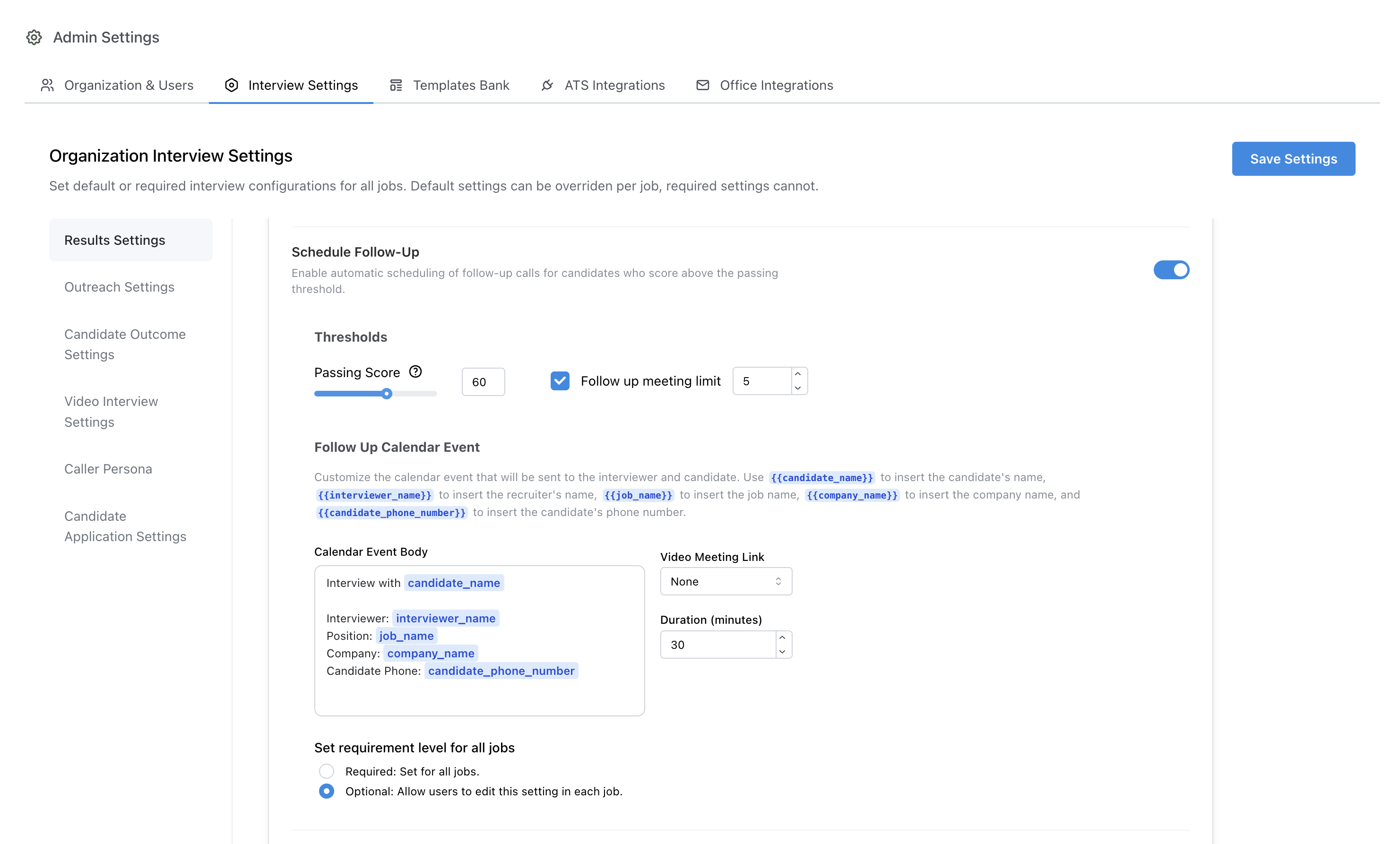
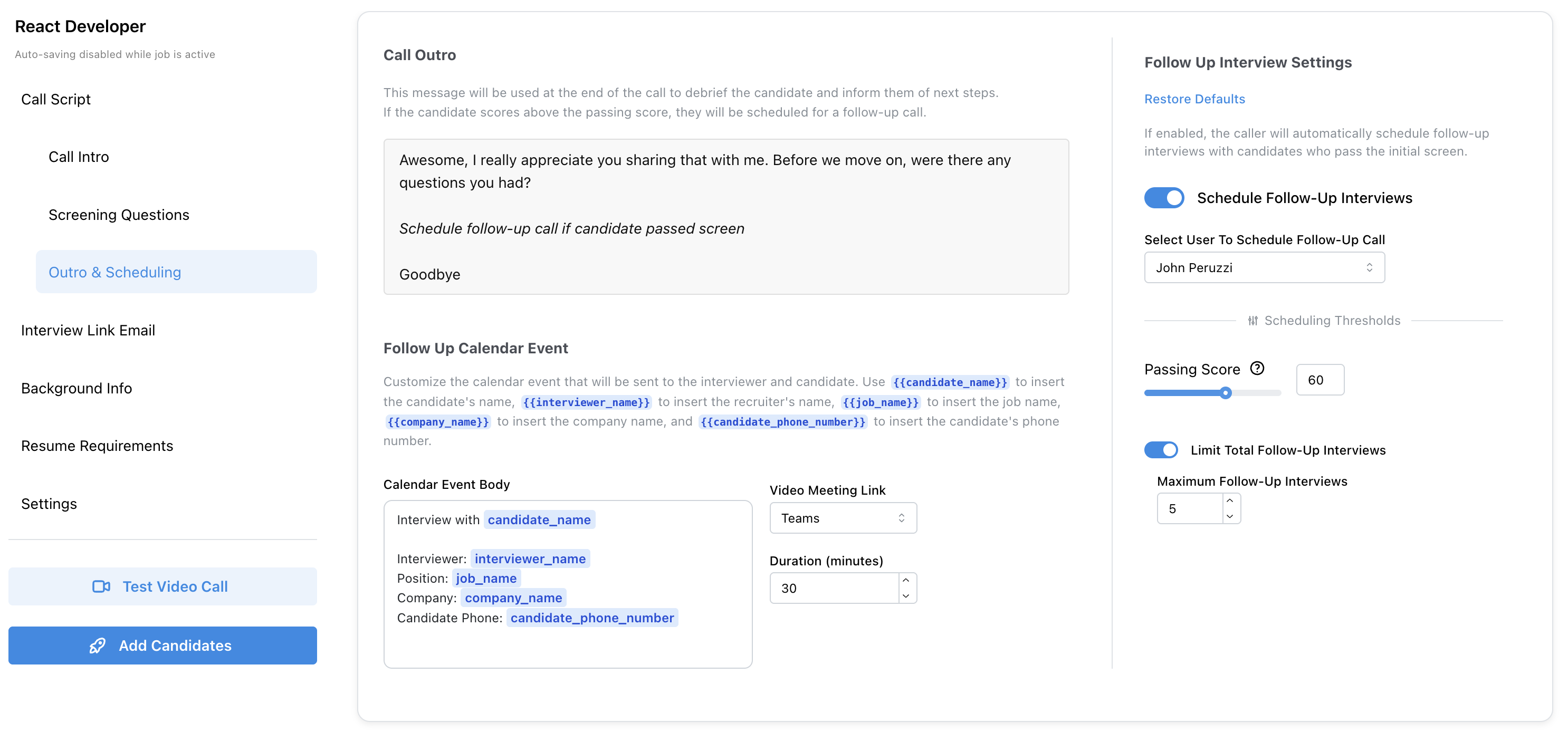 When **Schedule Follow-Up Interviews** is enabled, candidates who score at or above the passing threshold receive proposed times from the assigned recruiter’s calendar; Morgan then books the follow-up interview.
You can customize per job:
* Total number of follow-up interviews scheduled per job (after the limit, Morgan ends interviews by saying she will be in touch)
* Passing score threshold
* Video meeting link (Teams, Google Meet, or Zoom) or onsite location
* Meeting duration and event description
Default values can be set at the organization level under **Admin > Interview Settings > Schedule Follow-Up**.
When **Schedule Follow-Up Interviews** is enabled, candidates who score at or above the passing threshold receive proposed times from the assigned recruiter’s calendar; Morgan then books the follow-up interview.
You can customize per job:
* Total number of follow-up interviews scheduled per job (after the limit, Morgan ends interviews by saying she will be in touch)
* Passing score threshold
* Video meeting link (Teams, Google Meet, or Zoom) or onsite location
* Meeting duration and event description
Default values can be set at the organization level under **Admin > Interview Settings > Schedule Follow-Up**.
 ## How calendar round-robin works
When multiple follow-up users are assigned to a job, the system chooses who receives each new interview using **round-robin** logic to balance load.
1. **Availability** — Only users who are free at the candidate’s requested time (according to their connected calendar) are considered. Users with a conflict at that time are skipped.
2. **Weekly balance** — Among available users, the system counts how many follow-up interviews each person already has **this week** for that job (Sunday 00:00 UTC through Saturday 23:59 UTC).
3. **Selection** — The user with the **lowest** weekly count is chosen. Ties are broken at random.
4. **Rescheduling** — If a candidate reschedules an existing follow-up, the same interviewer is kept; round-robin applies only to new assignments.
In **individual** mode, only recruiters who have connected a calendar in User Settings participate in availability checks and round-robin.
## Automating follow-up recruiters from ATS
If a job was synced from an ATS and **Schedule Follow-Up** is enabled in organization default settings, a recruiter from the ATS hiring team may be assigned automatically as the follow-up user.
If no specific calendar user is set in the Rules Engine, a recruiter is chosen from the linked ATS position. In individual mode, that user must also have connected their calendar in User Settings to be used for scheduling.
## How calendar round-robin works
When multiple follow-up users are assigned to a job, the system chooses who receives each new interview using **round-robin** logic to balance load.
1. **Availability** — Only users who are free at the candidate’s requested time (according to their connected calendar) are considered. Users with a conflict at that time are skipped.
2. **Weekly balance** — Among available users, the system counts how many follow-up interviews each person already has **this week** for that job (Sunday 00:00 UTC through Saturday 23:59 UTC).
3. **Selection** — The user with the **lowest** weekly count is chosen. Ties are broken at random.
4. **Rescheduling** — If a candidate reschedules an existing follow-up, the same interviewer is kept; round-robin applies only to new assignments.
In **individual** mode, only recruiters who have connected a calendar in User Settings participate in availability checks and round-robin.
## Automating follow-up recruiters from ATS
If a job was synced from an ATS and **Schedule Follow-Up** is enabled in organization default settings, a recruiter from the ATS hiring team may be assigned automatically as the follow-up user.
If no specific calendar user is set in the Rules Engine, a recruiter is chosen from the linked ATS position. In individual mode, that user must also have connected their calendar in User Settings to be used for scheduling.