> ## Documentation Index
> Fetch the complete documentation index at: https://f4c7a9e2d8b1-docs.tenzo.ai/llms.txt
> Use this file to discover all available pages before exploring further.
# Manage Users
> Manage organization users, roles, and access in Tenzo
## Manage Users
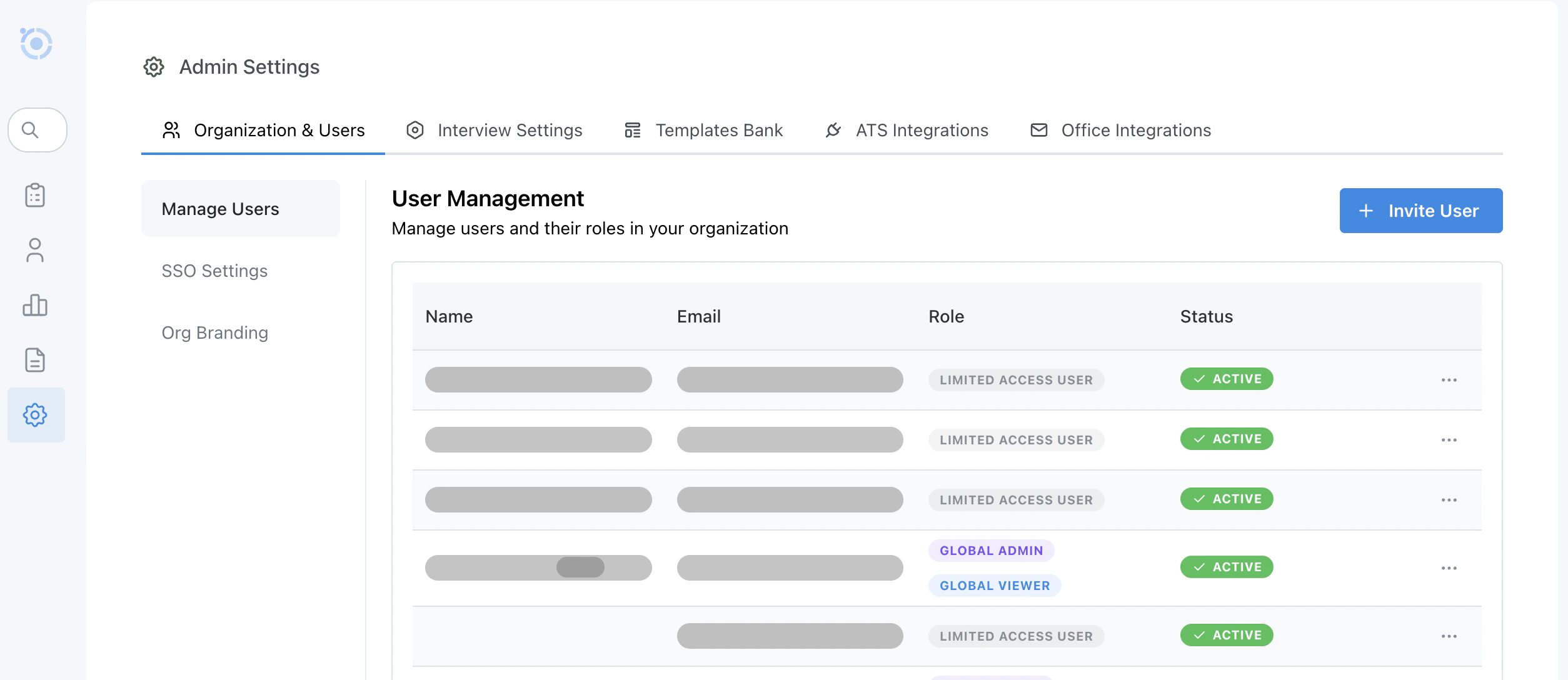
Organization admins can manage users and their roles from the **Admin** section of the Tenzo app.
* Navigate to **Admin > Organization & Users > Manage Users**.
On this page you can:
* View all users in your organization, along with their **name**, **email**, **role**, and **status**.
* Invite new users to Tenzo.
* Update user roles to control access levels.
* Deactivate or reactivate user accounts as needed.
 ### User Roles and Access
Each user is assigned a role which controls what they can see and do in Tenzo. The main roles are:
* **Limited Access User**: By default has no access to jobs, but can be added to specific jobs or folders with elevated permissions as needed.
* **Global Viewer**: Can view all jobs in the organization, but cannot manage candidates, change configurations, or change settings.
* **Global Editor**: Can edit all jobs in the organization, including interview configurations and templates, and can manage candidates on every job.
* **Global Admin**: Has full access to org-wide settings, integrations, and user management. Only Global Admins can remove (delete) candidates from a job.
You can adjust a user's role from the **Manage Users** page using the role selector in the user row.
### Access Levels Explained
Access to a job is made up of three levels, each one building on the last:
* **View** — See the job, its configuration, and its candidates. This is the baseline level included in every other access level.
* **Manage Candidates** — Everything in View, plus the ability to act on the job's candidates:
* Add candidates
* Edit candidate info and AI summaries
* Use sourcing
* Give thumbs up / thumbs down feedback on calls
* Pause and resume candidates
* Approve or reject interview re-issues
* **Editor** — Everything in Manage Candidates, plus the ability to edit the job (or folder) itself, such as its configuration, interview questions, and templates.
Removing (deleting) candidates from a job is restricted to users with the **Global Admin** role. Users with Manage Candidates access can perform all other candidate actions above, but the remove/delete controls are disabled for them with a message to contact an admin.
A **Viewer** has View access only, so Manage Candidates is off and Viewers cannot perform any of the candidate actions above. An **Editor** always has Manage Candidates included automatically. Manage Candidates can also be granted on its own, without Editor access, for users who need to work with a job's candidates but shouldn't edit the job's configuration.
### Inviting New Users
To invite a new user:
1. Go to **Admin > Organization & Users > Manage Users**.
2. Click **Invite User**.
3. Enter the user’s name and email, choose an appropriate role, and send the invitation.
### User Roles and Access
Each user is assigned a role which controls what they can see and do in Tenzo. The main roles are:
* **Limited Access User**: By default has no access to jobs, but can be added to specific jobs or folders with elevated permissions as needed.
* **Global Viewer**: Can view all jobs in the organization, but cannot manage candidates, change configurations, or change settings.
* **Global Editor**: Can edit all jobs in the organization, including interview configurations and templates, and can manage candidates on every job.
* **Global Admin**: Has full access to org-wide settings, integrations, and user management. Only Global Admins can remove (delete) candidates from a job.
You can adjust a user's role from the **Manage Users** page using the role selector in the user row.
### Access Levels Explained
Access to a job is made up of three levels, each one building on the last:
* **View** — See the job, its configuration, and its candidates. This is the baseline level included in every other access level.
* **Manage Candidates** — Everything in View, plus the ability to act on the job's candidates:
* Add candidates
* Edit candidate info and AI summaries
* Use sourcing
* Give thumbs up / thumbs down feedback on calls
* Pause and resume candidates
* Approve or reject interview re-issues
* **Editor** — Everything in Manage Candidates, plus the ability to edit the job (or folder) itself, such as its configuration, interview questions, and templates.
Removing (deleting) candidates from a job is restricted to users with the **Global Admin** role. Users with Manage Candidates access can perform all other candidate actions above, but the remove/delete controls are disabled for them with a message to contact an admin.
A **Viewer** has View access only, so Manage Candidates is off and Viewers cannot perform any of the candidate actions above. An **Editor** always has Manage Candidates included automatically. Manage Candidates can also be granted on its own, without Editor access, for users who need to work with a job's candidates but shouldn't edit the job's configuration.
### Inviting New Users
To invite a new user:
1. Go to **Admin > Organization & Users > Manage Users**.
2. Click **Invite User**.
3. Enter the user’s name and email, choose an appropriate role, and send the invitation.
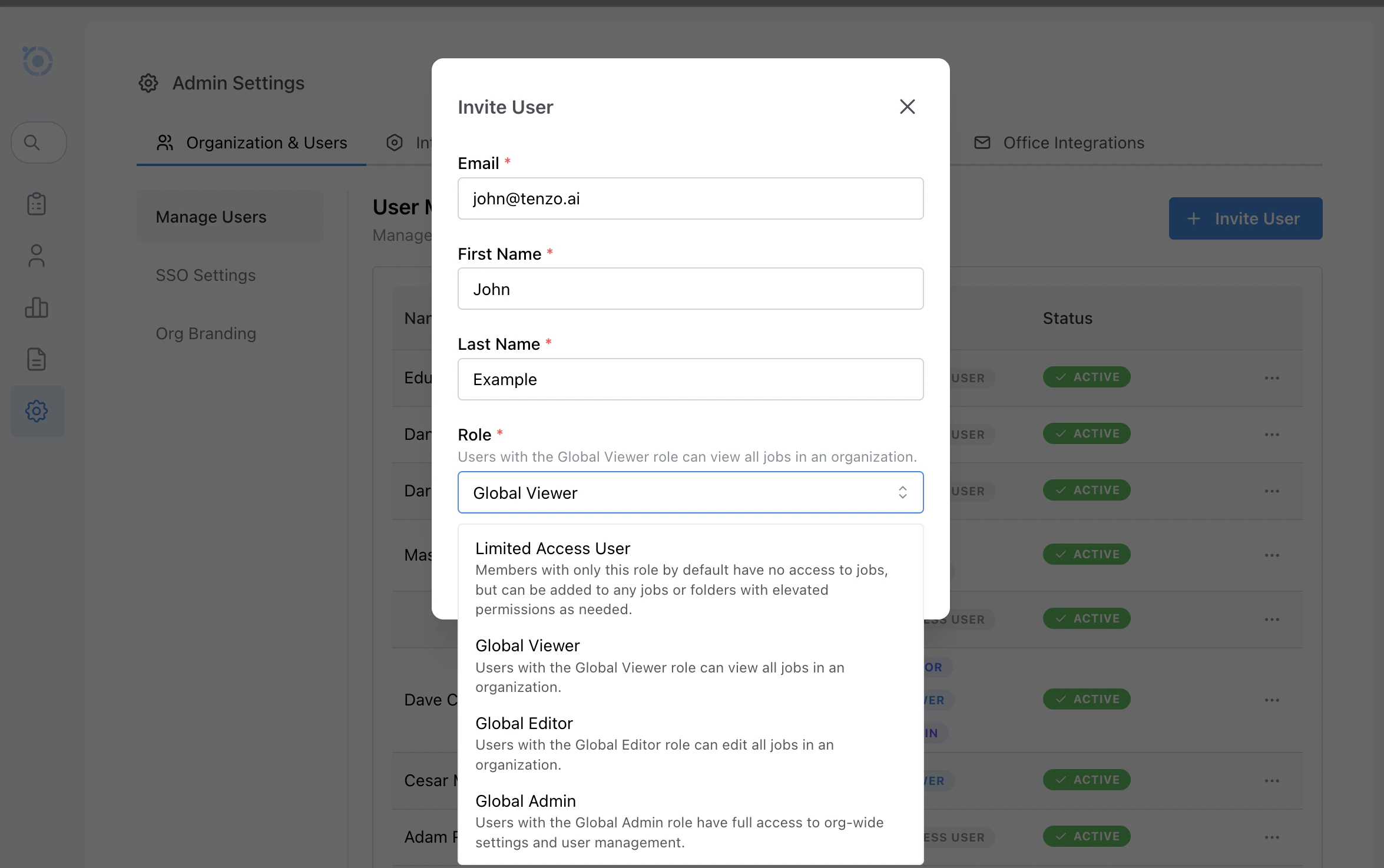 Invited users will receive an email with instructions to set up their account and sign in.
### Granting Access to Specific Jobs and Folders
Even if a user only has **Limited Access** or **Viewer** permissions at the organization level, you can grant them elevated access on a per-job or per-folder basis.
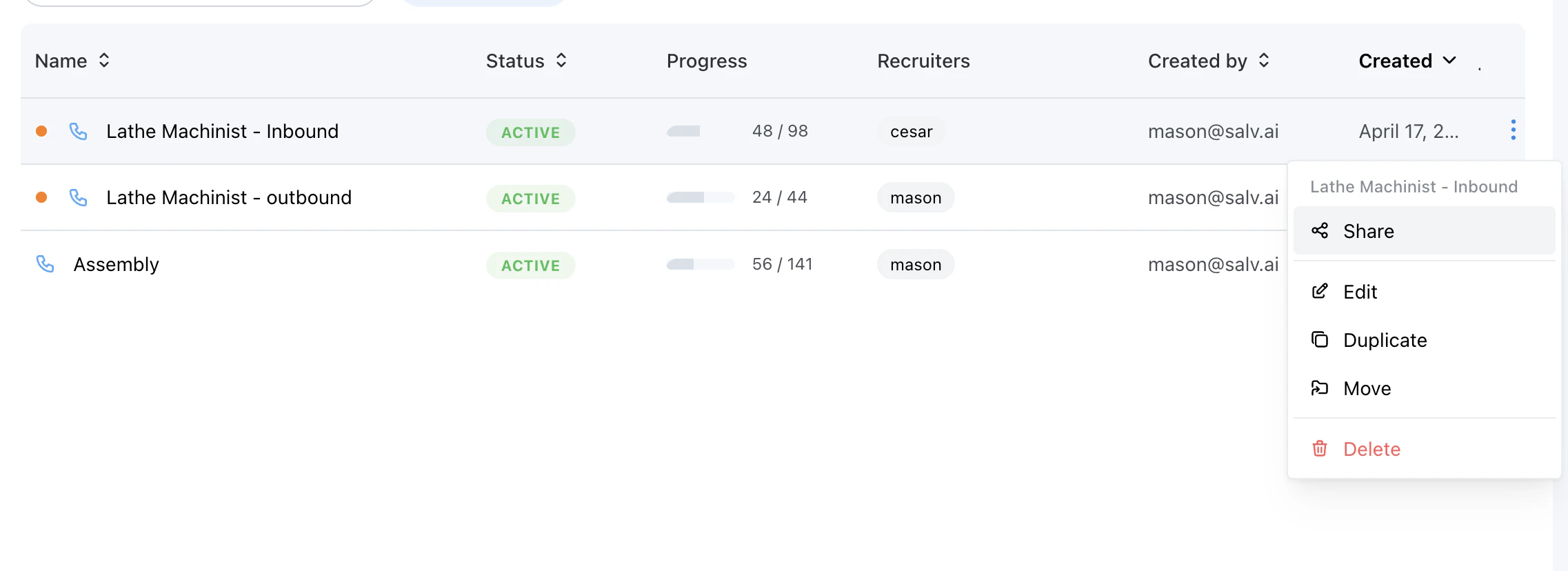
* From the **Jobs** dashboard, open the action menu (`...`) for a job or folder and choose **Share**.
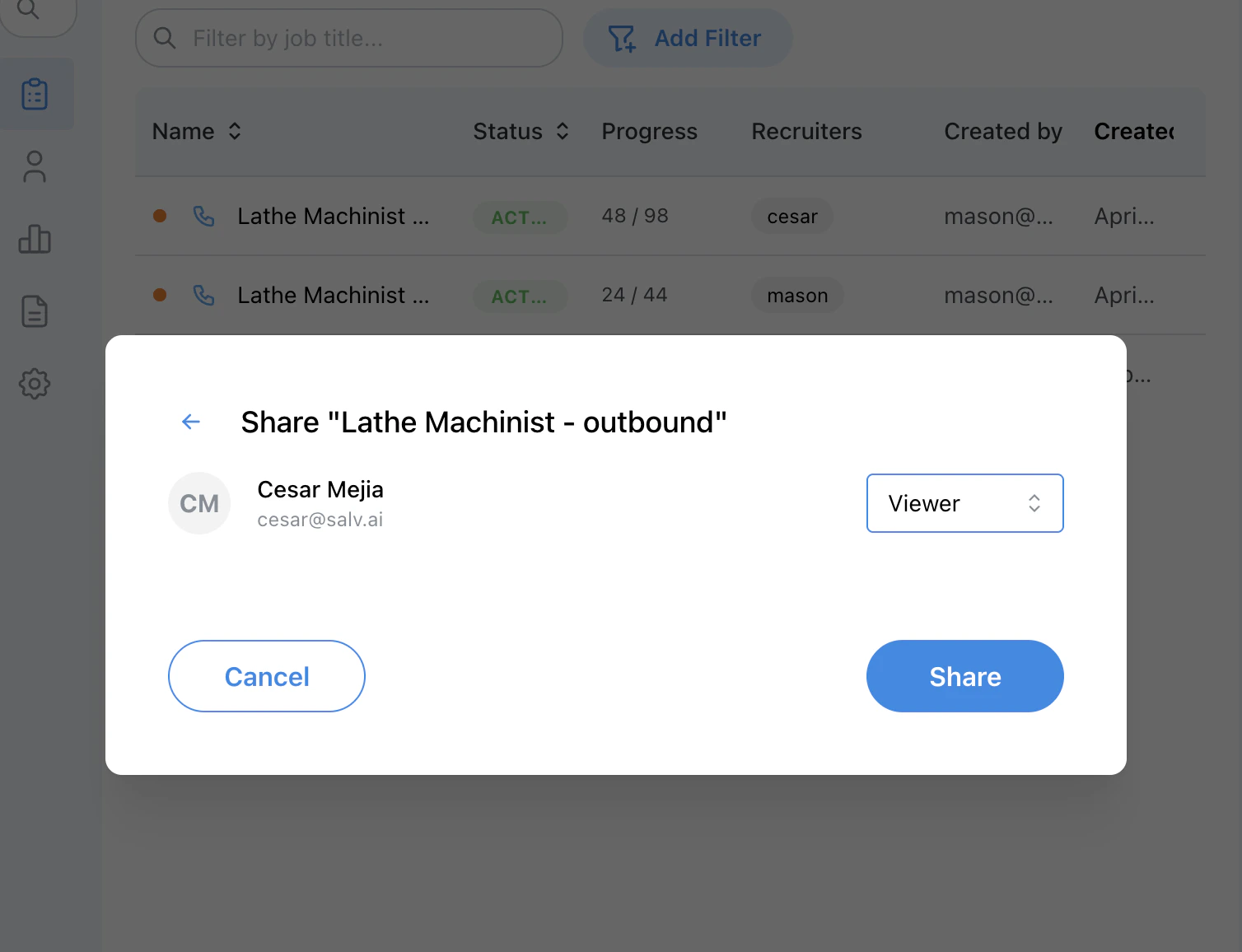
* Select the user and choose the appropriate permission level, then click **Share**:
* **Viewer** — View access only, as described above.
* **Editor** — View, edit, and Manage Candidates access, as described above.
Invited users will receive an email with instructions to set up their account and sign in.
### Granting Access to Specific Jobs and Folders
Even if a user only has **Limited Access** or **Viewer** permissions at the organization level, you can grant them elevated access on a per-job or per-folder basis.
* From the **Jobs** dashboard, open the action menu (`...`) for a job or folder and choose **Share**.
* Select the user and choose the appropriate permission level, then click **Share**:
* **Viewer** — View access only, as described above.
* **Editor** — View, edit, and Manage Candidates access, as described above.
 > **Note:** When you share a **folder** with a user, that user is granted access to all jobs and subfolders contained within that folder.