> ## Documentation Index
> Fetch the complete documentation index at: https://f4c7a9e2d8b1-docs.tenzo.ai/llms.txt
> Use this file to discover all available pages before exploring further.
# SSO Connections
> Configure and manage SSO connections for your Tenzo organization
## SSO Connections
Organization admins can configure Single Sign-On (SSO) from the **Admin** section of the Tenzo app.
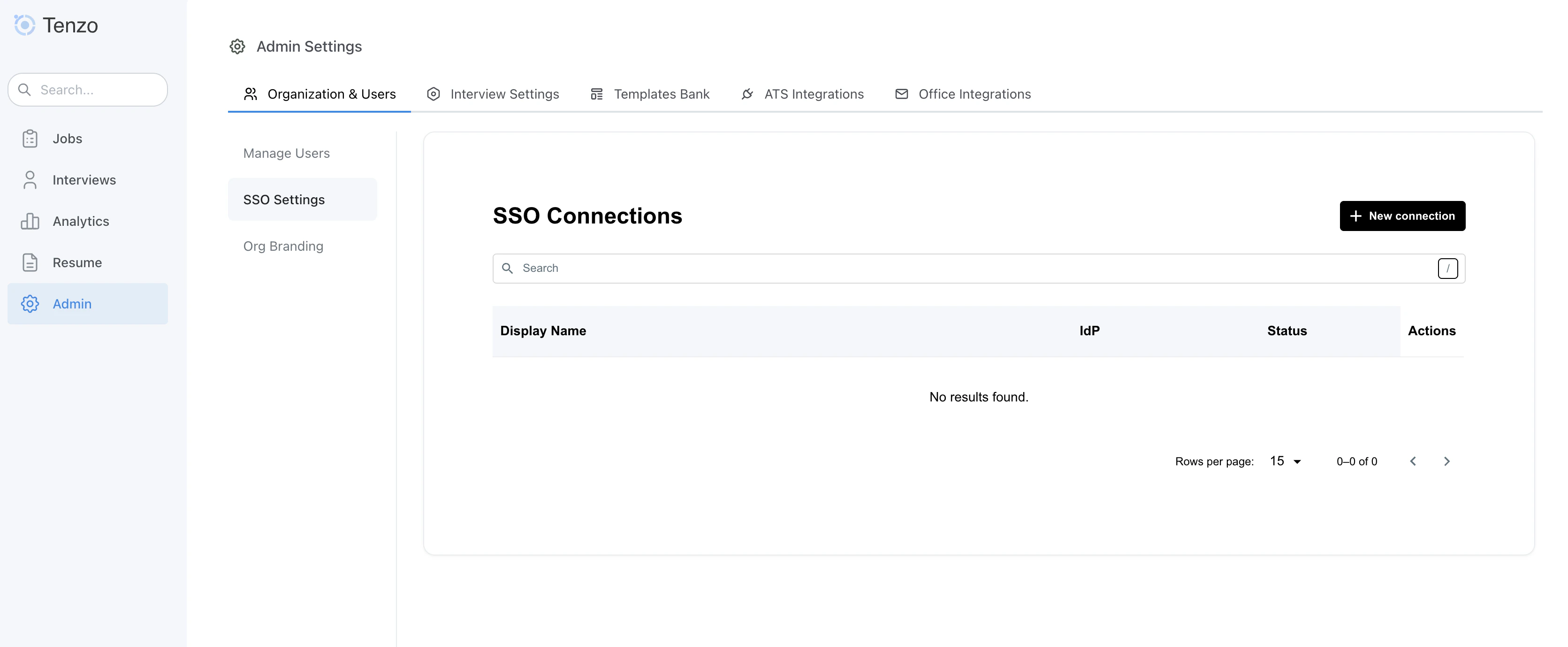
* Navigate to **Admin > Organization & Users > SSO Settings**.
This page lists all configured SSO connections for your organization.
When an SSO connection is active, users in the connected organization can sign in to Tenzo using their identity provider instead of a password-based login.
 ### Creating a New SSO Connection
To add a new SSO connection:
1. Go to **Admin > Organization & Users > SSO Settings**.
2. Click **New connection**.
3. Enter a **Display Name** that will help admins recognize the connection (for example, “Okta - Production”).
4. Follow the guided setup flow on the SSO configuration page. The UI will walk you through copying any values needed into your identity provider and pasting the provider details back into Tenzo.
5. Save the connection once the setup flow indicates that configuration is complete.
After saving, the connection will appear in the SSO list with its **IdP**, **status**, and available actions.
### Testing and Enabling SSO
After creating a connection, use a test account from your identity provider to sign in via the SSO option on the Tenzo login page and confirm that you can successfully access your workspace. Once verified, users in your organization will see a **Log in with SSO** option in the sign-in flow and can use their IdP credentials to access Tenzo.
### Managing Existing Connections
From the SSO Settings page you can:
* **Search** for a specific SSO connection by display name.
* View the associated **IdP** and **status**.
* Use the actions menu to update or disable a connection when needed.
Disabling a connection prevents new logins via that IdP while keeping the configuration available for future reactivation.
### Creating a New SSO Connection
To add a new SSO connection:
1. Go to **Admin > Organization & Users > SSO Settings**.
2. Click **New connection**.
3. Enter a **Display Name** that will help admins recognize the connection (for example, “Okta - Production”).
4. Follow the guided setup flow on the SSO configuration page. The UI will walk you through copying any values needed into your identity provider and pasting the provider details back into Tenzo.
5. Save the connection once the setup flow indicates that configuration is complete.
After saving, the connection will appear in the SSO list with its **IdP**, **status**, and available actions.
### Testing and Enabling SSO
After creating a connection, use a test account from your identity provider to sign in via the SSO option on the Tenzo login page and confirm that you can successfully access your workspace. Once verified, users in your organization will see a **Log in with SSO** option in the sign-in flow and can use their IdP credentials to access Tenzo.
### Managing Existing Connections
From the SSO Settings page you can:
* **Search** for a specific SSO connection by display name.
* View the associated **IdP** and **status**.
* Use the actions menu to update or disable a connection when needed.
Disabling a connection prevents new logins via that IdP while keeping the configuration available for future reactivation.