> ## Documentation Index
> Fetch the complete documentation index at: https://f4c7a9e2d8b1-docs.tenzo.ai/llms.txt
> Use this file to discover all available pages before exploring further.
# Resume Feedback Email Templates
> Customize the feedback email sent when candidates don't pass resume screening
## Overview
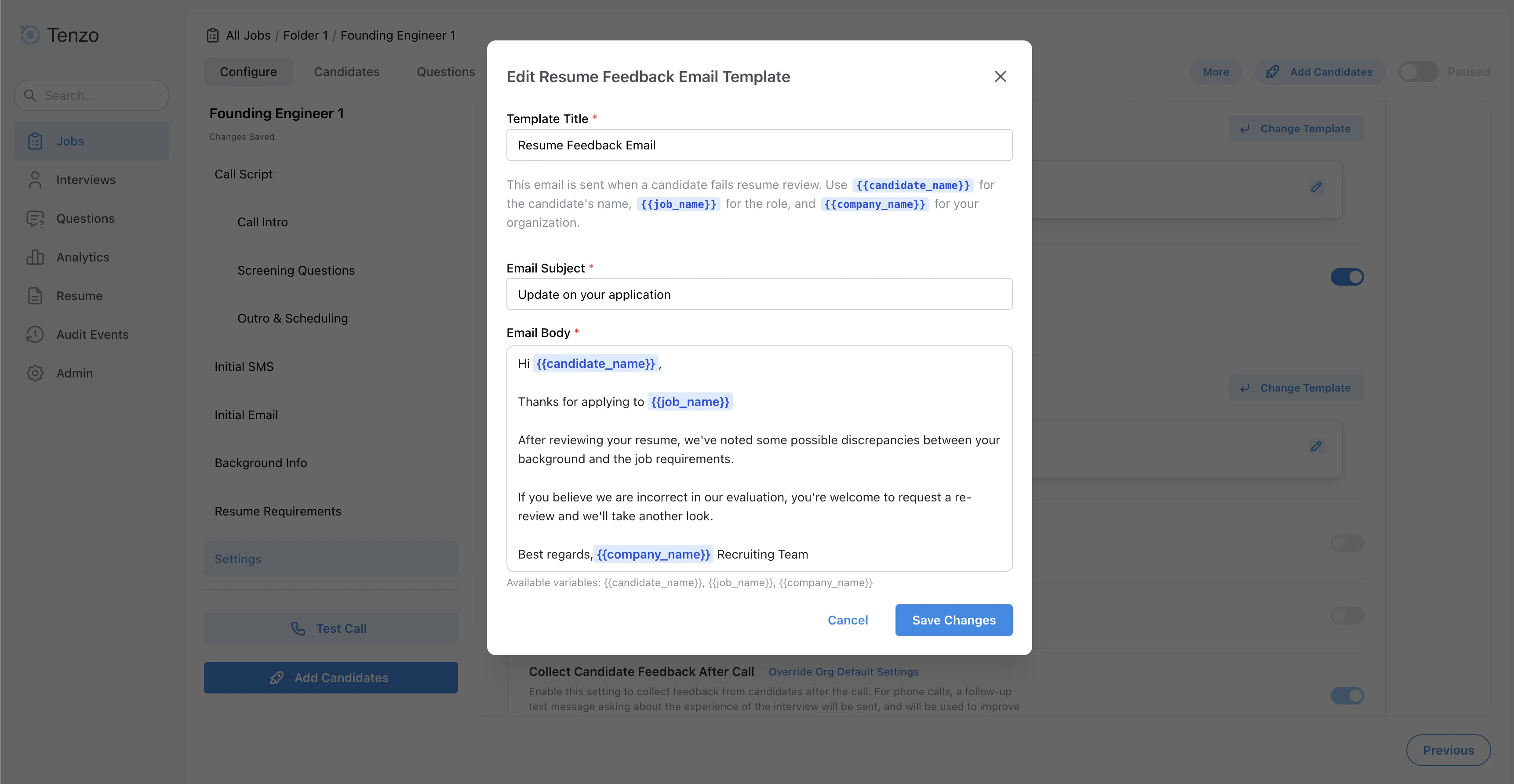
Resume Feedback Email Templates define the **subject** and **body** sent to candidates when a candidate doesn't pass resume screening and **Resume Feedback Emails** are enabled.
These templates are managed from **Admin > Templates Bank > Resume Feedback Email Templates**.
For the settings that control *when* emails are sent and what candidates see on the details page, see **[Resume Feedback Emails (Settings)](/settings/resume-feedback-emails)**.
These templates are for resume feedback emails only. For templates used after a manual thumbs-down, see **[Rejection Email Templates](/templates/rejection-email-templates)**.
***
## How template selection works
Tenzo selects a template in this order:
1. **Job-specific template** (if configured on the job)
2. **Org default template** (your default in the templates manager)
If no template is available, Tenzo cannot send a resume feedback email.
***
## Supported variables
When a resume feedback email is sent, Tenzo replaces `{{variable}}` placeholders in the **subject** and **body** with values from the candidate record, job configuration, and linked ATS job—the same substitution logic used for other candidate-facing templates.
**Candidate**
* `{{candidate_name}}` — the candidate's name
* `{{candidate_phone_number}}` — the candidate's phone number, when available
**Job and recruiter**
* `{{job_name}}` — the candidate-facing job title
* `{{company_name}}` — your organization's name for the job
* `{{ai_name}}` — the AI caller name configured on the job
* `{{recruiter_phone_number}}` — the outbound call number configured on the job
**Interview scheduling (when configured on the job)**
* `{{estimated_duration_minutes}}` — expected interview length based on screening questions
* `{{expiration_days}}` — how long web interview links stay valid
**ATS job attributes**
Any field from the linked ATS job is available using dot notation (for example, `{{location.city}}` or `{{custom_field_values.customText1}}`). The exact keys depend on your ATS integration and the job's cached attributes.
If a placeholder has no matching value at send time, it is left unchanged in the email.
For more examples of how variables are used across interviews and outreach, see **[Variables](/getting-started/advanced-create-interview#variables)**.
***
## How settings affect the final email
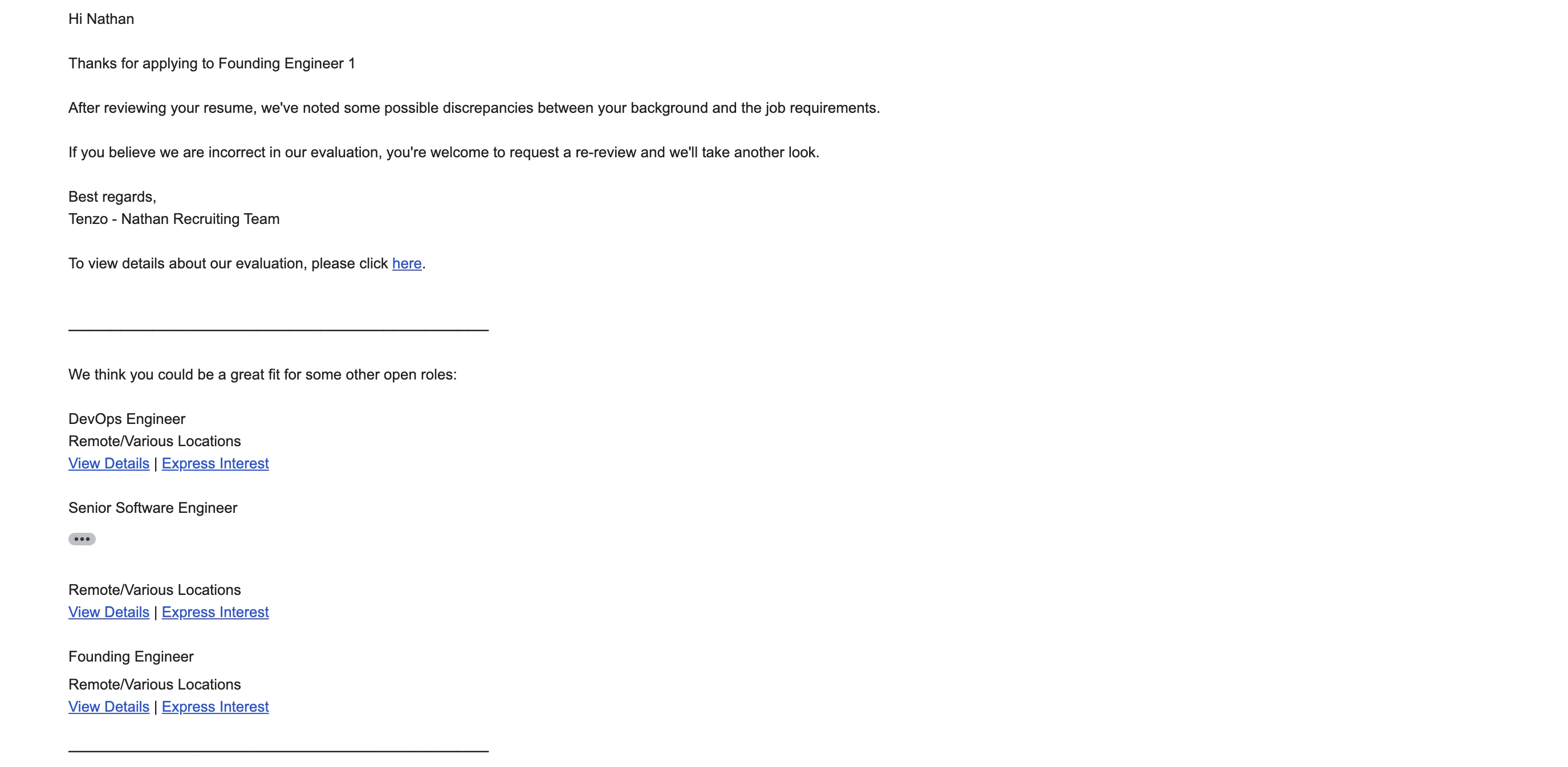
Your chosen template is the base email content. The **Resume Feedback Emails** settings can modify what is appended or shown:
* **Details page link**:
* Always included. The email contains a link that opens a candidate-facing details page showing which resume requirements were not met and a form to request a re-review.
* **Recommended alternative roles**:
* When enabled, Tenzo appends a section showing other open positions the candidate may be qualified for, with links to view details and express interest.
See **[Resume Feedback Emails (Settings)](/settings/resume-feedback-emails)** for the full setting explanations.
***
## Managing templates
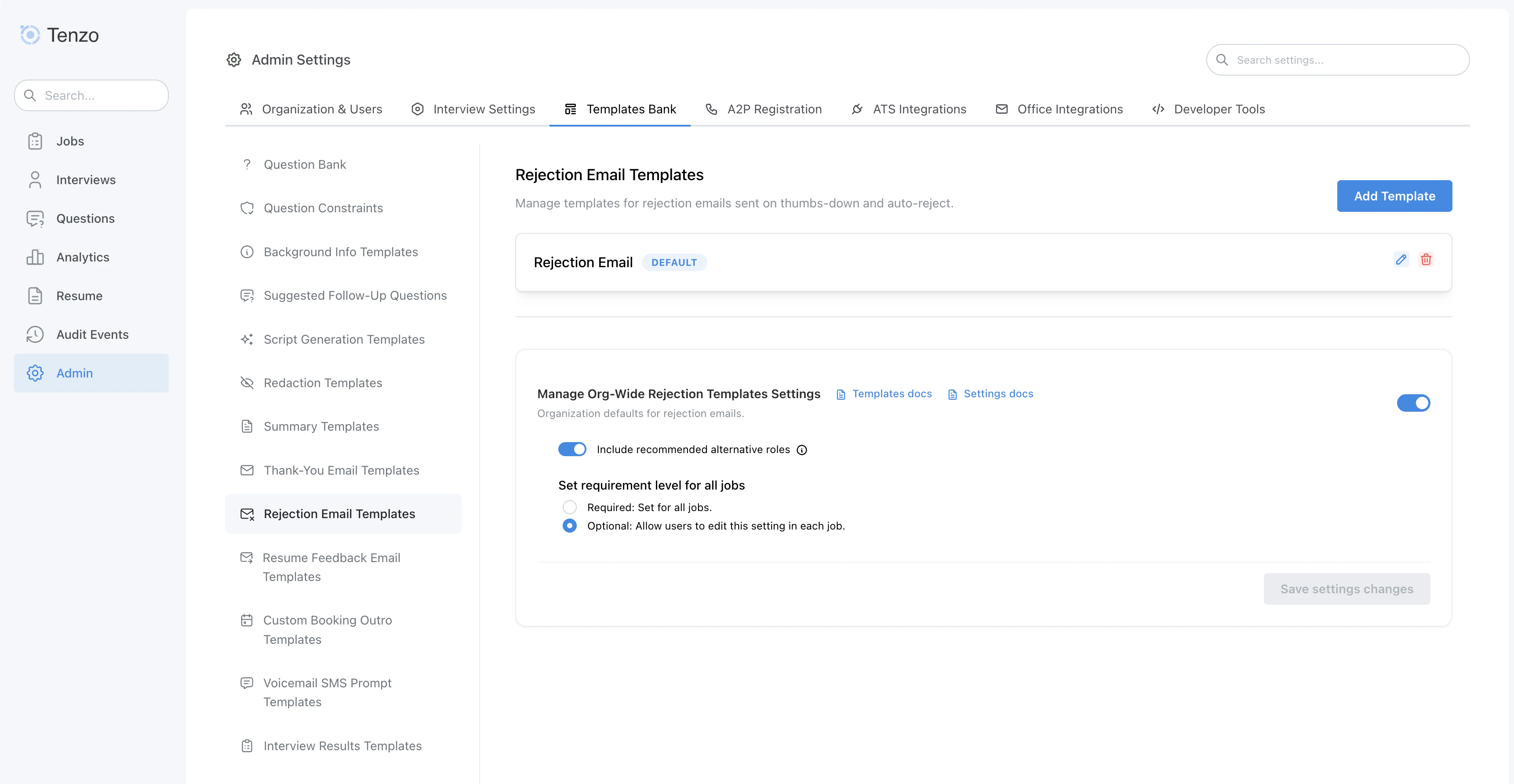 In the templates manager you can:
* Create additional templates
* Edit template subject and body
* Set a template as the **default** for new jobs
* Delete templates you no longer need
In the templates manager you can:
* Create additional templates
* Edit template subject and body
* Set a template as the **default** for new jobs
* Delete templates you no longer need