> ## Documentation Index
> Fetch the complete documentation index at: https://f4c7a9e2d8b1-docs.tenzo.ai/llms.txt
> Use this file to discover all available pages before exploring further.
# User Settings
> Configure personal notification preferences and calendar integration
## Overview
User Settings allow individual users to customize their notification preferences and, when enabled by your organization, their personal calendar connection. These settings can override organization and job-level defaults for your specific user account.
Access User Settings from the user menu in the top right corner of the platform, or navigate directly to `/user-settings`.
***
## Calendar (individual mode)
When your organization uses **Individual (per user)** calendar integration, the **Calendar** and **Calendar Availability** tabs appear in User Settings. Each recruiter connects their own Google or Microsoft work calendar so Tenzo can check availability and schedule follow-up interviews.
Go to **User Settings** and select the **Calendar** tab (or open `/user-settings?tab=calendar`).
Choose **Connect Google Calendar** or **Connect Outlook Calendar** and sign in with your work account.
After connecting, use the **Calendar Availability** tab to set when you are available for follow-up interviews.
For connection-type options and admin setup, see [Calendar Integration](/workspace-integrations/calendar-integration).
***
## Notification Settings
Control which notifications you receive and set thresholds for when you should be notified.
### Using Custom Settings
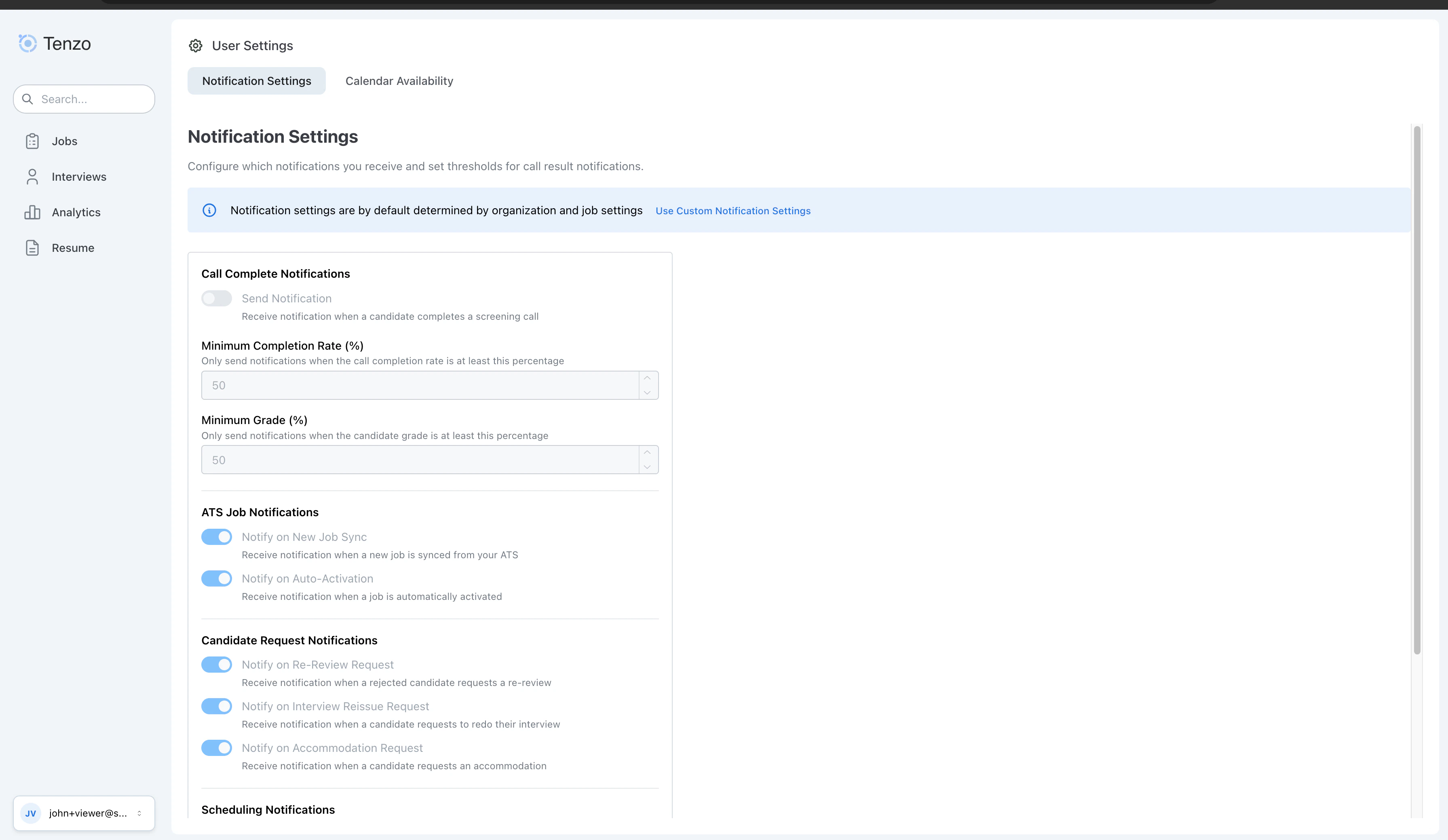
By default, notification settings are determined by organization and job settings. You can enable custom settings to override these defaults for your user.
 ### Available Notification Toggles
#### Call Complete Notifications
Receive notifications when a candidate completes a screening call.
* **Notification Channel**: Choose between Email or Microsoft Teams (if connected)
* **Minimum Grade**: Only receive notifications when the candidate grade meets or exceeds this threshold
* **Minimum Completion Rate**: A legacy notification threshold. Because call-complete notifications only fire once the call has finished, this value is not currently applied — only Minimum Grade filters which completed calls notify you. It does **not** control ATS writeback or call retries.
### Microsoft Teams Bot
The Tenzo Recruiting bot sends call-complete notifications in a personal Microsoft Teams chat when you choose **Microsoft Teams** as your notification channel under **Call Complete Notifications**. Each notification includes a link to review the resulting call details in Tenzo.
Before Teams notifications can be used, an organization admin must connect Microsoft Teams from **Admin Settings** > **Office Integrations** > **Teams Notifications**. After the organization is connected, each user can choose **Microsoft Teams** as their notification channel in User Settings.
The Teams bot chat is for delivering these notifications and basic help. If you ask the bot what it does, it describes call-complete notifications only. It does not manage jobs, candidates, interview settings, or account configuration from Teams. Type **Help** in the bot chat to see supported commands and setup guidance. New Tenzo users can contact [Tenzo Support](https://www.tenzo.ai/software-support) to get started.
#### ATS Job Notifications
* **Notify on New Job Sync**: Receive notification when a new job is synced from your ATS
* **Notify on Auto-Activation**: Receive notification when a job is automatically activated
#### Candidate Request Notifications
* **Notify on Re-Review Request**: Receive notification when a rejected candidate requests a re-review
* **Notify on Interview Reissue Request**: Receive notification when a candidate requests to redo their interview
* **Notify on Accommodation Request**: Receive notification when a candidate requests an accommodation
#### Scheduling Notifications
* **Notify on SMS Booking**: Receive notification when a candidate books, reschedules, or cancels a follow-up interview via SMS
#### Candidate Opt-Out Notifications
* **Notify on Candidate Opt-Out**: Receive notification when a candidate opts out of the AI interview
### Disabling Notifications from Email
All notification emails include a footer with links to disable notifications:
* **User Settings**: Takes you to your personal notification settings
* **Admin Settings**: Takes you to organization-level notification settings (admin access required)
### Available Notification Toggles
#### Call Complete Notifications
Receive notifications when a candidate completes a screening call.
* **Notification Channel**: Choose between Email or Microsoft Teams (if connected)
* **Minimum Grade**: Only receive notifications when the candidate grade meets or exceeds this threshold
* **Minimum Completion Rate**: A legacy notification threshold. Because call-complete notifications only fire once the call has finished, this value is not currently applied — only Minimum Grade filters which completed calls notify you. It does **not** control ATS writeback or call retries.
### Microsoft Teams Bot
The Tenzo Recruiting bot sends call-complete notifications in a personal Microsoft Teams chat when you choose **Microsoft Teams** as your notification channel under **Call Complete Notifications**. Each notification includes a link to review the resulting call details in Tenzo.
Before Teams notifications can be used, an organization admin must connect Microsoft Teams from **Admin Settings** > **Office Integrations** > **Teams Notifications**. After the organization is connected, each user can choose **Microsoft Teams** as their notification channel in User Settings.
The Teams bot chat is for delivering these notifications and basic help. If you ask the bot what it does, it describes call-complete notifications only. It does not manage jobs, candidates, interview settings, or account configuration from Teams. Type **Help** in the bot chat to see supported commands and setup guidance. New Tenzo users can contact [Tenzo Support](https://www.tenzo.ai/software-support) to get started.
#### ATS Job Notifications
* **Notify on New Job Sync**: Receive notification when a new job is synced from your ATS
* **Notify on Auto-Activation**: Receive notification when a job is automatically activated
#### Candidate Request Notifications
* **Notify on Re-Review Request**: Receive notification when a rejected candidate requests a re-review
* **Notify on Interview Reissue Request**: Receive notification when a candidate requests to redo their interview
* **Notify on Accommodation Request**: Receive notification when a candidate requests an accommodation
#### Scheduling Notifications
* **Notify on SMS Booking**: Receive notification when a candidate books, reschedules, or cancels a follow-up interview via SMS
#### Candidate Opt-Out Notifications
* **Notify on Candidate Opt-Out**: Receive notification when a candidate opts out of the AI interview
### Disabling Notifications from Email
All notification emails include a footer with links to disable notifications:
* **User Settings**: Takes you to your personal notification settings
* **Admin Settings**: Takes you to organization-level notification settings (admin access required)