> ## Documentation Index
> Fetch the complete documentation index at: https://f4c7a9e2d8b1-docs.tenzo.ai/llms.txt
> Use this file to discover all available pages before exploring further.
# Rules Engine for Conditional Settings
> Using the rules engine to configure settings conditioned on job attributes
### Rules Engine Overview
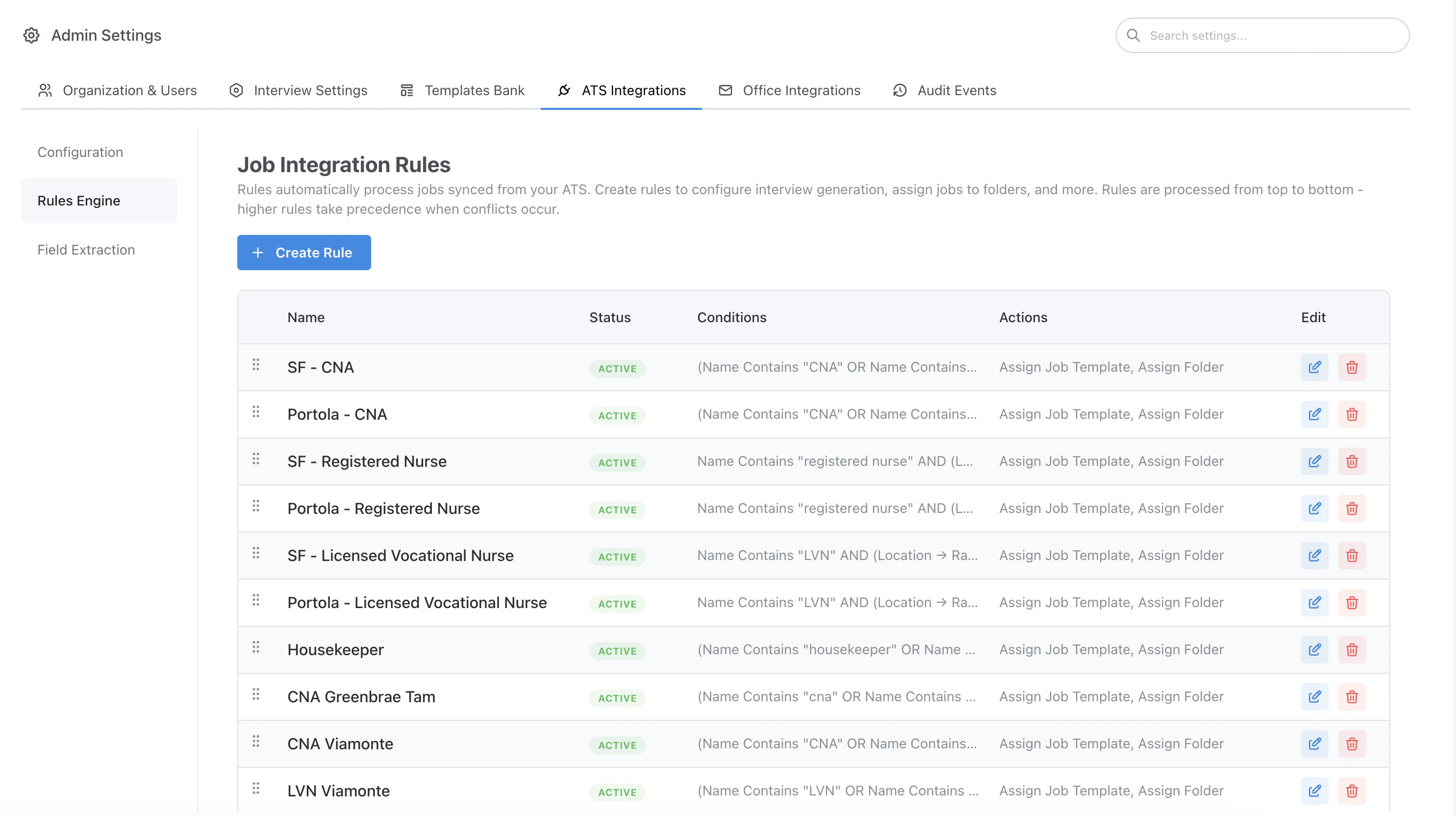
Admins may use the Rules Engine to customize interviews based on fields in the ATS. Rules follow the following pattern:
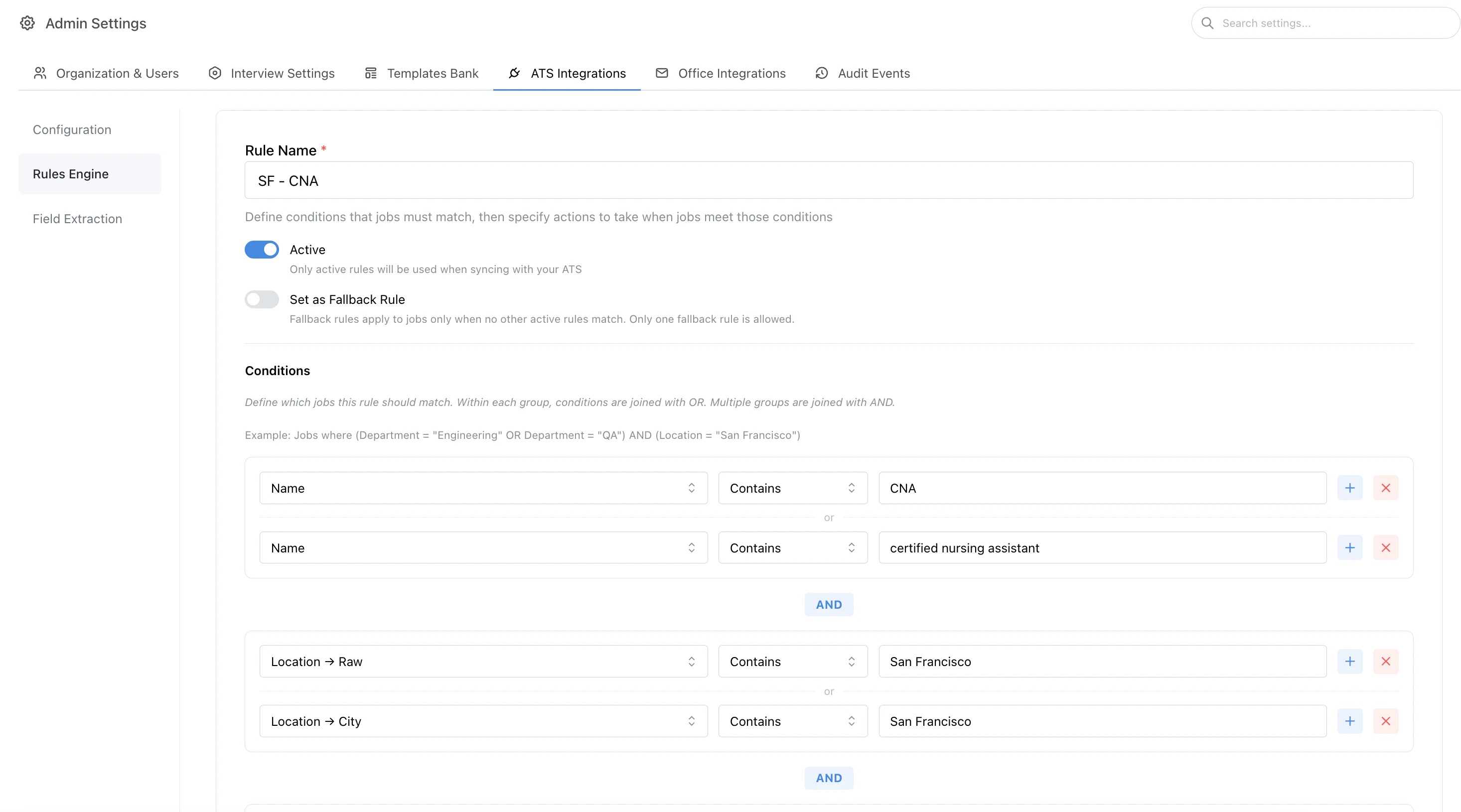
* **Conditions** Conditions based on specified ATS fields to determine matching jobs
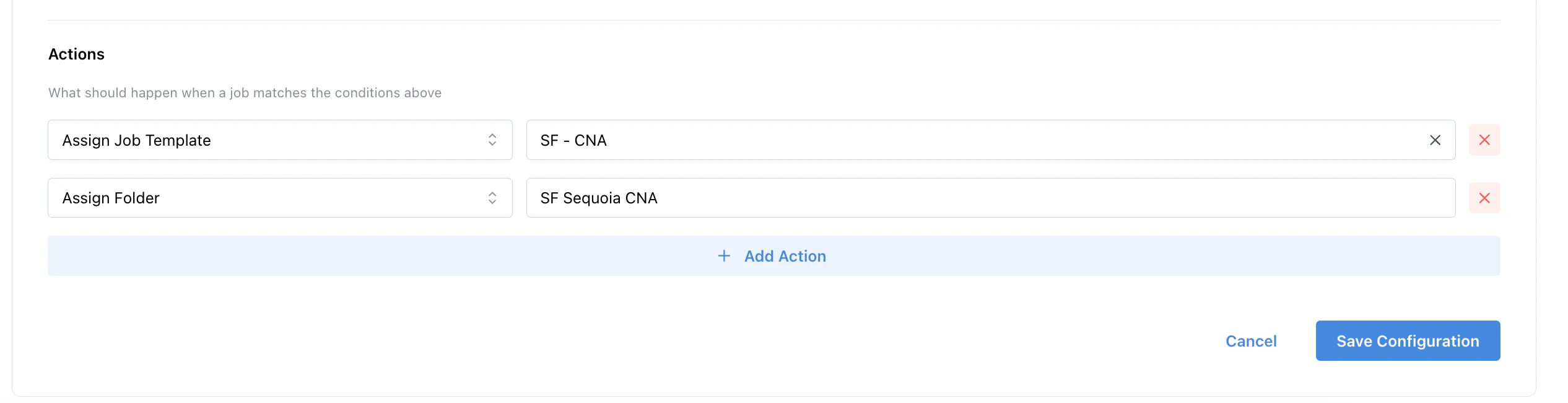
* **Actions** How Tenzo should configure interviews for ATS jobs which match these conditions (eg. *adding to a folder*, *interview generation instructions*, *specific setting configurations*)
 ### Configured rule example
 ### Customizing Settings via the Rules Engine
Any interview setting may be applied to specific jobs matching conditions via a rule.
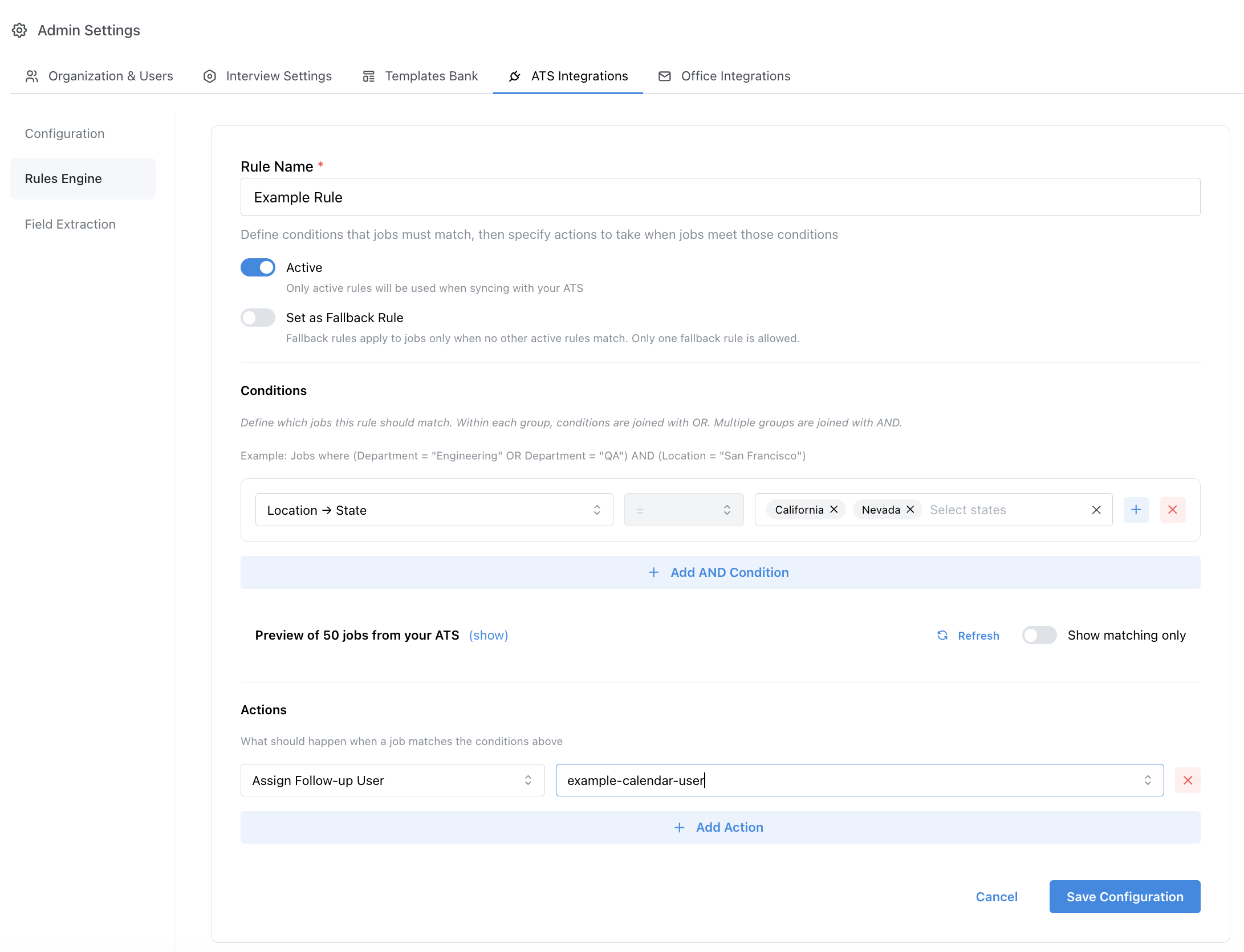
* For example, if the jobs in the ATS are organized by *office*, you may configure a rule for each office and specify a different *follow-up user calendar* for each office.
* This setup is common for organizations who want to use a single shared calendar accross a set of interviews.
* Once the rule is active, all interviews created for that office will automatically be configured to schedule follow-up interviews using the selected calendar for that office.
Any setting may be added to the rules engine. New settings and options are often added per-customer requests. If you do not see a specific setting as an *action* in the rules engine, you may reach out to support and the engineering team can quickly add that setting as an action.
### Example Rule
Below is an example of adding a rule which assigns a specific follow up user based on the location of the job.
### Customizing Settings via the Rules Engine
Any interview setting may be applied to specific jobs matching conditions via a rule.
* For example, if the jobs in the ATS are organized by *office*, you may configure a rule for each office and specify a different *follow-up user calendar* for each office.
* This setup is common for organizations who want to use a single shared calendar accross a set of interviews.
* Once the rule is active, all interviews created for that office will automatically be configured to schedule follow-up interviews using the selected calendar for that office.
Any setting may be added to the rules engine. New settings and options are often added per-customer requests. If you do not see a specific setting as an *action* in the rules engine, you may reach out to support and the engineering team can quickly add that setting as an action.
### Example Rule
Below is an example of adding a rule which assigns a specific follow up user based on the location of the job.