> ## Documentation Index
> Fetch the complete documentation index at: https://f4c7a9e2d8b1-docs.tenzo.ai/llms.txt
> Use this file to discover all available pages before exploring further.
# Organization Branding
> Set up brand names and logos, and choose how each job is presented to candidates
## Overview
**Organization name** is your Tenzo tenant — the name recruiters see in Admin and account settings.
**Brands** are the hiring identities candidates see and hear. Each brand has a name and an optional logo. An organization can have many brands (for example one per client) and exactly one default.
When a job has a brand selected, that brand's name is what candidates read as `{{company_name}}`. If a job has no brand, Tenzo uses the organization's default brand, then the organization name.
Branding is a name and logo. It does not change colors, domains, or the recruiter app.
***
## Where to configure
Go to **Admin → Organization & Users → Org Branding**. **Organization Name** on the left is the tenant. **Branding** on the right is what candidates see.
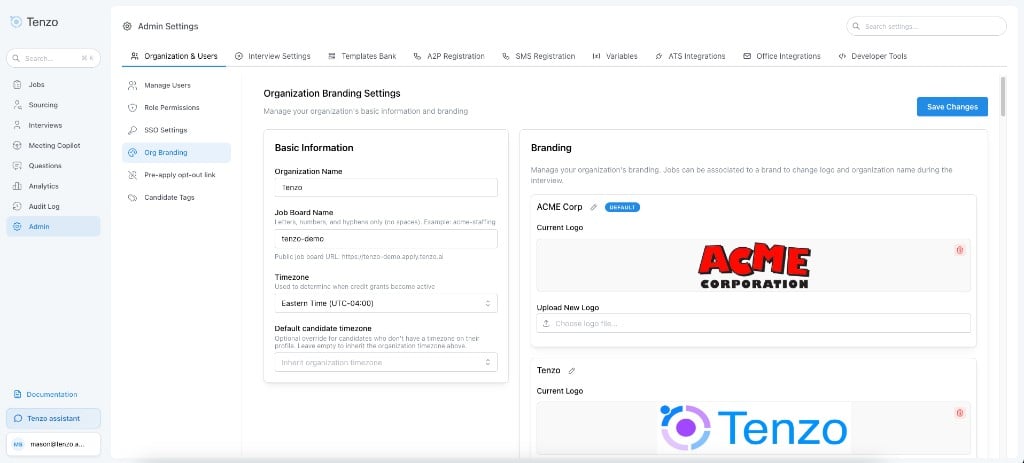 Under **Branding**, add a brand name and optional logo. Mark one brand as **Default**. You cannot delete the default brand; set a different default first.
**Organization Name** on the same page stays the internal name for your Tenzo account. It is the fallback if no brands are configured, and it is what recruiters see in Admin.
Open **Job → Configure → Settings → Branding Settings → Brand**. Choose which brand this job should present to candidates.
New jobs, including ATS-synced jobs, pick up the default brand automatically when one is set. You can change the brand on any job later.
Under **Branding**, add a brand name and optional logo. Mark one brand as **Default**. You cannot delete the default brand; set a different default first.
**Organization Name** on the same page stays the internal name for your Tenzo account. It is the fallback if no brands are configured, and it is what recruiters see in Admin.
Open **Job → Configure → Settings → Branding Settings → Brand**. Choose which brand this job should present to candidates.
New jobs, including ATS-synced jobs, pick up the default brand automatically when one is set. You can change the brand on any job later.
 ***
## What candidates see
The selected brand (or the default, or the organization name) is used anywhere a candidate is told who is hiring them:
| Surface | What uses the brand |
| ------------------------------------ | ------------------------------------------------------------------------------------------------------------------- |
| Phone and video interviews | Spoken company name in the intro and script |
| Emails and SMS | `{{company_name}}`, including interview invitations, no-answer follow-ups, and rejection or alternative-role emails |
| Calendar invites | Event title and `{{company_name}}` in the event body |
| Video interview and scheduling pages | Header logo and company name. Terms of Service and Privacy Policy stay Tenzo's. |
| Public job board | Default brand name and logo (the board is org-wide, not per job) |
If no logo is uploaded, Tenzo shows its own mark.
***
## `{{company_name}}` in templates
Use `{{company_name}}` in call scripts, emails, SMS, and calendar event bodies to refer to the hiring company. At send time it resolves to:
1. The job's selected brand name
2. Else the organization's default brand name
3. Else the organization name
The job editor preview may still show the organization name in placeholders. The message candidates receive uses the brand.
***
## Templates
Brand is a job identity field.
* **Script templates:** when **Apply settings changes** is on, the template brand is copied onto selected jobs.
* **Hybrid templates:** brand stays job-local even when settings are applied.
See [Reusable Job Templates](/getting-started/reusable-job-templates) and [Hybrid Templates](/templates/hybrid-templates).
***
## Related
* **[Available Interview Settings](/settings/available-settings#brand)** — Brand setting on a job
* **[Custom Pronunciations](/settings/custom-pronunciations)** — Teach the interviewer how to say a brand name
* **[Interview Customization](/getting-started/advanced-create-interview)** — `{{company_name}}` and other template variables
***
## What candidates see
The selected brand (or the default, or the organization name) is used anywhere a candidate is told who is hiring them:
| Surface | What uses the brand |
| ------------------------------------ | ------------------------------------------------------------------------------------------------------------------- |
| Phone and video interviews | Spoken company name in the intro and script |
| Emails and SMS | `{{company_name}}`, including interview invitations, no-answer follow-ups, and rejection or alternative-role emails |
| Calendar invites | Event title and `{{company_name}}` in the event body |
| Video interview and scheduling pages | Header logo and company name. Terms of Service and Privacy Policy stay Tenzo's. |
| Public job board | Default brand name and logo (the board is org-wide, not per job) |
If no logo is uploaded, Tenzo shows its own mark.
***
## `{{company_name}}` in templates
Use `{{company_name}}` in call scripts, emails, SMS, and calendar event bodies to refer to the hiring company. At send time it resolves to:
1. The job's selected brand name
2. Else the organization's default brand name
3. Else the organization name
The job editor preview may still show the organization name in placeholders. The message candidates receive uses the brand.
***
## Templates
Brand is a job identity field.
* **Script templates:** when **Apply settings changes** is on, the template brand is copied onto selected jobs.
* **Hybrid templates:** brand stays job-local even when settings are applied.
See [Reusable Job Templates](/getting-started/reusable-job-templates) and [Hybrid Templates](/templates/hybrid-templates).
***
## Related
* **[Available Interview Settings](/settings/available-settings#brand)** — Brand setting on a job
* **[Custom Pronunciations](/settings/custom-pronunciations)** — Teach the interviewer how to say a brand name
* **[Interview Customization](/getting-started/advanced-create-interview)** — `{{company_name}}` and other template variables