> ## Documentation Index
> Fetch the complete documentation index at: https://f4c7a9e2d8b1-docs.tenzo.ai/llms.txt
> Use this file to discover all available pages before exploring further.
# Available Interview Settings
> Comprehensive list of configurable interview settings
## Conversation Settings
### Voice
Select the caller’s accent, name, or gender profile, adapting to the candidate’s language when Multilingual is enabled.
 ### Language
* Defines which language the interview is conducted in.
* Options:
* **Multilingual**: Automatically translates between supported languages based on the candidate’s responses, defaulting to the language of the screening questions.
* **Candidate Choice**: Allow candidate to select the language of their **video interview** interface before the call, adjusting the language displayed in the video portal and the language the interview will be conducted in. For phone calls, this setting will behave like multilingual.
* **Specific language**: The AI will only respond in the selected language. Some languages are available as regional variants, such as French (Canada), French (France), Spanish (Latin America), and Spanish (Spain). For best performance, write your screening questions in the selected language and region when only one is selected, else there will be a mismatch between the language the candidate is expected to speak and the interview the agent is configured to deliver.
If the candidate speaks a different language than selected, this will not be transcribed and the interviewer will continue to conduct the interview in the configured language.
### Language
* Defines which language the interview is conducted in.
* Options:
* **Multilingual**: Automatically translates between supported languages based on the candidate’s responses, defaulting to the language of the screening questions.
* **Candidate Choice**: Allow candidate to select the language of their **video interview** interface before the call, adjusting the language displayed in the video portal and the language the interview will be conducted in. For phone calls, this setting will behave like multilingual.
* **Specific language**: The AI will only respond in the selected language. Some languages are available as regional variants, such as French (Canada), French (France), Spanish (Latin America), and Spanish (Spain). For best performance, write your screening questions in the selected language and region when only one is selected, else there will be a mismatch between the language the candidate is expected to speak and the interview the agent is configured to deliver.
If the candidate speaks a different language than selected, this will not be transcribed and the interviewer will continue to conduct the interview in the configured language.
 ### Limit Interviewer Languages
Optionally limit which languages the interviewer can use by specifying allowed languages if **multilingual** or **candidate choice** is selected. Regional language variants are listed separately when available, so you can allow, for example, Spanish (Latin America) without also allowing Spanish (Spain). If candidate choice is selected for **video interviews**, the candidate will only be able to choose between the languages in this limited list.
### AI Caller Name
Set the display name of the AI caller shown to candidates (this will default to “Morgan” if not selected).
### Limit Interviewer Languages
Optionally limit which languages the interviewer can use by specifying allowed languages if **multilingual** or **candidate choice** is selected. Regional language variants are listed separately when available, so you can allow, for example, Spanish (Latin America) without also allowing Spanish (Spain). If candidate choice is selected for **video interviews**, the candidate will only be able to choose between the languages in this limited list.
### AI Caller Name
Set the display name of the AI caller shown to candidates (this will default to “Morgan” if not selected).
 ### AI Interviewer Responsiveness
Control how frequently the interviewer follows up on candidate responses, from “To the point” to “Inquisitive” or a custom level. "Conversational" is a safe default for most interviews.
### AI Interviewer Responsiveness
Control how frequently the interviewer follows up on candidate responses, from “To the point” to “Inquisitive” or a custom level. "Conversational" is a safe default for most interviews.
 ### Professionalism
Choose whether the AI speaks in a more casual conversational style or a more formal professional tone.
### Professionalism
Choose whether the AI speaks in a more casual conversational style or a more formal professional tone.
 ### Boosted Transcription Keywords
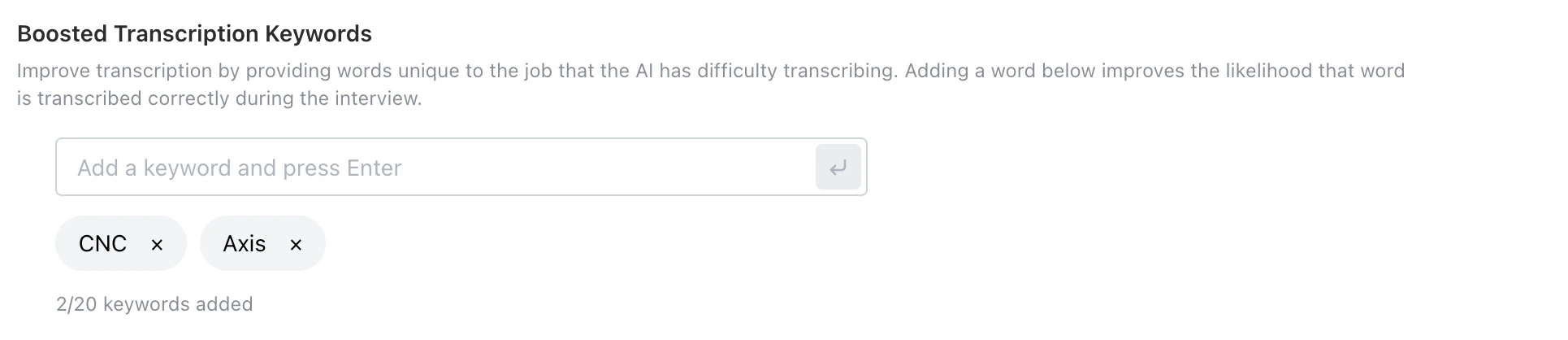
Improve transcription by adding up to 20 job-specific keywords or phrases the AI should recognize more reliably. This can help improve performance for tough to transcribe words or acronyms. If you see a consistently mis-transcribed word, it is a good idea to add it to the boosted keywords.
### Boosted Transcription Keywords
Improve transcription by adding up to 20 job-specific keywords or phrases the AI should recognize more reliably. This can help improve performance for tough to transcribe words or acronyms. If you see a consistently mis-transcribed word, it is a good idea to add it to the boosted keywords.
 ***
## Outreach Settings
### Call Type for Applicants
Select whether applicant candidates receive phone calls and sms messages, or a link to a video interview sent via email. Some additional settings are dependent on the call type.
### Call Type for Sourced Candidates
Select whether sourced candidates receive phone or video calls, optionally matching the applicant call type.
* **Recommendation**: Customers see better performance with phone calls for sourced candidates, as most candidates who did not recently apply are more likely to respond to an sms or pick up the phone for a quick call than click on an emailed invitation to a job.
#### Use the same messaging as applicants
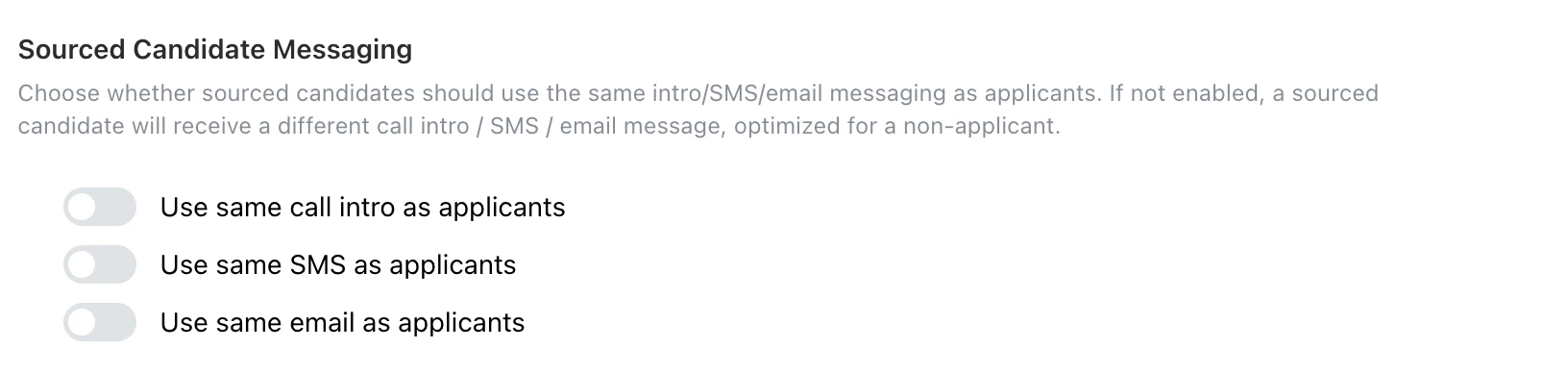
Choose whether sourced candidates should use the same call intro / SMS / email messaging as applicants. If not enabled, sourced candidates will receive messaging optimized for non-applicants.
***
## Outreach Settings
### Call Type for Applicants
Select whether applicant candidates receive phone calls and sms messages, or a link to a video interview sent via email. Some additional settings are dependent on the call type.
### Call Type for Sourced Candidates
Select whether sourced candidates receive phone or video calls, optionally matching the applicant call type.
* **Recommendation**: Customers see better performance with phone calls for sourced candidates, as most candidates who did not recently apply are more likely to respond to an sms or pick up the phone for a quick call than click on an emailed invitation to a job.
#### Use the same messaging as applicants
Choose whether sourced candidates should use the same call intro / SMS / email messaging as applicants. If not enabled, sourced candidates will receive messaging optimized for non-applicants.
 ### Outreach Hours
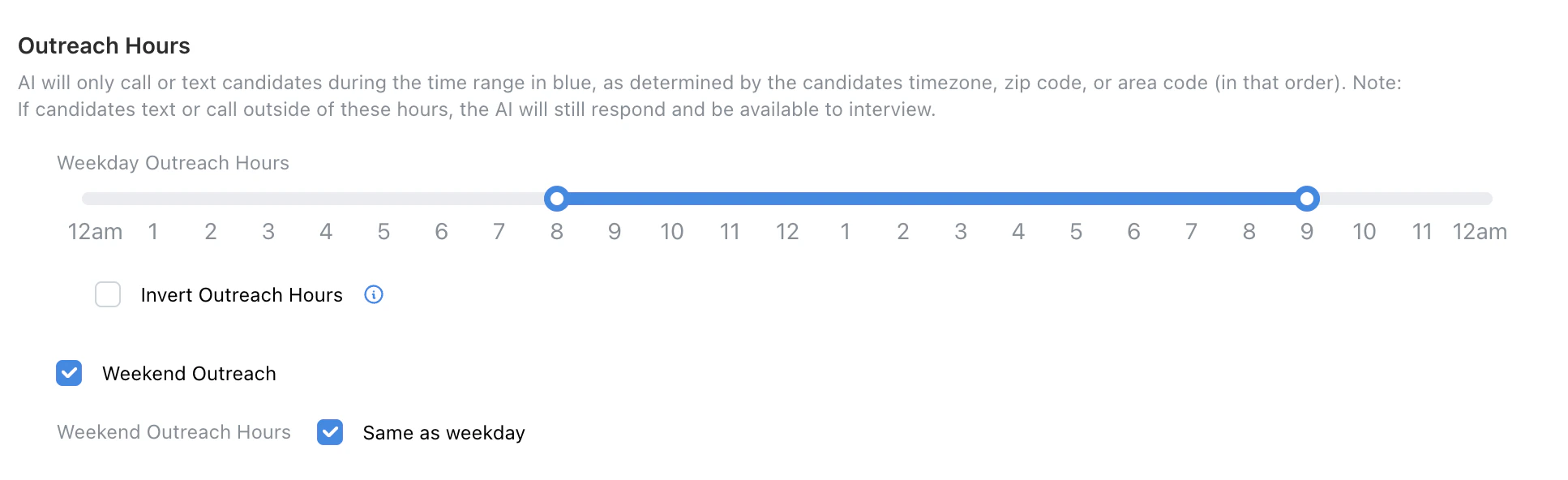
Define when the AI is allowed to call or text candidates, including weekday/weekend windows.
* **Details**:
* Respects candidate **timezone, ZIP code, location point (city/state when no ZIP), or area code** (in that order).
* Outside of these hours, candidates may still interact and the AI recruiter will still respond and be available to conduct interviews, but proactive outreach is limited.
* **Additional Controls**:
* **Weekday Outreach Hours**
* **Invert Outreach Hours**: An uncommon toggle to only contact candidates outside of normal business hours.
* **Weekend Outreach**: Optionally configure different hours.
### Outreach Hours
Define when the AI is allowed to call or text candidates, including weekday/weekend windows.
* **Details**:
* Respects candidate **timezone, ZIP code, location point (city/state when no ZIP), or area code** (in that order).
* Outside of these hours, candidates may still interact and the AI recruiter will still respond and be available to conduct interviews, but proactive outreach is limited.
* **Additional Controls**:
* **Weekday Outreach Hours**
* **Invert Outreach Hours**: An uncommon toggle to only contact candidates outside of normal business hours.
* **Weekend Outreach**: Optionally configure different hours.
 ### Phone Call Outreach Settings
#### Initial Outreach Method
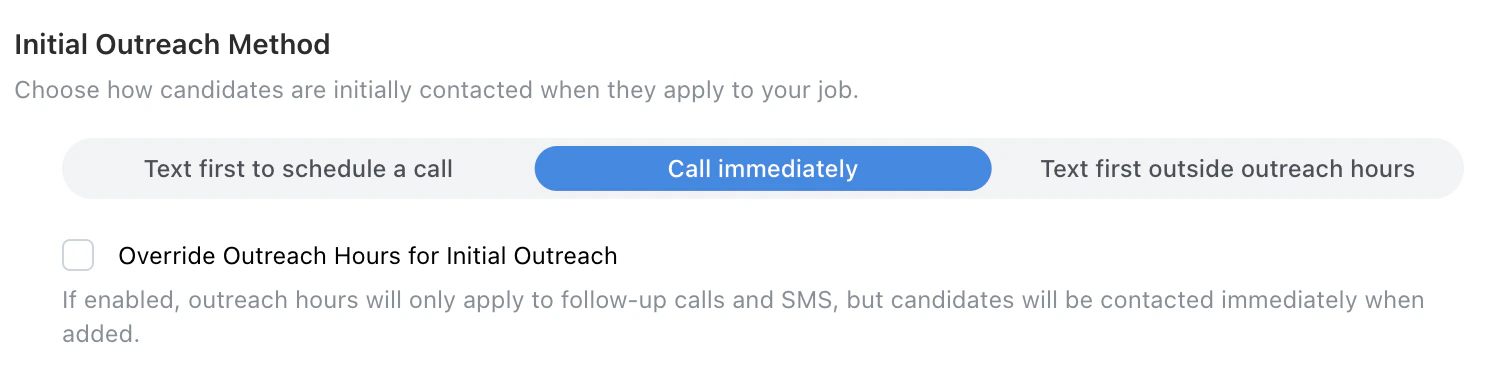
Choose whether candidates are first contacted by text, phone call, or another configured outreach method.
### Phone Call Outreach Settings
#### Initial Outreach Method
Choose whether candidates are first contacted by text, phone call, or another configured outreach method.
 #### Auto-Reschedule on Voicemail
Decide if the AI should automatically retry calls after reaching voicemail, and configure how many retries and how long between them. After the limit is reached, the AI will cease proactive outreach and eventually the candidate status may be set to expired.
#### Auto-Reschedule on Voicemail
Decide if the AI should automatically retry calls after reaching voicemail, and configure how many retries and how long between them. After the limit is reached, the AI will cease proactive outreach and eventually the candidate status may be set to expired.
 #### Applicant Outreach Delay
Set how long to wait after a candidate applies before the AI begins outreach, including an option for immediate outreach.
#### Applicant Outreach Delay
Set how long to wait after a candidate applies before the AI begins outreach, including an option for immediate outreach.
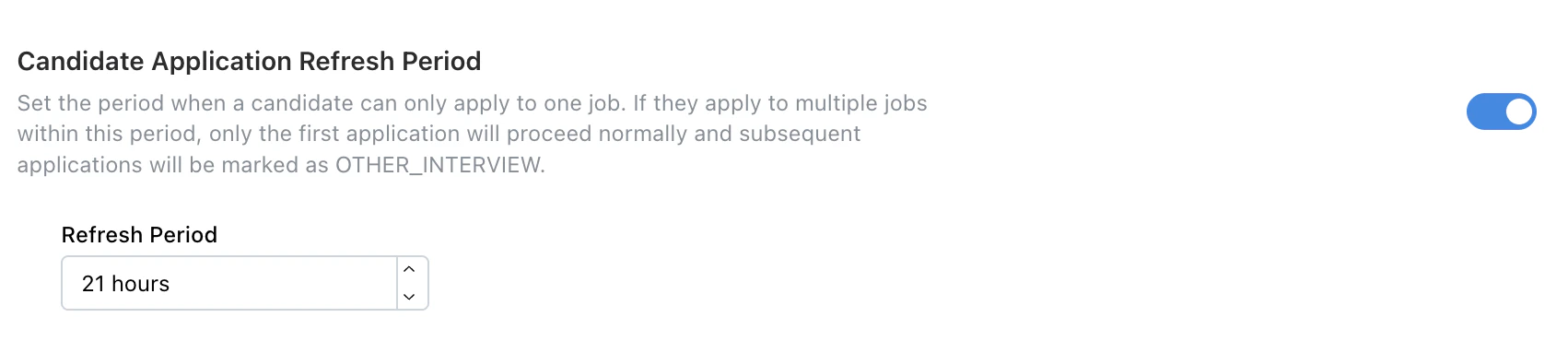
 #### Candidate Application Refresh Period
* Sets a refresh period where a candidate can only apply to one job.
* If a candidate applies to multiple jobs within this period, only the first application proceeds normally and subsequent applications are marked as `OTHER INTERVIEW`.
* By clicking "progress to AI interview" in the 3-dot menu for this applicant a recruiter can override this refresh period for a specific candidate application.
#### Candidate Application Refresh Period
* Sets a refresh period where a candidate can only apply to one job.
* If a candidate applies to multiple jobs within this period, only the first application proceeds normally and subsequent applications are marked as `OTHER INTERVIEW`.
* By clicking "progress to AI interview" in the 3-dot menu for this applicant a recruiter can override this refresh period for a specific candidate application.
 #### Phone Line Type Filtering
* Tenzo automatically checks whether a candidate's phone number is a **mobile**, **landline**, or **VoIP** number before sending SMS.
* **Landline and fixed VoIP numbers are excluded from SMS outreach.** These numbers cannot receive texts, so Tenzo skips SMS for those candidates. Non-fixed VoIP numbers (such as Google Voice) can receive texts and are included in SMS outreach.
* No configuration is required. This check runs automatically as part of outreach.
* Phone line type also feeds into **Fraud risk evaluation** (see Video Interview Settings). VoIP numbers raise the candidate's risk level.
### Video Interview Outreach Settings
#### Interview Link Expiration
* Controls whether and when the interview link expires.
* **Default**: **No Expiration** (unless configured otherwise).
#### Phone Line Type Filtering
* Tenzo automatically checks whether a candidate's phone number is a **mobile**, **landline**, or **VoIP** number before sending SMS.
* **Landline and fixed VoIP numbers are excluded from SMS outreach.** These numbers cannot receive texts, so Tenzo skips SMS for those candidates. Non-fixed VoIP numbers (such as Google Voice) can receive texts and are included in SMS outreach.
* No configuration is required. This check runs automatically as part of outreach.
* Phone line type also feeds into **Fraud risk evaluation** (see Video Interview Settings). VoIP numbers raise the candidate's risk level.
### Video Interview Outreach Settings
#### Interview Link Expiration
* Controls whether and when the interview link expires.
* **Default**: **No Expiration** (unless configured otherwise).
 #### Reminder Emails
* Configures how often and how many reminder emails are sent to candidates who have not completed their interview.
#### Reminder Emails
* Configures how often and how many reminder emails are sent to candidates who have not completed their interview.
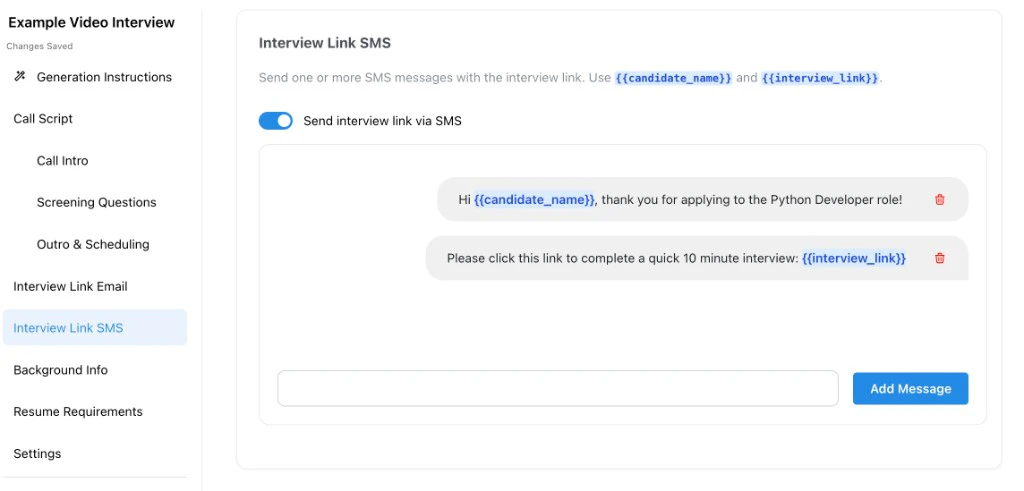
 #### Also send interview link via SMS
* When enabled, candidates with a **phone number on file** receive an **SMS** containing their **video interview link** in addition to email (if your org sends the link by email).
* Useful when candidates are more responsive to text or when email deliverability is uncertain.
**Configuring the SMS content:** On each job (or template), open the **Interview Link SMS** step in the configuration sidebar. Turn on **Send interview link via SMS**, then compose one or more messages. Use template variables such as `{{candidate_name}}` and `{{interview_link}}` in the copy. You can add multiple messages in sequence (for example, a short intro text followed by a second message with the link).
#### Also send interview link via SMS
* When enabled, candidates with a **phone number on file** receive an **SMS** containing their **video interview link** in addition to email (if your org sends the link by email).
* Useful when candidates are more responsive to text or when email deliverability is uncertain.
**Configuring the SMS content:** On each job (or template), open the **Interview Link SMS** step in the configuration sidebar. Turn on **Send interview link via SMS**, then compose one or more messages. Use template variables such as `{{candidate_name}}` and `{{interview_link}}` in the copy. You can add multiple messages in sequence (for example, a short intro text followed by a second message with the link).
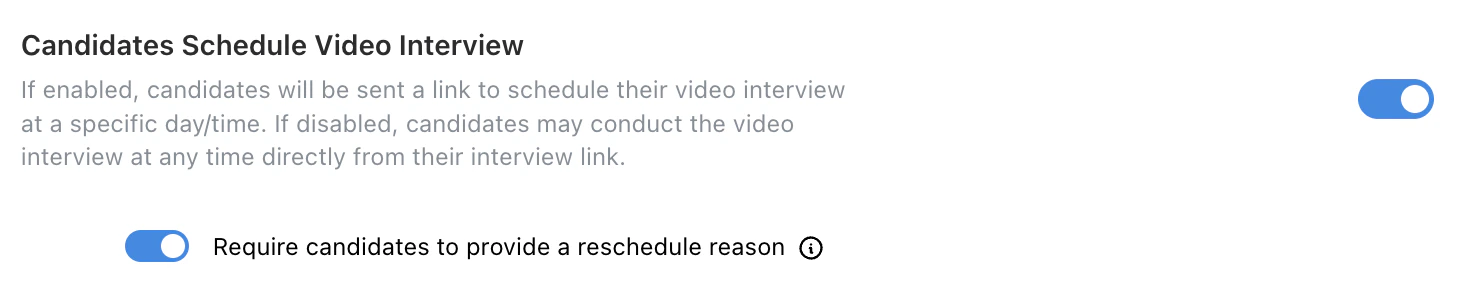
 #### Candidates Schedule Video Interview
* If enabled, candidates will be sent a link to schedule their video interview at a specific day/time.
* If disabled, candidates may conduct the video interview at any time directly from their interview link.
* Optional behavior: require candidates to provide a reschedule reason.
#### Candidates Schedule Video Interview
* If enabled, candidates will be sent a link to schedule their video interview at a specific day/time.
* If disabled, candidates may conduct the video interview at any time directly from their interview link.
* Optional behavior: require candidates to provide a reschedule reason.
 ### Outreach Emails
Enable emails from AI recruiters.
### Outreach Emails
Enable emails from AI recruiters.
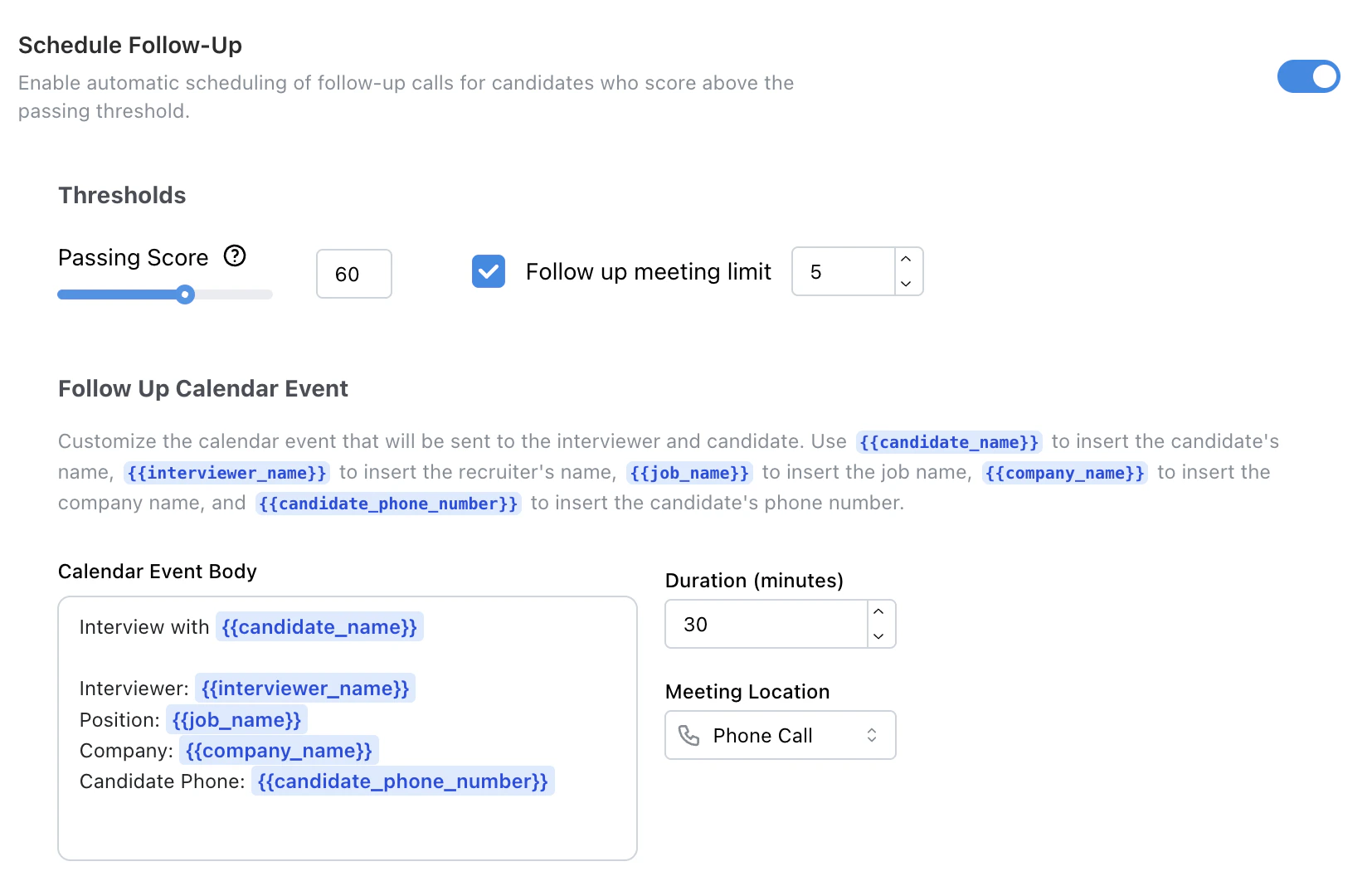
 ### Schedule Follow-Up
Enable automatic scheduling of follow-up calls for candidates who score above the passing threshold.
Use **Delay before offering times** to control how soon Tenzo may offer next-round interview slots after the candidate completes the AI interview. For example, a 4-hour delay means a candidate who finishes at 2:00 PM will only see follow-up interview slots at 6:00 PM or later. Set this to 0 hours if candidates may schedule immediately.
### Schedule Follow-Up
Enable automatic scheduling of follow-up calls for candidates who score above the passing threshold.
Use **Delay before offering times** to control how soon Tenzo may offer next-round interview slots after the candidate completes the AI interview. For example, a 4-hour delay means a candidate who finishes at 2:00 PM will only see follow-up interview slots at 6:00 PM or later. Set this to 0 hours if candidates may schedule immediately.
 ***
## Branding Settings
### External Job Name
* Sets the job title that is shown externally to candidates.
* **Options**:
* **Use same internal job title for external job name**
* Provide a custom external title
***
## Branding Settings
### External Job Name
* Sets the job title that is shown externally to candidates.
* **Options**:
* **Use same internal job title for external job name**
* Provide a custom external title
 ### Brand
* Selects which brand profile is applied to this job. Affects how your organization is presented to candidates (logo for web calls and company name).
* A default and additional brands may be added in the Admin settings.
### Brand
* Selects which brand profile is applied to this job. Affects how your organization is presented to candidates (logo for web calls and company name).
* A default and additional brands may be added in the Admin settings.
 ***
## Job Board Integration
### Call New Applicants From Job Board Postings
* Toggles whether Tenzo automatically calls new applicants from connected job boards (for example, Indeed or ZipRecruiter).
* **Usage**: Configure which postings to monitor for automatic outreach.
* **Enabling & Implementation**: The Tenzo support team must first enable this feature for your organization. Contact support or your representative to have this feature enabled.
***
## Results Settings
### Emails for Interview Results
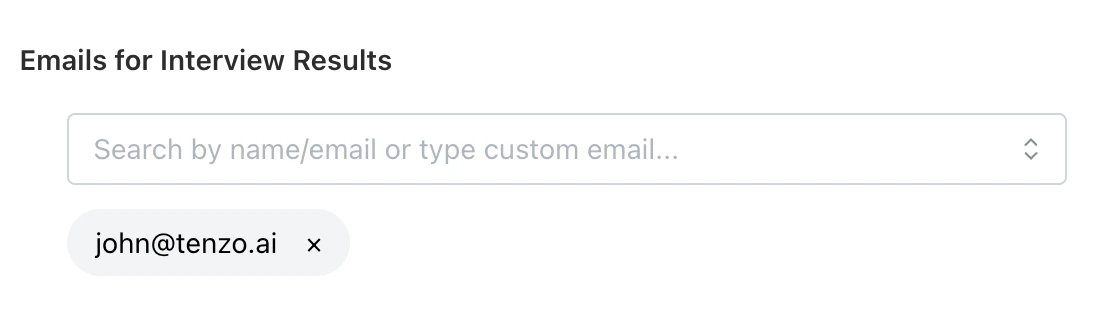
* Determines which email addresses receive interview result summaries for this job.
* Emails are kept in sync automatically with the recruiters on the job (from an ATS integration) and any emails set on the job's template, including removing an email once it's no longer supplied by either source. Once you manually edit this field, it stops syncing automatically until you edit it again.
***
## Job Board Integration
### Call New Applicants From Job Board Postings
* Toggles whether Tenzo automatically calls new applicants from connected job boards (for example, Indeed or ZipRecruiter).
* **Usage**: Configure which postings to monitor for automatic outreach.
* **Enabling & Implementation**: The Tenzo support team must first enable this feature for your organization. Contact support or your representative to have this feature enabled.
***
## Results Settings
### Emails for Interview Results
* Determines which email addresses receive interview result summaries for this job.
* Emails are kept in sync automatically with the recruiters on the job (from an ATS integration) and any emails set on the job's template, including removing an email once it's no longer supplied by either source. Once you manually edit this field, it stops syncing automatically until you edit it again.
 ### Email Notifications
* Controls whether email notifications are sent for key candidate events on this job such as call completion.
### Email Notifications
* Controls whether email notifications are sent for key candidate events on this job such as call completion.
 ### Make All Shared Transcript Links Public
* When enabled, **every** shared transcript link for the organization behaves as **publicly accessible** (anyone with the URL can open it), subject to your normal link-sharing flows.
* Use this only when your policy allows broader access to transcript links by default.
### Make All Shared Transcript Links Public
* When enabled, **every** shared transcript link for the organization behaves as **publicly accessible** (anyone with the URL can open it), subject to your normal link-sharing flows.
* Use this only when your policy allows broader access to transcript links by default.
 #### Sharing a transcript link
Recruiters create transcript links from the interview view. Open a completed interview, then choose **Share** in the toolbar (tooltip: *Share transcript link with others*).
#### Sharing a transcript link
Recruiters create transcript links from the interview view. Open a completed interview, then choose **Share** in the toolbar (tooltip: *Share transcript link with others*).
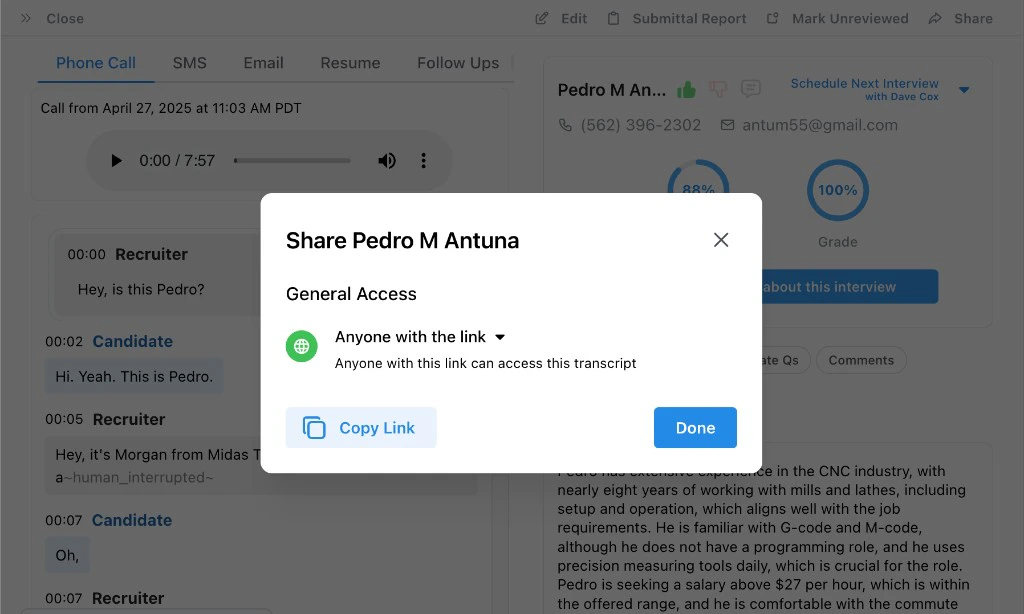
 The **Share** dialog lets you set **general access** for that link—for example **Anyone with the link**—and copy the URL to send to hiring managers or other stakeholders. The organization setting above applies to how **shared transcript links** behave for your org (for example, broad public access vs. more restricted sharing), so align it with how your team uses these links.
 ### Auto-match sourcing
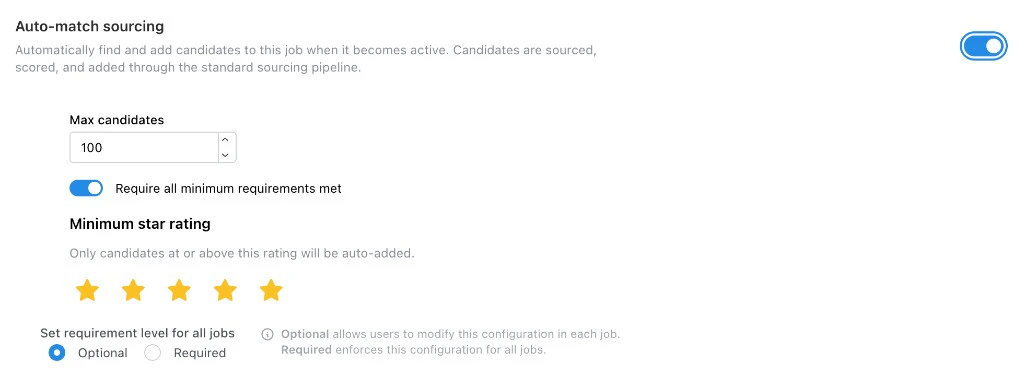
* When a job becomes active, Tenzo can **automatically source, score, and add candidates** through the standard sourcing pipeline up to a configured cap.
* Typical controls include a **maximum number of candidates** to add, a **minimum star rating**, and whether candidates must **meet all minimum requirements** before they are auto-added.
* Admins can set the behavior as **optional** (each job may override) or **required** (same configuration for every job).
* This reduces manual sourcing work for high-volume roles while keeping volume predictable.
### Auto-match sourcing
* When a job becomes active, Tenzo can **automatically source, score, and add candidates** through the standard sourcing pipeline up to a configured cap.
* Typical controls include a **maximum number of candidates** to add, a **minimum star rating**, and whether candidates must **meet all minimum requirements** before they are auto-added.
* Admins can set the behavior as **optional** (each job may override) or **required** (same configuration for every job).
* This reduces manual sourcing work for high-volume roles while keeping volume predictable.
 ### Eligible for Tearsheet Sync
* Controls whether this specific job can receive candidates from **Bullhorn tearsheets** or **JobDiva hotlists** during ATS sync.
* Default is **enabled**, so linked jobs continue syncing as they do today unless you disable this setting.
* Disable it on jobs you want excluded while leaving tearsheet sync enabled for other jobs in the same organization.
* This setting appears only for organizations with Bullhorn or JobDiva integrations.
### Skip Questions from Recent Interviews
* See **[Skip Questions from Recent Interviews](/settings/skip-prior-questions)** for full behavior (lookback window, beta notes, and how skipped items appear in grades).
* In short: for candidates who recently completed another interview in your org, overlapping **logistics / compliance-style** questions may be skipped to avoid repetition.
### Offer Alternative Jobs on Knockout Failure (Beta)
* During a **live phone interview**, if a candidate fails a **knockout** screening question, Tenzo can offer up to **3 alternative open jobs** from the same organization instead of ending the conversation with no path forward.
* The system uses AI to rank and match alternative roles based on the candidate's profile, not a random list of jobs.
* If a suitable match exists, the interviewer pivots mid-call to present the option. The candidate can accept and continue into that job's interview flow immediately, or decline.
* Intended for talent communities or high-volume recruiting where a candidate may be a strong fit for a different role even when they do not meet the knockout criteria for the primary job.
* **Applies to live phone interviews only.** This setting does not affect video interviews.
### General Application (Beta)
* When enabled, the job acts as a **general application intake**: at the **end of the interview**, candidates are **matched to open roles** instead of receiving a traditional pass/fail grade for a single job.
* If matching roles exist, the candidate can **choose one** and **start that job’s interview** flow immediately.
* Shown in the product only when your organization has the **General Application** feature enabled.
* As with similar controls, you can set whether this behavior is **optional** per job or **required** for all jobs at the organization level.
### Eligible for Tearsheet Sync
* Controls whether this specific job can receive candidates from **Bullhorn tearsheets** or **JobDiva hotlists** during ATS sync.
* Default is **enabled**, so linked jobs continue syncing as they do today unless you disable this setting.
* Disable it on jobs you want excluded while leaving tearsheet sync enabled for other jobs in the same organization.
* This setting appears only for organizations with Bullhorn or JobDiva integrations.
### Skip Questions from Recent Interviews
* See **[Skip Questions from Recent Interviews](/settings/skip-prior-questions)** for full behavior (lookback window, beta notes, and how skipped items appear in grades).
* In short: for candidates who recently completed another interview in your org, overlapping **logistics / compliance-style** questions may be skipped to avoid repetition.
### Offer Alternative Jobs on Knockout Failure (Beta)
* During a **live phone interview**, if a candidate fails a **knockout** screening question, Tenzo can offer up to **3 alternative open jobs** from the same organization instead of ending the conversation with no path forward.
* The system uses AI to rank and match alternative roles based on the candidate's profile, not a random list of jobs.
* If a suitable match exists, the interviewer pivots mid-call to present the option. The candidate can accept and continue into that job's interview flow immediately, or decline.
* Intended for talent communities or high-volume recruiting where a candidate may be a strong fit for a different role even when they do not meet the knockout criteria for the primary job.
* **Applies to live phone interviews only.** This setting does not affect video interviews.
### General Application (Beta)
* When enabled, the job acts as a **general application intake**: at the **end of the interview**, candidates are **matched to open roles** instead of receiving a traditional pass/fail grade for a single job.
* If matching roles exist, the candidate can **choose one** and **start that job’s interview** flow immediately.
* Shown in the product only when your organization has the **General Application** feature enabled.
* As with similar controls, you can set whether this behavior is **optional** per job or **required** for all jobs at the organization level.
 ***
## AI Interview Behavior
### AI Resume Review Only
* Controls whether this job should run resume review without candidate-facing AI interviews or AI interview outreach.
* When enabled, the job can still run resume review, but Tenzo blocks AI interview entry points such as pending call creation, phone and video outreach, interview links, reissues, scheduling, and redirects into the job.
* When disabled, candidates can receive AI phone or video interviews according to the job's outreach configuration.
* Candidates who would have moved into **Outreach** for AI interview outreach are instead parked in **Not eligible for outreach** (`SKIP_OUTREACH`). Turning AI Resume Review Only off allows candidates to re-engage with AI outreach again.
### Resume Disqualification
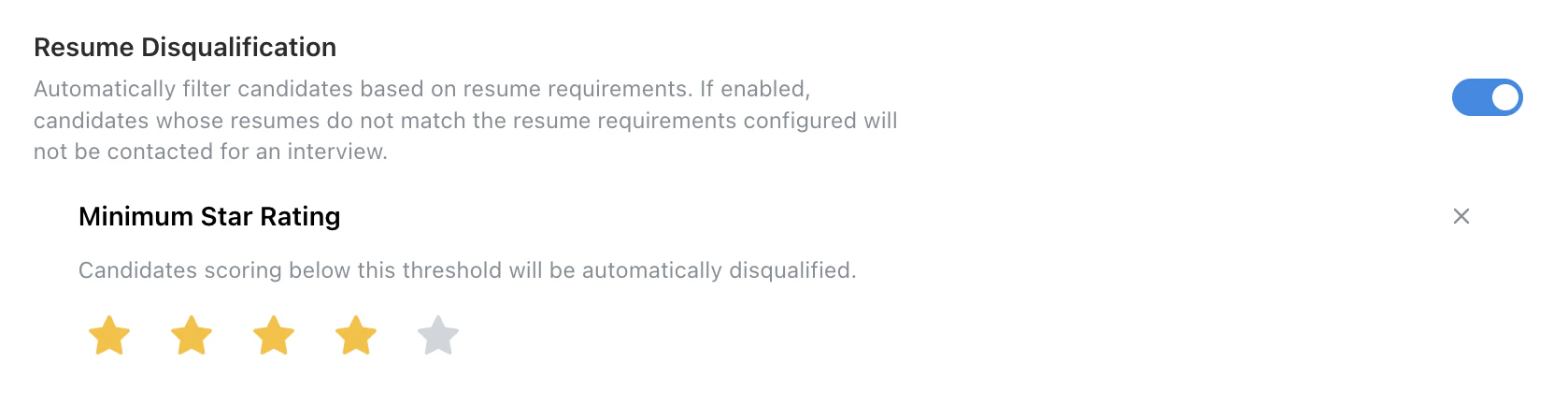
* Enables automatic filtering of candidates based on resume requirements. The specific resume requirements may be configured in the **Resume Requirements** tab in the job configuration sidebar.
* **Sourced candidates are automatically excluded** from resume disqualification — they skip resume review entirely and go straight to outreach.
* Candidates who fail resume review can be manually moved to the interview stage by recruiters.
* In your ATS configuration settings, you may optionally set a stage candidates who pass or fail the resume review will be moved to.
***
## AI Interview Behavior
### AI Resume Review Only
* Controls whether this job should run resume review without candidate-facing AI interviews or AI interview outreach.
* When enabled, the job can still run resume review, but Tenzo blocks AI interview entry points such as pending call creation, phone and video outreach, interview links, reissues, scheduling, and redirects into the job.
* When disabled, candidates can receive AI phone or video interviews according to the job's outreach configuration.
* Candidates who would have moved into **Outreach** for AI interview outreach are instead parked in **Not eligible for outreach** (`SKIP_OUTREACH`). Turning AI Resume Review Only off allows candidates to re-engage with AI outreach again.
### Resume Disqualification
* Enables automatic filtering of candidates based on resume requirements. The specific resume requirements may be configured in the **Resume Requirements** tab in the job configuration sidebar.
* **Sourced candidates are automatically excluded** from resume disqualification — they skip resume review entirely and go straight to outreach.
* Candidates who fail resume review can be manually moved to the interview stage by recruiters.
* In your ATS configuration settings, you may optionally set a stage candidates who pass or fail the resume review will be moved to.
 ### Include Resume in AI Caller Context
* When enabled and a resume is available, the candidate’s resume is included in the **AI caller’s context** during the conversation so the interviewer can **reference their background** when answering questions.
### Rejection Emails
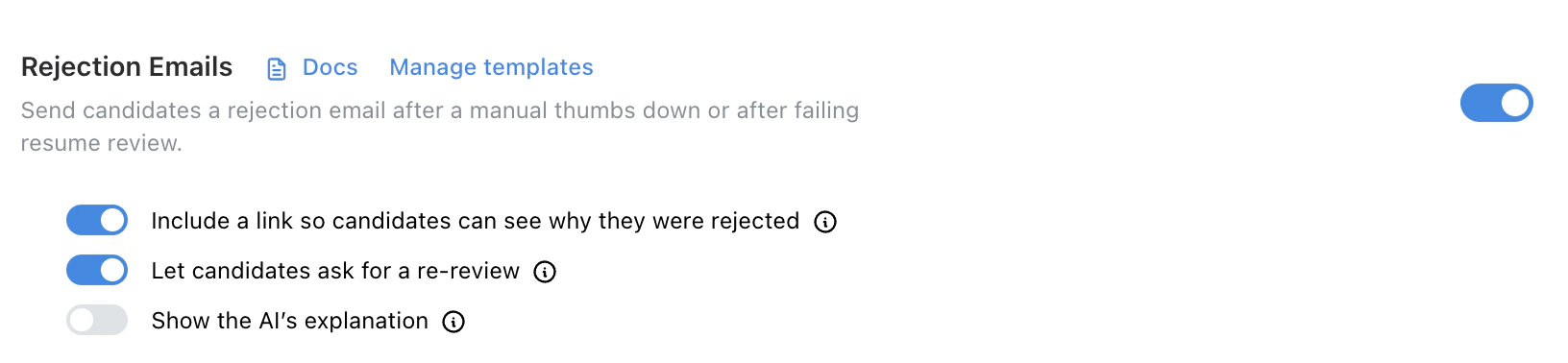
* Controls whether rejection emails are sent when a recruiter thumbs down a candidate.
* See **[Rejection Emails](/settings/rejection-emails)** for full behavior and toggle-by-toggle details.
* **Additional options**:
* Include recommended alternative roles (shows candidates other open positions they may be a good fit for)
### Include Resume in AI Caller Context
* When enabled and a resume is available, the candidate’s resume is included in the **AI caller’s context** during the conversation so the interviewer can **reference their background** when answering questions.
### Rejection Emails
* Controls whether rejection emails are sent when a recruiter thumbs down a candidate.
* See **[Rejection Emails](/settings/rejection-emails)** for full behavior and toggle-by-toggle details.
* **Additional options**:
* Include recommended alternative roles (shows candidates other open positions they may be a good fit for)
 #### Rejection Email Template
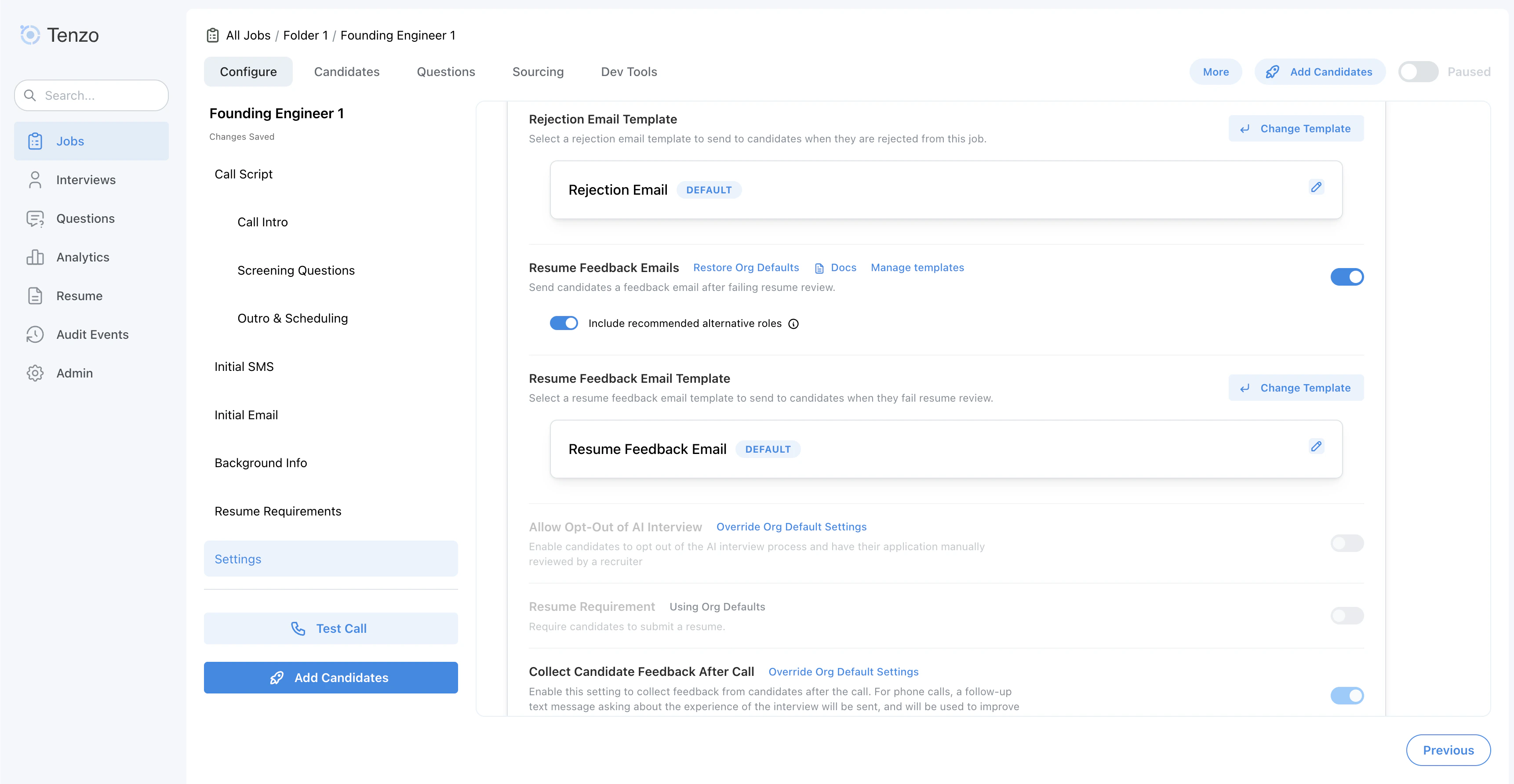
* Select which email template is used for rejection messages. This allows you to customize the messages sent to candidates if they receive a rejection.
* See **[Rejection Email Templates](/templates/rejection-email-templates)** for variables and template behavior.
#### Rejection Email Template
* Select which email template is used for rejection messages. This allows you to customize the messages sent to candidates if they receive a rejection.
* See **[Rejection Email Templates](/templates/rejection-email-templates)** for variables and template behavior.
 ### Resume Feedback Emails
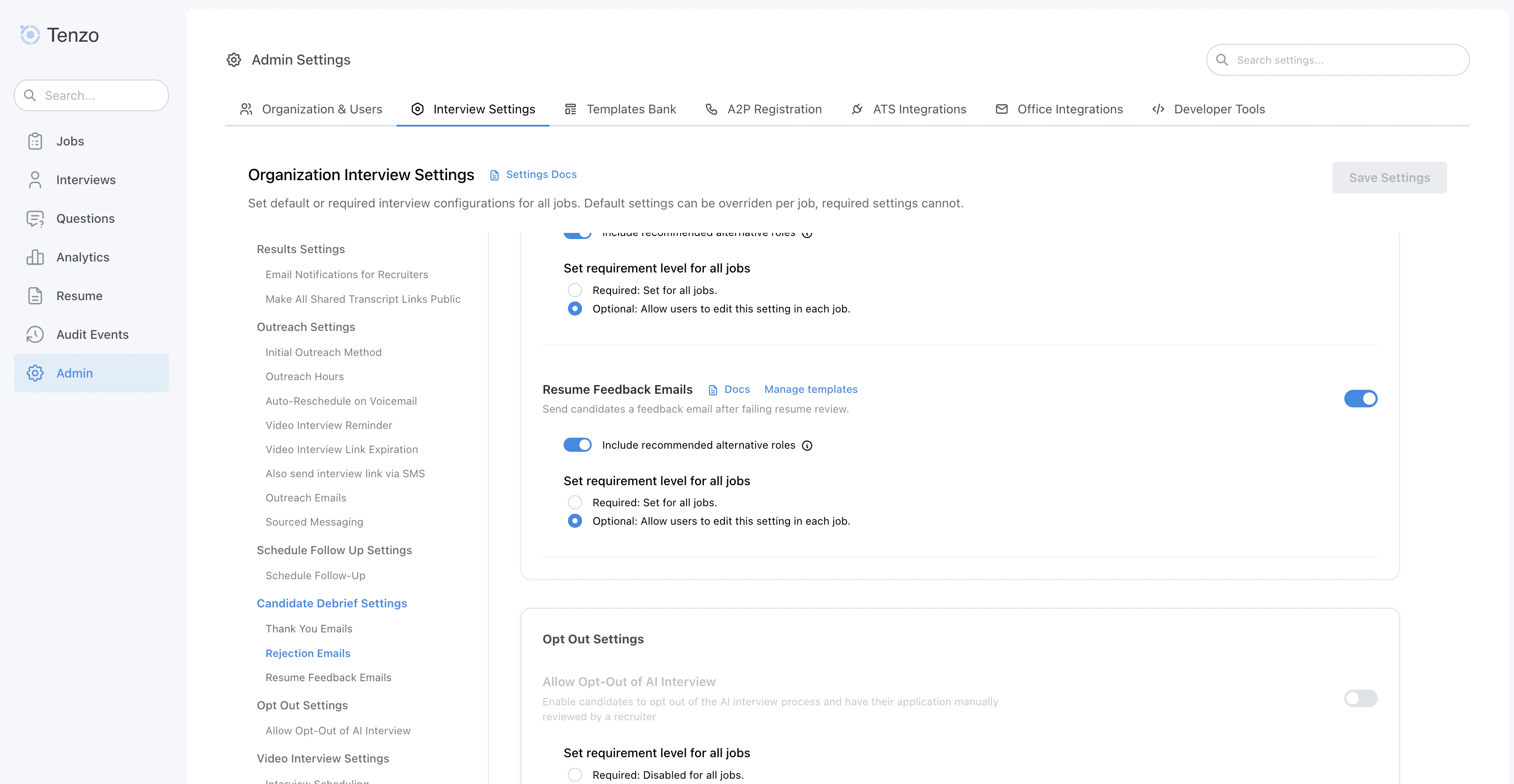
* Controls whether resume feedback emails are sent when a candidate doesn't pass resume screening.
* Resume feedback emails give candidates transparency into what didn't match and the opportunity to provide additional context.
* See **[Resume Feedback Emails](/settings/resume-feedback-emails)** for full behavior and toggle-by-toggle details.
* **Additional options**:
* Include recommended alternative roles (shows candidates other open positions they may be a good fit for)
* Candidate re-review requests (always enabled — candidates can submit additional context for reconsideration)
### Resume Feedback Emails
* Controls whether resume feedback emails are sent when a candidate doesn't pass resume screening.
* Resume feedback emails give candidates transparency into what didn't match and the opportunity to provide additional context.
* See **[Resume Feedback Emails](/settings/resume-feedback-emails)** for full behavior and toggle-by-toggle details.
* **Additional options**:
* Include recommended alternative roles (shows candidates other open positions they may be a good fit for)
* Candidate re-review requests (always enabled — candidates can submit additional context for reconsideration)
 #### Resume Feedback Email Template
* Select which email template is used for resume feedback messages. This allows you to customize the messages sent to candidates when they don't pass resume screening.
* See **[Resume Feedback Email Templates](/templates/resume-feedback-email-templates)** for variables and template behavior.
#### Resume Feedback Email Template
* Select which email template is used for resume feedback messages. This allows you to customize the messages sent to candidates when they don't pass resume screening.
* See **[Resume Feedback Email Templates](/templates/resume-feedback-email-templates)** for variables and template behavior.
 ### Interview Rejoin Intro
* Controls the greeting spoken when a candidate rejoins an interview they didn't finish. By default, the AI improvises a short "welcome back" line. When this setting is on, the AI instead speaks a fixed, org-defined (or per-job) message every time — useful for orgs that want to guarantee specific wording, such as re-stating recording consent, is delivered exactly the same way on every rejoin.
* **Template**: the message spoken on rejoin, in place of the improvised greeting. Supports `{{candidate_name}}`, `{{ai_name}}`, and `{{job_name}}` variables.
* Jobs can supply their own template from the script editor's intro section unless this setting is marked **Required** — see **[Required vs Default Settings](/settings/organization-defaults#required-vs-default-settings)**.
* **Require this message to be delivered without interruption**: when on, the candidate cannot talk over this greeting — it always finishes playing before the AI listens for a response.
* Intended for rejoin greetings that carry consent or compliance language that must be spoken in full.
* **Video interviews**: fully enforced.
* **Phone calls**: best-effort only. The rejoin greeting already plays at the lowest available interruption sensitivity, but our phone platform has no way to fully block a candidate from talking over it, the way video interviews can.
* If a candidate interrupts anyway, the interruption isn't queued or replayed afterward — the greeting simply continues to completion.
* Jobs can override this independently of the template above (unless the org marks it **Required**) — a job can require uninterrupted delivery even while using the org's own template text, or opt out even while using its own.
### Allow Opt-Out of AI Interview
* Allows or disallows candidates to opt out of the AI interview process and request a manual review of their application.
* To share an org-level opt-out page **before a candidate applies**, copy your **Pre-apply opt-out link** from **Admin Settings → Organization & Users → Pre-apply opt-out link**.
* Candidates can submit their email/phone to opt out of **all AI interviews** for your organization.
* If a candidate opts out, they will not be screened for any interviews and will be marked as **Opted Out** across all jobs in your organization.
### Interview Rejoin Intro
* Controls the greeting spoken when a candidate rejoins an interview they didn't finish. By default, the AI improvises a short "welcome back" line. When this setting is on, the AI instead speaks a fixed, org-defined (or per-job) message every time — useful for orgs that want to guarantee specific wording, such as re-stating recording consent, is delivered exactly the same way on every rejoin.
* **Template**: the message spoken on rejoin, in place of the improvised greeting. Supports `{{candidate_name}}`, `{{ai_name}}`, and `{{job_name}}` variables.
* Jobs can supply their own template from the script editor's intro section unless this setting is marked **Required** — see **[Required vs Default Settings](/settings/organization-defaults#required-vs-default-settings)**.
* **Require this message to be delivered without interruption**: when on, the candidate cannot talk over this greeting — it always finishes playing before the AI listens for a response.
* Intended for rejoin greetings that carry consent or compliance language that must be spoken in full.
* **Video interviews**: fully enforced.
* **Phone calls**: best-effort only. The rejoin greeting already plays at the lowest available interruption sensitivity, but our phone platform has no way to fully block a candidate from talking over it, the way video interviews can.
* If a candidate interrupts anyway, the interruption isn't queued or replayed afterward — the greeting simply continues to completion.
* Jobs can override this independently of the template above (unless the org marks it **Required**) — a job can require uninterrupted delivery even while using the org's own template text, or opt out even while using its own.
### Allow Opt-Out of AI Interview
* Allows or disallows candidates to opt out of the AI interview process and request a manual review of their application.
* To share an org-level opt-out page **before a candidate applies**, copy your **Pre-apply opt-out link** from **Admin Settings → Organization & Users → Pre-apply opt-out link**.
* Candidates can submit their email/phone to opt out of **all AI interviews** for your organization.
* If a candidate opts out, they will not be screened for any interviews and will be marked as **Opted Out** across all jobs in your organization.
 ### Resume Requirement
* Specifies whether a resume is required for candidates to proceed. This setting only apply to **video interviews**, where a resume upload field is provided as either optional or required.
* **Details**: Returning candidates who already have a resume on file see a "Resume on file" indicator on the interview form and are not required to upload a new one, even when this setting is set to required.
### Resume Requirement
* Specifies whether a resume is required for candidates to proceed. This setting only apply to **video interviews**, where a resume upload field is provided as either optional or required.
* **Details**: Returning candidates who already have a resume on file see a "Resume on file" indicator on the interview form and are not required to upload a new one, even when this setting is set to required.
 ### Collect Candidate Feedback After Call
* Enables the **in-app feedback form** after **web/video** interviews when turned on.
* **Phone interviews:** Tenzo sends a follow-up SMS asking for a 1–5 rating when the candidate **completed the interview**, including after a **Failed Knockout** outcome when the candidate still completed the interview. Interviews where the candidate dropped out early do not receive the SMS. On jobs with **scheduled follow-up enabled**, a candidate who **passes screening** is asked to book first, so their feedback SMS is **deferred until they book** (and is not sent if they never book) — failed-knockout and other non-scheduling candidates are unaffected. See **[Post-Interview Feedback](/settings/post-interview-feedback)** for the full send conditions, message content, and consent requirements.
### Collect Candidate Feedback After Call
* Enables the **in-app feedback form** after **web/video** interviews when turned on.
* **Phone interviews:** Tenzo sends a follow-up SMS asking for a 1–5 rating when the candidate **completed the interview**, including after a **Failed Knockout** outcome when the candidate still completed the interview. Interviews where the candidate dropped out early do not receive the SMS. On jobs with **scheduled follow-up enabled**, a candidate who **passes screening** is asked to book first, so their feedback SMS is **deferred until they book** (and is not sent if they never book) — failed-knockout and other non-scheduling candidates are unaffected. See **[Post-Interview Feedback](/settings/post-interview-feedback)** for the full send conditions, message content, and consent requirements.
 ### Enable Transcript Redaction
* Toggles redaction of personal information such as sensitive family or personal information details from interview transcripts, according to your organization's redaction template.
* When enabled, Tenzo redacts the saved transcript **before** running post-interview processing. Grading, summaries, ATS notes, result PDFs, and other outputs generated from the transcript use the **redacted** version — not the original spoken record.
* **Expected behavior:** If information was removed or replaced in the transcript, it will also be absent (or shown with a redaction marker) in downstream results such as question grades, the interview summary, and ATS-facing notes. Customers should expect post-interview artifacts to match what appears in the redacted transcript.
* **Exception — Work Accommodation Review:** When the [Work Accommodation Review](/getting-started/reviewing-an-interview#work-accommodation-review) setting is enabled, that check runs on the **unredacted** transcript (before redaction) so the reviewer can see the underlying statement. The verbatim quote it captures appears in the Work Accommodation Review section of the results email, ATS note, and PDF — so that one section can contain text that is otherwise redacted elsewhere.
* Admins can always view the full unredacted transcript if required.
### Enable Transcript Redaction
* Toggles redaction of personal information such as sensitive family or personal information details from interview transcripts, according to your organization's redaction template.
* When enabled, Tenzo redacts the saved transcript **before** running post-interview processing. Grading, summaries, ATS notes, result PDFs, and other outputs generated from the transcript use the **redacted** version — not the original spoken record.
* **Expected behavior:** If information was removed or replaced in the transcript, it will also be absent (or shown with a redaction marker) in downstream results such as question grades, the interview summary, and ATS-facing notes. Customers should expect post-interview artifacts to match what appears in the redacted transcript.
* **Exception — Work Accommodation Review:** When the [Work Accommodation Review](/getting-started/reviewing-an-interview#work-accommodation-review) setting is enabled, that check runs on the **unredacted** transcript (before redaction) so the reviewer can see the underlying statement. The verbatim quote it captures appears in the Work Accommodation Review section of the results email, ATS note, and PDF — so that one section can contain text that is otherwise redacted elsewhere.
* Admins can always view the full unredacted transcript if required.
 ### Thank You Emails
* Controls whether thank you emails are sent after candidates complete their interview.
### Thank You Emails
* Controls whether thank you emails are sent after candidates complete their interview.
 #### Thank-You Email Template
* Chooses which template is used for post-interview thank-you emails. A default thank you email will be used if a custom template is not selected.
#### Thank-You Email Template
* Chooses which template is used for post-interview thank-you emails. A default thank you email will be used if a custom template is not selected.
 ### Summary
* Selects which summary template the AI uses to generate a post-interview summary for this job to standardize specific summary information to extract.
This summary can be viewed in the Tenzo app interview results, as well as the pdf and note posted to the ATS and the result email sent to the recruiter.
### Summary
* Selects which summary template the AI uses to generate a post-interview summary for this job to standardize specific summary information to extract.
This summary can be viewed in the Tenzo app interview results, as well as the pdf and note posted to the ATS and the result email sent to the recruiter.
 ### Suggested Follow-Up Templates
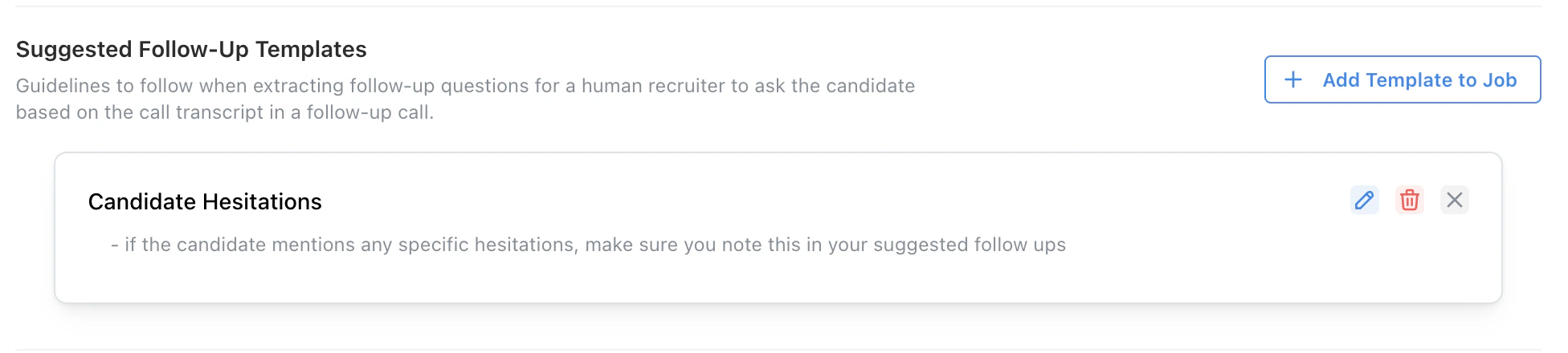
* Manages templates that guide human recruiters on follow-up questions when reviewing transcripts.
Custom suggested follow-up templates allow the grading agent to follow standardized instructions when generating potential follow-up questions.
### Suggested Follow-Up Templates
* Manages templates that guide human recruiters on follow-up questions when reviewing transcripts.
Custom suggested follow-up templates allow the grading agent to follow standardized instructions when generating potential follow-up questions.
 ***
## Job pause and capacity
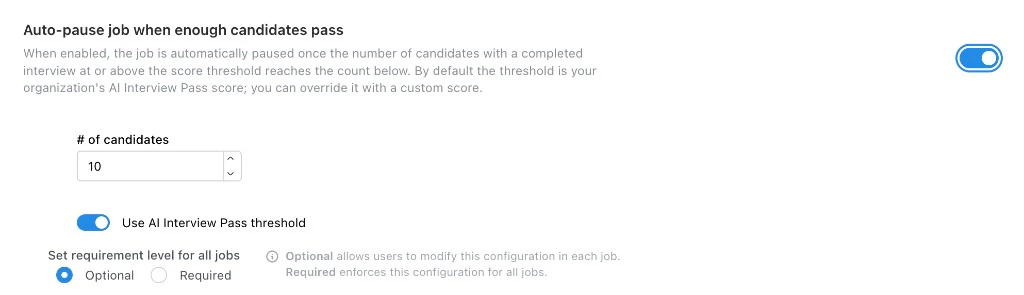
### Auto-pause job when enough candidates pass
* Automatically sets the job to **paused** once **N candidates** have a **completed interview** at or above a **score threshold**.
* By default the threshold follows your organization’s **AI Interview above threshold score**; you can turn off **Use AI Interview above threshold score** and set a **custom minimum score** instead.
* Admins can make this configuration **optional** per job or **required** for all jobs.
* Helps cap pipeline volume when you only need a fixed number of qualified completes before pausing outreach.
***
## Job pause and capacity
### Auto-pause job when enough candidates pass
* Automatically sets the job to **paused** once **N candidates** have a **completed interview** at or above a **score threshold**.
* By default the threshold follows your organization’s **AI Interview above threshold score**; you can turn off **Use AI Interview above threshold score** and set a **custom minimum score** instead.
* Admins can make this configuration **optional** per job or **required** for all jobs.
* Helps cap pipeline volume when you only need a fixed number of qualified completes before pausing outreach.
 ### Paused job behavior
* Controls candidate-visible behavior while a job is **paused**:
* **Send job paused emails** — notify candidates that the job is paused.
* **Allow interviews** — allow candidates who already have a **non-expired** interview link to **finish** the video interview while the job is paused.
If this setting is not enabled, candidates will see a message that the job is not currently accepting interviews if they access the video interview link while the job is paused.
### Paused job behavior
* Controls candidate-visible behavior while a job is **paused**:
* **Send job paused emails** — notify candidates that the job is paused.
* **Allow interviews** — allow candidates who already have a **non-expired** interview link to **finish** the video interview while the job is paused.
If this setting is not enabled, candidates will see a message that the job is not currently accepting interviews if they access the video interview link while the job is paused.
 ***
## Hybrid templates (organization / job defaults)
### Hybrid Templates
* Org or job setting that allows **template-based jobs** to use **per-section AI generation** (see **[Hybrid Job Templates](/templates/hybrid-templates)**).
* When on, template authors can mark whole script sections as **Use exactly** vs **AI generated** and add **AI Blocks** in screening questions; when off, those hybrid controls are not available for that scope.
***
## Video Interview Settings
### Space Bar to End Response
* Allows or prevents candidates from pressing the space bar to end their responses during video interviews. In certain interview settings with a lot of background audio,
allowing candidates to press space bar can give them more control of the turn detection.
***
## Hybrid templates (organization / job defaults)
### Hybrid Templates
* Org or job setting that allows **template-based jobs** to use **per-section AI generation** (see **[Hybrid Job Templates](/templates/hybrid-templates)**).
* When on, template authors can mark whole script sections as **Use exactly** vs **AI generated** and add **AI Blocks** in screening questions; when off, those hybrid controls are not available for that scope.
***
## Video Interview Settings
### Space Bar to End Response
* Allows or prevents candidates from pressing the space bar to end their responses during video interviews. In certain interview settings with a lot of background audio,
allowing candidates to press space bar can give them more control of the turn detection.
 ### Restrict Video Interviews to Desktop Only
* Restricts video interviews to desktop devices only so mobile users see a message requiring desktop access.
When candidates conduct interviews on desktop, they are more likely to have stable internet access and limited background noise and distraction during the video interview.
### Restrict Video Interviews to Desktop Only
* Restricts video interviews to desktop devices only so mobile users see a message requiring desktop access.
When candidates conduct interviews on desktop, they are more likely to have stable internet access and limited background noise and distraction during the video interview.
 ### Allowed Interview Locations (IP-based)
* Restricts where candidates can take a **video interview** based on their IP geolocation.
* If a candidate’s detected country is outside the allowed list, Tenzo adds a flagged event **“Location outside allowed countries”** and shows a red warning icon next to the location above the transcript (hover to see the detected country + allowed countries).
* Note: This is best-effort based on IP; VPNs/proxies can change the detected country and may also show **“Likely VPN or Proxy”**.
### Require Screen Share
* Requires candidates to share their entire screen during the video interview.
### Allowed Interview Locations (IP-based)
* Restricts where candidates can take a **video interview** based on their IP geolocation.
* If a candidate’s detected country is outside the allowed list, Tenzo adds a flagged event **“Location outside allowed countries”** and shows a red warning icon next to the location above the transcript (hover to see the detected country + allowed countries).
* Note: This is best-effort based on IP; VPNs/proxies can change the detected country and may also show **“Likely VPN or Proxy”**.
### Require Screen Share
* Requires candidates to share their entire screen during the video interview.
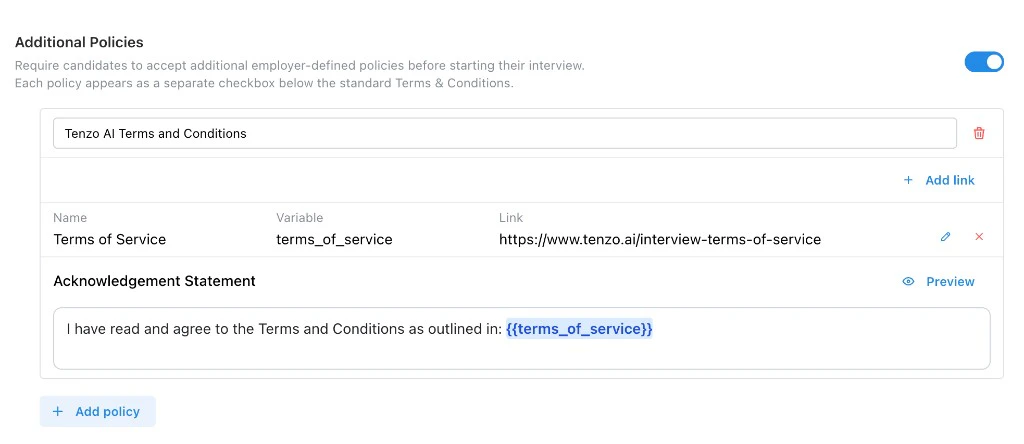
 ### Additional Policies
* Require candidates to **accept extra employer-defined policies** before starting the interview (each appears as its own checkbox **below** the standard Terms & Conditions).
* For each policy, set a **policy name**, then use **Add link** to define one or more links with a **display name**, a **variable** name (used in the template), and the **URL**. In the **Acknowledgement statement**, write the checkbox label and reference variables as `{{variable_name}}` so they render as **clickable links** in context (use **Preview** to check). Use **Add policy** to add another policy block.
### Additional Policies
* Require candidates to **accept extra employer-defined policies** before starting the interview (each appears as its own checkbox **below** the standard Terms & Conditions).
* For each policy, set a **policy name**, then use **Add link** to define one or more links with a **display name**, a **variable** name (used in the template), and the **URL**. In the **Acknowledgement statement**, write the checkbox label and reference variables as `{{variable_name}}` so they render as **clickable links** in context (use **Preview** to check). Use **Add policy** to add another policy block.
 ### Fraud risk evaluation
Evaluates multiple signals when a candidate is added to a job and combines them into an overall risk level: **Low**, **Medium**, **High**, or **Extreme**. The level reflects the full set of triggered signals together, so several moderate flags can raise it while a single flag on its own usually lands at a lower tier. When reviewing a candidate, the overall level is shown alongside a numeric score that summarizes those combined signals.
**Configuration:**
* Uses a **tiered ladder** (Low → Medium → High → Extreme): assign actions such as **auto-close** (move to a fraud-rejected stage) starting at a chosen tier.
* Coordinate **when ID verification** applies, either for all candidates or only above a chosen risk tier.
**Important**: **Candidate Identity Verification** (below) works together with this ladder. Use the fraud risk section to control whether ID is required for all candidates or only from a given risk tier upward.
### Candidate Identity Verification
* Requires candidates to verify their identity with a government-issued ID before starting the video interview.
* **Document types** eligible for verification can be restricted in-product (government-issued ID types you accept).
### Fraud risk evaluation
Evaluates multiple signals when a candidate is added to a job and combines them into an overall risk level: **Low**, **Medium**, **High**, or **Extreme**. The level reflects the full set of triggered signals together, so several moderate flags can raise it while a single flag on its own usually lands at a lower tier. When reviewing a candidate, the overall level is shown alongside a numeric score that summarizes those combined signals.
**Configuration:**
* Uses a **tiered ladder** (Low → Medium → High → Extreme): assign actions such as **auto-close** (move to a fraud-rejected stage) starting at a chosen tier.
* Coordinate **when ID verification** applies, either for all candidates or only above a chosen risk tier.
**Important**: **Candidate Identity Verification** (below) works together with this ladder. Use the fraud risk section to control whether ID is required for all candidates or only from a given risk tier upward.
### Candidate Identity Verification
* Requires candidates to verify their identity with a government-issued ID before starting the video interview.
* **Document types** eligible for verification can be restricted in-product (government-issued ID types you accept).
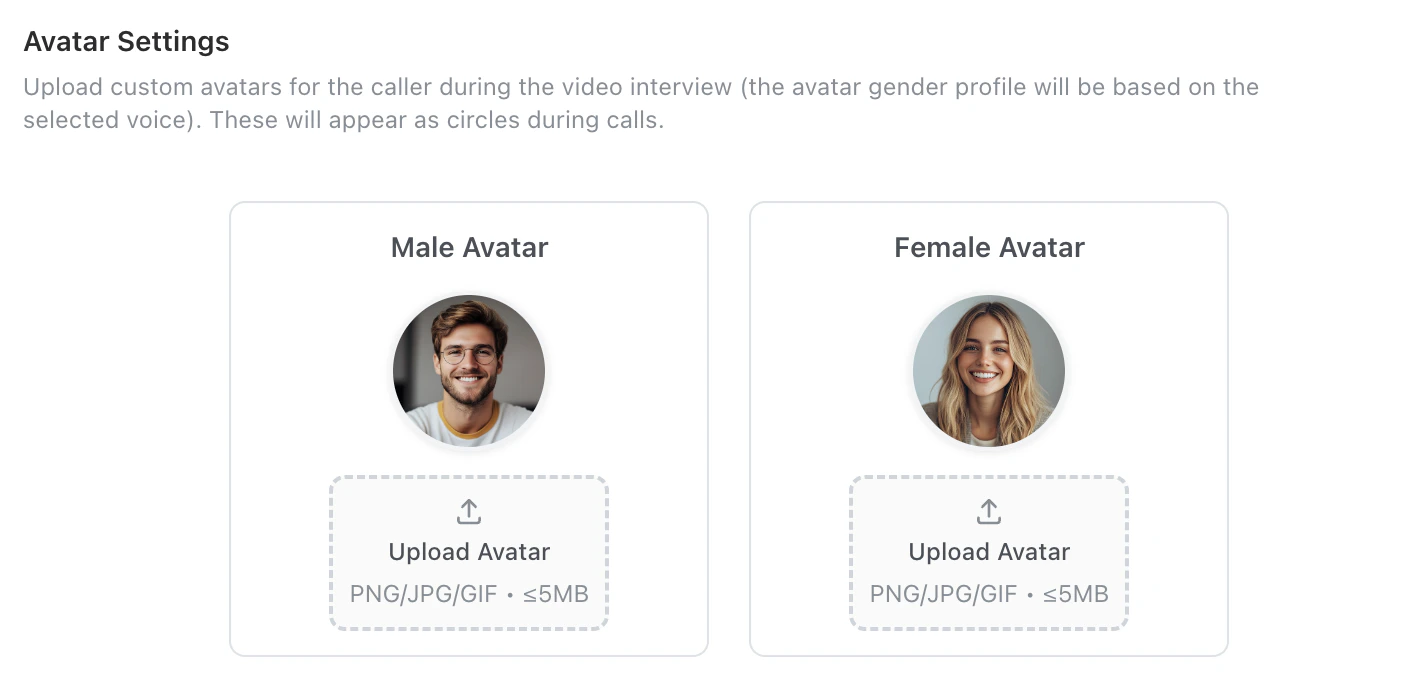
 ### Avatar Settings
* Upload custom avatars for the caller during video interviews.
### Avatar Settings
* Upload custom avatars for the caller during video interviews.
 ### Interview Proctoring
During video interviews, Tenzo automatically analyzes webcam and screen share footage to detect potential integrity concerns. This runs automatically for all video interviews. No configuration is required to enable it.
**Events monitored:**
* **Candidate not in frame** - The camera appears unoccupied or obstructed.
* **Multiple people detected** - Additional people are visible in the background.
* **Candidate looking away** - The candidate is consistently looking off-screen, possibly toward notes or another device.
* **Face partially out of frame** - The candidate appears to be avoiding the camera.
* **Tab switch** - If the candidate switches tabs or applications while screen sharing is enabled, the screen content is captured and analyzed for cheating tools (AI assistants, search engines, notes, etc.).
**Where results appear:**
Flagged events appear alongside the transcript in the interview review view. Recruiters can review the footage and AI assessment before making any hiring decisions.
***
## Support-only advanced settings
### Caller LLM options
* Visible for **full-access / support** users: configure which **LLM platform and model pairs** participate in the **racing** system used for **AI phone** calls.
* Not required for normal recruiting operations; intended for engineering or support tuning.
### Interview Proctoring
During video interviews, Tenzo automatically analyzes webcam and screen share footage to detect potential integrity concerns. This runs automatically for all video interviews. No configuration is required to enable it.
**Events monitored:**
* **Candidate not in frame** - The camera appears unoccupied or obstructed.
* **Multiple people detected** - Additional people are visible in the background.
* **Candidate looking away** - The candidate is consistently looking off-screen, possibly toward notes or another device.
* **Face partially out of frame** - The candidate appears to be avoiding the camera.
* **Tab switch** - If the candidate switches tabs or applications while screen sharing is enabled, the screen content is captured and analyzed for cheating tools (AI assistants, search engines, notes, etc.).
**Where results appear:**
Flagged events appear alongside the transcript in the interview review view. Recruiters can review the footage and AI assessment before making any hiring decisions.
***
## Support-only advanced settings
### Caller LLM options
* Visible for **full-access / support** users: configure which **LLM platform and model pairs** participate in the **racing** system used for **AI phone** calls.
* Not required for normal recruiting operations; intended for engineering or support tuning.