> ## Documentation Index
> Fetch the complete documentation index at: https://f4c7a9e2d8b1-docs.tenzo.ai/llms.txt
> Use this file to discover all available pages before exploring further.
# Product Updates
> New updates and improvements
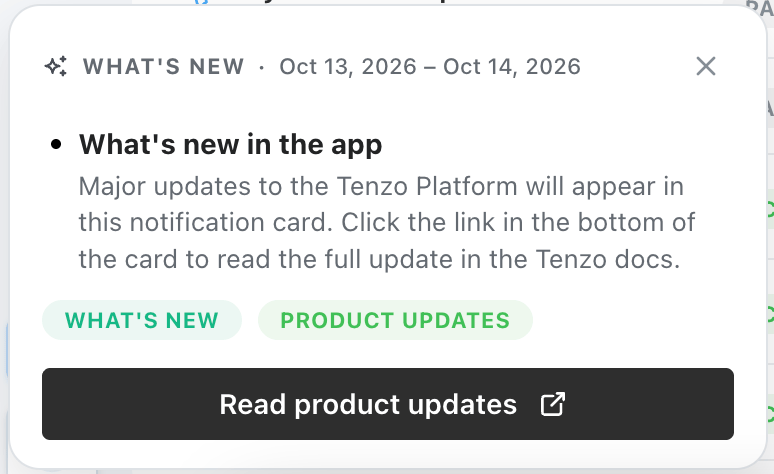
## What's new in Tenzo
Major updates to the Tenzo Platform will appear in this notification card. Click the link in the bottom of the card to read the full update in the Tenzo docs.
 ## A cleaner screening questions editor
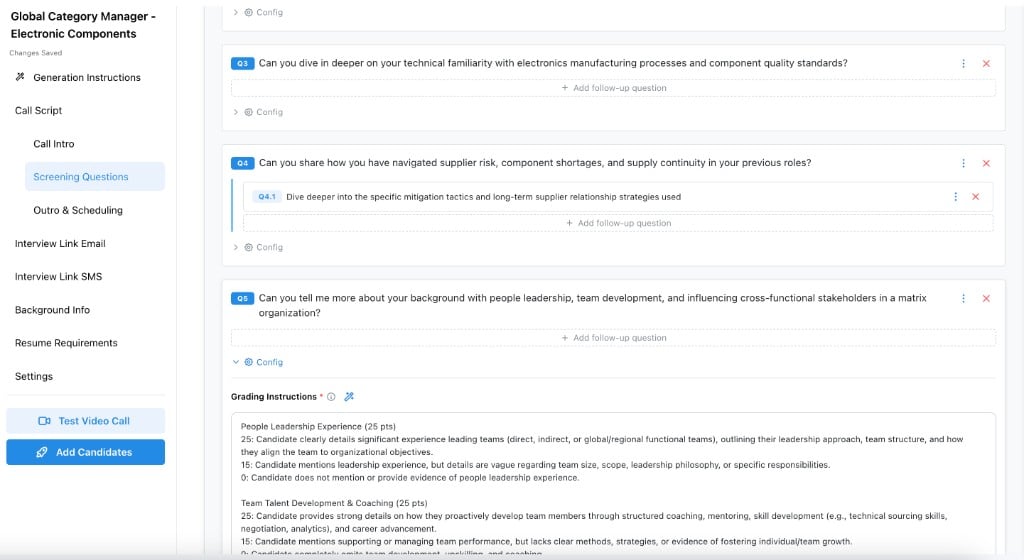
The screening questions editor got a cleanup, with a more compact display, and fewer icons cluttering the view.
Extra configuration settings were moved back under the question card by popular demand. New look, but the same features are all there.
On the Roadmap: Additional screening question features are planning to be rolled out soon, including a more explicitly defined Skip Criteria section for improved performance in adhering to user-defined skip conditions on screening questions, with this new feature already running on select roles.
## A cleaner screening questions editor
The screening questions editor got a cleanup, with a more compact display, and fewer icons cluttering the view.
Extra configuration settings were moved back under the question card by popular demand. New look, but the same features are all there.
On the Roadmap: Additional screening question features are planning to be rolled out soon, including a more explicitly defined Skip Criteria section for improved performance in adhering to user-defined skip conditions on screening questions, with this new feature already running on select roles.
 ## Reuse recent interview answers from one setting
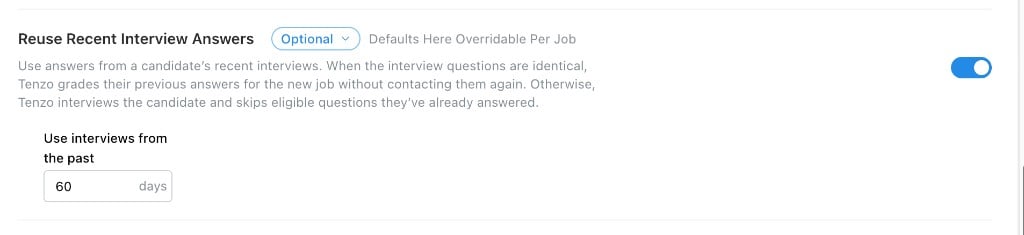
One settings toggle now covers both allowing the AI interviewer to skip individual questions the candidate recently answered from an interview for another role or skipping an entirely redundant recent interview altogether.
Reuse Recent Interview Answers is on by default. Set it in Admin > Interview Settings.
When the questions match, Tenzo grades the earlier interview for the new application and does not contact the candidate again. The result is marked Reused from a prior interview. When the interviews differ, Tenzo still interviews the candidate and skips questions they have already answered.
Use interviews from the past applies to both. The default window is 30 days, and you can choose anywhere from 1 to 365 days.
## Reuse recent interview answers from one setting
One settings toggle now covers both allowing the AI interviewer to skip individual questions the candidate recently answered from an interview for another role or skipping an entirely redundant recent interview altogether.
Reuse Recent Interview Answers is on by default. Set it in Admin > Interview Settings.
When the questions match, Tenzo grades the earlier interview for the new application and does not contact the candidate again. The result is marked Reused from a prior interview. When the interviews differ, Tenzo still interviews the candidate and skips questions they have already answered.
Use interviews from the past applies to both. The default window is 30 days, and you can choose anywhere from 1 to 365 days.
 ## Talk through sourcing results
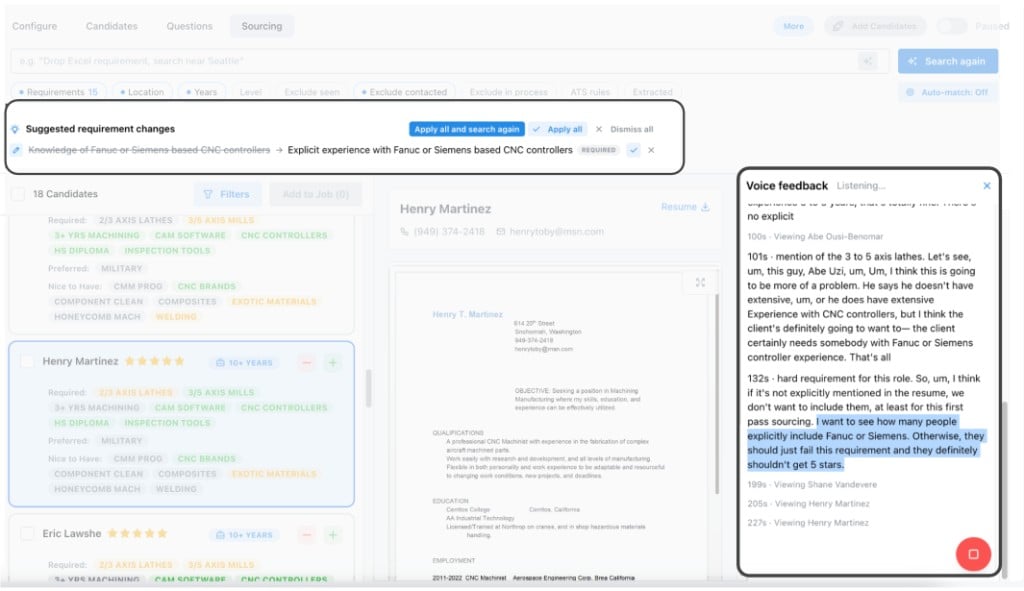
Speak what you like and don't like as you browse candidates, then choose which requirement changes to apply.
Click the microphone on the results and describe candidates as you move through them. The recording stays with the person you were looking at, including approvals and rejections you make along the way.
Stop when you are finished. Submit feedback to get suggested changes to the search requirements, then apply or dismiss each one. Discard throws the session away. You can pause and resume from the button in the bottom right.
Tenzo asks for microphone access the first time you start.
## Talk through sourcing results
Speak what you like and don't like as you browse candidates, then choose which requirement changes to apply.
Click the microphone on the results and describe candidates as you move through them. The recording stays with the person you were looking at, including approvals and rejections you make along the way.
Stop when you are finished. Submit feedback to get suggested changes to the search requirements, then apply or dismiss each one. Discard throws the session away. You can pause and resume from the button in the bottom right.
Tenzo asks for microphone access the first time you start.
 ## More ways to narrow a sourcing search
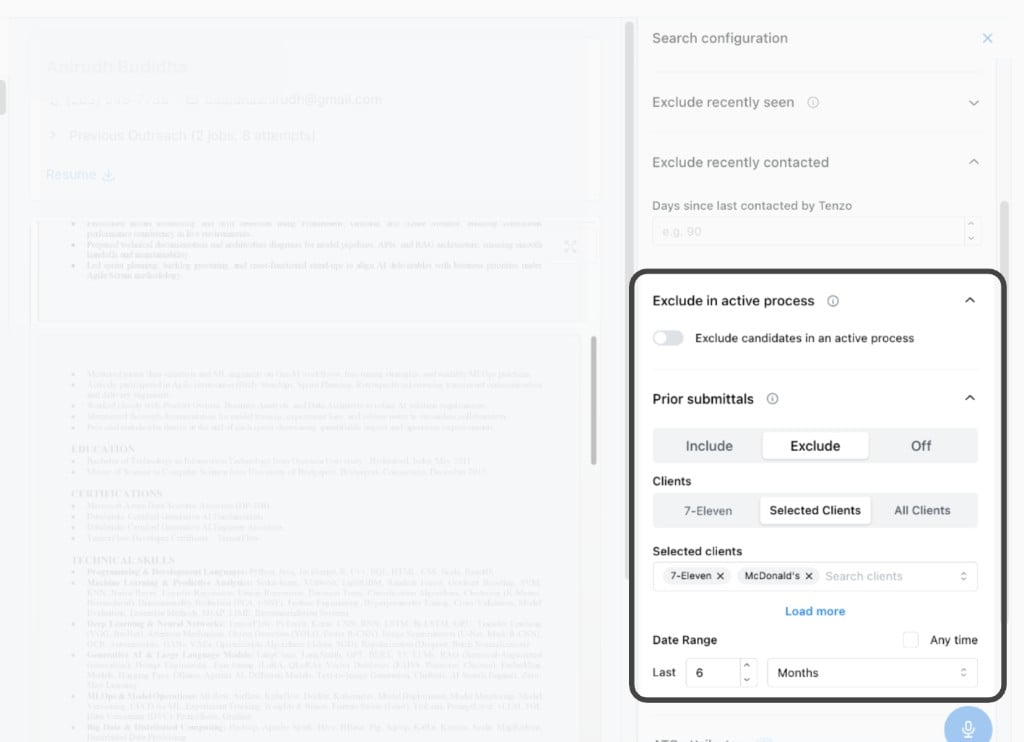
Choose which prior submittals to include, hide people already in an interview, search by country or state, and see who was screened before.
Prior submittals can include or exclude people, or stay off. Choose this job's client, selected clients, or any client, and limit it to a recent period or any time. A new search still starts by excluding this job's client for the last 6 months. This is available for Bullhorn and JobDiva.
Exclude in active process leaves out people still in an interview for another job.
## More ways to narrow a sourcing search
Choose which prior submittals to include, hide people already in an interview, search by country or state, and see who was screened before.
Prior submittals can include or exclude people, or stay off. Choose this job's client, selected clients, or any client, and limit it to a recent period or any time. A new search still starts by excluding this job's client for the last 6 months. This is available for Bullhorn and JobDiva.
Exclude in active process leaves out people still in an interview for another job.
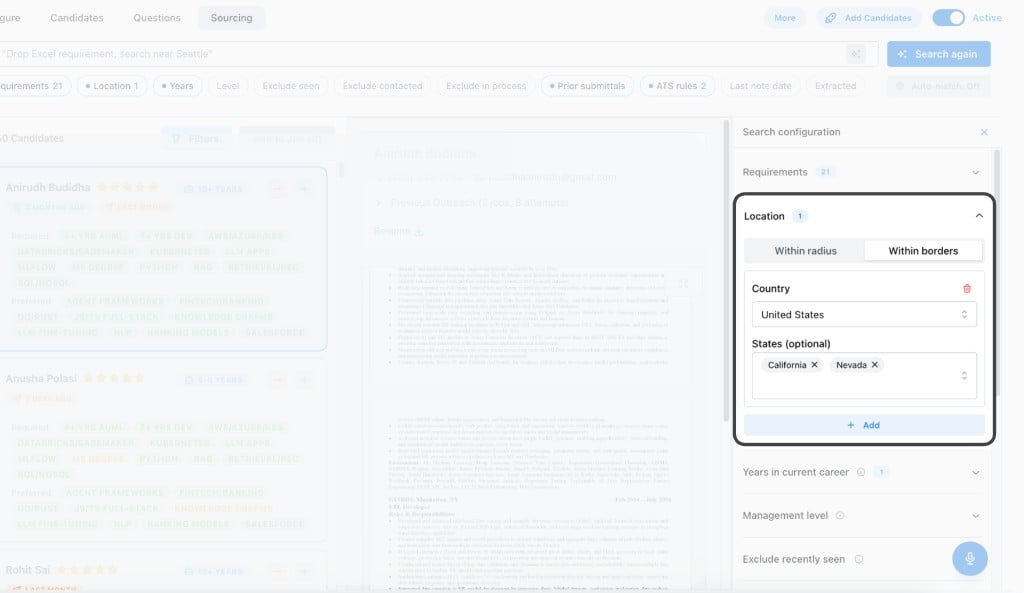
 Location can use Within borders: pick a country and, for the United States or Canada, specific states or provinces. Within radius is still available.
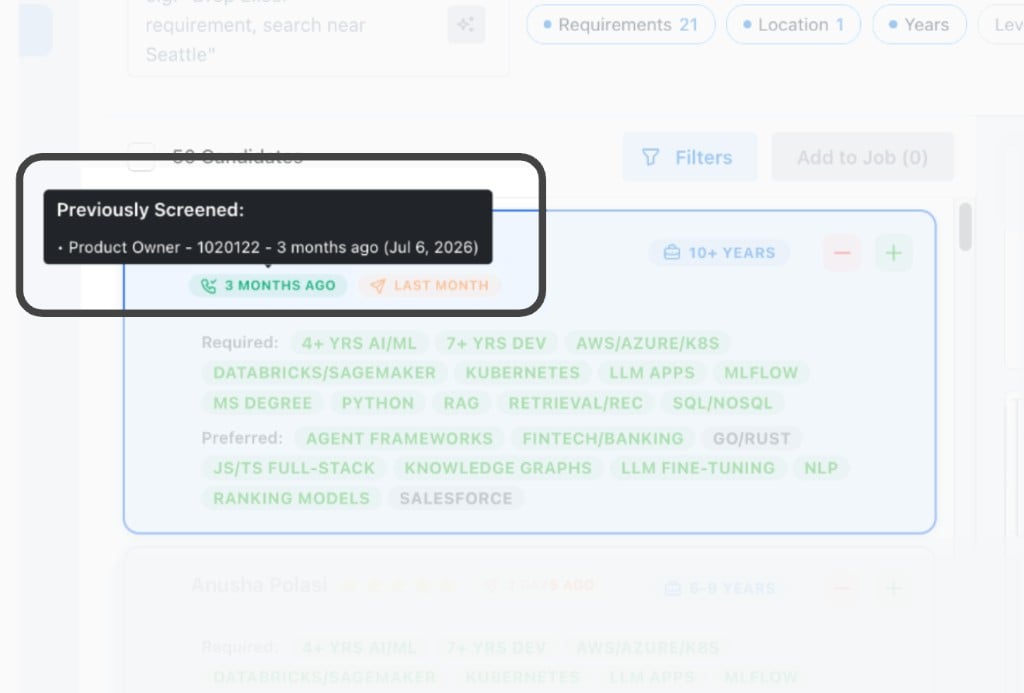
 Previously Screened on a result names the job and when that screen happened.
 ## Choose the language of the app
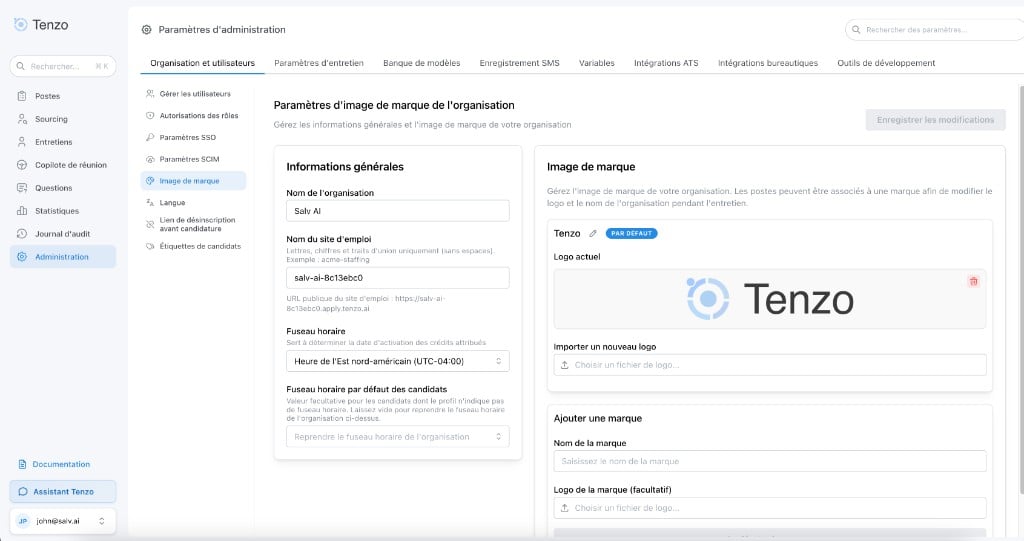
Each person can pick a display language, and an admin sets the default for anyone who has not chosen one.
An admin sets the organization's default under Admin, then Organization & Users, then Language. The choices are English, Français, Español (Latinoamérica), Español (España), Deutsch, Nederlands, and Nederlands (België). People who have not chosen a language see the app in that default.
Each person can choose their own. Open User Settings from the account menu, then Preferences, and pick a language or keep Organization default. Saving reloads the page.
Interviews and messages to candidates keep the language set on the job. Some pages may still appear in English while translations are completed.
## Choose the language of the app
Each person can pick a display language, and an admin sets the default for anyone who has not chosen one.
An admin sets the organization's default under Admin, then Organization & Users, then Language. The choices are English, Français, Español (Latinoamérica), Español (España), Deutsch, Nederlands, and Nederlands (België). People who have not chosen a language see the app in that default.
Each person can choose their own. Open User Settings from the account menu, then Preferences, and pick a language or keep Organization default. Saving reloads the page.
Interviews and messages to candidates keep the language set on the job. Some pages may still appear in English while translations are completed.
 ## A sleeker Analytics page
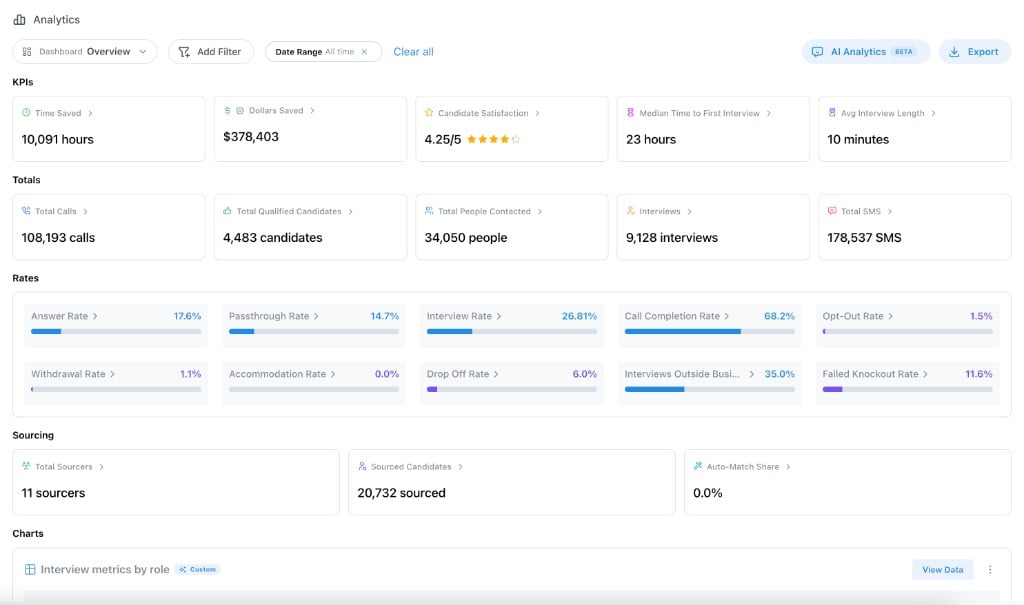
The same default charts, in a more compact layout. Click any chart to see and download the data behind it, and drag custom charts to rearrange or resize them.
The default charts are the same. The layout is sleeker and more compact.
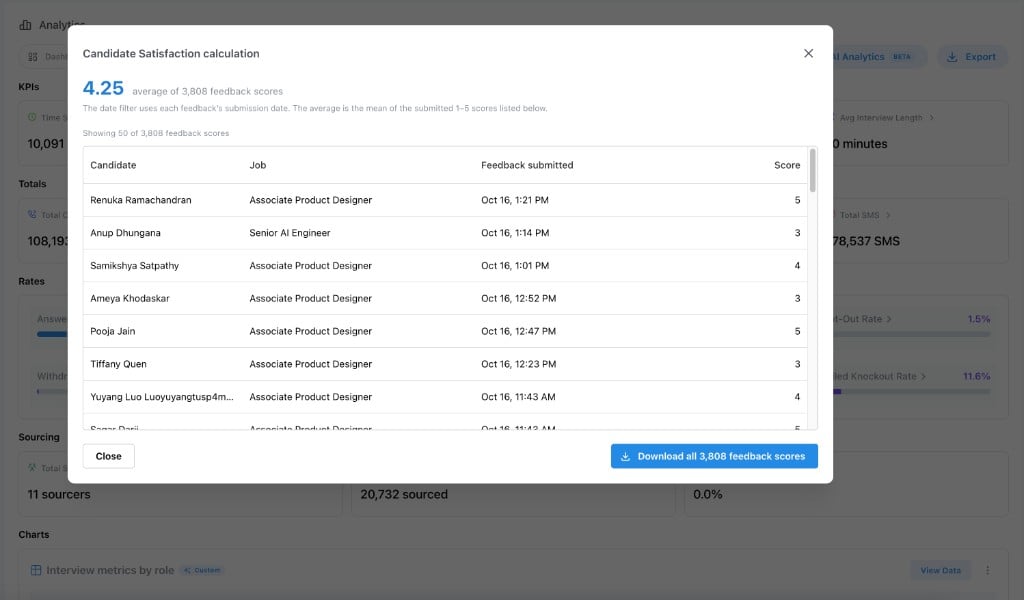
Click any chart to see the underlying data used in the calculation, and download it.
Drag to rearrange and resize custom charts.
## A sleeker Analytics page
The same default charts, in a more compact layout. Click any chart to see and download the data behind it, and drag custom charts to rearrange or resize them.
The default charts are the same. The layout is sleeker and more compact.
Click any chart to see the underlying data used in the calculation, and download it.
Drag to rearrange and resize custom charts.
 This documentation is built and hosted on [Mintlify](https://mintlify.com), a developer documentation platform.