> ## Documentation Index
> Fetch the complete documentation index at: https://f4c7a9e2d8b1-docs.tenzo.ai/llms.txt
> Use this file to discover all available pages before exploring further.
# Reusable Job Templates
> Create reusable job templates and hybrid templates that combine fixed content with AI-generated sections
## Reusable Job Templates
Job templates let you define a reusable interview configuration that can be used as the starting
point for other jobs. They are useful when many jobs should share the same structure, screening
logic, outreach, settings, or candidate experience.
Hybrid job templates go one step further: some sections can be copied exactly from the template,
while other sections are generated by AI for each new job based on that job's description.
## When to Use a Job Template
Use a job template when you want a consistent interview pattern across multiple jobs. For example:
* A standard compliance screen that should be reused across many roles
* A location or office-specific interview structure
* A role family, such as warehouse, nursing, engineering, or sales
* The same settings that should apply across many jobs
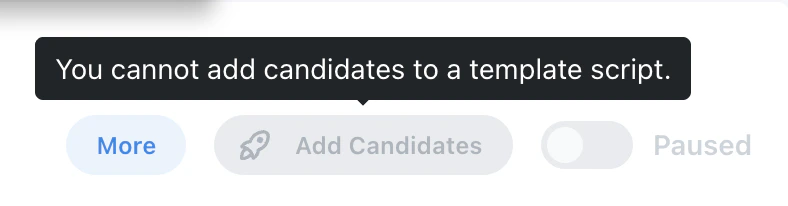
Templates are not jobs that candidates complete directly. A template acts as a source for other
jobs.
 ## Mark a Job as a Template
To turn a job into a template, open the job's **Settings** step and enable the **Template** toggle.
Once enabled, the job is treated as a reusable base for other jobs.
## Mark a Job as a Template
To turn a job into a template, open the job's **Settings** step and enable the **Template** toggle.
Once enabled, the job is treated as a reusable base for other jobs.
 When editing a template, auto-save may be disabled. Saving a template can give you the option to
choose which linked jobs should receive the template updates.
## Classic Templates vs. Hybrid Templates
Classic templates copy the configured content into jobs that use the template. This works well when
every job should use the same interview content.
Hybrid templates let you decide section by section whether content should be copied exactly or
generated for each job.
### Use Exactly
Use **Use Exactly** when a section should stay fixed across all jobs created from the template. This
is best for content that should not vary by role, such as compliance language, required disclosures,
or standardized outreach language.
### AI Generated
Use **AI Generated** when a section should be created fresh for each job using that job's
description. This is best for role-specific content, such as screening questions, resume
requirements, and job-specific intros or outreach.
When editing a template, auto-save may be disabled. Saving a template can give you the option to
choose which linked jobs should receive the template updates.
## Classic Templates vs. Hybrid Templates
Classic templates copy the configured content into jobs that use the template. This works well when
every job should use the same interview content.
Hybrid templates let you decide section by section whether content should be copied exactly or
generated for each job.
### Use Exactly
Use **Use Exactly** when a section should stay fixed across all jobs created from the template. This
is best for content that should not vary by role, such as compliance language, required disclosures,
or standardized outreach language.
### AI Generated
Use **AI Generated** when a section should be created fresh for each job using that job's
description. This is best for role-specific content, such as screening questions, resume
requirements, and job-specific intros or outreach.
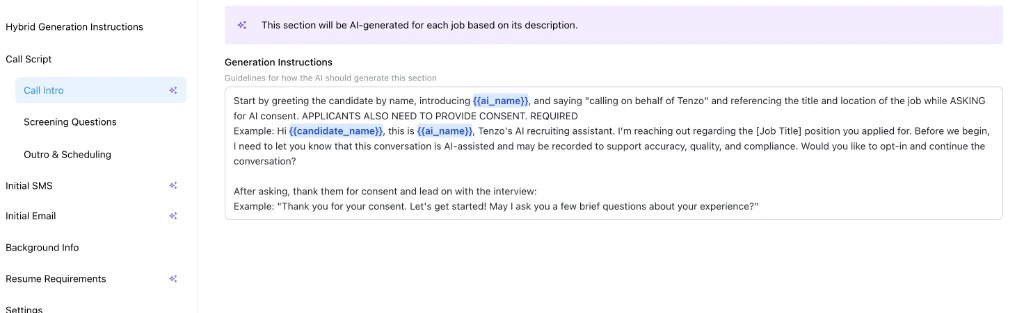
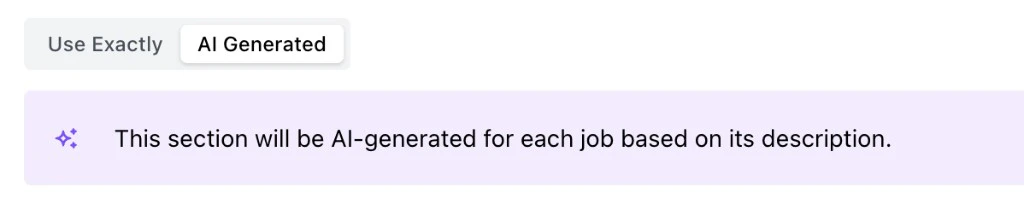 When a section is set to **AI Generated**, you can provide generation instructions for that section.
Those instructions are reused every time a job is created from the template.
When a section is set to **AI Generated**, you can provide generation instructions for that section.
Those instructions are reused every time a job is created from the template.
 ## Set Up a Hybrid Template
To set up a hybrid template:
1. Create or open the job you want to use as the template.
2. Enable the **Template** toggle in Settings.
3. For each configurable section, choose **Use Exactly** or **AI Generated**.
4. Add generation instructions to any AI-generated section.
5. Configure fixed questions, AI Blocks, outreach, background info, resume requirements, and settings.
6. Save the template.
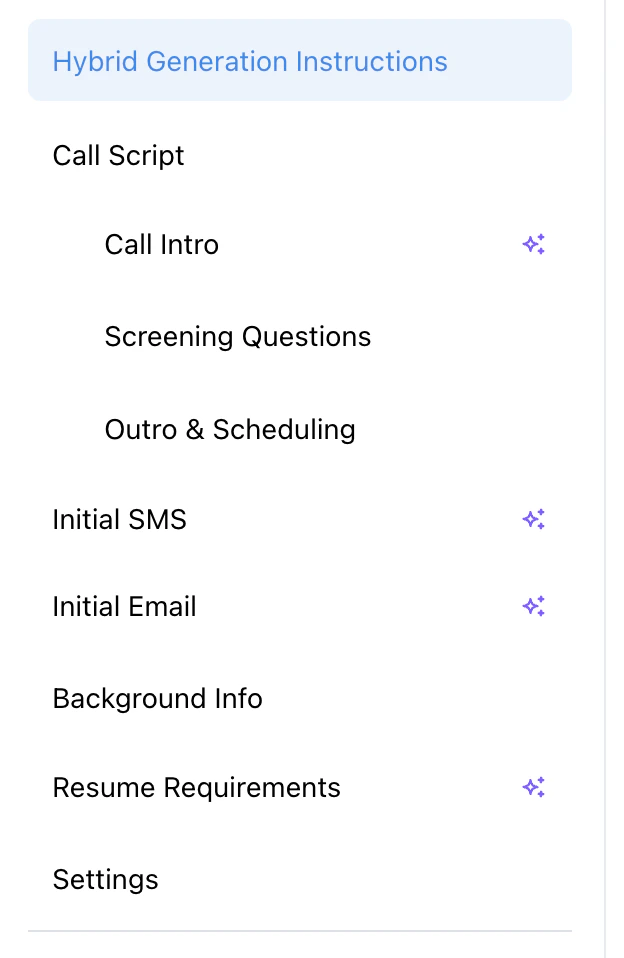
In the Configure sidebar, AI-generated sections are marked with a sparkle icon so you can quickly
see which sections will be generated for each job.
## Set Up a Hybrid Template
To set up a hybrid template:
1. Create or open the job you want to use as the template.
2. Enable the **Template** toggle in Settings.
3. For each configurable section, choose **Use Exactly** or **AI Generated**.
4. Add generation instructions to any AI-generated section.
5. Configure fixed questions, AI Blocks, outreach, background info, resume requirements, and settings.
6. Save the template.
In the Configure sidebar, AI-generated sections are marked with a sparkle icon so you can quickly
see which sections will be generated for each job.
 ## AI Blocks for Screening Questions
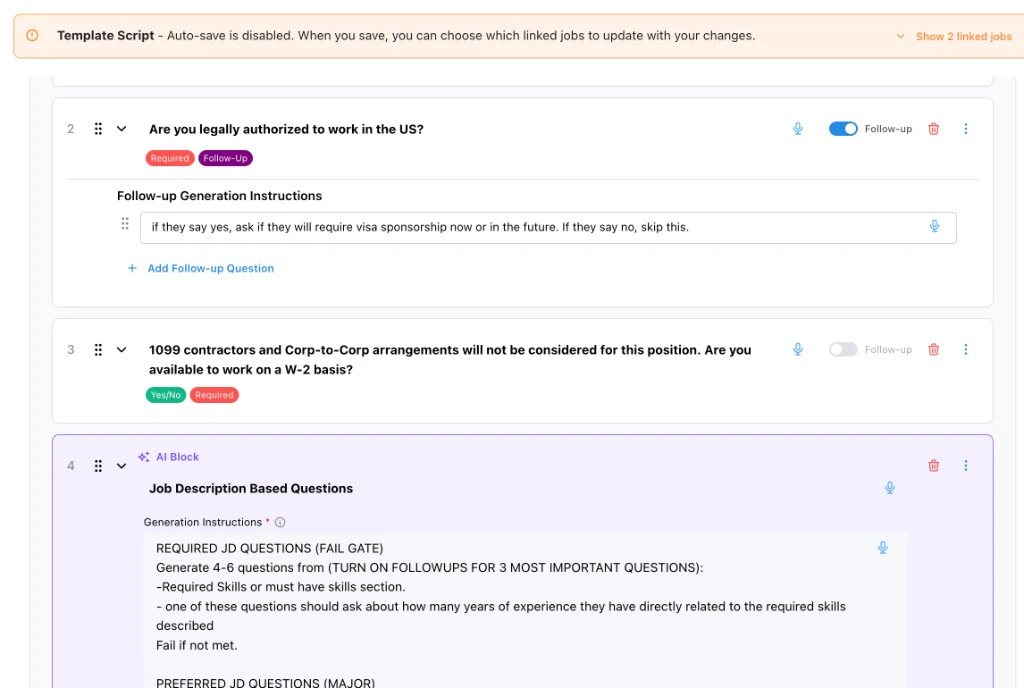
AI Blocks are placeholders inside the Screening Questions step. Instead of writing every question
directly in the template, you can add an AI Block that tells Tenzo what kinds of questions to
generate for each new job.
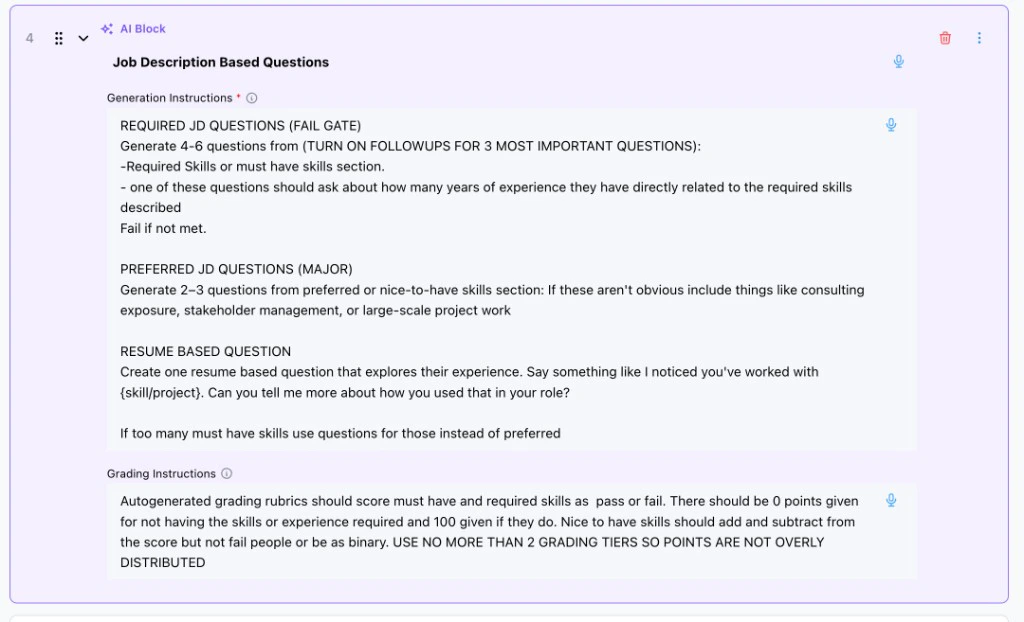
Use AI Blocks when the question set should vary by job, but the pattern should stay consistent. For
example, an AI Block can tell Tenzo to generate required questions from the job description, include
a resume-based question, and use a specific grading style.
## AI Blocks for Screening Questions
AI Blocks are placeholders inside the Screening Questions step. Instead of writing every question
directly in the template, you can add an AI Block that tells Tenzo what kinds of questions to
generate for each new job.
Use AI Blocks when the question set should vary by job, but the pattern should stay consistent. For
example, an AI Block can tell Tenzo to generate required questions from the job description, include
a resume-based question, and use a specific grading style.
 When a job is created from the template, the AI Block is expanded into real screening questions
using that job's description.
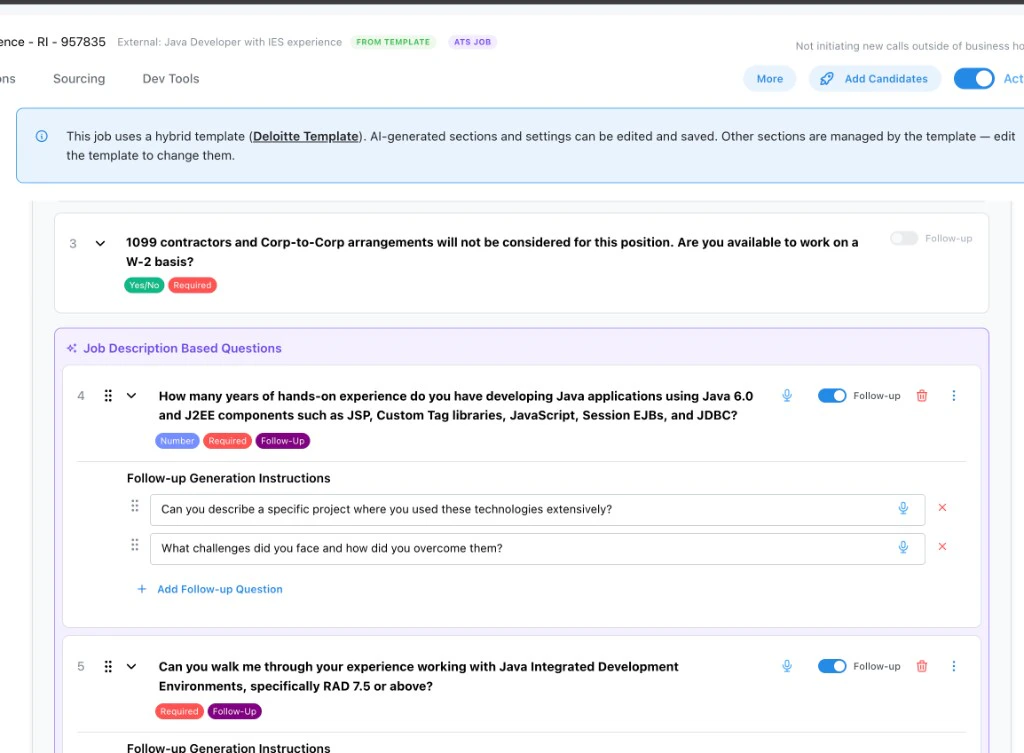
When a job is created from the template, the AI Block is expanded into real screening questions
using that job's description.
 ## Editing Jobs Created from Templates
Jobs created from templates have different editability rules depending on where each section came
from.
AI-generated sections and questions generated from AI Blocks can be modified on the derived job.
They were created for that specific job, so recruiters can edit the generated questions, follow-ups,
grading instructions, and other AI-generated content as needed.
Sections that are not AI-generated cannot be modified on the derived job. They are managed directly
by the source template. The same rule applies to screening questions written directly into the
template: they appear on the derived job, but cannot be edited there because they come directly from
the template.
To change a non-AI-generated section or a template-owned screening question, edit the source
template instead.
## Editing Jobs Created from Templates
Jobs created from templates have different editability rules depending on where each section came
from.
AI-generated sections and questions generated from AI Blocks can be modified on the derived job.
They were created for that specific job, so recruiters can edit the generated questions, follow-ups,
grading instructions, and other AI-generated content as needed.
Sections that are not AI-generated cannot be modified on the derived job. They are managed directly
by the source template. The same rule applies to screening questions written directly into the
template: they appear on the derived job, but cannot be edited there because they come directly from
the template.
To change a non-AI-generated section or a template-owned screening question, edit the source
template instead.
 ## How ATS Jobs Use Templates
For jobs created from your ATS, templates are typically applied through the **Rules Engine**. Rules
can match incoming ATS jobs and associate them with the correct template, so each new job starts with
the right fixed sections, AI-generated sections, AI Blocks, and settings.
For setup details, see **[Rules Engine](/ats-integrations/rules-engine)**.
## What to Review
Before using a template broadly, create or sync a test job from it and review:
* Which sections were copied exactly
* Which sections were generated from the job description
* Whether AI Blocks generated the right number and type of questions
* Whether grading instructions fit the generated questions
* Whether outreach messages match the candidate path
* Whether settings are appropriate for jobs that will use the template
For deeper reference material, see **[Hybrid Job Templates](/templates/hybrid-templates)**.
## How ATS Jobs Use Templates
For jobs created from your ATS, templates are typically applied through the **Rules Engine**. Rules
can match incoming ATS jobs and associate them with the correct template, so each new job starts with
the right fixed sections, AI-generated sections, AI Blocks, and settings.
For setup details, see **[Rules Engine](/ats-integrations/rules-engine)**.
## What to Review
Before using a template broadly, create or sync a test job from it and review:
* Which sections were copied exactly
* Which sections were generated from the job description
* Whether AI Blocks generated the right number and type of questions
* Whether grading instructions fit the generated questions
* Whether outreach messages match the candidate path
* Whether settings are appropriate for jobs that will use the template
For deeper reference material, see **[Hybrid Job Templates](/templates/hybrid-templates)**.