> ## Documentation Index
> Fetch the complete documentation index at: https://f4c7a9e2d8b1-docs.tenzo.ai/llms.txt
> Use this file to discover all available pages before exploring further.
# Adding Candidates to a Job
> Add candidates to a job using CSV, resume bulk upload, manual entry, or a permanent interview link
## Adding Candidates to a Job
Most candidates reach a Tenzo job automatically — through your ATS sync, the sourcing agent, or
the public application API. The **Add Candidates** button is for everything else: ad-hoc additions,
non-ATS jobs, smoke-testing the candidate experience end to end, or pasting a list from a
recruiter's spreadsheet.
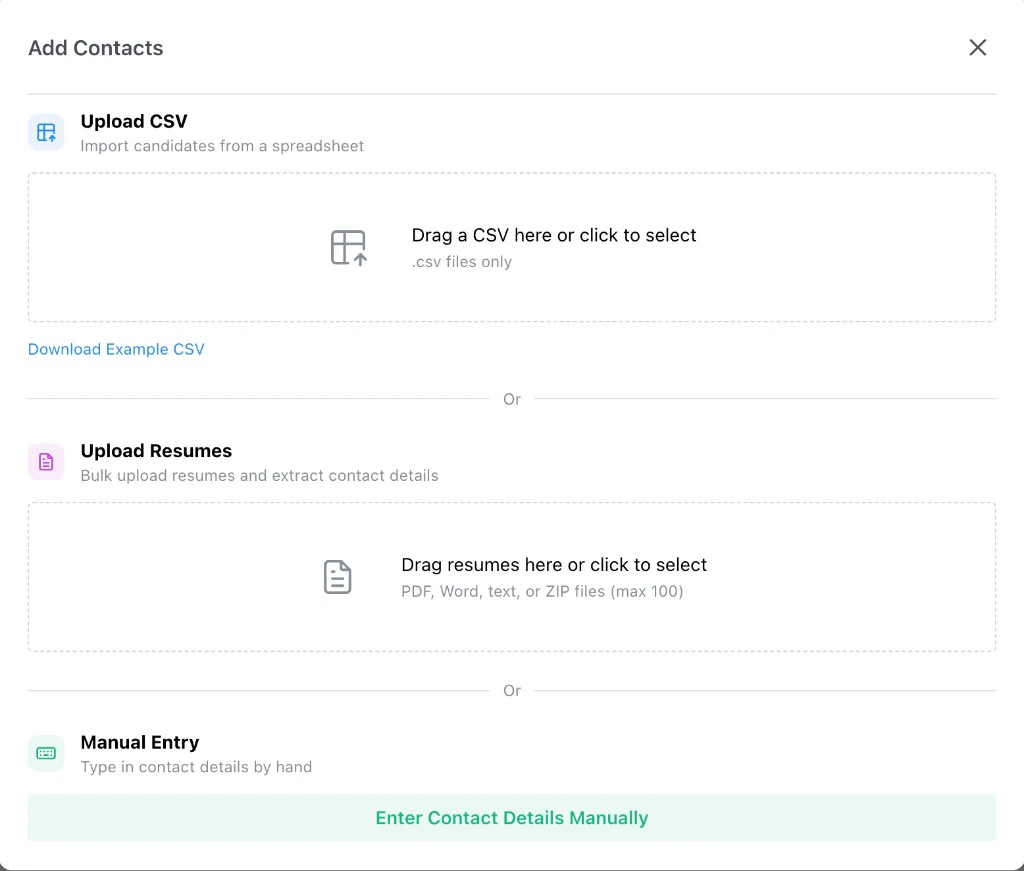
Click the **Add Candidates** button at the top right of any job page to open the modal. It
offers the same options for both phone and video interview jobs, with a few differences called
out below.

 ## Upload CSV
Use **Upload CSV** when you already have candidate contact information in a spreadsheet. Drag a
`.csv` file into the dropzone or click to choose one. Only `.csv` files are accepted, one file
at a time.
The CSV can include any of these columns. Only the columns you fill in are required, and unknown
columns are ignored:
| Column | Notes |
| ---------- | --------------------------------------------------------------------------------------------------------------------------------------------------------------- |
| `name` | Candidate's full name. Required for every row. |
| `phone` | Required for phone interview jobs. |
| `email` | Required for video interview jobs (so Tenzo can send the interview link), unless SMS/WhatsApp invite delivery is enabled — then a phone number alone is enough. |
| `timezone` | Optional. Helps Tenzo respect local outreach hours. |
| `location` | Optional. Used by sourcing and location-based filters. |
| `zip` | Optional. US zip code, used for location-based filters and sourcing. |
Click **Download Example CSV** under the dropzone to download a sample. The sample is tailored
to the job type — a phone-call template for phone jobs and an email-based template for video
jobs.
After you select a file, Tenzo previews the parsed contacts so you can review valid rows, fix
invalid ones, and decide what to do with candidates that already exist on this or other jobs
before submitting.
## Upload Resumes
Use **Upload Resumes** when you have a stack of resume files but no contact spreadsheet. Drag in
PDF, Word, text, or ZIP files (or any combination), or click to select them. Up to **100** files
per upload, with a **5 MB** limit per file.
Tenzo extracts the candidate's name and contact details from each resume and presents them in
the same review-and-fix flow as a CSV upload. The original resume file is also attached to each
candidate so it appears on their interview review page later.
Use this option when:
* You only have resumes, not contact lists.
* You want resumes attached to candidates from the start so the resume requirements can score
them automatically.
* You have a recruiter handoff that came as a folder or ZIP of resumes.
## Manual Entry
Use **Manual Entry** to add a single candidate by hand. Click **Enter Contact Details Manually**
to open a short form.
The form has:
* **Resume (optional):** Drop a PDF, Word, or text file (up to 5 MB). When attached, Tenzo
auto-fills the rest of the form from the resume.
* **Name:** Required.
* **Phone:** Required for phone interview jobs.
* **Email:** Required for video interview jobs, unless SMS/WhatsApp invite delivery is enabled —
then either an email or a phone number is accepted.
* **Timezone:** Optional.
* **Zipcode:** Optional. Validated as a US zip code when provided.
* **Contact Source:** Whether the candidate is being added as an applicant or sourced.
Manual entry is the fastest way to add yourself for an end-to-end test of the candidate
experience.
## Permanent Interview Link (Video Jobs)
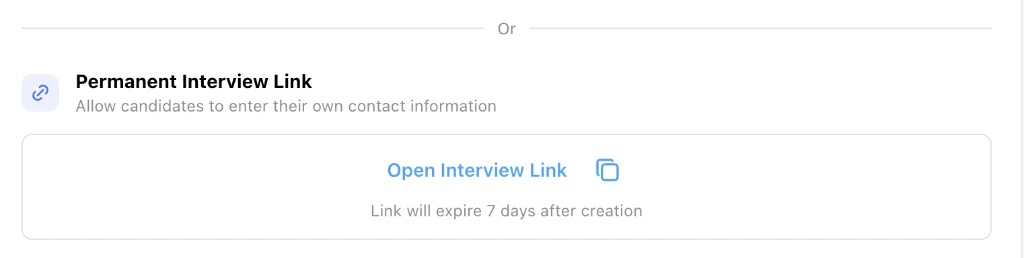
For video interview jobs only, the Add Candidates modal also includes a **Permanent Interview
Link**. Use this when you want to send one shareable link instead of adding candidates one by
one.
## Upload CSV
Use **Upload CSV** when you already have candidate contact information in a spreadsheet. Drag a
`.csv` file into the dropzone or click to choose one. Only `.csv` files are accepted, one file
at a time.
The CSV can include any of these columns. Only the columns you fill in are required, and unknown
columns are ignored:
| Column | Notes |
| ---------- | --------------------------------------------------------------------------------------------------------------------------------------------------------------- |
| `name` | Candidate's full name. Required for every row. |
| `phone` | Required for phone interview jobs. |
| `email` | Required for video interview jobs (so Tenzo can send the interview link), unless SMS/WhatsApp invite delivery is enabled — then a phone number alone is enough. |
| `timezone` | Optional. Helps Tenzo respect local outreach hours. |
| `location` | Optional. Used by sourcing and location-based filters. |
| `zip` | Optional. US zip code, used for location-based filters and sourcing. |
Click **Download Example CSV** under the dropzone to download a sample. The sample is tailored
to the job type — a phone-call template for phone jobs and an email-based template for video
jobs.
After you select a file, Tenzo previews the parsed contacts so you can review valid rows, fix
invalid ones, and decide what to do with candidates that already exist on this or other jobs
before submitting.
## Upload Resumes
Use **Upload Resumes** when you have a stack of resume files but no contact spreadsheet. Drag in
PDF, Word, text, or ZIP files (or any combination), or click to select them. Up to **100** files
per upload, with a **5 MB** limit per file.
Tenzo extracts the candidate's name and contact details from each resume and presents them in
the same review-and-fix flow as a CSV upload. The original resume file is also attached to each
candidate so it appears on their interview review page later.
Use this option when:
* You only have resumes, not contact lists.
* You want resumes attached to candidates from the start so the resume requirements can score
them automatically.
* You have a recruiter handoff that came as a folder or ZIP of resumes.
## Manual Entry
Use **Manual Entry** to add a single candidate by hand. Click **Enter Contact Details Manually**
to open a short form.
The form has:
* **Resume (optional):** Drop a PDF, Word, or text file (up to 5 MB). When attached, Tenzo
auto-fills the rest of the form from the resume.
* **Name:** Required.
* **Phone:** Required for phone interview jobs.
* **Email:** Required for video interview jobs, unless SMS/WhatsApp invite delivery is enabled —
then either an email or a phone number is accepted.
* **Timezone:** Optional.
* **Zipcode:** Optional. Validated as a US zip code when provided.
* **Contact Source:** Whether the candidate is being added as an applicant or sourced.
Manual entry is the fastest way to add yourself for an end-to-end test of the candidate
experience.
## Permanent Interview Link (Video Jobs)
For video interview jobs only, the Add Candidates modal also includes a **Permanent Interview
Link**. Use this when you want to send one shareable link instead of adding candidates one by
one.
 The link does two things:
* Lets candidates fill in their own contact details, which adds them to the job automatically.
* Sends them straight into the video interview once they submit.
Use the **Open Interview Link** action to navigate there yourself, or the copy icon to copy the
link to share. The link only functions while the job is **Active** — if the job is paused or in
template mode, the link is shown as inactive.
Some workspaces also configure the permanent link to expire a set number of days after creation;
when that's set, the modal shows the expiration timeframe under the link.
If someone who already has an application for this job opens the link — for example, an applicant
whose resume was already reviewed or who is no longer being considered — Tenzo won't start a
duplicate interview. Instead they see a short message letting them know their application is under
review and that you'll reach back out if you're able to offer them an AI interview.
## After Adding Candidates
Newly added candidates appear in the **Candidates** tab with a **Pending** call status. Once the
job is **Active**, Tenzo starts contacting them via the configured outreach method (phone, SMS,
or video interview link).
> **Activate the job:** A job has to be Active for outreach to start. If you're adding
> candidates to a brand-new job, click **Activate** after you've finished configuring it.
For more on the Candidates tab itself — columns, scores, comments, bulk actions, and the
interview review — see
**[Interview Results Table](/getting-started/interview-results-table)** and
**[Reviewing an Interview](/getting-started/reviewing-an-interview)**.
The link does two things:
* Lets candidates fill in their own contact details, which adds them to the job automatically.
* Sends them straight into the video interview once they submit.
Use the **Open Interview Link** action to navigate there yourself, or the copy icon to copy the
link to share. The link only functions while the job is **Active** — if the job is paused or in
template mode, the link is shown as inactive.
Some workspaces also configure the permanent link to expire a set number of days after creation;
when that's set, the modal shows the expiration timeframe under the link.
If someone who already has an application for this job opens the link — for example, an applicant
whose resume was already reviewed or who is no longer being considered — Tenzo won't start a
duplicate interview. Instead they see a short message letting them know their application is under
review and that you'll reach back out if you're able to offer them an AI interview.
## After Adding Candidates
Newly added candidates appear in the **Candidates** tab with a **Pending** call status. Once the
job is **Active**, Tenzo starts contacting them via the configured outreach method (phone, SMS,
or video interview link).
> **Activate the job:** A job has to be Active for outreach to start. If you're adding
> candidates to a brand-new job, click **Activate** after you've finished configuring it.
For more on the Candidates tab itself — columns, scores, comments, bulk actions, and the
interview review — see
**[Interview Results Table](/getting-started/interview-results-table)** and
**[Reviewing an Interview](/getting-started/reviewing-an-interview)**.