> ## Documentation Index
> Fetch the complete documentation index at: https://f4c7a9e2d8b1-docs.tenzo.ai/llms.txt
> Use this file to discover all available pages before exploring further.
# Workday workflow step cache
> Refresh the workflow step cache, then match Tenzo selections to the Step column from Workday’s steps export.
## What it is
Tenzo keeps a **saved list of Workday workflow steps** per Workday integration (fetched from Workday over SOAP). That list powers **search fields** under **Workflow Steps (Workday)** and helps pick the right identifiers when moving candidates.
This list does **not** come from the [Recruiting WSDL import](/ats-integrations/workday/custom-fields-wsdl). WSDL and workflow steps are separate.
## When to refresh
* **Pickers**: **Start Workflow Steps** and transition overrides search this list. If it is empty or old, search will miss steps.
* **Moves**: After Workday changes steps or IDs, a refresh keeps moves aligned. Until then, Tenzo may guess ID types from the shape of the value, which is less reliable.
## How to refresh
1. **Admin** → **ATS Integrations** → open your **Workday** integration
2. Open **Workflow Steps (Workday)**
3. Click **Refresh workflow steps cache**
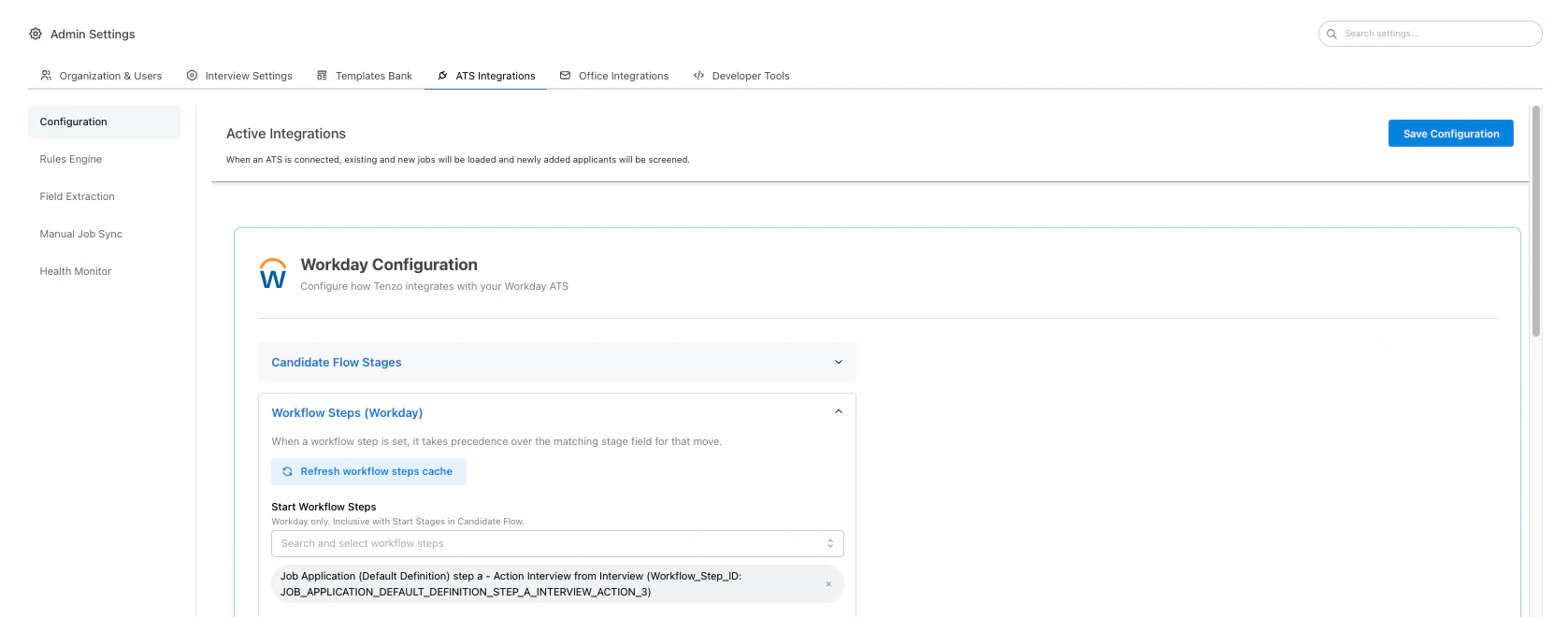 The job runs in the background. Expect on the order of **\~30 minutes**; tenants with **more business processes and workflow steps than average** often take **longer**. Only **one** refresh runs at a time per integration—wait for it to finish before starting another. When it completes, the new fetch **replaces** the previous list.
## After a refresh
Try the workflow step search fields and confirm the steps you expect show up. Saved selections usually keep working once the updated list includes those steps.
## Picking the step you mean (Workday export)
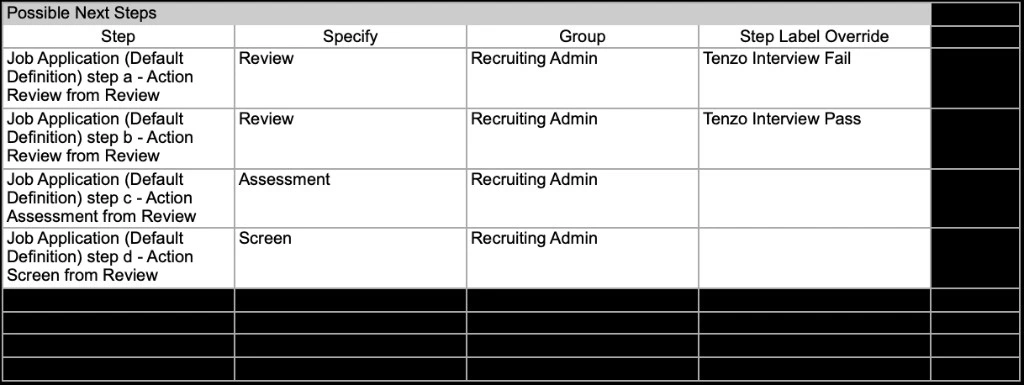
In Workday, open the **Possible Next Steps** table (for example on a job application). On the table toolbar, click the **Export to Excel** control (Excel icon) to download the step list. Your tenant’s menus may differ slightly, but the export is usually next to the **Possible Next Steps** grid.
The job runs in the background. Expect on the order of **\~30 minutes**; tenants with **more business processes and workflow steps than average** often take **longer**. Only **one** refresh runs at a time per integration—wait for it to finish before starting another. When it completes, the new fetch **replaces** the previous list.
## After a refresh
Try the workflow step search fields and confirm the steps you expect show up. Saved selections usually keep working once the updated list includes those steps.
## Picking the step you mean (Workday export)
In Workday, open the **Possible Next Steps** table (for example on a job application). On the table toolbar, click the **Export to Excel** control (Excel icon) to download the step list. Your tenant’s menus may differ slightly, but the export is usually next to the **Possible Next Steps** grid.
 Open the downloaded file and use the **Step** column when choosing a step in Tenzo. That value is the full, unique label for the step in Workday. Shorter columns like **Specify** can match many different rows—two steps may both say “Review” there while **Step** lists different definitions (for example different “step a” vs “step b” actions). **Step label override** is optional labeling in Workday; it does not replace **Step** as the identifier to search for in Tenzo. Search the Tenzo picker using the **Step** text so the transition you configure matches the same row as in Workday.
 ## Troubleshooting
| Issue | Try |
| --------------------------------------- | ------------------------------------------------------------------------------------------------------------------------------------------------------------------ |
| Search finds no steps | Refresh, wait for it to finish, then confirm the integration can reach Workday for reference data. |
| Moves broke after Workday changed steps | Refresh and re-save workflow step choices in Admin if IDs changed. |
| Refresh never seems to finish | Allow **30+ minutes** (longer on heavy tenants); avoid starting a second refresh while one is running; contact Tenzo support if nothing updates after a long wait. |
## See also
* [Workday setup](/ats-integrations/workday/setup)
* [Custom fields (WSDL)](/ats-integrations/workday/custom-fields-wsdl)
* [Tenant XML namespace](/ats-integrations/workday/tenant-namespace)
## Troubleshooting
| Issue | Try |
| --------------------------------------- | ------------------------------------------------------------------------------------------------------------------------------------------------------------------ |
| Search finds no steps | Refresh, wait for it to finish, then confirm the integration can reach Workday for reference data. |
| Moves broke after Workday changed steps | Refresh and re-save workflow step choices in Admin if IDs changed. |
| Refresh never seems to finish | Allow **30+ minutes** (longer on heavy tenants); avoid starting a second refresh while one is running; contact Tenzo support if nothing updates after a long wait. |
## See also
* [Workday setup](/ats-integrations/workday/setup)
* [Custom fields (WSDL)](/ats-integrations/workday/custom-fields-wsdl)
* [Tenant XML namespace](/ats-integrations/workday/tenant-namespace)