> ## Documentation Index
> Fetch the complete documentation index at: https://f4c7a9e2d8b1-docs.tenzo.ai/llms.txt
> Use this file to discover all available pages before exploring further.
# Custom report for job fields
> Use a Workday Custom Report (JSON) to supply job-level custom field values in Tenzo when those values are not available elsewhere.
## Who this is for
**Workday Recruiting** admins who need **job-level custom fields** in Tenzo from a Workday **Custom Report** as **JSON**. Skip this if jobs already show the right fields without a report.
## What you are setting up
1. A **Custom Report** (jobs / requisitions, JSON-capable).
2. A **user** who can **run** it with **HTTP Basic** auth.
3. That report **URL**, **username**, and **password** in Tenzo (**ATS integration** dynamic settings).
Until configured, Tenzo behaves as before; no extra fields are merged from this report.
## Before you start
* Workday access to **create/edit Custom Reports** and the fields you need.
* An account allowed to **run** the report with **basic auth** (integration / ISU user).
* **Tenzo** org admin access to edit the **Workday** integration.
## Part 1 — Workday: build the report
Menus vary by tenant; match names to your environment.
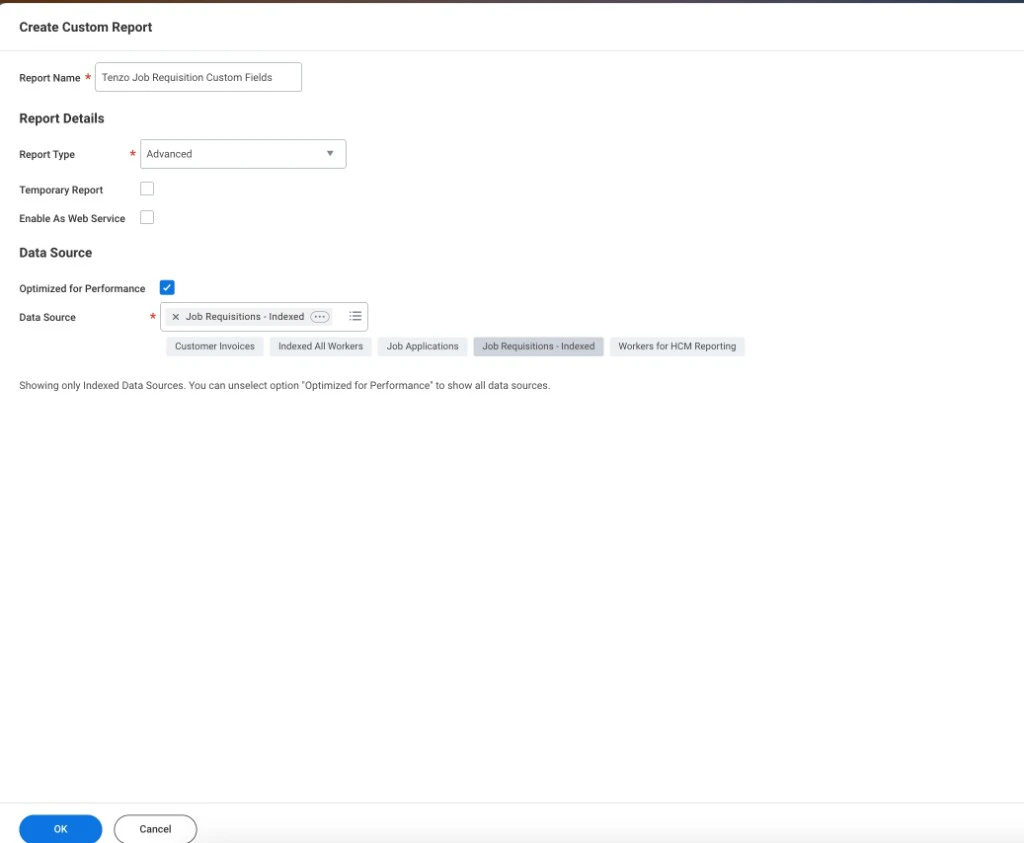 **Create Custom Report** may show **Enable As Web Service** off at first. Turn it on on the report **Advanced** tab ([below](#advanced-web-services-for-tenzo)). The integration user may need **Share** to run the report.
1. Open **Create Custom Report**. Set a clear **Report name** (e.g. **Tenzo Job Requisition Custom Fields**).
2. **Report type:** **Advanced** unless your partner says otherwise.
3. **Data source:** **Job Requisitions - Indexed** (recommended; enable **Optimized for performance**). For other sources, you can uncheck **Optimized for performance** to see more options (per Workday’s note).
4. In **Columns**, add:
* The **job / requisition id** Tenzo already uses (e.g. `R-00433` or your integration’s reference).
* Each **custom field** that should appear on the job in Tenzo.
### XML alias and Web Service alias
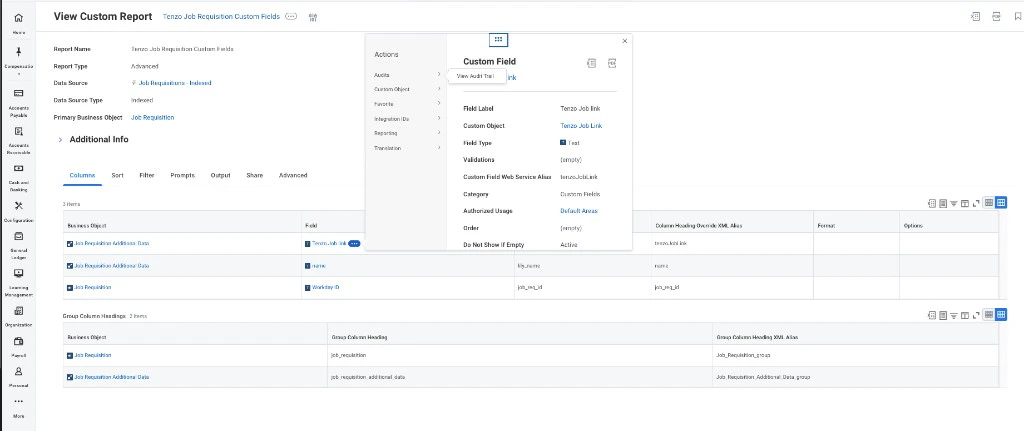
JSON keys (and Tenzo **Job ID key** / mapping) follow the column’s web service exposure. **Column Heading Override XML Alias** must **exactly** match **Custom Field Web Service Alias** (case-sensitive).
1. On the custom field definition, note **Custom Field Web Service Alias** (example: `tenzo_job_link`).
2. In the report **Columns** row for that field, set **Column Heading Override XML Alias** to the **same** string.
If they differ, keys won’t match what Tenzo expects.
**Create Custom Report** may show **Enable As Web Service** off at first. Turn it on on the report **Advanced** tab ([below](#advanced-web-services-for-tenzo)). The integration user may need **Share** to run the report.
1. Open **Create Custom Report**. Set a clear **Report name** (e.g. **Tenzo Job Requisition Custom Fields**).
2. **Report type:** **Advanced** unless your partner says otherwise.
3. **Data source:** **Job Requisitions - Indexed** (recommended; enable **Optimized for performance**). For other sources, you can uncheck **Optimized for performance** to see more options (per Workday’s note).
4. In **Columns**, add:
* The **job / requisition id** Tenzo already uses (e.g. `R-00433` or your integration’s reference).
* Each **custom field** that should appear on the job in Tenzo.
### XML alias and Web Service alias
JSON keys (and Tenzo **Job ID key** / mapping) follow the column’s web service exposure. **Column Heading Override XML Alias** must **exactly** match **Custom Field Web Service Alias** (case-sensitive).
1. On the custom field definition, note **Custom Field Web Service Alias** (example: `tenzo_job_link`).
2. In the report **Columns** row for that field, set **Column Heading Override XML Alias** to the **same** string.
If they differ, keys won’t match what Tenzo expects.
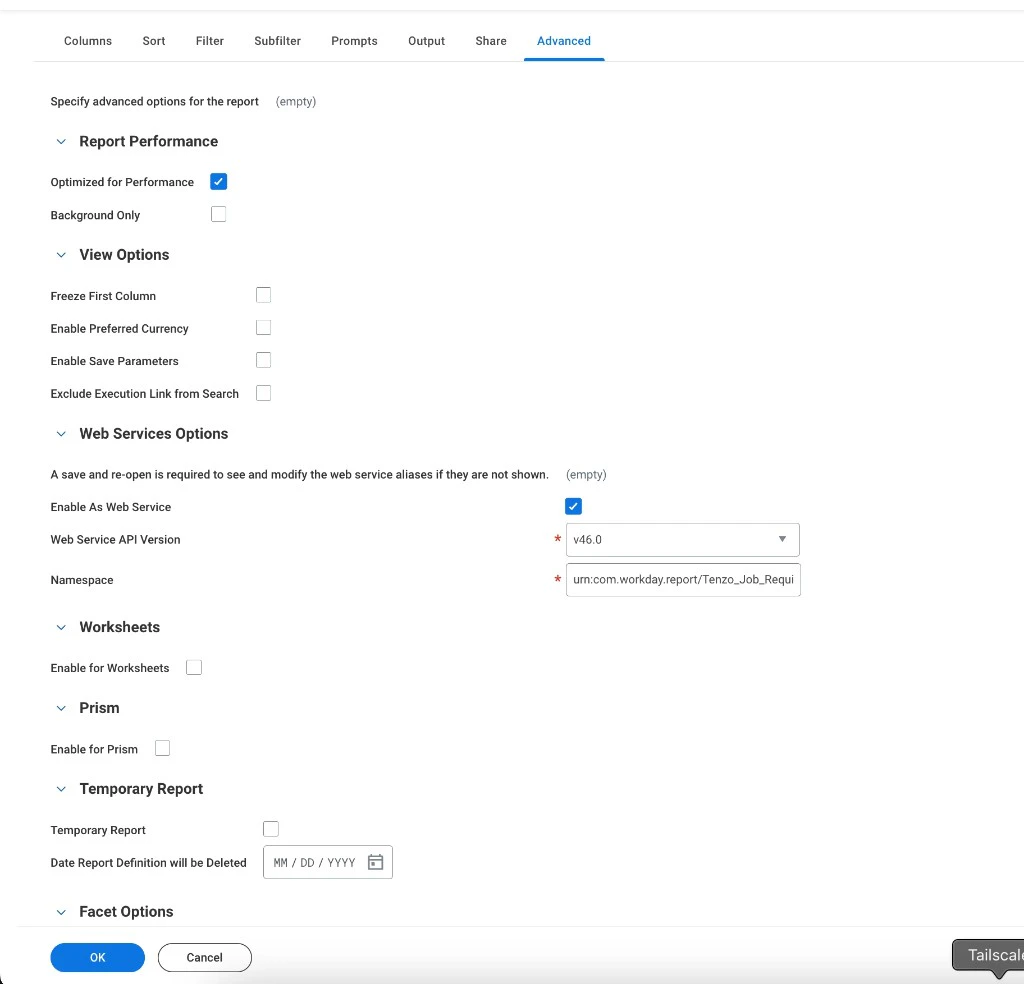
 ### Advanced: Web Services for Tenzo
Open the **Advanced** tab. For an external **JSON** URL in Tenzo:
| Setting | Use |
| --------------------------- | ----------------------------------------------------------------------------------- |
| **Enable As Web Service** | **On** — required. Off → **Test connection** often fails or returns non-JSON. |
| **Web Service API Version** | Tenant-supported value (e.g. **v46.0**) per your admin/docs. |
| **Namespace** | Usually auto-filled (`urn:com.workday.report/...`). Change only if Workday says so. |
**Report performance:** Keep **Optimized for performance** on for indexed sources like **Job Requisitions - Indexed** unless Workday says otherwise.
If web service aliases don’t show or behave oddly, **save**, **close**, and **re-open** the report (Workday note).
### Advanced: Web Services for Tenzo
Open the **Advanced** tab. For an external **JSON** URL in Tenzo:
| Setting | Use |
| --------------------------- | ----------------------------------------------------------------------------------- |
| **Enable As Web Service** | **On** — required. Off → **Test connection** often fails or returns non-JSON. |
| **Web Service API Version** | Tenant-supported value (e.g. **v46.0**) per your admin/docs. |
| **Namespace** | Usually auto-filled (`urn:com.workday.report/...`). Change only if Workday says so. |
**Report performance:** Keep **Optimized for performance** on for indexed sources like **Job Requisitions - Indexed** unless Workday says otherwise.
If web service aliases don’t show or behave oddly, **save**, **close**, and **re-open** the report (Workday note).
 5. Run the report in Workday: **one row per job**, identifier column matches Tenzo.
6. **JSON URL** (web service link, not the generic report screen):
* **View Custom Report** → **Related Actions** (**⋯**) → **Actions** → **Web Service** → **View URLs**.
5. Run the report in Workday: **one row per job**, identifier column matches Tenzo.
6. **JSON URL** (web service link, not the generic report screen):
* **View Custom Report** → **Related Actions** (**⋯**) → **Actions** → **Web Service** → **View URLs**.
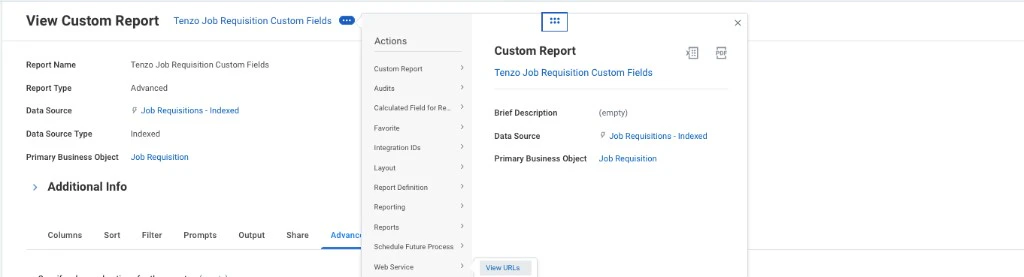 * On **View URLs Web Service**, **JSON** row → right-click the blue link → **Copy URL** → paste in Tenzo as **Workday Job Custom Field Report URL**.
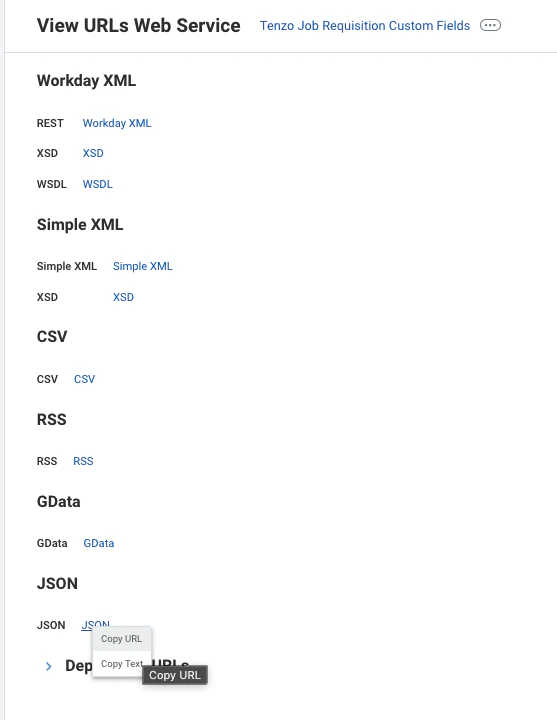 Use the **full** `https://` URL including query params so **Test connection** gets JSON with `Report_Entry`. Treat the URL like a secret.
## Part 2 — Workday: integration user
1. Use or create a user who **can run** this report.
2. Confirm **HTTP Basic** is allowed for that endpoint (not SSO-only), like Postman would use.
If basic auth isn’t available for this URL, this setup won’t work until Workday exposes a compatible endpoint.
## Part 3 — Tenzo: connect the report
1. Sign in as **organization administrator**.
2. **Admin** → **ATS Integrations** → **Workday** → **Configuration** (or your tenant’s equivalent).
3. In **Custom Field Mapping** / **Custom fields**, open **Update custom report credentials** (modal below).
Use the **full** `https://` URL including query params so **Test connection** gets JSON with `Report_Entry`. Treat the URL like a secret.
## Part 2 — Workday: integration user
1. Use or create a user who **can run** this report.
2. Confirm **HTTP Basic** is allowed for that endpoint (not SSO-only), like Postman would use.
If basic auth isn’t available for this URL, this setup won’t work until Workday exposes a compatible endpoint.
## Part 3 — Tenzo: connect the report
1. Sign in as **organization administrator**.
2. **Admin** → **ATS Integrations** → **Workday** → **Configuration** (or your tenant’s equivalent).
3. In **Custom Field Mapping** / **Custom fields**, open **Update custom report credentials** (modal below).
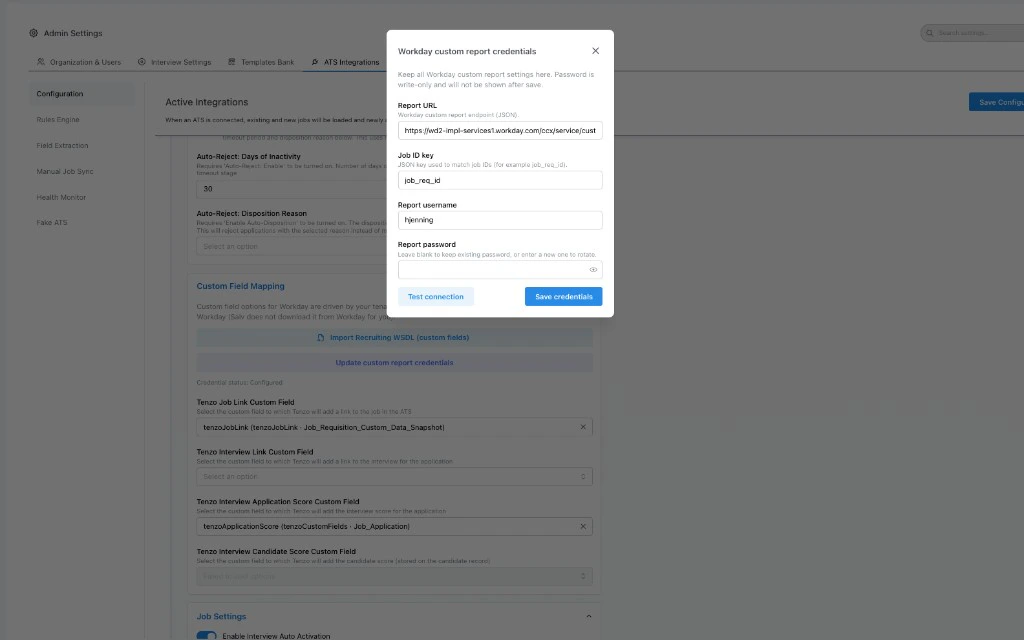 4. Fill the modal:
* **Report URL** — JSON URL from Workday. `https://` only; no user/password in the URL. Max **4096** characters.
* **Job ID key** — JSON property for the job id on each `Report_Entry` (often `job_req_id`). Must match Workday output exactly (case-sensitive).
* **Report username** / **Report password** — Part 2 user. Password is **write-only** after save; use **leave blank to keep existing password** when only changing URL or key.
5. **Test connection** — expects JSON with `Report_Entry`; with **Job ID key**, checks that at least one row has that property.
6. **Save credentials**. **Credential status** may show **Configured**.
## Verify in Tenzo
Open a job that’s in the report; confirm custom values after sync/refresh. If empty, compare **report JSON id** to Tenzo’s **job code/id** for the same **Job ID key**.
## Common issues
| Issue | Try |
| --------------- | -------------------------------------------------------------------------------------------------------------------------------------------------------------- |
| Test fails | Wrong password, user can’t run report, or URL isn’t the **JSON** URL. Postman + same URL + basic auth. |
| Fields empty | No row for that job’s id, or **Job ID key** ≠ JSON property name (case-sensitive). |
| Wrong JSON keys | **Column Heading Override XML Alias** must match **Custom Field Web Service Alias** (see [XML alias and Web Service alias](#xml-alias-and-web-service-alias)). |
| URL rejected | **https**, normal public hostname; internal/metadata hosts blocked. Shorten if over **4096** characters. |
## Related
* [Workday ATS setup](/ats-integrations/workday/setup) — overall Workday order in Tenzo.
* [Custom fields (WSDL)](/ats-integrations/workday/custom-fields-wsdl) — **writes**; this report is for **reading** extra job values.
Support: [Tenzo software support](https://www.tenzo.ai/software-support) (do not send passwords).
4. Fill the modal:
* **Report URL** — JSON URL from Workday. `https://` only; no user/password in the URL. Max **4096** characters.
* **Job ID key** — JSON property for the job id on each `Report_Entry` (often `job_req_id`). Must match Workday output exactly (case-sensitive).
* **Report username** / **Report password** — Part 2 user. Password is **write-only** after save; use **leave blank to keep existing password** when only changing URL or key.
5. **Test connection** — expects JSON with `Report_Entry`; with **Job ID key**, checks that at least one row has that property.
6. **Save credentials**. **Credential status** may show **Configured**.
## Verify in Tenzo
Open a job that’s in the report; confirm custom values after sync/refresh. If empty, compare **report JSON id** to Tenzo’s **job code/id** for the same **Job ID key**.
## Common issues
| Issue | Try |
| --------------- | -------------------------------------------------------------------------------------------------------------------------------------------------------------- |
| Test fails | Wrong password, user can’t run report, or URL isn’t the **JSON** URL. Postman + same URL + basic auth. |
| Fields empty | No row for that job’s id, or **Job ID key** ≠ JSON property name (case-sensitive). |
| Wrong JSON keys | **Column Heading Override XML Alias** must match **Custom Field Web Service Alias** (see [XML alias and Web Service alias](#xml-alias-and-web-service-alias)). |
| URL rejected | **https**, normal public hostname; internal/metadata hosts blocked. Shorten if over **4096** characters. |
## Related
* [Workday ATS setup](/ats-integrations/workday/setup) — overall Workday order in Tenzo.
* [Custom fields (WSDL)](/ats-integrations/workday/custom-fields-wsdl) — **writes**; this report is for **reading** extra job values.
Support: [Tenzo software support](https://www.tenzo.ai/software-support) (do not send passwords).