> ## Documentation Index
> Fetch the complete documentation index at: https://f4c7a9e2d8b1-docs.tenzo.ai/llms.txt
> Use this file to discover all available pages before exploring further.
# Workday custom fields (WSDL import)
> Export the Recruiting WSDL from Workday Public Web Services so Tenzo can map job and application custom fields.
Tenzo needs the **Recruiting** web service metadata (the WSDL / related XML) from **your** Workday tenant so we can **update job and application custom fields** correctly—using the right **field ids, types, and paths**. We do not pull this file for you—you export it once (and again when custom fields change), then upload it in Admin.
Upload **UTF-8** XML. Very large or stitched-together dumps may be rejected; use Workday’s normal export.
## Export from Workday
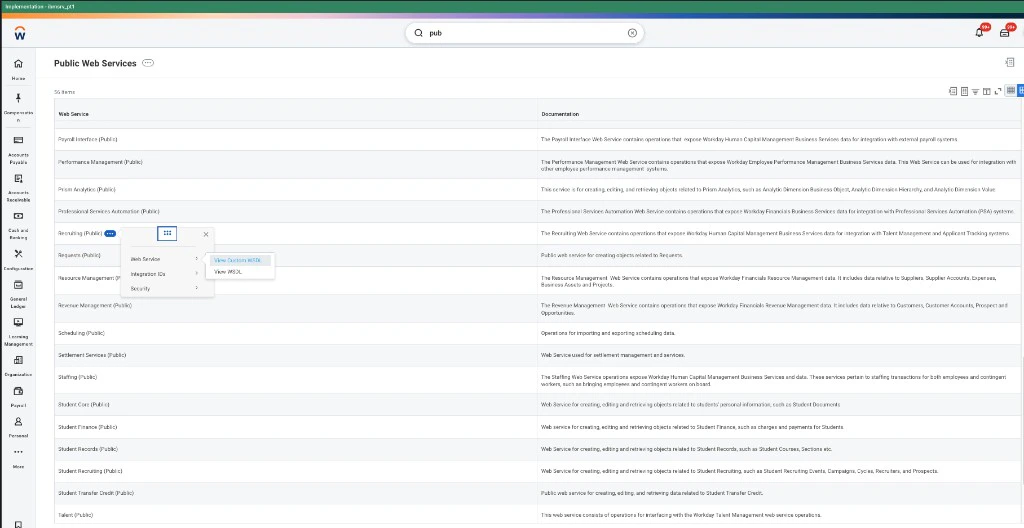
1. In the Workday search bar, open **Public Web Services**.
2. Scroll to **Recruiting (Public)**.
3. Open **Related Actions** (⋯) next to the service → **Web Service** → **View WSDL** (use **View Custom WSDL** if your tenant extensions require it). Workday opens the WSDL as XML in the browser—**download or save the page** (for example **Save As…** with a `.xml` filename) so you have a WSDL XML file on your machine.
 ## Upload the XML in Admin
Open **Import Workday Recruiting WSDL** and choose the WSDL XML file you saved from Workday under **WSDL XML file**, then click **Import WSDL**. That file is what builds the custom field catalog for job and application mapping (not workflow steps).
## Upload the XML in Admin
Open **Import Workday Recruiting WSDL** and choose the WSDL XML file you saved from Workday under **WSDL XML file**, then click **Import WSDL**. That file is what builds the custom field catalog for job and application mapping (not workflow steps).
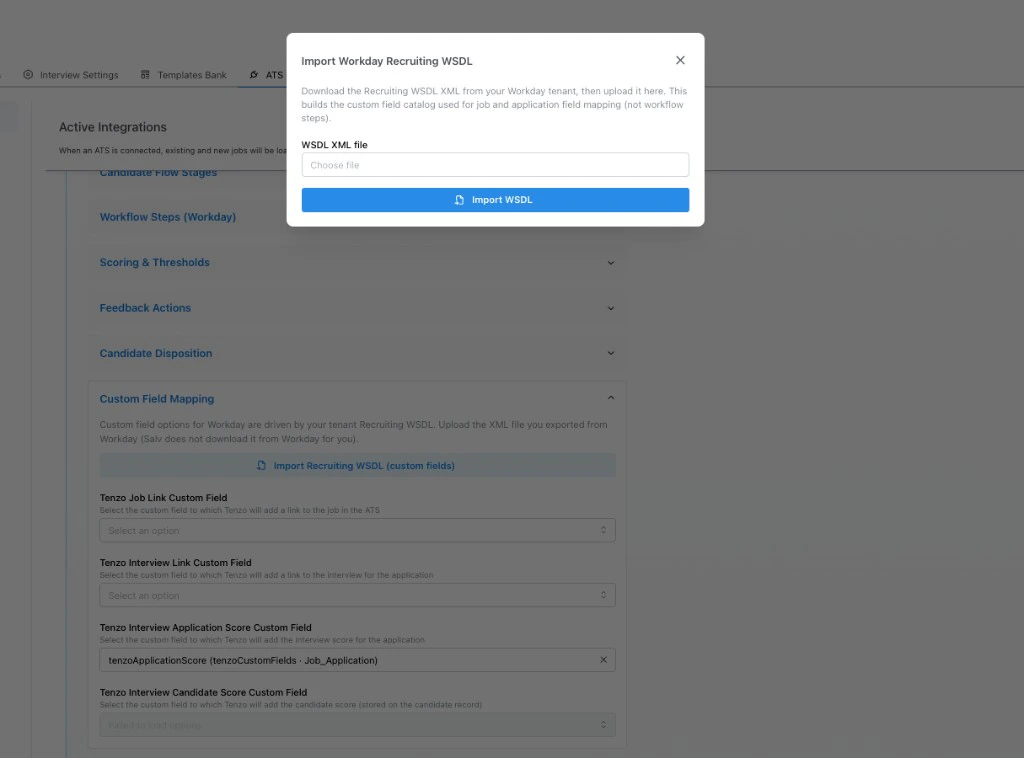 Steps:
1. **Admin** → **ATS Integrations** → your **Workday** integration
2. **Custom Field Mapping** → **Import Recruiting WSDL (custom fields)**
3. **Choose file** → select your saved XML → **Import WSDL**
The response shows how many job vs application field rows were loaded. If pickers stay empty or fields change in Workday, **re-import**. **Workflow steps** are not from this import—use the [workflow step cache](/ats-integrations/workday/workflow-step-cache). For nested application fields, set the [tenant custom XML namespace](/ats-integrations/workday/tenant-namespace).
## See also
* [Workday setup (main checklist)](/ats-integrations/workday/setup)
Steps:
1. **Admin** → **ATS Integrations** → your **Workday** integration
2. **Custom Field Mapping** → **Import Recruiting WSDL (custom fields)**
3. **Choose file** → select your saved XML → **Import WSDL**
The response shows how many job vs application field rows were loaded. If pickers stay empty or fields change in Workday, **re-import**. **Workflow steps** are not from this import—use the [workflow step cache](/ats-integrations/workday/workflow-step-cache). For nested application fields, set the [tenant custom XML namespace](/ats-integrations/workday/tenant-namespace).
## See also
* [Workday setup (main checklist)](/ats-integrations/workday/setup)